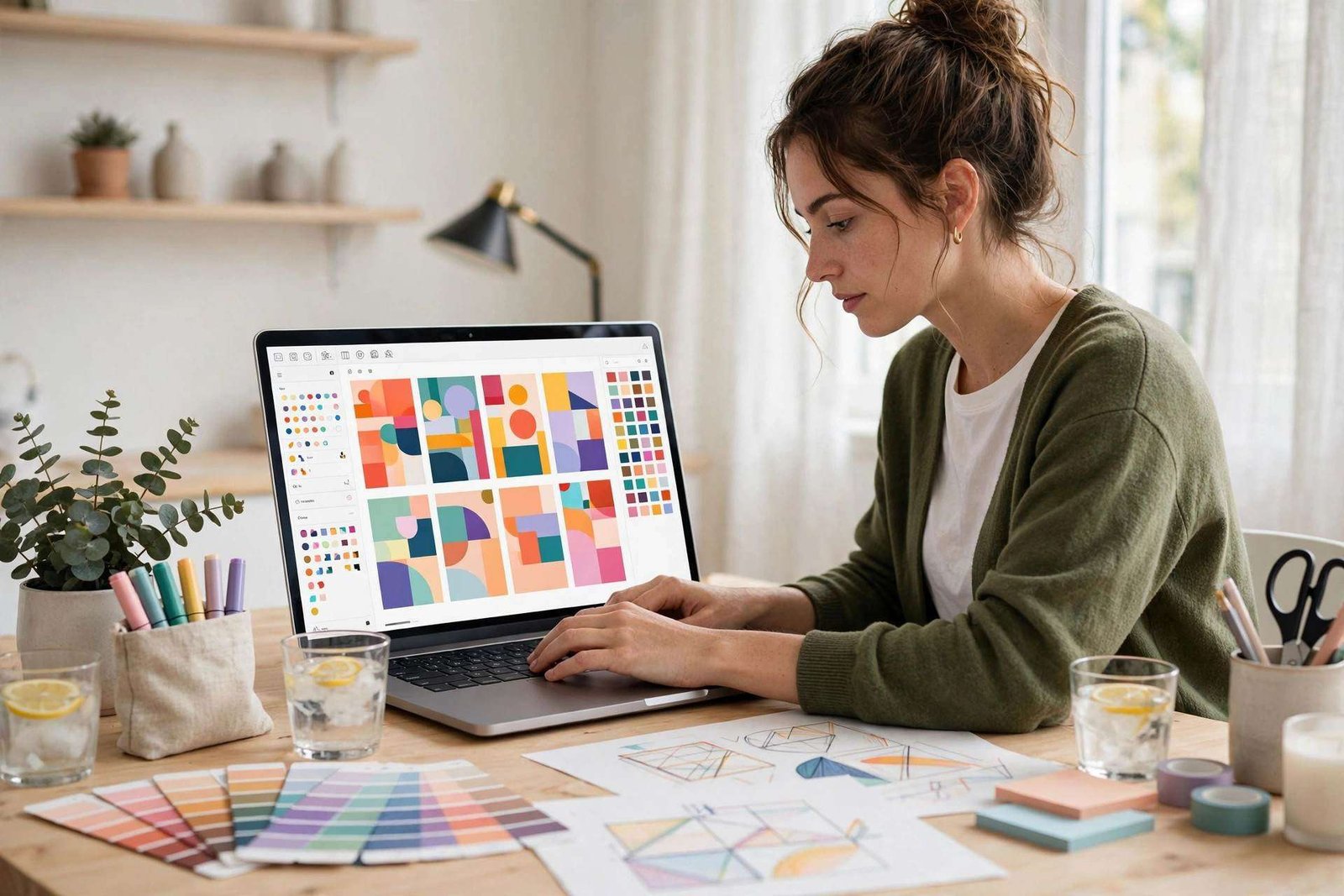
The best design tools for social media 2027 has to offer are the ones that let a small team produce on-brand graphics fast — and for most people that means Canva, with Adobe Express as its closest rival and Figma as the best choice for teams that design in systems. Social content moves quickly: a post that takes an hour to design is already late, so speed, templates and brand consistency matter more than raw creative power. This guide compares the leading tools on ease of use, template quality, collaboration and price, so you can pick the one that keeps your feed full without eating your week.
Key takeaways
- Canva is the best all-rounder for social media design, with the largest template library and the gentlest learning curve.
- Adobe Express suits creators already in the Adobe ecosystem and anyone who values polished templates.
- Figma is the right pick for teams that need shared components and strict brand control.
- VistaCreate and Snappa are strong budget options for solo creators and small businesses.
- Check current pricing — free tiers vary widely in what they actually include.
What social media design tools need to do well
Social design is a different job from print or web design. You need the right sizes for every platform — a square for Instagram, a vertical for Stories and Reels, a wide banner for LinkedIn — and you need them without resizing everything by hand. A good tool offers one-click resizing or a template for every format, so a single idea becomes a full set of assets in minutes.
Templates are the starting point, not the finish. The best tools ship thousands of them, but they also let you save your own brand kit: colours, fonts, logos and layouts you reuse every day. Without that, every post becomes a fresh design decision and your feed starts to look scattered.
Speed matters more than depth. Most social posts are simple: a headline, an image, a call to action. Tools that bury you in layers and menus slow you down. Collaboration matters too, especially for teams where one person writes copy, another designs and a third approves. Commenting, shared folders and approval flows save more time than any single feature.
1. Canva
Best for: All-round social media design for teams of any size.
Canva is the default social design tool for a reason. Its template library covers every platform and format, its drag-and-drop editor is genuinely easy, and its brand kit features let you lock in colours, fonts and logos so every post looks like it came from the same business. The free tier is generous enough for casual users, while the paid plan adds background removal, a larger asset library and one-click resizing between formats.
Canva’s Magic Resize and content planner are the features that save the most time: design once, adapt for every platform, schedule from the same dashboard. The stock photo and video library is extensive, and the mobile app is good enough to design on the go. Collaboration is straightforward, with shared folders, comments and team roles.
The trade-off is sameness. Because so many people use the same templates, Canva designs can look generic unless you customise them. Power users will also hit limits in typography control and precise layout. But for social media, where volume and consistency beat pixel-perfect control, Canva is the tool to beat. Check current pricing for the paid plan, as tiers and limits change.
2. Adobe Express
Best for: Creators who want polished templates with Adobe’s asset library.
Adobe Express is Adobe’s answer to Canva, and it is stronger than many people expect. Its templates are consistently stylish, its integration with Adobe Stock gives it a deep library of photos and graphics, and its quick-action tools — background removal, image resizing, video trimming — handle the fiddly jobs fast. If you already use Adobe products, Express slots into that workflow neatly.
The free tier is usable, and the paid plan unlocks the full template and asset libraries plus brand kit features. Express also includes simple video and animation tools, which helps when a static post is not enough. The interface is clean and approachable, though it can feel less flexible than Canva when you want to break away from a template.
Express’s weakness is its smaller community and fewer third-party integrations compared with Canva. It is also less of a team collaboration platform. For solo creators and small businesses that value design polish, though, it is a strong alternative — and worth trying alongside Canva before you choose.
3. Figma
Best for: Teams that design social content as part of a larger brand system.
Figma is a professional design tool first and a social media tool second, but for teams that already use it, that is a strength. You can build a component library of post layouts, buttons and brand elements, then assemble new posts from those parts in minutes. Changes to a component update everywhere, which keeps a feed consistent across dozens of posts and several designers.
Real-time collaboration is Figma’s standout feature: multiple people can work in the same file, leave comments and review designs without exporting anything. The free tier covers small teams, and the plugin ecosystem adds automation, image handling and asset export. Exporting finished posts as PNG or JPG is straightforward.
The catch is the learning curve. Figma is built for designers, and non-designers will find it slower than Canva for a quick post. It also lacks built-in scheduling or a stock photo library. Use Figma when brand consistency and team workflow matter more than speed of first draft — or pair it with a simpler tool for daily posts.
4. VistaCreate
Best for: Budget-conscious creators who want Canva-style simplicity at a lower price.
VistaCreate offers a similar promise to Canva — templates, a drag-and-drop editor, stock assets and brand tools — at a lower price point, and its free tier is genuinely useful. Its template collection is smaller than Canva’s but well curated, with strong options for Instagram, Facebook and Pinterest. The animation features are a pleasant surprise, letting you add motion to posts without a video editor.
The editor is intuitive, and the background remover and sticker library add variety. VistaCreate also includes a scheduler on paid plans, which keeps the workflow in one place. For solo creators, freelancers and small businesses watching costs, it delivers most of what Canva does for less money.
Its limitations are scale and ecosystem: fewer integrations, a smaller community and fewer advanced features. If you outgrow it, moving to Canva or Figma is straightforward. Check current pricing, as VistaCreate’s plans and free-tier limits change from time to time.
5. Snappa
Best for: Fast, no-fuss graphics for blogs, ads and social posts.
Snappa is built for speed. Its editor is simpler than Canva’s, its templates are clean and practical, and it connects directly to stock photo libraries so you can find an image, add text and export in minutes. The one-click resize tool adapts a design for multiple platforms, and the free tier allows a handful of downloads a month.
Snappa suits marketers and bloggers who need a graphic for a post or an ad and do not want to learn a design tool. The interface stays out of the way, and the template quality is consistently professional. Paid plans raise download limits and unlock more templates and features.
The trade-off is depth: Snappa is not a tool for complex or highly custom designs, and its template library is smaller than the leaders’. If your social content is mostly straightforward promotional graphics, though, Snappa’s speed is hard to beat.
6. Desygner
Best for: Small businesses that need branded templates and PDF output.
Desygner is a lesser-known option that deserves attention, particularly for businesses that produce a lot of branded material. Its template library covers social posts, flyers, menus and business cards, and its brand kit and approval features suit teams where several people create content. The editor is approachable, and the mobile app is solid.
Desygner’s strength is business practicality: it handles print and digital in one place, supports PDF export well, and offers team features at a competitive price. The free tier is usable for light work, and paid plans add more assets and collaboration tools.
Its template style is more corporate than Canva’s, which may or may not suit your brand. The community and tutorial resources are also smaller. For a small business that wants one tool for social posts and printed material, Desygner is worth a trial. Check current pricing before committing.
Comparison table
| Tool | Best for | Standout feature | Free tier |
|---|---|---|---|
| Canva | All-round social design | Magic Resize, huge templates | Generous |
| Adobe Express | Polished templates, Adobe users | Adobe Stock integration | Usable |
| Figma | Team design systems | Components, live collaboration | Small teams |
| VistaCreate | Budget-friendly Canva alternative | Animated posts, low price | Useful |
| Snappa | Fast marketing graphics | One-click resize, stock photos | Limited downloads |
| Desygner | Small business branding | Print and digital in one tool | Light use |
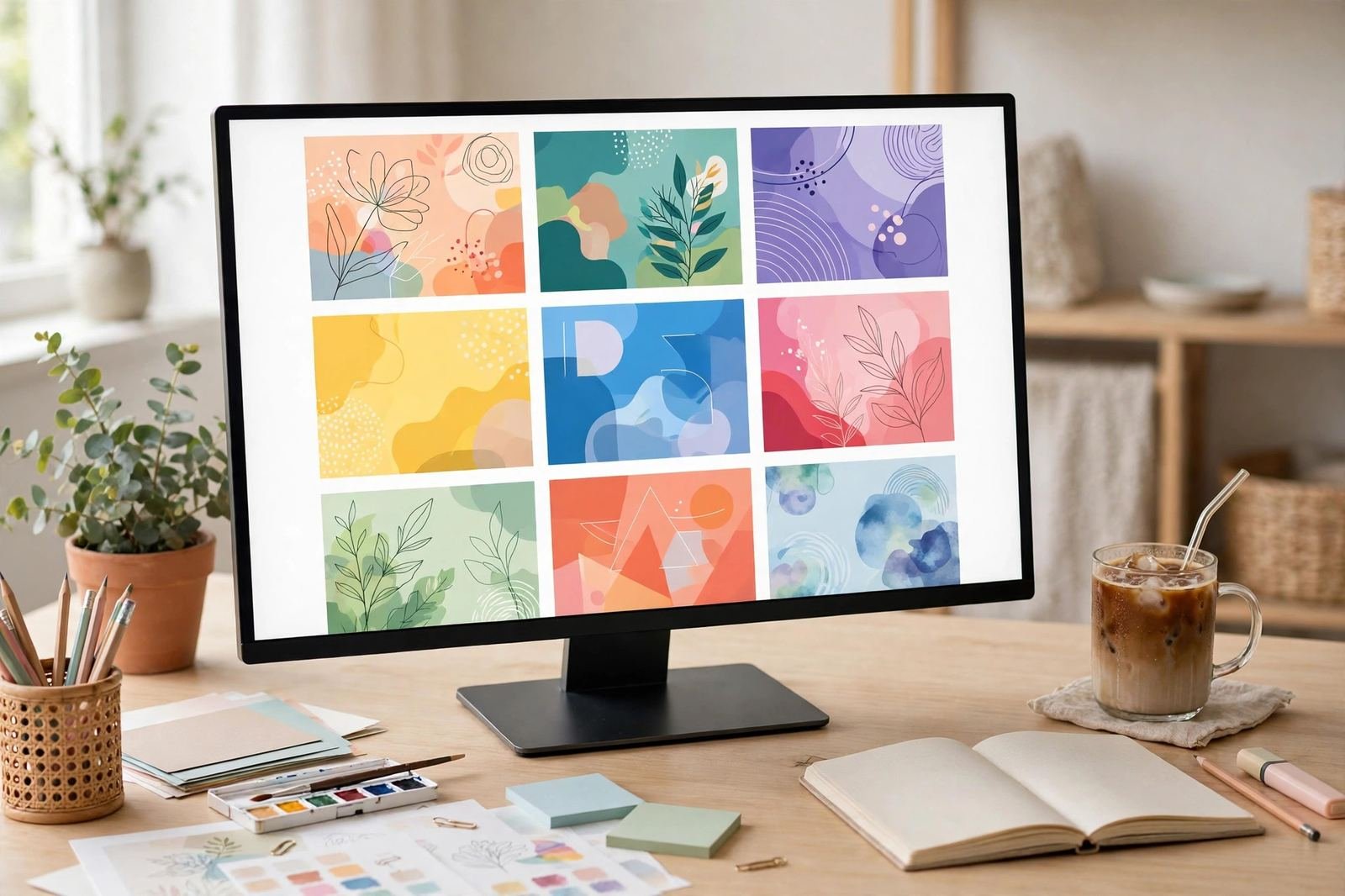
How to choose: a practical checklist
- List the platforms you post on and confirm the tool has templates for each format.
- Set up a brand kit first — colours, fonts and logo — and test how easy it is to apply.
- Time yourself making three posts: a quote graphic, a promo and a Story. The fastest tool wins.
- Check scheduling and publishing features if you want an all-in-one workflow.
- Test collaboration: can a teammate comment, edit or approve without a paid seat?
- Review the free tier honestly — count templates and downloads you actually need.
- Export a finished post and check it looks sharp on a phone, not just on desktop.
- Compare annual costs for your team size, not just the headline monthly price.

FAQs
Is Canva free enough for social media?
For casual use, yes. The free tier includes thousands of templates, stock photos and basic design tools. You will hit limits on brand kits, background removal and premium templates, which is when the paid plan becomes worth it.
Can I use Figma for social media posts?
Yes, and teams that already use Figma often prefer it. Build reusable components for your post formats, then assemble new posts quickly. It lacks scheduling and stock photos, so you may pair it with another tool.
Which tool is best for Instagram Reels covers?
Canva and Adobe Express both offer vertical templates sized for Reels and Stories, with text and image tools suited to covers. Figma works too if you want precise control over a template system.
Do these tools handle video as well as images?
Most include basic video features — trimming, text overlays and simple animation. For serious video editing, a dedicated editor such as those in our best video editing software guide is a better choice.
How do I keep my social posts on brand?
Use a brand kit with locked colours, fonts and logo placement, and build two or three reusable templates. Review your grid weekly to spot anything that drifts from the look you want.
Should I pay for a design tool or use the free tier?
Pay when the free tier costs you time: if you are recreating brand elements, hitting download limits or resizing manually, a paid plan usually pays for itself in hours saved.
The bottom line
The best design tools for social media in 2027 are the ones that make good design fast and repeatable. Canva leads on breadth and ease, Adobe Express on polish, and Figma on team systems — and any of the three can carry a serious content calendar. Start with the free tier of your top pick, build your brand kit, and create a week’s worth of posts before you pay anything. Your next step is simple: pick one tool, design three posts in it today, and see which one your team actually enjoys using.