Learning how to update iPhone software takes about five minutes, and it is one of the most useful habits for an iPhone owner. A software update brings security fixes, bug repairs and new features in a single package. The current version for most recent iPhones is iOS 26, which arrived in September 2026, with smaller point updates following it.
Updating is simple once you know where the setting lives, but a few details catch people out. You need enough free storage, a charged battery or a charger, and a stable Wi-Fi connection before the download starts. A short bit of preparation removes almost all risk of the update stalling halfway.
This guide walks through the standard on-device update, the automatic update settings, and the computer method for times when the on-device route will not work. It also covers fixes for updates that will not download or install, plus a checklist and answers to common questions.
Key takeaways
- Go to Settings, then General, then Software Update to check for and install the latest iOS version.
- Charge your iPhone to at least 50 percent or plug it in, and connect to Wi-Fi before starting a download.
- Free up at least 5 to 10 GB of storage before a major update so the download and installation have room to work.
- Turn on automatic updates if you would rather have iOS install new versions overnight while the phone charges.
- Never unplug or force-restart your iPhone while the Apple logo and progress bar are on screen during installation.
At a glance: updating your iPhone
| Detail | What to know |
|---|---|
| Where to update | Settings, then General, then Software Update |
| Current version | iOS 26, with smaller point updates released regularly |
| Time needed | About 10 to 30 minutes in total |
| Battery | At least 50 percent charge, or keep the phone plugged in |
| Connection | Wi-Fi recommended for large updates |
| Free space | At least 5 to 10 GB free |
| Automatic updates | Same screen, under Automatic Updates |
| Computer method | Finder on a Mac, or the Apple Devices app on Windows |
Step 1: Check which iOS version you have now
Before you update, check where you are starting from. Open Settings, tap General, then tap About. The iOS Version line shows the version installed, and the Model Name line tells you which iPhone you own. Older models stop receiving major updates after a number of years, though they may still get security updates for a while longer.
If your iPhone is already running the latest version, the Software Update screen will say so. If a newer version is available, it will be listed with a short description of what it changes, which tells you whether it is a small security fix or a major release with a longer installation time.
Step 2: Back up your iPhone and free up space
Updates almost never cause data loss, but a backup is cheap insurance before any major change to your phone. The simplest option is iCloud Backup: go to Settings, tap your name at the top, tap iCloud, then iCloud Backup, and tap Back Up Now. Keep the phone on Wi-Fi and plugged in while it runs.
Next, check your storage in Settings, then General, then iPhone Storage. A major iOS update needs several gigabytes to download and unpack, so aim for at least 5 to 10 GB free. If you are short, the storage screen suggests the easiest wins: offloading unused apps and deleting old videos.
For a fuller walkthrough, including how to back up to a computer instead of iCloud, read our guide on how to back up your iPhone before you start. A fresh backup means that even if an update fails, your photos, messages and settings can be restored.
Step 3: Connect to Wi-Fi and charge your phone
Software updates are large downloads, often between 1 and 6 GB for a major version, so Wi-Fi is the right connection. Open Settings, tap Wi-Fi, and connect to a network you trust. Avoid public Wi-Fi for a big download, and do not rely on mobile data unless your plan has plenty of allowance.
Battery matters just as much. Apple will not let an update install if the battery is low, and a phone that dies mid-installation can be left in a recovery state that takes much longer to fix. Charge the phone to at least 50 percent, or simply plug it in and leave it connected for the whole process.
Step 4: Download and install the update
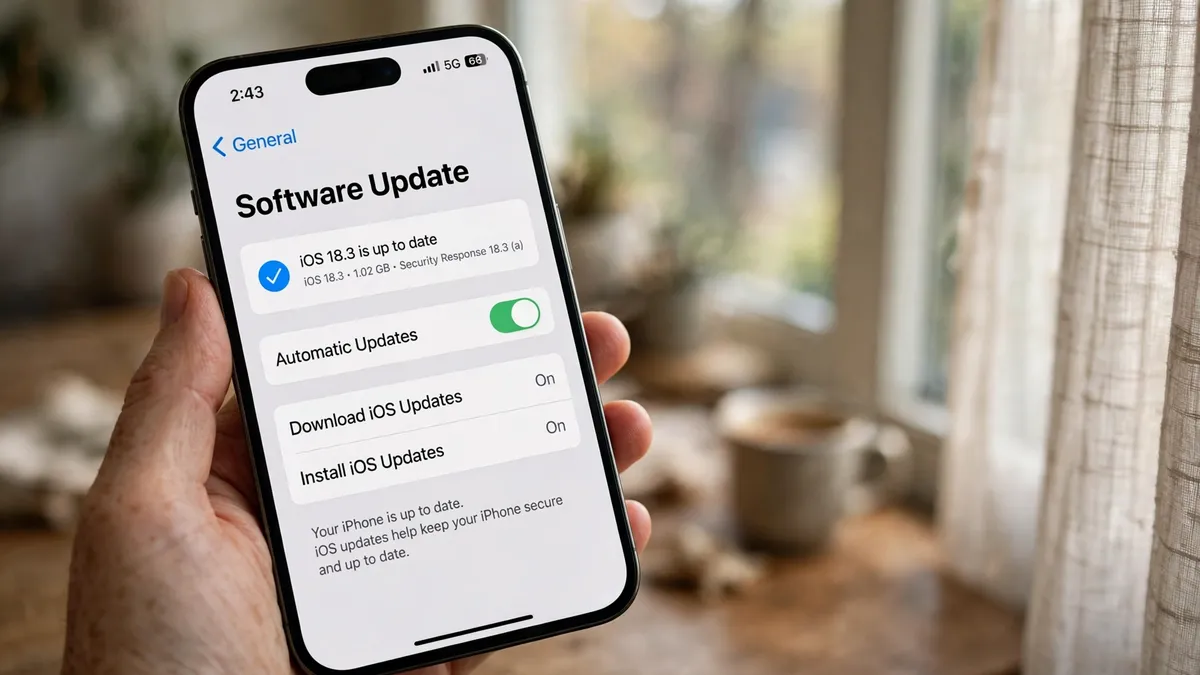
With the preparation done, the update itself is straightforward. Open Settings, tap General, then tap Software Update. Your iPhone checks with Apple and shows the newest available version, or that you are up to date. Tap Download and Install, enter your passcode when asked, and agree to the terms and conditions.
The download begins in the background, and a progress indicator shows how far along it is. How long this takes depends on the size of the update and the speed of your Wi-Fi, so a major release on a slow connection can take 20 minutes or more.
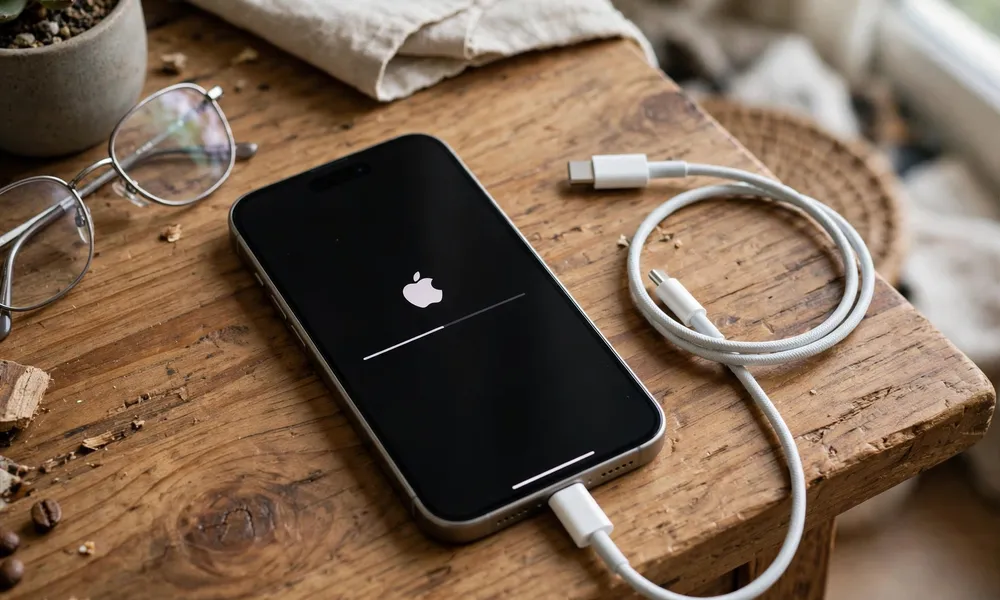
When the download finishes, tap Install Now, or choose Install Tonight to install it overnight. During installation the screen goes dark, the Apple logo appears with a progress bar, and the phone restarts once or twice. Do not press any buttons, unplug the charger, or force a restart while that progress bar is visible. When the lock screen returns, the update is complete.
Step 5: Turn on automatic updates
If you would rather not think about updates at all, automatic updates handle the routine for you. On the Software Update screen, tap Automatic Updates. You will see three switches: Download iOS Updates, Install iOS Updates, and Security Responses and System Files. Turning on the first two means new versions download and install overnight, provided the phone is charging and on Wi-Fi.
The third switch is worth leaving on even if you prefer to install major versions yourself. Security Responses are small, fast patches that fix urgent security problems without a full update, and they arrive between the larger releases.
Step 6: Update your iPhone using a computer
Sometimes the on-device method is not practical. If your phone is very short on storage, the download keeps failing, or the update screen shows an error, a computer can install the same update using the computer’s storage instead of the phone’s. On a Mac running macOS Catalina or later, connect the iPhone with a cable, open Finder, select the phone in the sidebar, and click Check for Update.
On Windows, install the Apple Devices app from the Microsoft Store, connect the iPhone, and choose Check for Update. In both cases, the computer downloads the update and installs it on the phone. Keep the cable connected until the process finishes, and do not disconnect it while the Apple logo and progress bar are showing.
The computer method is also the recovery route if an update has already gone wrong. If your iPhone is stuck on the Apple logo or in recovery mode, Finder or the Apple Devices app offers a Restore option. Restoring erases the phone and installs a fresh copy of iOS, which is why the backup in Step 2 matters.
Troubleshooting: when an iPhone update will not work
The most common problem is a download that stalls or reports that there is not enough storage. First, clear a few gigabytes in Settings, then General, then iPhone Storage: large videos, downloaded podcasts and old message attachments are the quickest savings. Restarting the phone and trying again on a different Wi-Fi network also fixes many stalled downloads.
If the update downloads but will not install, plug the phone in, wait a few minutes, and try again. If the phone shows an error, note the exact wording: a verification error usually means a poor connection interrupted the download, while an installation error can mean the downloaded file is corrupted. Delete the downloaded update in Settings, then General, then iPhone Storage, by tapping the iOS entry and choosing Delete Update, then download it fresh.
After an update, a few apps may feel slow for a day while the phone re-indexes photos and files in the background, and it settles on its own. If one app keeps crashing, check for an app update in the App Store. If the whole phone feels sluggish, our guide on how to clear cache on iPhone explains how to remove the temporary files that slow things down.
Checklist: before you update your iPhone
- Check your current iOS version and confirm the update is available for your iPhone model.
- Make a fresh backup to iCloud or to your computer before starting.
- Free up at least 5 to 10 GB of storage for a major update.
- Connect to stable Wi-Fi and charge the phone to at least 50 percent, or keep it plugged in.
- Set aside 20 to 30 minutes when you will not need the phone.
- After installing, check the version number and open your most-used apps to confirm they work.
Frequently asked questions
How long does an iPhone update take?
A small security update usually takes 10 to 15 minutes from download to restart. A major version update takes longer: the download can run 10 to 20 minutes on fast Wi-Fi, and installation adds another 10 to 15 minutes.
Can I update my iPhone without Wi-Fi?
Yes, in two ways. You can download smaller updates over mobile data if your carrier allows it, though large updates may refuse. The reliable alternative is a computer: Finder on a Mac or the Apple Devices app on Windows downloads the update over the computer’s connection instead.
Will updating my iPhone delete my photos or apps?
No. A normal update keeps all of your photos, apps, messages and settings exactly as they were. Data loss is rare and usually follows an interrupted installation, such as the battery dying mid-install, which is why a backup before a major update is worth doing.
Why does my iPhone say an update is not available?
Three reasons cover most cases. Your iPhone may already be on the latest version. Your model may be too old for the newest major release, though Apple still offers security updates for a time. Or the update may not have rolled out to your region yet, in which case checking again the next day usually shows it.
Should I install iOS updates right away?
For security updates, yes, install them as soon as you can, since they fix vulnerabilities that are already known. For major versions, installing within a few days is sensible. If you depend on a specific app for work, wait a day or two and check that the app has been updated for the new version first.
What should I do if my iPhone is stuck on the Apple logo after updating?
Leave it alone for at least 15 minutes, since a first boot after a major update can be slow. If it is still stuck, connect it to a computer and use Finder or the Apple Devices app to update it again, which repairs the installation without erasing your data. Only use Restore as a last resort.
The bottom line
Updating your iPhone is a short routine with an outsized payoff: the latest security fixes, the newest features, and fewer bugs, all in a single install. The whole process comes down to a backup, enough storage, a charger and Wi-Fi, and a few taps in Settings, then General, then Software Update. Automatic updates make it easier still by handling future releases overnight.
If you switch between Apple and Android, or you are choosing a phone for someone else, our comparison of Android vs iPhone in 2027 sets out how the two platforms differ, including how each handles updates and how long each supports older models. Whichever platform you use, keep the software current, keep a backup, and never interrupt an installation once it has started.