Learning how to update Android phone software is the simplest way to keep your phone secure, fast and working with the newest apps. Every Android update carries security patches that close holes attackers already know about, plus bug fixes and the occasional new feature. Google releases a monthly security patch, while the big Android version updates arrive once a year.
The exact steps vary a little between brands, because Samsung, Google Pixel, Xiaomi, OnePlus and others all arrange their Settings menus slightly differently. The core route is the same on all of them: open Settings, find the system update entry, check for an update, and install it. This guide covers the standard route, the Samsung and Pixel variations, the separate Google Play system update, and the automatic update settings.
A few minutes of preparation makes the difference between a smooth update and a frustrating one. You need enough free storage, a charged battery, and a stable Wi-Fi connection before the download begins. This guide explains each of those checks, walks through the installation, and finishes with fixes for the problems that stop updates most often, plus a checklist and answers to common questions.
Key takeaways
- Go to Settings, then System, then Software update or System update to check for the latest Android version.
- On Samsung phones, the same option lives under Settings, then Software update, then Download and install.
- Charge your phone to at least 50 percent or keep it plugged in, and use Wi-Fi for large update downloads.
- Free up at least 5 GB of storage before a major update so the download has room to unpack and install.
- Check Google Play system updates separately, since they patch core parts of Android between full updates.
At a glance: updating your Android phone
| Detail | What to know |
|---|---|
| Where to update | Settings, then System, then Software update or System update |
| Samsung route | Settings, then Software update, then Download and install |
| Pixel route | Settings, then System, then Software update |
| Time needed | About 10 to 30 minutes for download and installation combined |
| Battery | At least 50 percent charge, or keep the phone plugged in |
| Connection | Wi-Fi is recommended for large downloads |
| Free space | At least 5 GB free before a major version update |
| Play system update | Settings, then Security and privacy, then System and updates |
Step 1: Check which Android version you have now
Before updating, find out what your phone is already running. Open Settings, scroll to About phone, and look for the Android version and the security patch level. The Android version tells you which major release you have, such as Android 15 or Android 16, while the patch level shows the date of the most recent security fix.
Knowing your version also helps you judge whether an update is worth installing immediately. A monthly security patch is small and quick, and there is little reason to delay it. A major version update is larger and changes more, so check that your most-used apps are compatible first, particularly if you rely on the phone for work.
Step 2: Back up your phone and free up space
Android updates very rarely cause data loss, but a backup before a major update is still sensible. The easiest route is Google Backup: go to Settings, then System, then Backup, and confirm that Backup by Google One is switched on. Tap Back up now and wait for it to finish while the phone is on Wi-Fi.
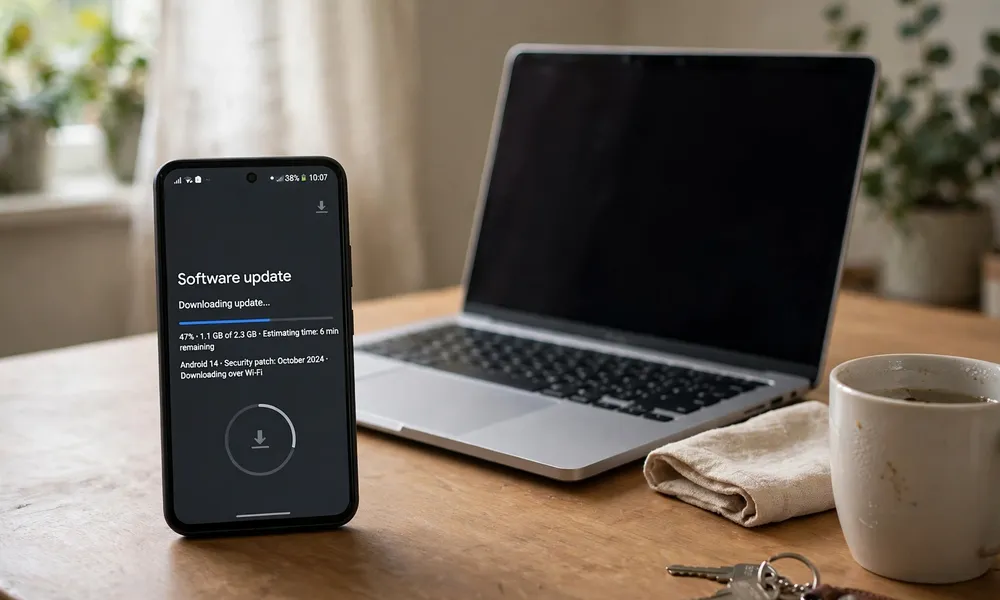
Next, check your storage in Settings, then Storage. A major Android update needs several gigabytes to download and unpack, so aim for at least 5 GB free, and more is better. The usual culprits are downloaded videos, large games, and old photos that are already backed up.
If storage is tight, remove downloaded videos you have already watched, clear the downloads folder, and uninstall apps you have not opened in months. If your phone still feels full after that, our guide on how to free up space on Android walks through the bigger savings, including cached data and duplicate files.
Step 3: Connect to Wi-Fi and charge your phone
Major Android updates are large downloads, often 1 to 3 GB, and some reach 5 GB on phones with heavy manufacturer software. Wi-Fi is the right connection for that size. Open Settings, tap Wi-Fi, and connect to a network you trust. Mobile data can work for small security patches, but a large download over mobile data is slow and expensive.
Battery matters just as much. Most Android phones will not start an installation below 20 percent battery, and many ask for 50 percent or a charger. Plug the phone in and leave it connected for the whole update. A phone that runs out of power during installation can be left unable to start normally.
Step 4: Download and install the system update
On most Android phones, open Settings, tap System, then tap Software update or System update. Tap Check for update, and the phone contacts your manufacturer to see whether a newer version is available. If one is listed, tap Download and install and wait for the download to finish.
On a Samsung Galaxy phone, the route is slightly different: open Settings, scroll to Software update, and tap Download and install. Samsung phones also offer a Schedule install option, which installs the update overnight while the phone charges. On a Google Pixel, the route is Settings, then System, then Software update, and Pixel phones download and install updates in the background, applying them on the next restart.
When the download finishes, tap Install now, or let the scheduled install run overnight. The phone restarts, shows a progress screen, and may restart a second time. Do not unplug the charger or force a restart while the progress screen is visible. When the lock screen returns, the update is complete, and you can confirm the new version in Settings.
Step 5: Install the Google Play system update
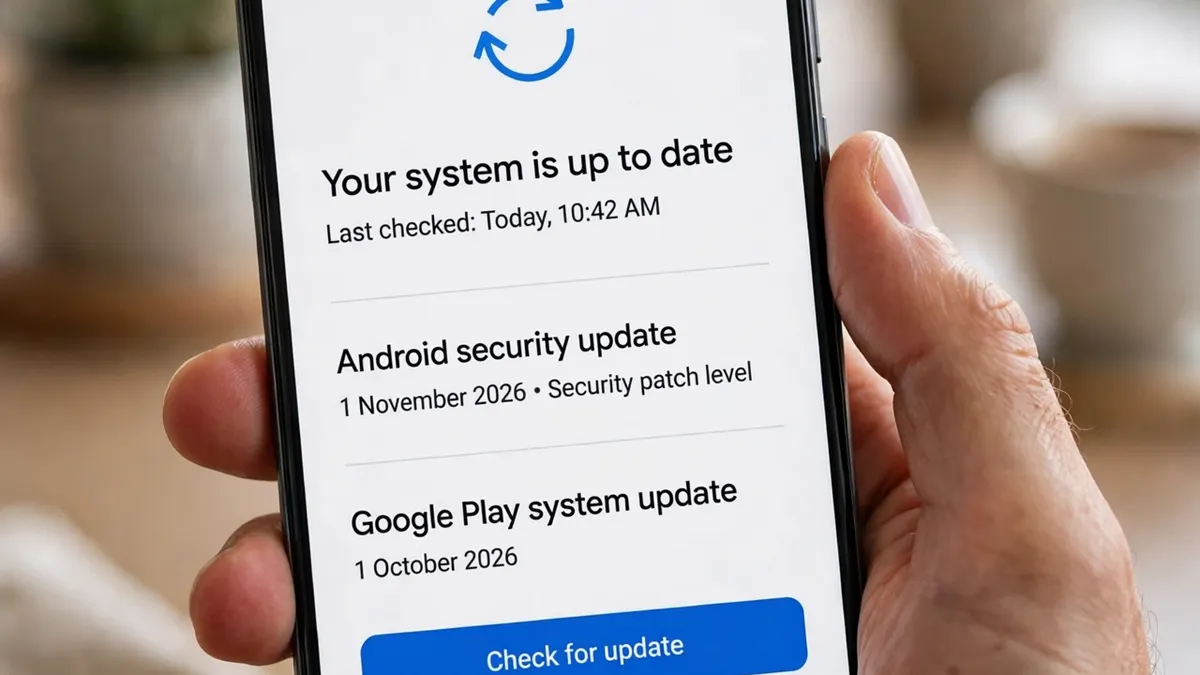
The system update is not the only update that matters on Android. Google Play system updates patch core parts of Android, such as media, security and account services, between full system updates. They arrive through Google Play services rather than your phone maker, so they can reach your phone even when a full update is months away.
To check for one, open Settings, tap Security and privacy, then tap System and updates, then Google Play system update. If an update is available, tap to download and install it, then restart when prompted. The process is quick, usually under five minutes.
Step 6: Turn on automatic updates
Most Android phones can handle updates on their own once you switch the right settings on. On Samsung phones, open Settings, then Software update, and turn on Auto download over Wi-Fi. That makes the phone download updates in the background whenever Wi-Fi is available.
On Pixel phones, updates download automatically in the background by default, and the phone applies them when you restart. Other brands vary: some install automatically overnight if the phone is charging, while others only download and wait for your tap. Check your manufacturer’s update screen for the auto options, and switch on every automatic download setting you find.
Troubleshooting: when an Android update will not work
The most common failure is a download that stops or reports insufficient storage. First, free up space: aim for at least 5 GB, and restart the phone before trying again. A restart clears temporary files and resets the update service, and it fixes many stalled downloads on its own. Trying again on a different Wi-Fi network also helps.
If the phone says no update is available but you know one exists, the rollout may not have reached your device yet. Manufacturers release updates in waves over days or weeks, so checking again in a few days often shows it. You can also check for the Google Play system update separately, as described in Step 5, since that patch may already be available even while the full update is still rolling out.
If an update installs but the phone feels slow afterwards, give it a day: the phone re-indexes files and re-optimises apps after a major update. If slowness persists, clear the cache of your heaviest apps in Settings, then Apps, and check for app updates in the Play Store. For a fuller clean-up, our guide on how to speed up your Android phone covers the steps that make the biggest difference after an update.
Checklist: before you update your Android phone
- Check your current Android version and security patch date in About phone.
- Make sure Google Backup is on and run a manual backup before a major update.
- Free up at least 5 GB of storage, and more for a major version update.
- Connect to stable Wi-Fi and charge the phone to at least 50 percent, or keep it plugged in.
- Check the Google Play system update as well as the main system update.
- After installing, confirm the new version and patch date, and open your most-used apps to check they work.
Frequently asked questions
How long does an Android update take?
A monthly security patch usually takes 10 to 15 minutes from download to restart. A major version update takes longer: the download can run 10 to 20 minutes on fast Wi-Fi, and installation adds another 10 to 15 minutes.
Can I update my Android phone without Wi-Fi?
Yes, for small updates. Most phones allow security patches over mobile data. Large version updates are usually restricted to Wi-Fi by default, and that restriction is sensible: a multi-gigabyte download over mobile data is slow and can use up a month’s allowance in one go.
Will updating my Android phone delete my photos or apps?
No. A normal update keeps your photos, apps, messages and settings exactly as they were. Data loss is rare and usually follows an interrupted installation, such as the battery dying mid-install. A backup before a major update is still worth doing.
Why does my phone say no update is available?
Three reasons cover most cases. Your phone may already be on the latest version its maker has released. The update may be rolling out in waves and may not have reached your device yet. Or your phone may have reached the end of its support period, in which case no further updates will appear.
How long will my Android phone keep getting updates?
It depends on the brand. Google Pixel phones now receive seven years of updates, and Samsung promises seven years for its recent flagship models. Mid-range and budget phones usually get three to five years. The security patch date in About phone tells you whether updates are still arriving.
What should I do if my Android phone is stuck after updating?
Leave it alone for at least 15 minutes, since the first boot after a major update can be slow. If it is still stuck, hold the power button for 10 to 20 seconds to force a restart. If the phone boots but an app keeps crashing, update that app in the Play Store. If the phone will not boot at all, use the manufacturer’s recovery tools on a computer.
The bottom line
Updating your Android phone is a short routine with an outsized payoff: the latest security patches, the newest features, and fewer bugs, all delivered in a single install. The process comes down to a backup, enough storage, a charger and Wi-Fi, and then a few taps in Settings, under System and then Software update, or under Software update on a Samsung phone. Checking the Google Play system update alongside the main one closes the gap most people miss.
If you use both platforms, or you are choosing a phone for someone else, our comparison of Android vs iPhone in 2027 sets out how the two platforms differ, including how each handles updates and how long each supports older models. Whichever platform you use, keep the software current, keep a backup, and never interrupt an installation once it has started.