Deleting apps on Android takes less than a minute once you know which method fits the situation. You can remove an app from the Home Screen, uninstall it from Settings, or delete it from the Google Play Store, and each route ends the same way: the app and its local data leave the phone. The choice matters mainly when you want to free up space quickly, remove a preinstalled app, or clear several apps in one pass.
Most phones running Android 14, 15, or 16 use the same steps, although the exact wording varies a little between Samsung, Google Pixel, and other makers. The option that catches people out is the difference between uninstalling an app and disabling it: the first removes it completely, while the second only switches off a preinstalled app you cannot delete.
This guide covers every method in order, from the fastest to the most thorough, plus disabling preinstalled apps, bulk deletion, and what to do when an app refuses to uninstall. Check the storage screen first if freeing space is the real reason you are here.
Key takeaways
- Long-press an app icon and tap Uninstall to remove it and its data in under 30 seconds.
- Settings, then Apps, then See all apps lists every installed app, including ones hidden from the Home Screen.
- The Play Store can uninstall several apps at once, which is the fastest way to clear a batch.
- Preinstalled apps you cannot uninstall can usually be disabled, which stops them running and hides them.
- Uninstalling an app does not cancel its subscription; cancel paid subscriptions separately in the Play Store.
At a glance: how to delete apps on Android
| Method | Best for | Time needed | App data |
|---|---|---|---|
| Home Screen long-press | Deleting one app fast | Under 30 seconds | Deleted |
| Settings and Apps | Hidden apps and large apps | About 1 minute | Deleted |
| Play Store | Deleting several apps at once | About 2 minutes | Deleted |
| App drawer long-press | Apps not on the Home Screen | Under 1 minute | Deleted |
| Disable | Preinstalled apps | Under 1 minute | Kept, app stopped |
| Clear storage first | Keeping the app, freeing space | About 1 minute | Cleared |
1. Delete an app from the Home Screen
The Home Screen method is the fastest way to delete an app on Android. Find the app on any Home Screen page, then press and hold its icon until a small menu appears. On Samsung phones the menu shows Uninstall, while on Pixel phones it shows App info alongside Uninstall, depending on the launcher you use.
- Press and hold the app icon until the menu appears.
- Tap Uninstall in the menu.
- Tap Uninstall again on the confirmation prompt.
Some launchers show Remove instead of Uninstall. Remove only takes the icon off the Home Screen and leaves the app installed, so if you see Remove, use App info from the same menu and tap Uninstall there instead.
Uninstalling an app also deletes the data stored inside it on the phone, such as downloaded files and offline content. Anything stored in the app’s own cloud account stays there and comes back if you reinstall the app and sign in again.
2. Delete an app from Settings
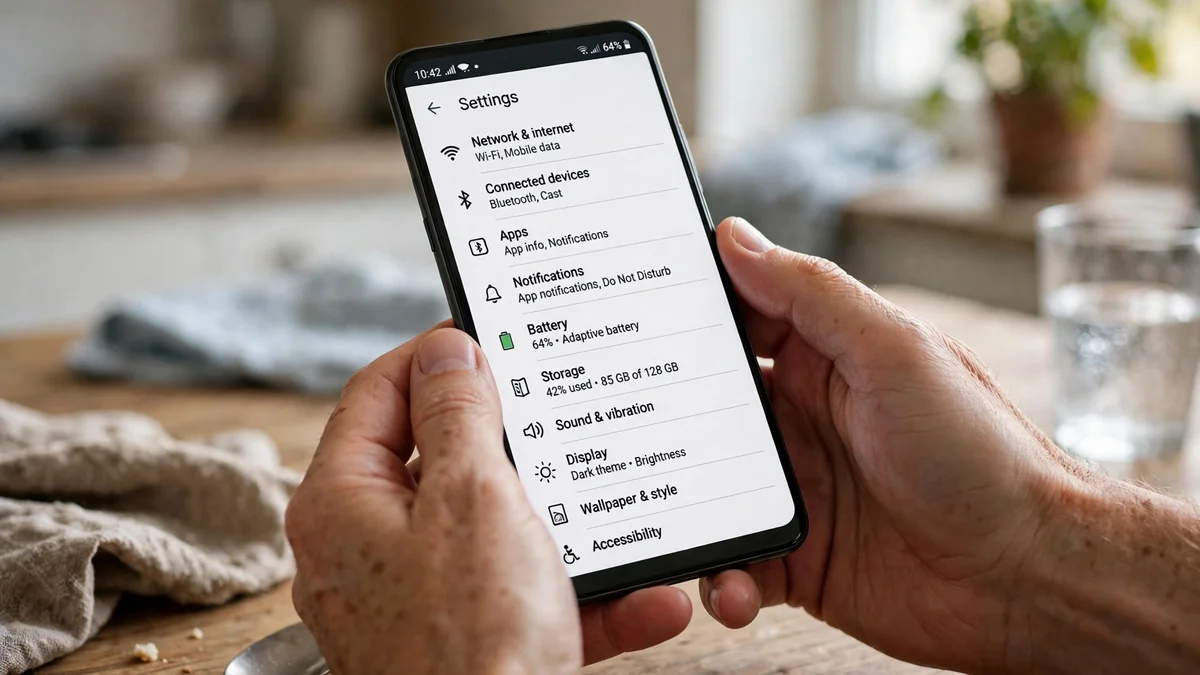
Deleting from Settings is the most reliable method, because it lists every app on the phone, including ones hidden from the Home Screen and the app drawer. It also shows how much storage each app uses, so you can work through the largest ones first when space is the goal.
- Open Settings, then tap Apps.
- Tap See all apps to open the full list.
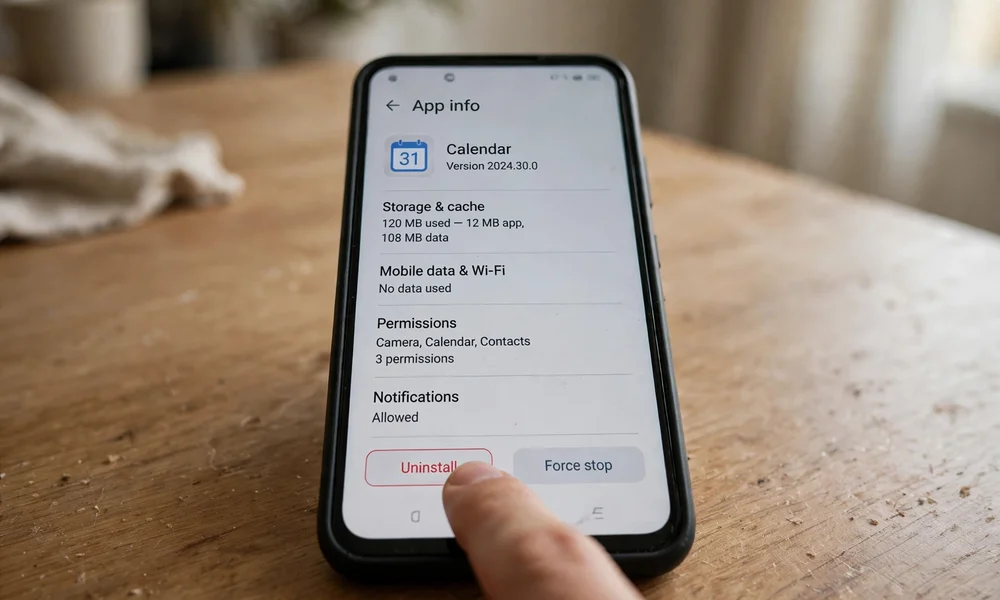
- Tap the app you want to remove.
- Tap Uninstall, then tap OK to confirm.
The Uninstall button sits near the top of the App info screen. Tap Storage and cache on the same screen first to see the split between the app and its data — a messaging app can hold gigabytes of media while the app itself is small.
3. Delete apps from the Google Play Store
The Play Store is the best place to delete several apps at once, because it lets you select more than one app and uninstall them together. It also shows only apps installed from the Play Store, which keeps the list focused on the apps you chose yourself rather than system apps.
- Open the Play Store and tap your profile picture at the top right.
- Tap Manage apps and device, then tap Manage.
- Tick the box next to each app you want to remove.
- Tap the delete icon at the top right, then tap Uninstall to confirm.
Sort the list by size, by name, or by least used — least used is the quickest way to spot apps you have forgotten about. Apps you uninstall stay in your Play Store library, so you can reinstall them later without paying again for a paid app.
Start with the apps that hold the most data rather than the biggest apps themselves: a social app of 300 MB can hold 2 GB of cached media. For a wider clean-up, see how to free up space on Android for the other steps that pair well with deleting apps.
4. Disable a preinstalled app you cannot delete
Some apps arrive with the phone and cannot be uninstalled, usually apps from the manufacturer or the mobile network. Disabling one stops it running, removes it from the app drawer, and stops it receiving updates. Its files stay on the phone, so disabling frees less space than uninstalling.
- Open Settings, then tap Apps, then See all apps.
- Tap the preinstalled app you want to switch off.
- Tap Disable, then tap Disable app to confirm.
Do not disable apps with names you do not recognise if they sound like system services, such as anything with Android System, carrier services, or the phone’s security tools in the name. Disabling a genuine system app can break other features.
You can turn a disabled app back on at any time from the same App info screen, where the Disable button becomes Enable. If an app you disabled was tied to a feature you use, such as a manufacturer’s gallery app, check that your replacement app handles the same files first.
5. Delete several apps at once
Android has a proper bulk delete option in the Play Store, which makes clearing several apps far quicker than on an iPhone. Use the Manage screen described in section 3, tick every app you no longer need, and uninstall them in one tap. The phone works through the list in the background, and you can keep using it while the uninstalls finish.
- Open the Play Store, tap your profile picture, then Manage apps and device.
- Tap Manage and sort the list by least used or by size.
- Tick every app you want to remove.
- Tap the delete icon, then tap Uninstall to confirm.
Set a target before you start, such as freeing 5 GB, and stop when you reach it. Deleting apps you might need next week only costs time and mobile data to reinstall. If yours still feels slow after a good clear-out, see how to speed up your Android phone for the next steps.
6. Clear an app’s storage instead of deleting it
Sometimes the app is not the problem — its stored data is. Clearing storage removes the app’s downloaded files, cache, and saved data, but keeps the app installed. Clearing cache is gentler: it removes temporary files only, while clearing storage resets the app as if it were freshly installed.
- Open Settings, then tap Apps, then See all apps.
- Tap the app, then tap Storage and cache.
- Tap Clear cache first and check how much space that frees.
- Tap Clear storage only if you are happy to sign in again afterwards.
Clear storage signs you out of the app and deletes its saved data, so only use it when you know your login details and your data is backed up. For messaging apps, check that chats are backed up first, because local chat history can be lost. If clearing the cache frees enough space, stop there.
Troubleshooting: when an app will not uninstall
If the Uninstall button is missing or greyed out, the cause is usually a preinstalled app, a device administrator, or a work profile. Start with the simplest check: long-press the icon, tap App info, and look at the buttons. If you see Disable instead of Uninstall, the app came with the phone and cannot be removed — disable it using section 4 instead.
Some apps gain device administrator rights, which blocks uninstalling until the permission is removed. Open Settings, then Security and privacy, then Device admin apps, and switch off the app in question before trying again. Work apps are a separate case: apps installed through a work profile are controlled by your employer’s IT team, and only IT can remove them.
An app stuck in a half-finished update can also refuse to uninstall. Connect to Wi-Fi, open the Play Store, cancel the pending update, then try again. If that fails, restart the phone and retry, then clear the Play Store’s own cache under Settings, then Apps, then Google Play Store, then Storage and cache.
Checklist: before you delete an app
- Check whether the app’s data is backed up to its own account or to Google before you uninstall it.
- Cancel any paid subscription in the Play Store first, because uninstalling the app does not cancel it.
- Confirm you tapped Uninstall, not Remove, so the app is actually gone and not just hidden.
- Look at storage in Settings first and delete the largest unused apps for the biggest gain.
- Disable instead of uninstalling when the app came with the phone and cannot be removed.
- Restart the phone after a big clear-out so the storage figure updates and the phone runs smoothly.
Frequently asked questions
Does uninstalling an app on Android cancel its subscription?
No. Uninstalling an app does not cancel a subscription bought through it. Open the Play Store, tap your profile picture, tap Payments and subscriptions, then Subscriptions, and cancel it there.
Can I get a deleted app back on Android?
Yes. Search for the app in the Play Store and install it again; paid apps stay linked to your Google account, so you will not be charged again. Data stored in the app’s account usually comes back when you sign in, but data that lived only on the phone is gone.
What is the difference between uninstalling and disabling an app?
Uninstalling removes the app and its data from the phone. Disabling switches off a preinstalled app you cannot uninstall: it stops running and hides from the app drawer, but its files stay on the phone.
Why can I not uninstall some apps on my Android phone?
Apps that came with the phone often cannot be uninstalled. Uninstalling can also be blocked by device administrator rights or a work profile; check Device admin apps in Settings first.
Does deleting apps free up storage on Android?
Yes. Uninstalling an app frees the space the app used plus any data stored inside it, so removing a few large apps can free several gigabytes at once.
Will uninstalling an app delete my account with that service?
No. Your account still exists on the service’s servers. To close the account itself, use its account deletion option before you uninstall the app.
The bottom line
For most people, the Home Screen long-press is all you need: press and hold, tap Uninstall, and confirm. Use the Play Store’s Manage screen to delete several apps at once, and use Settings to see which apps use the most storage.
The rule is the same on either platform: delete what you do not use, disable what you cannot delete, and cancel subscriptions separately. If you use your phone for video as well as apps, learning to record your screen on Android is a useful next step.