Deleting apps on an iPhone takes less than a minute once you know which method fits the situation. You can remove an app from the Home Screen, delete it from Settings, or uninstall it from the App Store, and each route ends the same way: the app and its local data leave the phone. The choice matters mainly when you want to keep the app’s data, free up space quickly, or remove several apps in one pass.
Most iPhones running iOS 17 or iOS 18 use the same steps in this guide. The option that catches people out is the difference between deleting an app and removing it from the Home Screen: the first erases the app and its data, while the second only hides the icon and leaves the app installed in the App Library.
This guide covers every method in order, from the fastest to the most thorough, plus offloading, bulk deletion, and what to do when an app refuses to delete.
Key takeaways
- Long-press an app icon, tap Remove App, then tap Delete App to remove it and its data for good.
- Removing an app from the Home Screen only hides it; the app stays installed in the App Library.
- Settings, then General, then iPhone Storage lists apps by size, so you can delete the biggest ones first.
- Offloading keeps an app’s documents and data while removing the app itself, which is useful for apps you will reinstall later.
- Deleting an app does not cancel its subscription; cancel paid subscriptions separately in Settings.
At a glance: how to delete apps on iPhone
| Method | Best for | Time needed | App data |
|---|---|---|---|
| Home Screen long-press | Deleting one app fast | Under 30 seconds | Deleted |
| App Library | Apps hidden from the Home Screen | About 1 minute | Deleted |
| Settings and iPhone Storage | Freeing the most space | About 2 minutes | Deleted |
| App Store | Checking what you installed | About 1 minute | Deleted |
| Offload App | Keeping data for later | Under 1 minute | Kept on the phone |
| Bulk delete in Storage | Clearing several large apps | About 5 minutes | Deleted |
1. Delete an app from the Home Screen
The Home Screen method is the fastest way to delete an app on an iPhone. Find the app on any Home Screen page, then press and hold its icon until a menu appears. On recent versions of iOS the menu opens after about a second; you do not need to wait for the icons to start wiggling.
- Press and hold the app icon until the menu appears.
- Tap Remove App in the menu.
- Tap Delete App on the next prompt to confirm.
- Tap Delete again if the phone asks you to confirm a second time.
Read the prompt carefully: Remove from Home Screen only hides the icon, while Delete App is the choice that actually deletes the app. If you picked the wrong option, open the App Library and delete it from there.
Deleting an app also deletes the data stored inside it on the phone, such as downloaded files and offline content. Anything stored in the app’s own cloud account stays there and comes back if you reinstall the app and sign in again.
2. Delete an app from the App Library
The App Library holds every app installed on your iPhone, including ones you removed from the Home Screen, so it is the right place to look when you cannot find an icon. Swipe left past your last Home Screen page until you reach the App Library, then use the search bar at the top and type the app’s name.
- Swipe left to the App Library and tap the search bar.
- Type the name of the app you want to remove.
- Press and hold the app icon in the search results.
- Tap Delete App, then tap Delete to confirm.
Searching by name beats opening folders, because the App Library sorts apps into categories automatically and an app can sit in an unexpected folder. It is also useful for a quick audit: search for apps you no longer recognise and delete the ones you do not use.
3. Delete apps from Settings and iPhone Storage
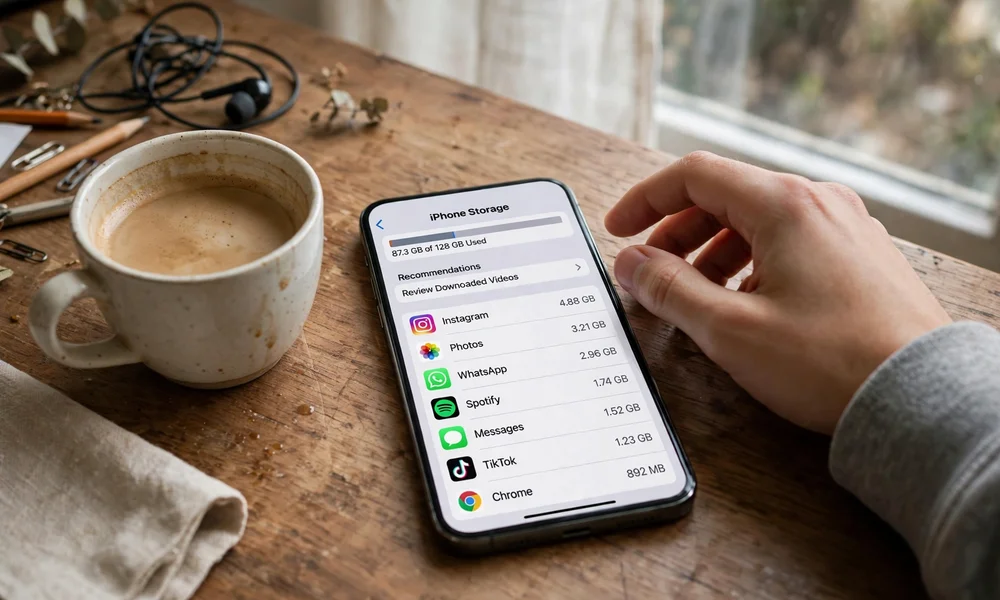
Deleting from Settings is the best method when your goal is to free up storage, because it shows exactly how much space each app uses. The list is sorted with the largest apps at the top, and it counts the app plus its documents and data — a photo editing app that is only 200 MB can hold several gigabytes of projects.
- Open Settings, then tap General.
- Tap iPhone Storage and wait for the list to load.
- Tap the app you want to remove.
- Tap Delete App, then tap Delete App again to confirm.
Give the list a few seconds to finish loading. Tap an app to see the breakdown between the app and its documents and data, and if the data is much larger than the app, clear its downloads first if you want to keep it. For a deeper clean, clear the cache on your iPhone before deciding which apps have to go.
4. Delete an app from the App Store
The App Store lists everything you have downloaded with your Apple ID, which makes it a handy place to delete apps you installed and forgot about. It is slower than the Home Screen method for a single app, but it works well when you are already reviewing your account.
- Open the App Store and tap your profile picture at the top right.
- Tap Apps, then scroll through your installed apps.
- Swipe left on the app you want to remove.
- Tap Delete, then confirm if asked.
The swipe-left gesture is the key step: tapping the app itself opens its store page instead of offering a delete option. Deleting from the App Store does not affect your purchase history, and paid apps stay tied to your Apple ID, so you can download them again later without paying twice.
5. Offload an app instead of deleting it
Offloading is the middle ground between keeping an app and deleting it: it removes the app but keeps its documents and data, so your files, settings, and progress are still there when you reinstall it. It suits a large app you use rarely, such as a game you will return to.
- Open Settings, then tap General, then iPhone Storage.
- Tap the app you want to offload.
- Tap Offload App, then tap Offload App again to confirm.
The app’s icon stays on the Home Screen with a small cloud symbol, and tapping it downloads the app again. You can also turn on automatic offloading under Settings, then App Store, then Offload Unused Apps, which lets iOS remove apps you have not opened in a while when storage runs low. Offloading is not deleting, so do not use it when you want an app gone completely. Before offloading anything important, back up your iPhone so your data is safe either way.
6. Delete several apps at once
iOS has no single select-and-delete screen, so bulk deletion means repeating the same short process for each app, ideally from the storage list where the biggest apps are already sorted for you. Start with the largest apps and work down the list.
- Open Settings, then General, then iPhone Storage.
- Tap the largest app you no longer need.
- Tap Delete App and confirm, then go back to the list.
- Repeat for the next largest unwanted app until you have freed enough space.
From the Home Screen, you can also press and hold any app icon, tap Edit Home Screen, and tap the minus sign on each unwanted app in turn. Set a target before you start, such as freeing 5 GB, and stop when you reach it — deleting apps you might need next week only costs time and mobile data to reinstall.
Troubleshooting: when an app will not delete
If Delete App is missing or greyed out, the cause is usually a restriction, a built-in app, or an unfinished download. Check Screen Time first: open Settings, tap Screen Time, then Content and Privacy Restrictions, then iTunes and Store Purchases, and make sure Deleting Apps is set to Allow.
Some built-in Apple apps cannot be deleted at all, including Settings, Phone, Safari, Messages, Photos, Camera, and the App Store itself. Others, such as Calendar, Weather, and Calculator, can be deleted and reinstalled like any third-party app.
An app stuck half-downloaded, showing a greyed-out icon or the word Waiting, needs a different fix: connect to Wi-Fi, pause and restart the download, or restart the phone and try again. If it still will not delete, sign out of the App Store and back in, then update iOS. Apps installed through a work or school profile are controlled by that organisation; remove the profile under Settings, then General, then VPN and Device Management, or ask its IT team.
Checklist: before you delete an app
- Check whether the app’s data is backed up to its own account or to iCloud before you delete it.
- Cancel any paid subscription inside the app first, because deleting the app does not cancel it.
- Confirm you tapped Delete App, not Remove from Home Screen, so the app is actually gone.
- Look at iPhone Storage first and delete the largest unused apps for the biggest gain.
- Offload instead of deleting when you want to keep the app’s data for a later reinstall.
- Restart the phone after a big clear-out so the storage figure updates and the phone runs smoothly.
Frequently asked questions
Does deleting an app on iPhone cancel its subscription?
No. Deleting an app does not cancel a subscription you bought through it. Open Settings, tap your name, tap Subscriptions, find the subscription, and cancel it there.
Can I get a deleted app back?
Yes. Search for the app in the App Store and download it again; paid apps stay linked to your Apple ID, so you will not be charged again. Data stored in the app’s account or in iCloud usually comes back when you sign in, but data that lived only on the phone is gone.
What is the difference between deleting and offloading an app?
Deleting removes the app and all of its data from the phone. Offloading removes only the app and keeps its documents and data, so reinstalling it later restores your files and settings.
Why can I not delete some apps on my iPhone?
Core apps such as Settings, Phone, Safari, and Photos cannot be deleted. Deletion can also be blocked by a Screen Time restriction, a work or school management profile, or an app that is still downloading.
Does deleting apps free up storage on an iPhone?
Yes. Deleting an app frees the space the app used plus any data stored inside it, so deleting a few large apps or games can free several gigabytes at once.
Will deleting an app delete my account with that service?
No. Your account still exists on the service’s servers. To close the account itself, use its account deletion option before you delete the app.
The bottom line
For most people, the Home Screen long-press is all you need: press and hold, tap Remove App, then tap Delete App. Use the iPhone Storage screen when space is the goal, and use offloading when you want to keep an app’s data for later.
The rule is the same on either platform: delete what you do not use, offload what you might need again, and cancel subscriptions separately. For a side-by-side look at the two platforms, see Android vs iPhone in 2027 before your next phone decision.