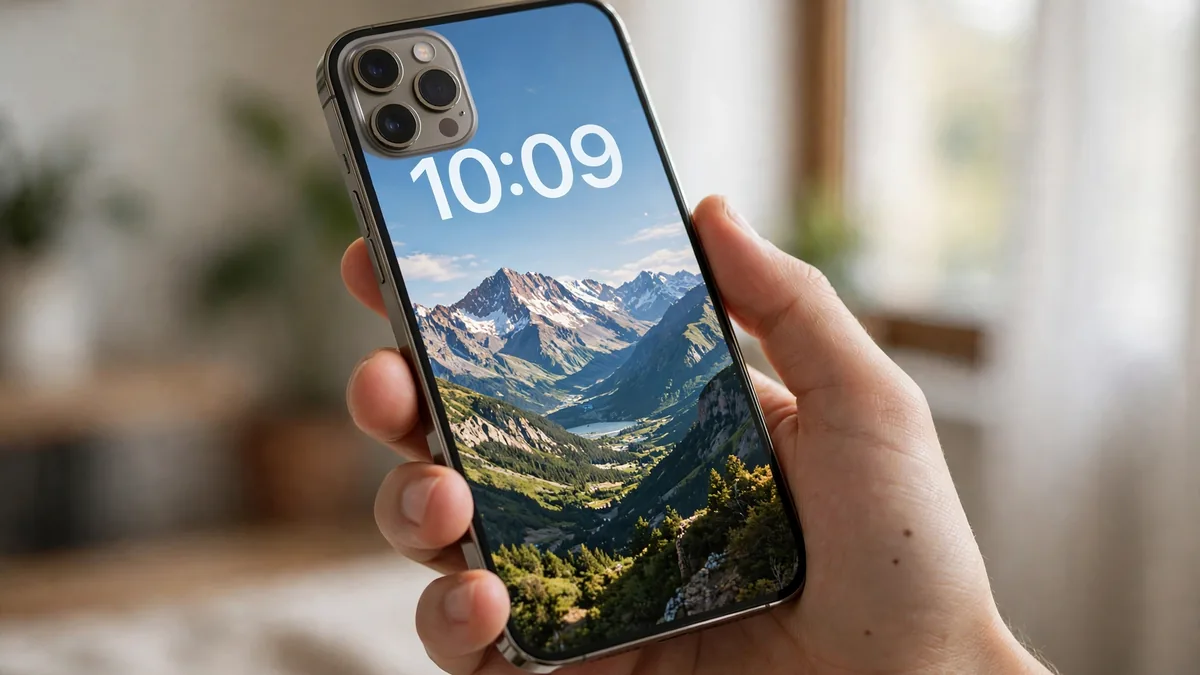
Learning how to change iPhone wallpaper takes less than a minute once you know where the controls live. On a current iPhone running iOS 26, you can swap the background from the Lock Screen itself or from Settings, and set a different image for the Lock Screen and the Home Screen. Your own photos, Apple’s built-in collections, Live Photos, and Photo Shuffle are all in the same place.
The quickest route is to press and hold the Lock Screen, tap the plus button, and pick a new image. The Settings route gives you the same choices with more room to adjust the crop, the clock style, and the Home Screen blur. Both end the same way: preview, choose where it applies, and tap Add.
This guide covers both methods step by step, plus using a photo from your library, setting separate Lock Screen and Home Screen images, and fixing common problems, such as a blurry wallpaper. Everything here works on iPhone 11 and later, including the iPhone 16 and iPhone 17 ranges.
Key takeaways
- Press and hold the Lock Screen, then tap the plus button, for the fastest way to change iPhone wallpaper.
- Settings, then Wallpaper, then Add New Wallpaper gives you the same options with more room to adjust the crop and clock.
- You can set one image for the Lock Screen and a different one for the Home Screen.
- Your own photos work best at full resolution, and Live Photos add motion to the Lock Screen.
- If a wallpaper looks blurry, the source image is usually too small, not the phone.
At a glance: your wallpaper options
| Method | Where to start | Best for | Time needed |
|---|---|---|---|
| Lock Screen press and hold | Lock Screen | Quick changes | Under a minute |
| Settings app | Settings, then Wallpaper | Precise edits and clock style | About two minutes |
| Photos app | Any photo, then Share | Using one specific photo | Under a minute |
| Photo Shuffle | Add New Wallpaper, then Photo Shuffle | A rotating set of photos | About two minutes |
| Live Photo | Add New Wallpaper, then Photos | Motion on the Lock Screen | About a minute |
| Separate Home Screen image | Customise Home Screen | A calmer background behind apps | About a minute |
Method 1: Change it from the Lock Screen
The Lock Screen route is the fastest way to change iPhone wallpaper. Wake your iPhone so the Lock Screen is showing, then press and hold anywhere on it until the wallpaper gallery appears. If your phone asks for Face ID or your passcode, unlock it first and try again.
Tap the blue plus button at the bottom right. You will see Photos, People, Photo Shuffle, Live Photo, and Apple’s collections. Tap Photos to pick an image from your library, or browse a collection.
Once you pick an image, drag to position it and pinch to zoom. Tap the clock to change its font and colour if the option appears. When you are happy, tap Add, then choose Set as Wallpaper Pair for the same image on the Home Screen, or Customise Home Screen for a different background.
Your new wallpaper is live as soon as you tap Done. To switch between wallpapers you have already made, press and hold the Lock Screen again and swipe through the gallery.
Method 2: Change it in Settings
The Settings route suits you if you want to adjust the details carefully. Open Settings and tap Wallpaper. You will see previews of your current Lock Screen and Home Screen, with an Add New Wallpaper button below them.
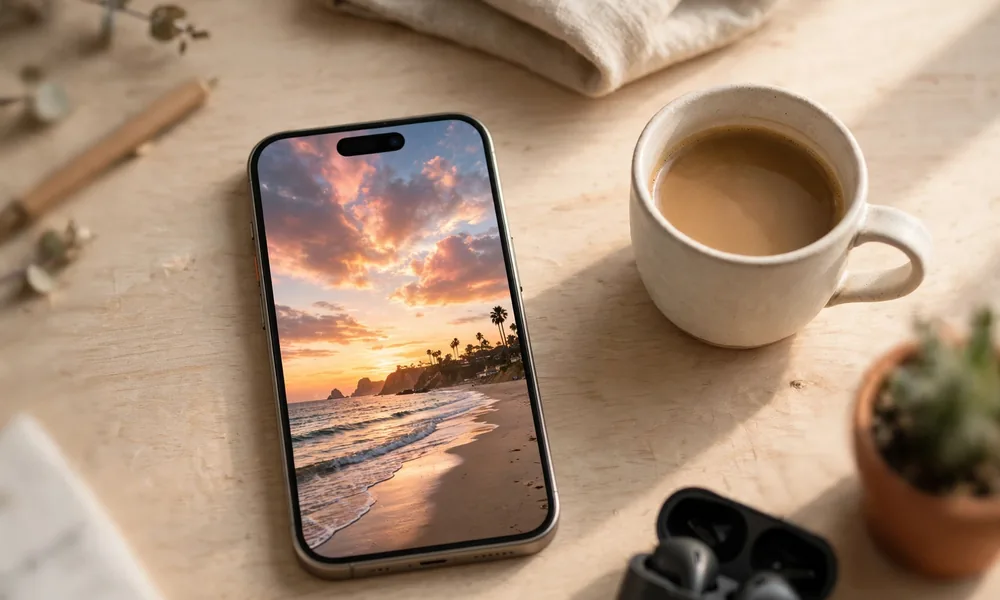
Tap Add New Wallpaper and choose your image from Photos, People, or one of Apple’s collections. Drag and pinch to frame the shot, and tap the clock to restyle it. Some photos offer a Depth Effect toggle, which lets the clock sit partly behind the subject for a layered look.
Tap Add when the preview looks right, then choose a wallpaper pair or customise the Home Screen separately. The pair keeps both screens matched; Customise Home Screen lets you pick a colour, a gradient, or a blurred version of the same photo for a calmer apps view.
The Settings screen also shows your existing wallpapers. Tap one to edit it, or swipe up on it and tap the bin icon to delete it.
Method 3: Use any photo from the Photos app
If you already have the perfect shot in your library, you do not need to open Settings at all. Open the Photos app, tap the picture to open it full screen, then tap the Share button at the bottom left and choose Use as Wallpaper.
The editor opens with your photo loaded. Drag to reposition it and pinch to set the crop, keeping in mind that the clock and widgets cover the top of the Lock Screen, so the most important part of the photo should sit in the middle or lower half. Tap Add, then choose a pair or customise the Home Screen.
For the sharpest result, use a photo taken on the phone or saved at full size. A small image from a chat thread will stretch and can look soft, so check the preview before you tap Add.
Set different wallpapers for Lock Screen and Home Screen
Your Lock Screen and Home Screen do not have to match. The Lock Screen is the photo you see when you wake the phone, while the Home Screen sits behind your apps, where a busy photo can make icons hard to read. Many people use a favourite photo on the Lock Screen and a plain colour or blurred version behind the apps.
To set them separately, start a new wallpaper from the Lock Screen or Settings, then tap Customise Home Screen instead of Set as Wallpaper Pair. You can pick a colour, a gradient, or one of your photos, and switch on the blur toggle to soften a photo behind the icons.
You can also change the Home Screen alone later. Go to Settings, then Wallpaper, tap the Home Screen preview on the right, pick a new image or colour, and tap Done. The Lock Screen stays as it was.
If you use Focus modes, each Focus can have its own wallpaper pair. Open Settings, then Focus, choose a Focus such as Do Not Disturb or Work, and set its screens. Your wallpaper then changes automatically when the Focus turns on.
Use a Live Photo, Photo Shuffle, or Depth Effect
A Live Photo adds gentle motion to the Lock Screen. When you pick a wallpaper from Photos, look for images marked Live. After choosing one, tap the Live Photo button at the bottom left of the editor to switch motion on, then press and hold the Lock Screen to see it play. Live Photos only animate on the Lock Screen.
Photo Shuffle rotates through a set of your photos automatically. From Add New Wallpaper, tap Photo Shuffle, then choose the people, pets, or categories to include, or pick a specific album. You can set it to change on tap, on lock, hourly, or daily.
Depth Effect works with photos that have a clear subject, such as a person or a pet against a plain background. Switching it on lets the subject rise in front of the clock. If the toggle is greyed out, the photo lacks enough separation between subject and background, so try a different shot.
You can add widgets from the same editor by tapping Add Widgets below the clock. Keep the count low, since a crowded Lock Screen hides the wallpaper you just chose.
Troubleshooting: when the wallpaper will not change
If the Lock Screen does not respond to a long press, check that you are pressing on the Lock Screen itself, not the Home Screen, and that the phone is unlocked. A very short tap just wakes the screen. Restarting the phone fixes the gesture in most cases.
A blurry wallpaper almost always means the source image is too small. A photo below roughly 1000 pixels wide will soften when stretched across the display, so pick the original full-size photo from your library rather than a copy sent through a chat app, which is often compressed. If the photo is fine but still looks soft, check whether the Home Screen blur toggle is on.
If the wallpaper changes on the Lock Screen but not the Home Screen, you probably tapped Customise Home Screen during setup and picked a different image. Open Settings, then Wallpaper, tap the Home Screen preview, and set it again.
When a wallpaper disappears after an update, the image is usually in a cloud album that has not finished syncing. Open the Photos app, wait for the library to finish syncing, then set the wallpaper again. The same fix applies if a Photo Shuffle set shows a grey frame instead of a photo.
If you are choosing between phones as well as wallpapers, the Android vs iPhone in 2027 comparison sets out the practical differences that matter most to everyday buyers. If your phone is acting strangely after a change, the guide to adware and how to remove it covers the checks that apply to an iPhone.
Checklist: before you change your wallpaper
- Pick a photo at full resolution, saved in your library, not a compressed copy from a chat.
- Check that the main subject sits in the middle or lower half, clear of the clock and widgets.
- Decide whether the Lock Screen and Home Screen should match or use different images.
- Preview the wallpaper with your usual widgets in place before tapping Add.
- Turn on Depth Effect only when the photo has a clear subject against a plain background.
- Keep your favourite wallpapers in a dedicated album so you can find them again.
Frequently asked questions
How do I change my iPhone wallpaper for free?
Changing your iPhone wallpaper is free. Use your own photos, or pick from Apple’s built-in collections in the wallpaper gallery. No purchase is needed, and you can change it as often as you like.
Can I set a different wallpaper for the Lock Screen and Home Screen?
Yes. When you add a new wallpaper, tap Customise Home Screen instead of Set as Wallpaper Pair, then choose a different photo, colour, or gradient for the Home Screen.
Why does my iPhone wallpaper look blurry?
The source image is usually too small or compressed. Use the original full-size photo from your library, and check that the Home Screen blur toggle is off if the Home Screen looks soft.
How do I use a Live Photo as my wallpaper?
Pick a Live Photo from the wallpaper gallery, then tap the Live Photo button in the editor to switch motion on. Press and hold the Lock Screen to see it animate.
Can I delete a wallpaper I no longer want?
Yes. Press and hold the Lock Screen to open the gallery, swipe to the wallpaper, swipe up on it, and tap the bin icon. Your current wallpaper cannot be deleted while it is active.
Does changing the wallpaper affect battery life?
A still photo has no noticeable effect on battery life. Live Photos use a small amount of extra power only while they animate, and Photo Shuffle costs nothing meaningful. The Android vs iPhone security comparison explains where each system is stronger.
The bottom line
Changing your iPhone wallpaper is a thirty-second job once you know the two routes: press and hold the Lock Screen for speed, or open Settings, then Wallpaper, to adjust the details. Your own full-size photos give the best results, and a different Home Screen image keeps your apps easy to read.
Start with the Lock Screen method, preview the crop with your clock and widgets in place, and save your favourites in one album. If a wallpaper looks wrong, the fix is almost always a bigger source image or the blur toggle.