Learning how to free up storage on iPhone is the fastest way to fix a phone that refuses to take photos, stalls during updates, or warns you that storage is almost full. Most iPhones fill up gradually, a few thousand photos here and a messaging app full of video there. The good news is that you can usually recover 10 to 30 GB in under half an hour without deleting anything you actually care about.
The trick is to work in order of impact. Photos and videos are almost always the biggest category, followed by app data, downloaded media, and the System Data that grows quietly in the background. iOS already has built-in tools that do most of the heavy lifting, including offloading unused apps, optimising photo storage, and recommending deletions.
This guide walks through the process step by step, from checking what is actually using your space to setting up habits that keep it free. Every step uses settings already on your iPhone and works on recent versions of iOS. Follow the steps in order and check your free space after each one, so you can see exactly what worked.
Key takeaways
- Photos and videos are usually the biggest storage hog, and iCloud Photos optimisation can free several gigabytes without deleting a single picture.
- Offloading unused apps removes the app but keeps its documents and data, so reinstalling later restores everything.
- Clearing caches and deleting old message attachments often recovers 2 to 5 GB in minutes.
- System Data shrinks after a restart and a software update, so do those before deciding you need a bigger phone.
- Keep at least 5 GB free so updates install and the camera keeps working.
At a glance: where iPhone storage usually goes
| Category | Typical size | Fastest fix |
|---|---|---|
| Photos and videos | 10 to 60 GB | Optimise iPhone Storage in iCloud Photos |
| Apps | 5 to 20 GB | Offload unused apps, delete games you finished |
| Messages attachments | 1 to 8 GB | Delete old conversations and large attachments |
| Downloaded media | 1 to 10 GB | Remove offline music, podcasts, and shows |
| Safari and app caches | 1 to 4 GB | Clear website data and offload heavy apps |
| System Data | 5 to 15 GB | Restart, update iOS, then check again |
Step 1: Check what is actually using your storage
Open Settings, tap General, then tap iPhone Storage. At the top you will see a colour bar showing how much space is used and how much is free, followed by a list of apps sorted from largest to smallest. This list is your map for the whole cleanup, so take a proper look before you delete anything.
Tap any app in the list to see a split between the app itself and its documents and data. A streaming app might be only 200 MB to download but hold 4 GB of downloaded shows, and a messaging app might hold 3 GB of photos and videos other people sent you. Note the three or four biggest items, because those are where your time pays off.
Step 2: Turn on Optimise iPhone Storage for photos
Photos are the single biggest category on most iPhones, and the fix does not require deleting your memories. Go to Settings, tap your name at the top, tap iCloud, then tap Photos, and make sure iCloud Photos is on. Then select Optimise iPhone Storage instead of Download and Keep Originals. With this setting, your iPhone keeps small, device-sized versions of photos locally and stores the full-resolution originals in iCloud, downloading them only when you open, edit, or share them.
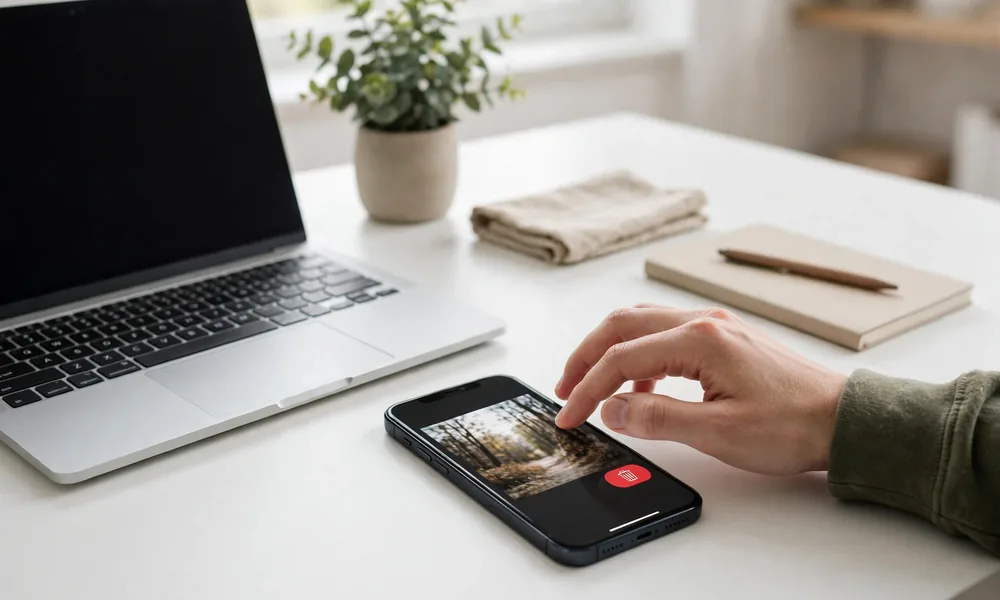
How much space this recovers depends on the size of your library. A phone holding 20 GB of photos might drop to 4 or 5 GB locally, freeing 15 GB in one move. The change is gradual, so leave the phone charging on Wi-Fi overnight and check again in the morning. You need enough iCloud storage for this to work, and the free 5 GB plan is rarely enough. Check the sync status at the bottom of your Photos library before deleting originals. For a wider look at how the iPhone compares with its main rival, see our iPhone vs Samsung Galaxy comparison for 2027.
Step 3: Delete duplicate photos, screenshots, and old videos
Open the Photos app, tap Albums, and scroll to Utilities, where iOS keeps a Duplicates album. Open it and tap Merge to combine each set of identical photos into one copy, keeping the highest-quality version and deleting the rest. On a phone used for years, this can recover a gigabyte or more. Also check the Screenshots album: screenshots pile up fast, and most are useless a week after you took them, so delete them in bulk.
Videos deserve special attention because a single minute of 4K video can use around 350 MB. Scroll through your Videos album and delete clips you will never watch again, such as accidental recordings, repeated takes, and long screen recordings. Remember that deleted photos sit in the Recently Deleted album for 30 days and still use space, so open that album and tap Delete All to recover the space immediately.
Step 4: Offload unused apps and delete the ones you do not need
Back in Settings, go to General, then iPhone Storage, and turn on Offload Unused Apps if it is not already on. With this setting, iOS automatically removes apps you have not opened in a while but keeps their documents and data on the phone. The app icon stays on your home screen with a small cloud symbol, and tapping it reinstalls the app with everything intact.
For apps you genuinely no longer use, delete them outright. Games are the worst offenders: a single modern game can take 2 to 5 GB, and several forgotten titles can easily add up to 15 GB. Social media and shopping apps are next, since they are easy to reinstall later. To delete an app, long-press its icon and tap Remove App, then Delete App, or use the list in iPhone Storage, which shows you exactly how much space you will recover.
Step 5: Clear message attachments and downloaded media
Open Settings, go to General, then iPhone Storage, then tap Messages. You will see a breakdown of conversations, photos, videos, and other attachments, often adding up to several gigabytes. Tap through the largest categories and delete the items you do not need. In the Messages app itself, you can open a conversation, tap the contact name, and delete old shared media in bulk. Set messages to delete automatically after 30 days or one year by going to Settings, then Messages, then Keep Messages, which stops the pile from growing again.
Next, check your downloaded media. Open your music app and remove downloads of albums and playlists you no longer listen to, keeping the songs in your library for streaming. Do the same in your podcast app, where old episodes download automatically and linger for months, and in video apps, where downloaded films are easy to forget. A single downloaded film in high quality can use 3 to 5 GB. Finally, clear Safari website data in Settings, which typically frees a few hundred megabytes. If you use a tablet as well as a phone, our iPad vs Samsung Galaxy Tab comparison covers which device is better for media-heavy use.
Step 6: Shrink System Data, restart, and update iOS
System Data is the grey category in your storage breakdown, and it covers caches, logs, Siri voices, and temporary files that iOS manages itself. It grows over time and shrinks on its own, but you can push it along. First, restart your iPhone by holding the side button and a volume button, then sliding to power off. A restart clears temporary files and often drops System Data by a gigabyte or two.
Next, update iOS. Go to Settings, tap General, then Software Update, and install any available update. Apple regularly improves storage handling in updates, and an update also replaces old system files cleanly. You need enough free space to install an update, so do this step after the earlier steps, not before. If System Data is still above 15 GB, back up the phone, erase it, and restore from the backup, which clears years of cache. Never attempt this without a verified backup.
Troubleshooting: when storage still will not free up
If your free space does not change after deleting files, check the Recently Deleted album in Photos and delete everything in it, since those items still occupy space for 30 days. Also check the Files app for downloads stored locally, especially in the On My iPhone location, where PDFs and videos from email and messaging apps accumulate unnoticed. Open Files, tap Browse, and sort by size to find the biggest items quickly.
If a single app keeps growing no matter what you delete inside it, offload it and reinstall it. This is particularly effective for social media and messaging apps, which can hold several gigabytes of cache that their own settings will not clear. If the Storage Almost Full warning persists after a thorough cleanup, you may simply have outgrown the capacity: try a paid iCloud plan with photo optimisation, or a larger-capacity phone next time. For gift ideas that include storage-friendly accessories, see our guide to the best tech gifts under $100 for 2026.
Checklist: keep your iPhone storage free
- Check iPhone Storage once a month and note the three biggest categories.
- Keep Optimise iPhone Storage turned on.
- Delete screenshots and duplicate photos weekly, and empty Recently Deleted after every cleanup.
- Offload unused apps automatically and delete finished games promptly.
- Set messages to auto-delete, and remove old downloads from music, podcast, and video apps.
- Keep at least 5 GB free at all times so updates install and the camera keeps working.
Frequently asked questions
How much free storage should I keep on my iPhone?
Aim for at least 5 GB free, and ideally 10 GB if your phone has 128 GB or more. Below 2 GB, iOS starts to struggle: photos may fail to save, apps may crash, and software updates will not install.
Does offloading an app delete my data?
No. Offloading removes the app itself but keeps its documents and data on the phone. When you reinstall the app, your files, settings, and progress return exactly as they were.
Will Optimise iPhone Storage delete my photos?
No, it moves the full-resolution originals to iCloud and keeps smaller versions on the phone. Your photos remain visible in the Photos app and download at full quality whenever you open or share them.
Why is System Data so large on my iPhone?
System Data holds caches, logs, and temporary files, and it usually shrinks after a restart or an iOS update.
Can I add more storage to an iPhone?
No, iPhone storage cannot be expanded with a memory card. Your options are to free space on the device, move photos and files to iCloud or a computer, or buy a phone with more capacity next time.
Do cleaner apps help free up iPhone storage?
Very little. iOS does not let third-party apps delete system caches or other apps’ data, so cleaner apps can only remove duplicate photos and contacts, which you can do yourself for free.
The bottom line
Freeing up storage on iPhone is mostly a matter of working in the right order: check what is using the space, optimise your photos, clear out duplicates and old videos, offload unused apps, and clean up messages and downloads.
Once you have the space back, keep it free with two settings: Optimise iPhone Storage and Offload Unused Apps. Check your storage once a month, delete screenshots weekly, and keep at least 5 GB free. Do that, and the Storage Almost Full warning should become a rare sight instead of a weekly event.