Learning how to extend your laptop battery life is one of the most useful skills for anyone who works away from a power outlet. Most modern laptops are rated for 8 to 12 hours, yet many owners get barely half of that, because a handful of settings quietly drain power in the background. A few changes to brightness, power mode, background apps and charging habits can add hours to a single charge.
The biggest drains are usually the screen, the processor working on tasks you cannot see, and wireless radios that stay active when you do not need them. On Windows 11, battery saver and power modes handle much of this once you turn them on. On macOS, the energy settings and battery health tools do the same job. This guide covers both systems, step by step.
Below is a routine you can complete in about fifteen minutes, followed by charging habits that keep the battery healthy for years. None of these steps requires opening the laptop. Work through them in order.
Key takeaways
- Screen brightness is the biggest power drain, so lowering it to 50 to 70 percent indoors adds the most runtime for the least effort.
- Battery saver on Windows and Low Power Mode on macOS can add one to three hours per charge.
- Background apps, browser tabs and startup programs quietly consume power, so closing them matters more than most people expect.
- Keeping charge between 20 and 80 percent and keeping the laptop cool slows long-term battery wear.
- A battery that suddenly drops from 40 percent to zero usually needs a health check, not a new charger.
At a glance: what saves the most power
| Change | Typical saving | Effort |
|---|---|---|
| Lower screen brightness to 50 to 70 percent | Up to 30 percent longer runtime | One setting |
| Turn on battery saver or Low Power Mode | One to three extra hours | One setting |
| Close unused apps and browser tabs | Noticeable, varies by app | A few minutes |
| Turn off Bluetooth and Wi-Fi when not needed | Small but steady saving | One click |
| Set sleep to 5 minutes and hibernate on lid close | Stops idle drain | One setting |
| Remove unneeded startup programs | Faster boot and less idle drain | Five minutes |
| Charge between 20 and 80 percent | Slower long-term wear | A habit |
| Keep the laptop cool and vents clear | Less fan and processor load | A habit |
Step 1: Check your battery health first
Before changing settings, find out whether your battery is healthy or worn. A battery that has lost a third of its original capacity will never last a full day, no matter how carefully you tune the settings.
On Windows 11, open Command Prompt, type powercfg /batteryreport and press Enter, then compare design capacity with full charge capacity in the report it saves. Below 80 percent means the battery is significantly worn. On a Mac, hold Option and click the battery icon, or check System Settings, Battery, Battery Health. If you are shopping for a new machine instead, our guide to the best laptops for students compares models with the longest rated battery life.
Step 2: Lower screen brightness and display settings
The display is the hungriest part of a laptop, often using more power than the processor during ordinary work. Dropping brightness from 100 percent to around 60 percent indoors is usually still comfortable to read and can extend runtime by up to a third. Use the brightness keys or the slider in quick settings, and save full brightness for working outdoors.

Shorten the screen timeout to two or three minutes on battery. On Windows, this sits under Settings, System, Power and battery; on macOS, under System Settings, Lock Screen, and Battery. If your laptop has a high refresh rate display, dropping it from 120Hz or 144Hz to 60Hz on battery also helps.
Step 3: Switch on battery saver and the right power mode
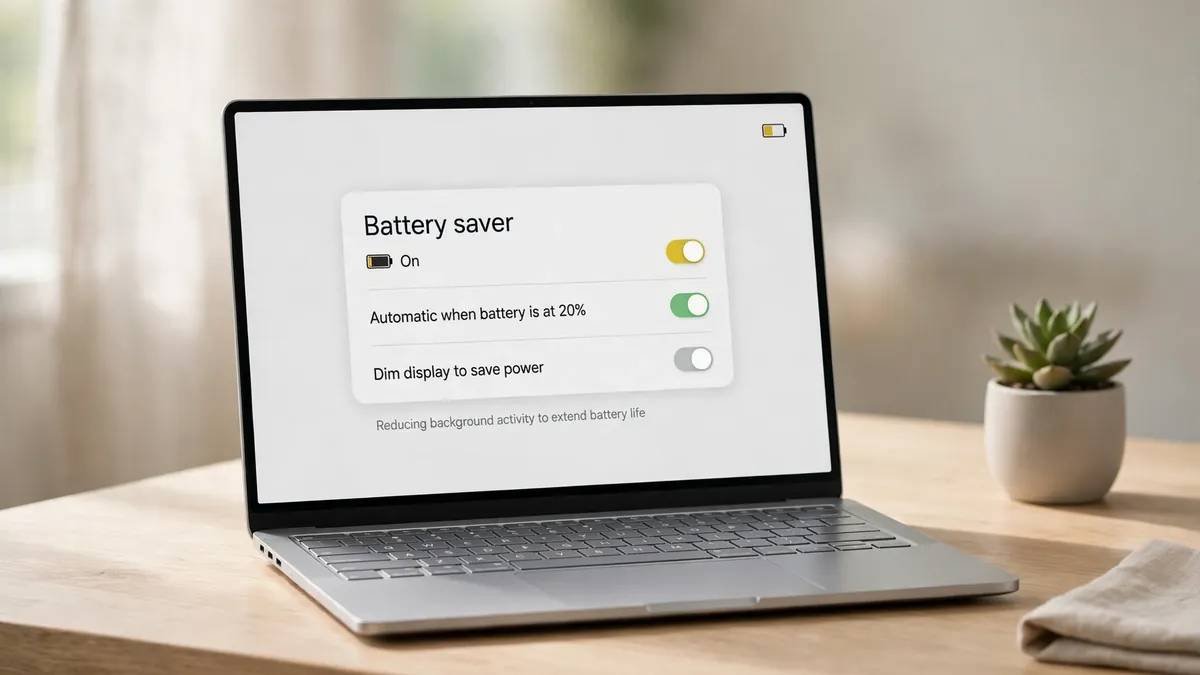
Every modern laptop has a power mode that trades a little performance for much longer runtime. On Windows 11, go to Settings, System, Power and battery, set Power mode to Best power efficiency, and turn on Energy saver, which dims the screen slightly and limits background activity. Set it to switch on automatically below 20 percent, or keep it on all the time while travelling.
On macOS, open System Settings, Battery, and turn on Low Power Mode, which reduces brightness and processor speed and pauses tasks such as photo syncing. Also leave Optimize Battery Charging on: it holds the charge at 80 percent until you need a full battery. Use efficiency mode for writing, browsing and calls, and high performance only for video editing or demanding games.
Step 4: Close power-hungry apps and browser tabs
Open Task Manager on Windows or Activity Monitor on macOS and sort by energy impact. You will often find one or two apps using far more power than everything else combined: video editors, games, cloud backup tools and browsers with dozens of tabs are the usual suspects. Close what you are not using.
Each open tab uses memory and can run scripts in the background, while video or animated ads keep the processor busy even when the tab is not visible. Bookmark tabs you want to keep and close the rest. Lowering video playback from 1080p to 720p, or downloading a show to watch offline, can add meaningful runtime. Pause cloud sync while on battery, and let updates run when you are plugged in.
Step 5: Manage Wi-Fi, Bluetooth and connected devices
Wireless radios use power constantly while they search for networks and devices. If you are working offline, turn Wi-Fi off completely instead of leaving it connected to a weak signal, because a laptop struggling to hold a poor connection works harder. The same applies to Bluetooth when you are not using wireless headphones or a mouse.
Unplug USB devices you are not using, including external drives and phone charging cables: a laptop charging a phone over USB is effectively running two batteries at once. Airplane mode is a useful shortcut for offline work, since it disables Wi-Fi, Bluetooth and mobile data in one step.
Step 6: Adjust sleep, hibernation and startup apps
A laptop that never sleeps will drain its battery in a bag. Set it to sleep after five minutes on battery, and to hibernate after thirty minutes if your system offers that option. Hibernate saves your work to disk and powers the machine off completely, so it uses no battery at all. Use it for overnight or long gaps between uses; sleep is fine for short breaks.
Check what closing the lid does: on Windows, set it under Control Panel, Power Options; on macOS, closing the lid sleeps the Mac by default. Also trim startup programs in Task Manager on Windows or System Settings, General, Login Items on macOS. Our guide on how to speed up a slow laptop covers the deeper clean-up steps that pair well with these battery fixes.
Step 7: Keep software, drivers and firmware updated
Manufacturers regularly release updates that improve power efficiency, fix battery drain bugs and tune fan behaviour. A laptop that has not been updated in a year may be running firmware with a known power bug that a single update would fix. Check for system and driver updates from your laptop maker, and install them while plugged in.
The graphics chip is one of the largest power consumers during video playback and gaming, so update its drivers from the laptop maker’s support page or the chip maker. Also check for a BIOS or UEFI firmware update, which can improve battery reporting and charging behaviour.
Step 8: Charge smart and keep the laptop cool
Lithium-ion batteries wear fastest at the extremes, so keep the charge between about 20 and 80 percent for everyday use, topping up to 100 percent only when you need a full day away from power. Many laptops offer a battery charge limit in settings or a companion app that stops charging at 80 percent automatically. Turn it on if your model supports it.
Heat is the other enemy of battery health. Keep the vents clear, avoid using the laptop on soft surfaces such as beds and cushions that block airflow, and do not leave it in a hot car. Gaming laptops generate a lot of heat and drain fast on battery; our roundup of the best laptops for gaming notes which models handle sustained loads with the least heat. Avoid leaving the laptop plugged in at 100 percent for weeks: unplug it once or twice a week and let it discharge to around 40 percent.
Troubleshooting: when the battery still drains too fast
If the battery drops sharply after following the steps above, check the health report first: a battery below 70 percent of its original capacity is the most likely cause, and no setting will fix worn chemistry. Second, look for a single app using excessive power in Task Manager or Activity Monitor and update, reinstall or replace it.
Third, check for a stuck update or a sync loop, which keeps the processor busy all day. Pause syncing, restart, and let the update finish while plugged in. If the battery still falls fast with almost nothing running and capacity is poor, a replacement battery is the honest answer.
Checklist: extend your laptop battery life
- Check battery health and note the full charge capacity before changing anything.
- Set brightness to 50 to 70 percent indoors and shorten the screen timeout to two or three minutes.
- Turn on battery saver or Low Power Mode and use the efficiency power mode on battery.
- Close unused apps and tabs, pause cloud sync, and remove unneeded startup programs.
- Turn off Wi-Fi and Bluetooth when not needed and unplug USB devices.
- Keep charge between 20 and 80 percent for daily use and keep the laptop cool and ventilated.
Frequently asked questions
How long should a laptop battery last on one charge?
Most modern ultrabooks last 8 to 12 hours for light work, while gaming laptops often manage only 2 to 4 hours under load. Treat the manufacturer’s rating as a best case.
Is it bad to leave my laptop plugged in all the time?
It is not immediately harmful, but keeping a battery at 100 percent for weeks accelerates wear. Use an 80 percent charge limit if your laptop offers one, or unplug it a few times a week.
Does closing apps really save battery?
Yes, especially apps that sync, index or play media in the background. A single runaway app can use more power than the rest of your open programs combined.
Should I let my laptop battery drain to zero?
No. Deep discharges stress lithium-ion batteries, and modern systems shut down before true zero anyway. Recharge when you reach 20 percent.
Why does my battery percentage jump or drop suddenly?
Sudden jumps usually mean the battery gauge needs recalibration or the battery is worn. A full charge, a discharge to 20 percent and a full recharge can help the gauge relearn the true capacity.
Will a new battery fix short battery life?
If capacity is well below 80 percent of design capacity, a genuine replacement battery usually restores close to original runtime. If capacity is above 90 percent, settings and apps are the problem.
The bottom line
Extending your laptop battery life comes down to a short routine: check the battery health, lower the brightness, switch on battery saver, close what you are not using, and charge between 20 and 80 percent. Start with the first three steps today and you should notice longer runtime within a day or two.
If your battery health is already below 80 percent, plan for a replacement battery rather than chasing another hour from a worn cell. For everyone else, the routine above keeps a healthy battery healthy for years.