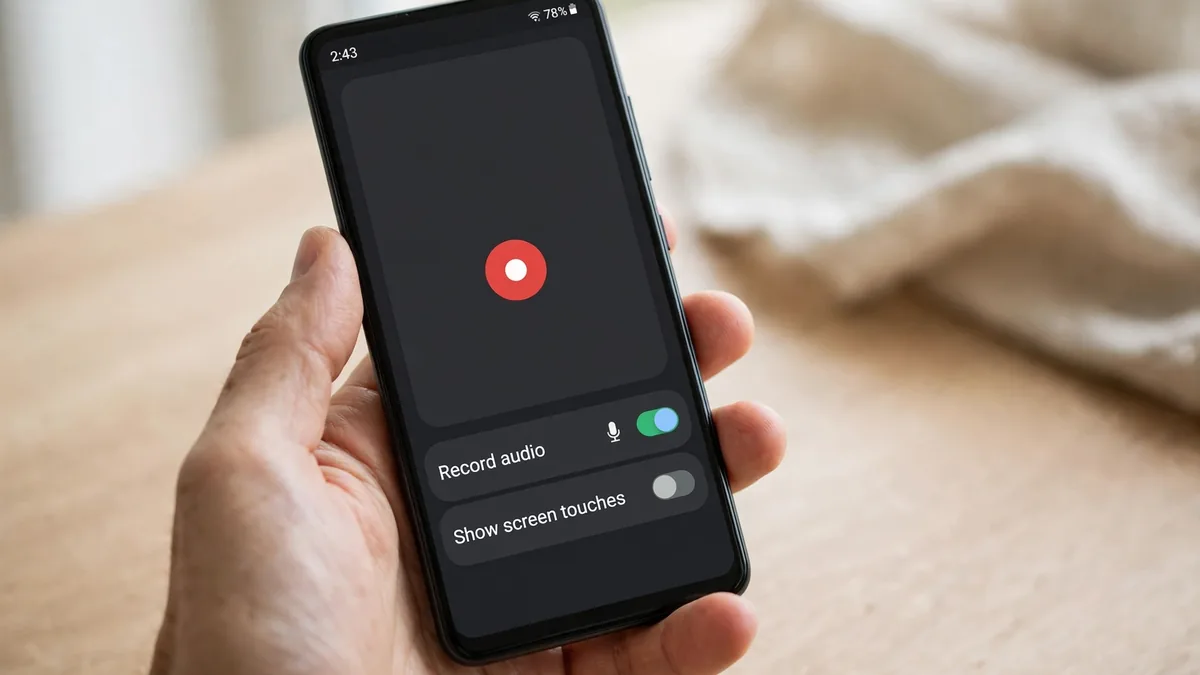
The best password manager for Android in 2027 is the one that fills in your passwords before you have time to think about them — fast autofill in Chrome and your apps, fingerprint or face unlock, and sync that just works when you switch phones. Android users have more choice than anyone else, from Google’s built-in manager to polished third-party apps, and the differences come down to autofill reliability, cross-platform support, and how well the app handles passkeys. The picks below are chosen for how they behave on a real Android phone, day after day.
Key takeaways: Autofill reliability in apps — not just Chrome — is the key test on Android. Biometric unlock should be instant; if it is slow, you will stop using it. Check current pricing; family plans and free tiers vary widely. Every pick here uses zero-knowledge encryption.
What Android users should look for
Autofill is the feature that decides everything on Android. A good password manager uses Android’s autofill service to fill logins in Chrome, in your banking app, in your shopping apps — everywhere. A bad one works in the browser and nowhere else, which means you are back to copying and pasting. Test autofill in your three most-used apps before committing to any manager, because this is where the quality gap shows.
Biometric unlock is the second daily test. Your password manager should open with your fingerprint or face in under a second, every time. If it asks for your master password more than occasionally, something is wrong — either the app’s biometric support is weak or your phone’s settings need attention. The best Android apps also support Android’s credential manager for passkeys, which are replacing passwords across the platform.
Cross-platform sync matters more on Android than anywhere else, because Android users are the most likely to also use Windows, a Chromebook, or a Mac. A manager that syncs everywhere means your passwords follow you regardless of the device in your hand. Google Password Manager is free and deeply integrated, but it is at its best inside Google’s world; third-party managers are better if you use multiple platforms.
Finally, think about sharing. Android households often mix devices — a Samsung phone, a Pixel tablet, a Windows laptop — and a manager with good family sharing makes that painless. If you share streaming logins or a family bank account, sharing features are not a luxury.
The best password managers for Android
1Password
1Password’s Android app is the most polished here: fast autofill across apps and browsers, reliable biometric unlock, passkey support, and the Watchtower audit that flags weak, reused and breached passwords. It syncs everywhere, supports secure document storage, and its family plan covers five people. It is the best all-round choice for Android users who want the full package.
Best for: Android users who want the best all-round password manager.
Bitwarden
Bitwarden is the open-source, low-cost champion. Its Android app is solid, its autofill is reliable, and its free tier is genuinely usable — the most generous free option in this list. Premium adds very little cost and unlocks extra features. For an Android user who values open-source code and low prices, it is hard to beat.
Best for: Android users who want an open-source, low-cost manager.
Dashlane
Dashlane’s Android app pairs strong autofill with a built-in VPN and dark-web monitoring, which is good value if you would pay for those separately. Its password health dashboard is clear and actionable, and its autofill works well across apps. It is a strong choice for users who want security extras bundled in.
Best for: Android users who want a manager plus VPN and dark-web monitoring.
Google Password Manager
Google Password Manager is built into Android and Chrome, free, and deeply integrated — it fills passwords, generates strong ones, checks for breaches, and now supports passkeys. Its weakness is cross-platform use outside Google’s world and limited sharing, but for an Android-and-Chrome user it is a legitimate, zero-cost pick.
Best for: Android and Chrome users who want a free, built-in option.
NordPass
NordPass offers a clean, fast Android app with reliable autofill, password health checks and a breach scanner. It is a natural fit if you already use NordVPN, but it stands alone too. Its free tier is limited, so treat it as a trial rather than a permanent home.
Best for: Android users who already use NordVPN.
Keeper
Keeper is a security-focused manager with a strong Android app, good autofill, and extras such as secure file storage and a private messenger. It is popular with businesses, but its personal and family plans are solid too, and its biometric unlock is among the most reliable here.
Best for: Android users who want a security-first manager with file storage.
Android password manager comparison
| Manager | Autofill in apps | Biometric unlock | Free tier |
|---|---|---|---|
| 1Password | Excellent | Yes | No |
| Bitwarden | Good | Yes | Yes |
| Dashlane | Excellent | Yes | Limited |
| Google Password Manager | Excellent | Yes | Yes |
| NordPass | Good | Yes | Limited |
| Keeper | Good | Yes | Limited |
Choosing an Android password manager: a checklist
- Test autofill in your three most-used apps, not just in Chrome.
- Check biometric unlock speed and reliability on your phone.
- Confirm passkey support through Android’s credential manager.
- Make sure the manager syncs to your other devices — Windows, Mac, tablet.
- Look for a security audit that flags weak, reused and breached passwords.
- Check family or sharing features if you share logins.
- Confirm the vault is zero-knowledge encrypted.
- Compare pricing and check current pricing before you buy.
- Make sure you can export your data — never get locked in.
- Check the app’s update history: a manager that is rarely updated is a risk.
Setting up autofill properly on Android
Autofill only works well on Android if it is set up correctly, and the setup is worth doing carefully because it affects every login you make. Start in your phone’s settings: open the autofill service settings and make sure your chosen password manager is selected as the default. Android allows only one autofill service at a time, so if you have tried several managers, an old one may still be selected — and your new manager will silently do nothing. Check this first whenever autofill seems broken.
Next, enable the manager’s accessibility service if it offers one. Some managers use accessibility features to fill logins in apps that do not support the standard autofill framework, particularly older apps and games. This is a legitimate use of the permission, but read what the app requests and make sure it is only asking for what it needs. Then test autofill in your three most-used apps — your bank, your email, and your shopping app — rather than just in Chrome, because app autofill is where the quality gap between managers shows.
Passkeys deserve attention too. Android’s credential manager stores passkeys and lets your password manager sync them across devices, which means a passkey created on your phone works on your tablet and your Chromebook as well. Make sure your manager supports passkey storage and that it is enabled. If you are choosing between the two biggest names, our Dashlane vs 1Password comparison covers their mobile apps in detail. Finally, remember to set a fallback: biometric unlock is convenient, but make sure you know your master password, because you will need it on a new device or after a restart.
Frequently asked questions
Is Google Password Manager safe to use?
Yes, for most users. It uses strong encryption, checks for breaches, and supports passkeys. Its limits are cross-platform use and sharing, not security. If you live entirely in Google’s world, it is a fine choice.
Which password manager is best for Android?
1Password is the best all-round choice: excellent autofill, reliable biometrics, passkeys and the Watchtower audit. Bitwarden is the best value, and Google Password Manager is the best free option for Android-and-Chrome users.
Do password managers work with fingerprint unlock on Android?
Yes — all the managers here support fingerprint and face unlock on Android. If biometric unlock is slow or unreliable, check your phone’s biometric settings and the app’s permissions first.
What is a passkey on Android?
A passkey replaces a password with a cryptographic key stored on your phone and unlocked with your fingerprint or face. Android supports passkeys through its credential manager, and most managers here can store and sync them.
Can I switch from Google Password Manager to another manager?
Yes. Google Password Manager lets you export your passwords, and managers such as 1Password and Bitwarden can import them. The switch takes well under an hour. Mac users should see our best password managers for Mac in 2027 guide.
Are password managers safe if my phone is stolen?
Yes, provided you use a strong master password and biometric lock. Your vault is encrypted, and a thief cannot open it without your master password or your biometrics. You can also revoke the device’s access from another device.
The bottom line
The best password manager for Android in 2027 is 1Password for most people: the best autofill, the most reliable biometrics, and the most useful security audit. Bitwarden is the pick for value and open-source transparency, and Google Password Manager is genuinely enough if you live inside Chrome and Android. Whichever you choose, the rule is the same as on every platform: use it for everything. A password manager only protects you if every login goes through it — so set it up, import your passwords, and let it generate a unique password for every site. iPhone users should see our best password managers for iPhone in 2027 guide for the iOS side.