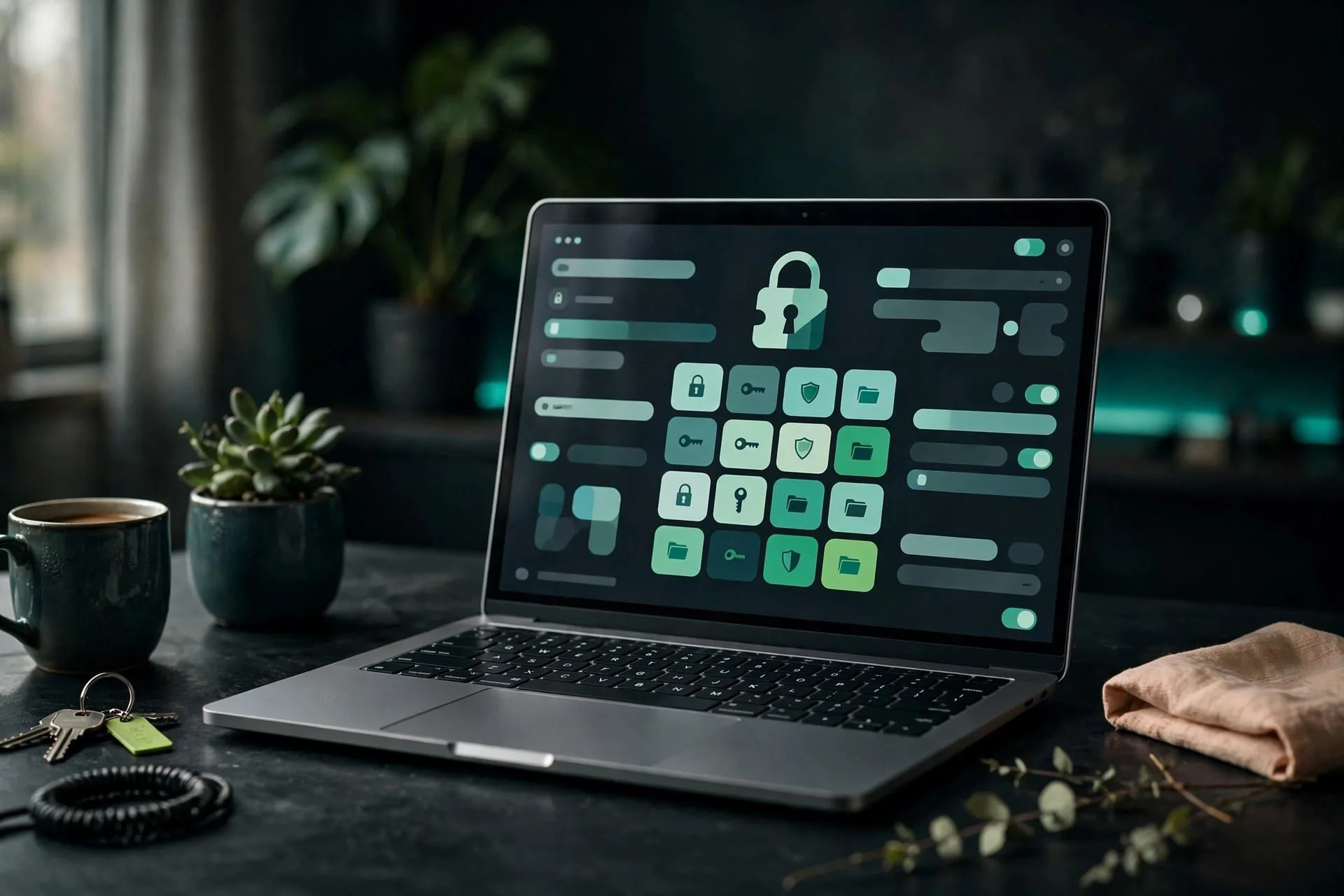
The best password manager for Mac in 2027 is the one that feels like part of macOS — a native Apple silicon app, Touch ID unlock, and autofill that works in Safari without a fight. Apple already gives you iCloud Keychain for free, and for many Mac users it is genuinely enough. But if you share passwords with family, use Windows or Android as well, or want proper security auditing and secure notes, a dedicated password manager earns its place. The picks below are chosen for how well they behave on a Mac, not just how many features they list.
Key takeaways: iCloud Keychain is free and fine for Apple-only users; a dedicated manager wins on cross-platform use and sharing. Look for a native Apple silicon app, Touch ID unlock and Safari autofill. Check current pricing — family plans are often the best value. Every pick here uses zero-knowledge encryption: the provider cannot see your passwords.
iCloud Keychain vs a dedicated manager
Start with the honest question: do you actually need a third-party password manager on a Mac? iCloud Keychain is built into macOS, syncs across your Apple devices, generates strong passwords, and now supports passkeys. For a user who lives entirely in Apple’s world — Mac, iPhone, iPad, Safari — it covers the basics well and costs nothing.
Where it falls short is everything outside that world. Sharing a password with a family member is clumsy, sharing with someone on Windows or Android is worse, and there is no proper security audit that tells you which of your passwords are weak, reused or breached. There is no secure vault for notes, documents or software licences either. A dedicated password manager solves all of that, and it keeps working if you ever switch platforms. If you use a Windows PC at work or an Android phone, a dedicated manager is the sensible choice.
The best password managers for Mac
1Password
1Password is the benchmark Mac password manager, and it has been for years. Its Mac app is native on Apple silicon, fast and beautifully designed, with Touch ID unlock, excellent Safari integration, and Watchtower — a security audit that flags weak, reused and breached passwords. It supports passkeys, secure document storage and travel mode, which removes sensitive vaults from your device when you cross a border. Family plans cover five people at a sensible price.
Best for: Mac users who want the best all-round password manager.
Dashlane
Dashlane pairs a strong password manager with a built-in VPN and dark-web monitoring, which makes it good value if you would pay for those separately. Its Mac app is clean, its autofill is reliable in Safari, and its password health dashboard is one of the clearest available. It is a strong choice if you want security extras bundled in.
Best for: Mac users who want a password manager plus VPN and dark-web monitoring.
Bitwarden
Bitwarden is the open-source option, and it is the best value in this list: its free tier is genuinely usable, and its premium plan costs very little. The Mac app is solid rather than beautiful, but it is fully native, supports Touch ID, and its code is publicly auditable — a real advantage for the privacy-conscious. Self-hosting is also possible for technical users.
Best for: Mac users who want an open-source, low-cost password manager.
NordPass
NordPass comes from the team behind NordVPN, and it shows in the polish of its apps. Its Mac app is native and fast, with a clean design, password health checks, and a data-breach scanner. It is a good fit if you already use NordVPN, since the two work well together, but it stands on its own too.
Best for: Mac users who already use NordVPN.
Apple Passwords (iCloud Keychain)
Apple’s own Passwords app, built on iCloud Keychain, is free, native, and deeply integrated with macOS and Safari. It generates strong passwords, stores passkeys and Wi-Fi passwords, and syncs across Apple devices. Its limits are sharing and cross-platform use, but for an Apple-only user it is a legitimate pick — and the price is unbeatable.
Best for: Apple-only users who want a free, native option.
Enpass
Enpass is the pick for Mac users who dislike subscriptions: it offers a one-time purchase option, stores your vault locally or in your own cloud storage, and has a solid native Mac app with Touch ID support. It lacks the polish of 1Password, but its offline-first approach appeals to users who want control over where their data lives.
Best for: Mac users who want a one-time purchase instead of a subscription.
Mac password manager comparison
| Manager | Native Apple silicon | Touch ID unlock | Free tier |
|---|---|---|---|
| 1Password | Yes | Yes | No |
| Dashlane | Yes | Yes | Limited |
| Bitwarden | Yes | Yes | Yes |
| NordPass | Yes | Yes | Limited |
| Apple Passwords | Yes | Yes | Yes |
| Enpass | Yes | Yes | Limited |
Choosing a Mac password manager: a checklist
- Confirm the app is native for Apple silicon, not a web wrapper.
- Test Safari autofill on your most-used sites before committing.
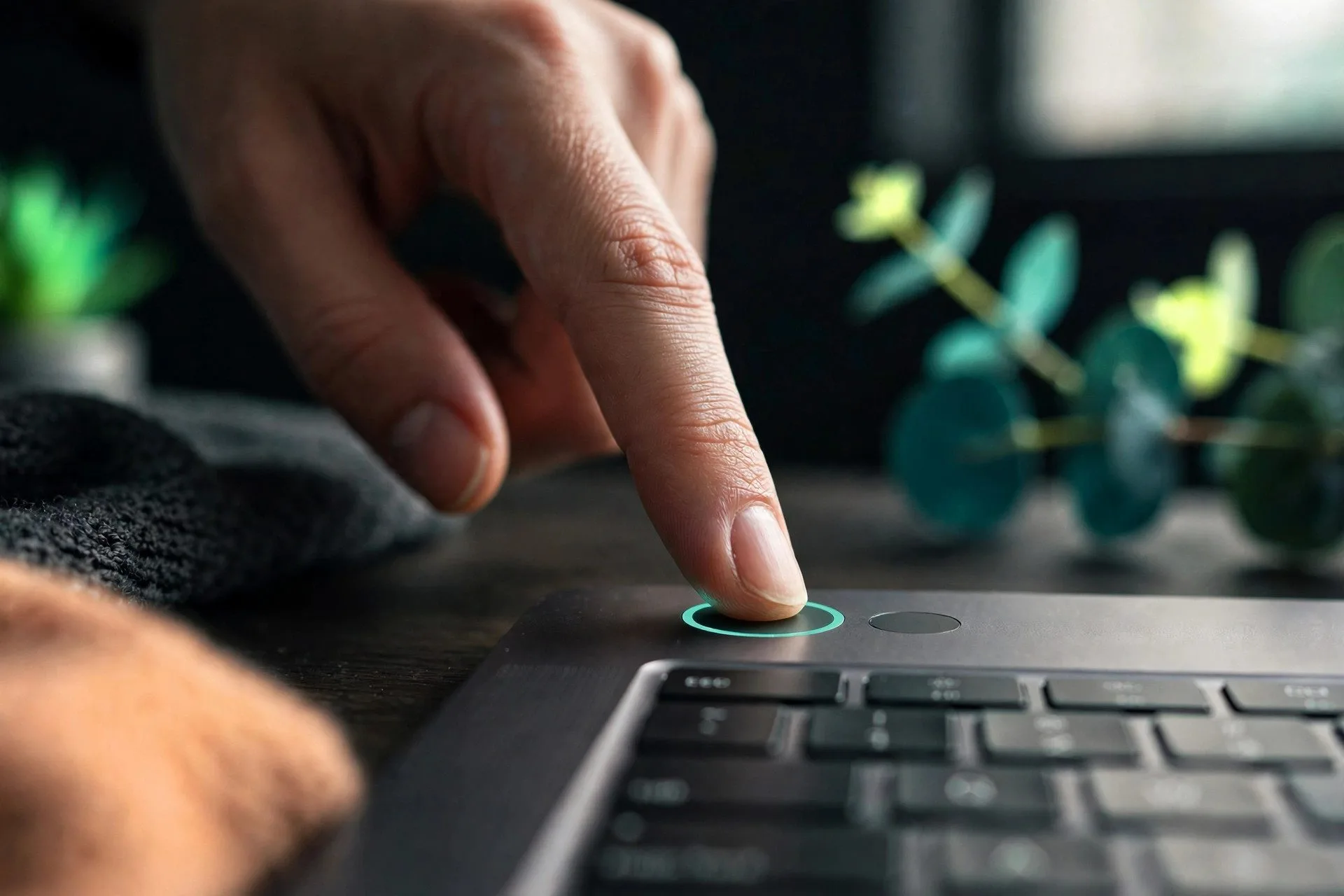
- Check Touch ID unlock works reliably — you will use it dozens of times a day.
- Make sure passkeys are supported, since they are replacing passwords.
- Check family or sharing features if you share logins with anyone.
- Confirm the manager works on your other devices — Windows, Android, iPhone.
- Look for a security audit feature that flags weak, reused and breached passwords.
- Check whether the vault is zero-knowledge encrypted — the provider should not be able to read your data.
- Compare pricing, including family plans, and check current pricing before you buy.
- Make sure you can export your data — never get locked into a manager you cannot leave.
Moving your passwords to a new Mac manager
Switching password managers on a Mac is easier than most people expect, and the whole process takes well under an hour. Start by exporting your passwords from your current manager — every reputable manager offers an export option, usually as a CSV file. Treat that file like the keys to your house: it contains every password in plain text, so export it to an encrypted location, import it immediately, and then delete it securely. Never leave an exported password file sitting in your Downloads folder.
Importing is usually a one-click process. Most managers detect the format automatically, and 1Password, Dashlane and Bitwarden all import directly from each other as well as from browsers and from Apple’s Passwords app. After importing, spend ten minutes checking the result: look for logins that imported without a password, duplicates, and old accounts you no longer use. This is also the ideal moment to run the new manager’s security audit, which will show you exactly which passwords are weak or reused — and give you a prioritised list of what to fix first.
The last step is the one people skip: remove the old manager. Uninstall its app, delete its browser extension, and turn off any autofill settings that point to it. Two managers competing for autofill creates confusion and, worse, means you may keep using the old one out of habit. If you are choosing between the two biggest names, our Dashlane vs 1Password comparison works through the differences in detail. Once the switch is done, change your most important passwords — email and banking first — and let the new manager generate strong replacements.

Frequently asked questions
Is iCloud Keychain enough for a Mac user?
For an Apple-only user with simple needs, yes. It generates strong passwords, stores passkeys and syncs across Apple devices for free. If you share passwords, use other platforms, or want security auditing, a dedicated manager is better.
Which password manager is best for Mac?
1Password is the best all-round choice for most Mac users: native app, Touch ID, excellent Safari autofill and the Watchtower audit. Bitwarden is the best value, and Apple Passwords is the best free option for Apple-only users.
Are password managers safe?
Reputable password managers use zero-knowledge encryption, which means the provider cannot read your vault even if it wanted to. Your master password is the one thing that matters — make it long and unique, and turn on two-factor authentication.
What is a passkey and should I care?
A passkey replaces a password with a cryptographic key stored on your device and unlocked with Touch ID or Face ID. Passkeys resist phishing in a way passwords cannot. Most managers here support them, and adoption is growing fast.
Can I switch password managers easily?
Yes. Most managers can import from rivals, and all the reputable ones let you export your data. Switching takes an afternoon at most. If you also use Android, see our best password managers for Android in 2027 guide.
Do password managers work with Touch ID?
Yes — the Mac apps here all support Touch ID unlock, so you rarely need to type your master password. Make sure you still remember it, though: Touch ID is a convenience, not a backup.
The bottom line
The best password manager for Mac in 2027 is 1Password for most people: the best native app, the best Safari integration, and the most useful security audit. Bitwarden is the pick if you want open-source software at a low price, and Apple Passwords is genuinely enough if you live entirely in Apple’s world. Whichever you choose, the important step is actually using it — a password manager only helps if every login goes through it. Set it up, import your passwords, and let it generate a unique password for every site. If you use an iPhone too, our best password managers for iPhone in 2027 guide covers the mobile side.