Turn a scene, character, or mood in your head into a first digital draft by describing it in words. An AI art generator can help beginners and experienced creators turn ideas into digital artwork without drawing skills. A text-to-image model is software that uses patterns learned from images and related text to generate an image from a written prompt.
You can begin with a short description, then see what the model makes in seconds. The first result may need changes, and it may not match your idea perfectly. That is part of the process: a draft gives you something concrete to review, adjust, and use.
You do not need an account or drawing experience to start exploring ideas. A clear subject gives the model a useful place to begin, while your later choices shape the result. Try one simple description first, then decide what works and what needs another pass.
Key Takeaways
- Describe a subject, setting, and visual direction in a prompt.
- Use a reference image when a supported tool lets you guide composition.
- Try a targeted edit before replacing a draft you like.
- Match the final image format and size to its destination.
- Check access limits, visibility, and usage terms for your chosen tool.
Start with one clear subject and a single style choice to make the first draft easier to judge.
How to Use an AI Art Generator: Create Digital Art Online
A first image usually takes only a short description of the subject, its setting, and the look you want. Start simply, then let the image guide your next decision. Canva generates artwork from a text prompt and also supports reference images and image ratios.
Choose a subject, write a prompt, select a style or ratio, and generate a draft. You can then change the prompt, preset style, or aspect ratio and regenerate. A reference image can guide composition, but it does not guarantee an exact match.
Describe the subject, setting, and mood
Name the main thing you want to see, such as a red bicycle or a quiet cabin. Add where it is and what is happening. A few details about mood or appearance can help the model make a more useful first image.
For example, “a cabin” leaves many choices open. “A small cabin beside a snowy lake at dusk, warm light in the windows” sets a clearer scene. You do not need to explain every object before you begin.
Choose a style preset or write a style into the prompt. Then pick an image ratio that suits the space where you plan to use the result. A wide banner and a square profile image need different shapes.
Generate a draft and refine it
After the first result appears, check the subject, layout, and mood. If one part is wrong, change that detail in the prompt and generate again. Keep a draft that has a strong composition, even if one small feature needs work.
A free AI art generator from text can be tried through free access, such as Adobe Firefly’s daily generations or Craiyon’s limited free image creation. Access rules differ by tool, so the number of tries and available features will not be the same everywhere.
For a simple image-creation workflow, use a few clear decisions rather than changing everything at once. A useful result can take more than one pass, and different models may interpret the same words in different ways.
Save a useful draft before making a large change to the prompt, so you can compare the two versions.
That saved version helps you judge whether the new wording improved the image or simply changed its direction. Keep the draft that best serves your purpose, not just the one with the most detail.
What Kinds of Art and Styles Can You Create?
A single subject can read as a watercolor painting, a clean illustration, or a cinematic photo depending on the style direction. Style changes the visual language, from soft brush marks to sharp lines or dramatic light. You can name a style in your prompt or choose a preset.
Style names guide a result, but they do not ensure a precise copy of a reference. The same subject can look calm, playful, or bold after you change its colors, mood, or medium. That gives you room to test a direction without changing the whole idea.
Painterly and illustrative looks
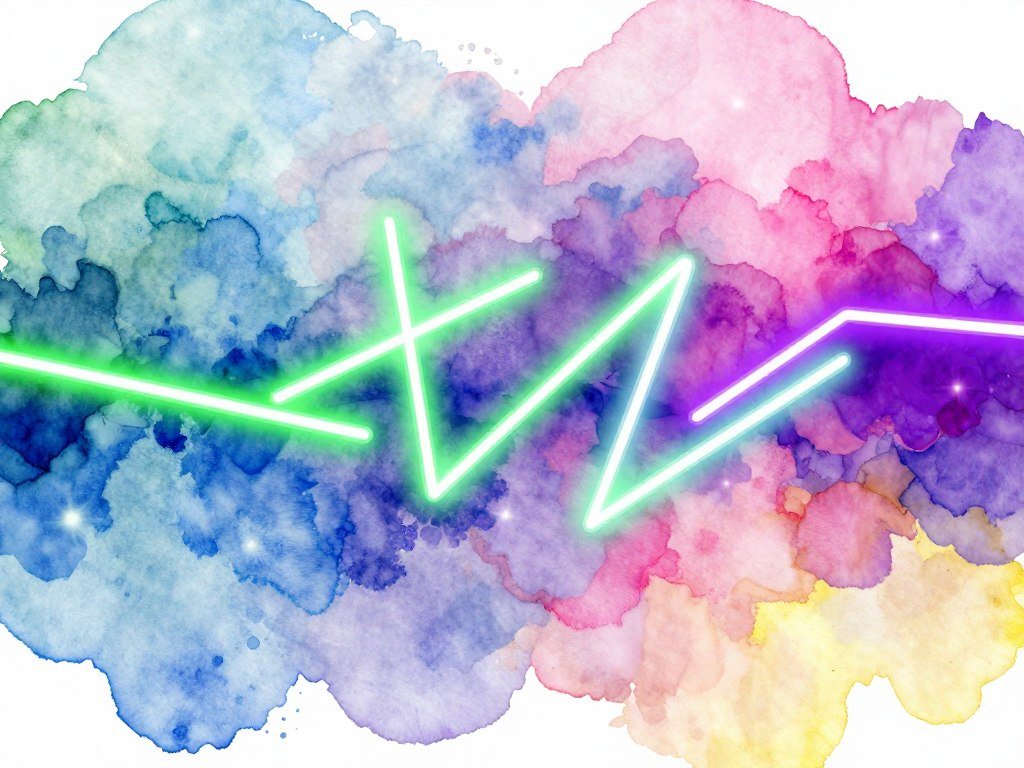
Painterly styles can suggest watercolor, charcoal, or ink. They work well when you want visible texture, softer edges, or the feel of a hand-made piece. Canva presets include Watercolor, Color Pencil, and Filmic, among other options.
Illustration can be flat and clean, with simple shapes and clear color blocks. That look often suits icons, story scenes, and playful design work. A prompt can ask for a flat illustration, bold outlines, or a paper-cut effect.
Adobe Firefly offers style directions such as impressionism, surrealism, pixel art, watercolor, charcoal, and ink. These names give the model a broad visual cue, rather than a fixed recipe. Your subject and other prompt details still shape the result.
Photographic, anime, and experimental styles
Photorealism aims for the look of a camera image, with natural light and believable detail. Anime often uses expressive faces, stylized lines, and strong color choices. A clear style direction can help the model separate these looks.
For a retro mood, try Canva’s Retrowave preset or describe neon signs, grain, and a vintage palette. Its Neon preset can push colors toward a brighter, more graphic look. Abstract directions can instead use shapes, patterns, or unusual color relationships.
Adobe Firefly also includes anime among its style directions. You can use such a label in a prompt or select a preset when the tool offers one. Several models may interpret the same word differently, so the result can vary.
One dominant direction makes a first pass easier to judge. Combining a photo style, watercolor, and pixel art may pull the image in competing ways. Choose one dominant style for the first pass, since several competing style labels can pull the result in different directions.
How Do You Write a Prompt That Gets Closer to Your Idea?
A prompt works best when it names the main subject before adding atmosphere and decorative detail. Lead with the subject, then add only the choices that shape the image. A focused text prompt gives the model fewer competing ideas to sort through.
Build the scene in a clear order: subject, setting, action, framing, light, mood, and style. Adobe Firefly’s prompt guidance includes a subject, action, place, mood, or style. Canva’s steps suggest describing the subject, art style, and technique.
Build the scene from its main subject
Start with the thing that matters most, such as a fox, a glass vase, or a mountain train. Next, say where it is and what it is doing. These words anchor the scene before smaller visual choices arrive.
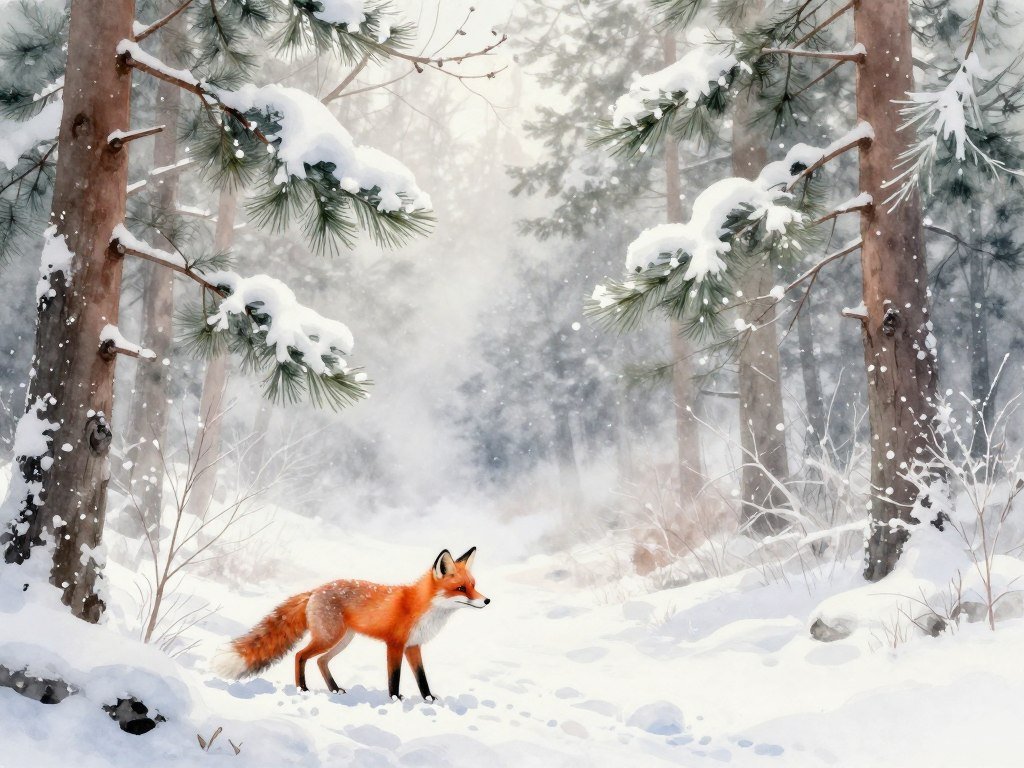
“A fox” gives the model room to invent its size, setting, and pose. “A small red fox in a snowy pine forest, watercolor, close framing” sets a subject, place, medium, and view. That simple before-and-after change makes the idea easier to picture.
Use concrete words that describe visible details. “A weathered blue door” gives the model more to work with than “a beautiful door.” If your idea depends on a particular object, put it near the start of the prompt.
Add composition, lighting, and style
Composition describes how the subject sits in the frame. Ask for a close view, a centered subject, or open space on one side. Those details can make an image more useful for a poster or page layout.
Lighting and mood add another layer. Golden evening light feels different from cool studio light, while a misty setting can make a scene feel quiet. Choose a style or medium that fits the purpose of the image.
The repeatable prompt-writing method gives you a way to plan and test each detail. Adobe Firefly’s prompt field accepts up to 750 characters, so trim extra adjectives when they crowd out the main idea.
Revise one detail at a time
After a draft, name the part that needs work. If the subject is right but the image feels too dark, change the lighting phrase. If the setting is off, adjust that phrase instead of replacing every word.
Long strings of similar adjectives can muddy the image. A prompt with “soft, dreamy, hazy, misty, delicate” may give the model several overlapping directions. Keep the words that make a visible difference.
If a result misses the mark, change one important phrase and regenerate instead of rewriting every part at once.
Can You Turn a Sketch or Photo Into Digital Art?
A rough sketch can give the model a composition to follow before a prompt adds color, material, or atmosphere. Use the sketch as structure, then describe the changes you want. This differs from asking for an image from text alone, because an uploaded visual gives the model a starting layout.
An AI art generator from a photo can use an uploaded image as a visual starting point when the tool supports image-to-image editing. The result may keep the broad pose or arrangement while changing details. It will not always preserve every line or feature.
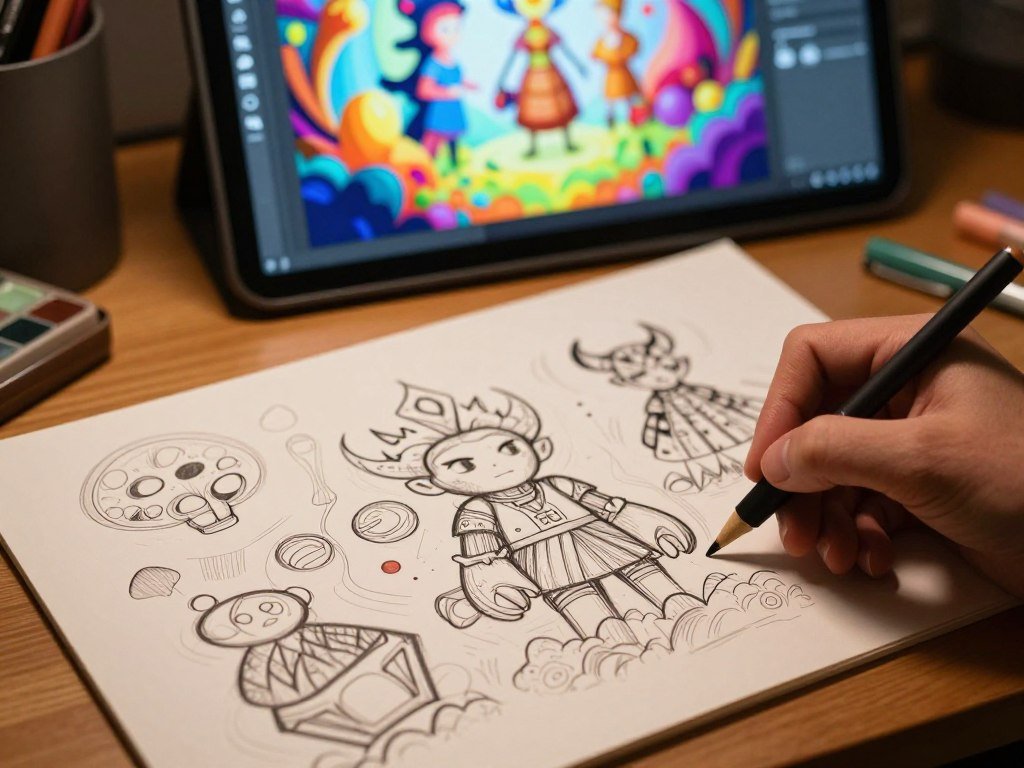
OpenArt Sketch to Image accepts sketches and offers photorealistic, digital art, anime, and interior-design style choices. NewArc accepts several kinds of visual input, including drawings made by hand and more formal design work. Those tools can turn a rough plan into a more developed image.
NewArc provides 210 free credits per month after signup. That can let you try a sketch workflow before choosing a paid plan. Credits measure tool use, so the number of images you can make depends on how the product applies them.
Sketch-to-image AI for free is possible to try with NewArc’s monthly credits after signup. An uploaded photo can also guide a new image when the tool supports that feature. Before you upload, check whether the visual is yours to use.
- Hand-drawn sketch
- Technical drawing
- Fashion illustration
- Collage
A hand-drawn sketch may show only the rough shapes, while a technical drawing can define edges and proportions. A fashion illustration can guide clothing and pose. A collage can combine visual references into one starting point.
Use an image you own or have permission to upload, especially when it contains a recognizable person or protected design.
How Do You Edit and Export the Finished Image?
A small targeted edit can preserve a strong composition while changing only the part that needs work. Keep what works and adjust a selected area, such as an object or background. Broad regeneration is more useful when the overall layout or subject needs a fresh start.
Choose an export format and resolution that fit the place where the image will appear. A web graphic may need a compact file, while print work needs enough pixels for its final size. Check both before you move the image into another design.
Canva includes Magic Edit, Magic Eraser, photo adjustments, filters, text and graphics, and a background remover. Those features can help clean up distractions or fit an image into a layout. They give you more control than asking the model to remake the whole scene.
Canva exports JPG, PNG, PDF, and PPTX. It offers 5GB of free storage and up to 1TB with Canva Pro. Choose the export type based on whether you need a photo, a transparent graphic, or a document.
Adobe Firefly accepts JPG, PNG, and WebP uploads. Generate Image in Safari on a desktop or laptop also supports HEIC. Firefly downloads JPG or PNG files up to 2000×2000 pixels.
Try these finishing options after choosing the edit that suits the problem:
- Remove distractions from the main subject.
- Adjust lighting or color to fit the design.
- Replace the background for a new setting.
- Add text or graphics in an editor.
- Export in a file type that fits the destination.
SVG is useful when you need editable vector artwork that can scale without the same pixel limits as a raster image. The W3C SVG 2 specification describes scalable vector and mixed vector-raster graphics. NewArc Sketch Trace converts raster sketches into editable SVG artwork.
Check the exported dimensions and format before placing the file in a print layout or a social post.
Which AI Art Generator Fits Your Creative Workflow?
For a general-purpose starting point, ChatGPT is the broad-use pick, while specialized workflows call for a different match. Start with your task, not a claim that one model suits every kind of art. The right tool depends on what you want to make and how you plan to refine it.
ChatGPT is the broad-use choice; Midjourney fits artistic results, while Recraft suits graphic design. Other options stand out for users already working in Google tools or for placing generated images into photos. Compare the workflow, not just the image quality.
Pick for general-purpose image creation
ChatGPT is a practical first choice when you want to create an image and refine it through conversation. The back-and-forth can help you adjust details without treating each prompt as a separate job. It is a broad-use pick, not a winner for every specialized task.
A tool comparison by creative workflow can help you see how image models differ. Nano Banana is a strong match for Google users, while Midjourney is known for artistic results. Adobe Firefly fits a workflow that blends generated images into photos.
Match the tool to a specific job
Recraft is a fit for graphic design, where layout and visual assets matter. Midjourney may suit you when you care most about an expressive artistic look. Firefly can help when a generated element needs to join an existing photo.
| Tool | Best fit | Workflow distinction |
|---|---|---|
| ChatGPT | General-purpose images | Conversational image creation |
| Nano Banana | Google users | Fits Google workflows |
| Midjourney | Artistic results | Style-led image creation |
| Adobe Firefly | Photo integration | Works with photo edits |
| Recraft | Graphic design | Design-focused image tools |
Consider access across platforms
Muse Image is available across platforms, which may suit you if you switch devices or systems. That access does not make it the best choice for every task. Your usual editor and the kind of artwork you need still matter.
Use one short prompt to compare the same subject across tools. Then check the composition, details, and amount of editing each result needs. A quick test can show which workflow feels natural.
Test the same short prompt in your strongest two candidates before committing to one workflow.
Can You Use an AI Art Generator for Free?
Free access is a practical way to test a prompt, but the number of tries and available models depend on the tool. Firefly is a good first test for its daily model access, while Craiyon offers a simple free text-to-image trial. Neither should be treated as unlimited.
Free plans can limit generations, models, wait times, or image privacy. A free AI art generator to create digital art online for free may refresh daily or monthly, add a watermark, or slow down at busy times. Check how each allowance works before building a routine around it.
Adobe Firefly Free offers daily generations on a set of models, and its daily allowance refreshes each day. Adobe does not publish an exact Firefly Free daily generation count for 2026. That makes it useful for trials, though you cannot plan around a fixed daily number.
ChatGPT Free image creation is limited, and OpenAI does not publish a fixed image-generation count for its plans. Its October 2026 plan descriptions call Go “More image creation,” Plus “More complex and accurate image creation,” and Pro “Unlimited and faster image creation,” subject to abuse guardrails. ChatGPT Images 2.5 launched on September 8, 2026, with existing image-generation limits unchanged.
Craiyon’s free plan offers a limited number of images with a watermark. You may also wait longer when demand is high. NightCafe provides free credits daily, while NewArc gives 210 monthly credits after signup for sketch work.
Here is how five free options differ in access and use:
| Tool | Free access | Refresh or unit | Practical limit |
|---|---|---|---|
| Adobe Firefly Free | Daily generations | Daily allowance | Exact 2026 count unpublished |
| ChatGPT Free | Limited image creation | Plan access | No fixed count published |
| Craiyon Free | Limited image creation | Image count | Watermark and possible waits |
| NightCafe | Free credits | Daily credits | Credit amount sets usage |
| NewArc | 210 credits after signup | Monthly credits | Credits apply to sketch tools |
A comparison of free image tools can help you match access limits to your needs. For a simple text-to-image trial, Craiyon keeps the process direct. Firefly gives you daily access to a set of models.
Run the same prompt once on each free option you are considering before deciding whether its limits fit your routine.
What Do Paid AI Art Plans Cost and Include?
The price comparison is easiest when you separate monthly access, yearly billing, and the generation allowance each plan measures. Midjourney sells Fast GPU time, while Firefly credits meter certain premium generations. NewArc plans focus on sketch workflows.
A free plan should not be assumed to allow unlimited attempts, unrestricted models, or unrestricted use. Paid terms also differ, so compare the allowance you will actually use. The word “unlimited” may apply to one mode or image type, not every feature.
Midjourney plans and Fast GPU time
Midjourney’s 2026 plans pair a monthly price with Fast GPU hours. Standard, Pro, and Mega also include unlimited image generation in Relax mode. Relax mode uses a queue, so results may take longer than Fast GPU generations.
| Plan | Monthly price | Annual price, billed upfront | Fast GPU hours per month |
|---|---|---|---|
| Basic | $10 | $96 | 3.3 hours |
| Standard | $30 | $288 | 15 hours |
| Pro | $60 | $576 | 30 hours |
| Mega | $120 | $1,152 | 60 hours |
Extra Fast GPU time costs $4 per hour on every plan. The annual prices are billed upfront, not month by month. A plan with more Fast time can suit frequent work, while Relax mode trades speed for extra image use.
Adobe Firefly credits and image generation
Adobe Firefly Standard costs $9.99 per month and includes 2,000 monthly generative credits. Pro costs $19.99 for 4,000 credits, Pro Plus costs $49.99 for 10,000, and Premium costs $199.99 for 50,000.
Standard image generations are unlimited on every paid Firefly tier. Credits meter premium generations, such as video, audio, and partner models. Unused generative credits do not roll over each month, so use the monthly amount during its cycle.
NewArc plans for sketch workflows
NewArc Basic costs £9 per month when billed yearly and includes 96,000 credits per year for one user. NewArc Pro costs £19 per user each month when billed yearly, with 240,000 credits per year per user and support for up to five users.
A free AI art generator with no restrictions is not a safe assumption. Free access may cap attempts, limit models, or set rules for how you can use results. Check the plan limits and product terms that apply to your chosen workflow.
Compare the allowance you will actually use, not just the headline monthly price.
Can You Use AI-Generated Art Commercially?
Before putting generated artwork into a campaign or product, check both the platform’s terms and the rights attached to your inputs. These are separate checks: permission to use a tool does not clear every reference image, character, or brand in the result.
Commercial use depends on platform terms, input rights, third-party rights, and the law that applies to the work. A generated image is not automatically protected by copyright or cleared for every use. The project and the content both matter.
Check the terms for the model that made the image
Read the terms for the model and service that made your image. Midjourney includes its General Commercial Terms on all plans. Companies with more than $1 million in gross annual revenue must subscribe to Pro or Mega.
Craiyon commercial use is subject to its Terms of Use. A free account or paid account does not remove the rights held by the owners of characters, logos, or brands shown in an image. The same care applies to material you upload as a reference.
Check that you own or have permission to use any reference photo, drawing, or design. Permission to upload a visual does not necessarily grant the right to use every recognizable person or protected work depicted in it. Keep those rights separate from the platform’s terms.
Understand copyright and training-data limits
Adobe says its first-party Firefly models were trained on licensed Adobe Stock content and public-domain content whose copyright has expired. That training-data statement does not apply to partner models in the Firefly app. It is a specific claim about Adobe’s own models.
The U.S. Copyright Office’s AI copyright reports address two distinct issues. Part 2, published January 29, 2025, covers copyrightability of generative AI outputs. Part 3, released as a pre-publication version on May 9, 2025, covers generative AI training.
Copyrightability and permission to use an image are not the same question. The amount and kind of human creative work can matter under applicable law. A prompt alone may not settle whether the final image qualifies for copyright protection.
For a high-stakes commercial use, review the current terms and get qualified legal advice for the specific project.
Who Can See Your Generated Images?
An image’s privacy depends on where it is generated and where you share it, not just on the name of a setting. Check each place separately, including galleries, shared links, and public chat or social channels. A private account setting may not cover every way an image can appear.
A public post or shared link can expose an image even when the tool offers a privacy control. Check what the setting covers before using it for material you do not want others to see. Visibility and safety controls serve different purposes.
Understand public galleries and sharing
Midjourney Pro and Mega include Stealth Mode, which controls visibility on Midjourney’s website. It does not hide generations posted in a public Discord channel. Where you post the image can change who sees it.
Craiyon free-plan images are public, and anyone with a link can see them. Paid Craiyon plans allow private images. A link shared with another person can still travel beyond its first recipient.
Check what a privacy setting actually hides
Read the setting’s scope, including whether it applies to your account, gallery, or generated files. Do not assume that deleting a post removes copies or screenshots already shared elsewhere.
Canva blocks prompts that may generate inappropriate images and offers a way to report unsafe content. These guardrails can reduce some risks, but they do not guarantee that every generated result is safe to share.
Before generating sensitive material, confirm the visibility of the account, gallery, and sharing channel you plan to use.
Can AI Art Tools Make Video and Audio?
Some creative platforms can extend a still-image idea into motion, while others offer a separate video-generation workflow. Video needs its own review, because movement can change a scene in ways a still image cannot show. Some tools create clips from text or images, while others animate an existing still.
NightCafe, OpenArt, and Craiyon each offer ways to create or animate video. OpenArt supports video clips up to 15 seconds and up to 4K resolution. Its audio tracks can export as WAV or MP3.
Turn a still image into moving content
NightCafe offers image and video creation, with models such as Runway, Kling, and Seedance for video. Craiyon can turn an image into a short video. These options can build motion from an idea or a finished still.
OpenArt video generation supports clips up to 15 seconds, with resolution up to 4K. A short clip can still need careful review for continuity. A person, object, or background may shift between frames.
Treat video and audio as separate generation workflows
Audio adds another set of choices, such as sound quality and how a track fits the clip. OpenArt exports audio tracks as WAV or MP3. The file type can matter when you edit or share the result.
Review timing, visual continuity, and sound as separate parts of the finished media. A still-image workflow does not guarantee that movement or audio will match your intent. Listen and watch the full result before using it.
Decide whether you need motion, synchronized sound, or only a finished still before choosing a media tool.
What Should You Create With a Text-to-Image Tool?
The easiest first project is one with a clear purpose, such as a presentation visual or a social post. Pick a real use so you can judge whether the image does its job. A generated image can be a draft to edit or a finished visual, depending on the project.
Start with a small project that gives the image a clear place to go. Canva describes AI-generated visuals for presentations and social media, with design editing tools. Adobe Firefly examples include concept sketches, product mockups, portraits, and landscapes.
- A presentation visual that supports one main idea.
- A social post with space for a short message.
- A product concept mockup for early review.
- A personal art experiment with a subject you enjoy.
These projects let you test how the image fits a real layout. A social media design may need room for text, while a product concept may need a closer look at shape and materials. A personal art experiment can leave more room for surprise.
Galleries and creative challenges can offer ideas when you are not sure what to make. NightCafe provides galleries, chat rooms, and daily creative challenges. A project with exact brand or product requirements usually needs further review and editing.
Use the image as a finished piece when it meets the project’s needs. Keep editing when the layout, details, or message still need work. The best result is the one that serves the purpose, not simply the most striking draft.
Pick one real use for your first image, then save the version that best serves that purpose.
A presentation visual may work well after a quick crop, while a product mockup may need careful edits. Decide what “finished” means for the job before you settle on a draft.
Conclusion
A good first result starts with a clear idea and improves through deliberate choices. One useful revision can bring the artwork closer to your goal without losing the parts that already work. Choose a tool that fits the kind of image and workflow you need.
A clear subject, one chosen style, and one deliberate revision make a practical starting point. Save the draft if it has a strong feature you want to keep. Then adjust one detail and compare the result.
Write one prompt for an image you genuinely need and generate a first draft now.
FAQ
Do AI image generators understand prompts written in languages other than English?
Yes, some AI image generators accept prompts in languages other than English, and Craiyon says users can prompt in their own language. Results can still differ by language and model, since tools may handle some words more clearly than others. Check the chosen tool’s language support, then test a short prompt before using it for a detailed image.
Can an AI image generator put accurate words in a poster or logo?
Sometimes, but text rendering varies by model, so do not treat generated lettering as final copy. The image may misspell a word, change a letter, or create marks that only look like text. You can generate the visual first, then add clean lettering in an editor. Proofread every word before sharing a poster or logo.
What image dimensions should I choose for a social post or print project?
Choose an aspect ratio and resolution that match the final destination. A square post needs a different frame from a tall story or a wide banner, while print needs enough pixels for its physical size. Adobe Firefly downloads are capped at 2000×2000 pixels. Check the layout’s size and crop before exporting your final image.
Does an uploaded reference photo become part of the generated image?
Not necessarily. A reference photo can guide structure or appearance, but the model may change details such as clothing, colors, or background objects. Tools treat reference images in different ways, so inspect the result rather than assuming it is a direct edit. Upload only a photo or artwork you own or have permission to use.
Do AI-generated images automatically have copyright protection?
No, an AI-generated image does not automatically receive copyright protection in every case. Copyrightability can depend on human contribution and applicable law, so a prompt alone may not settle the question. The U.S. Copyright Office has addressed copyrightability of generative AI outputs in its Part 2 report. Get qualified legal advice for a high-stakes rights decision.
Can I use free AI-generated images in a business project?
Yes, a free image may be usable in a business project when the platform’s terms allow it and the image raises no separate rights issue. Check the service terms, permission for any reference image, and third-party rights in characters, logos, or brands. A free tier alone does not grant every right needed for a commercial project.



