
A polished profile image can help a new contact recognize you, but it should still look unmistakably like you. The right tool depends on whether you need one usable portrait, several styles, or a coordinated set for your company team.
A generated portrait can save time compared with booking a studio shoot, but a polished finish alone is not enough. Your face, expression, and overall look should feel true to the person colleagues and customers meet.
Some generators offer a free download, while others give you a preview or a small number of credits. Compare free and paid options before you upload personal photos, especially if you need a larger image pack or more control.
Choose a tool based on the image you need and how much control you want over the final result.
Key Takeaways
- Pick a tool for one portrait, multiple styles, or a team image pack.
- Check whether its free offer includes a download or only a preview.
- Judge the result by likeness, detail, and how it looks at profile size.
- Review image storage and access terms before uploading personal photos.
- Compare the final portrait with a recent photo before you publish it.
What makes an AI portrait look professional?
A professional portrait should make the person easy to recognize before the viewer notices the lighting or background. The best professional headshots keep facial detail clear and use a crop that still reads well at profile size.
Use a sharp face, natural-looking light, and a calm background as your baseline. Clothing should suit your work, while the expression should feel like one you would use in person.
A crisp image can still feel wrong if the face looks altered or the setting clashes with the person’s role.
For LinkedIn, the recommended profile image size is 400 x 400 pixels. A square crop works for many profile uses because it keeps the face central in a small circle or box.
Some tools create a taller file that gives you room to crop. Aragon’s standard output is 896 x 1088 pixels, which can be useful if you want more than a square profile image.

High-resolution files help when the same photo may appear in print. A large file gives you more room to crop, but it cannot fix an odd expression or false-looking detail.
An overly smooth face can look less human than the original photo. Altered features, strange hair edges, or clothing that does not fit your role can weaken an otherwise sharp image.
Backgrounds also shape the first impression. A plain office setting may fit a company profile, while a dramatic studio scene could feel out of place for a more casual role.
Check the image at the small size people will see on a profile, not just enlarged on a screen. A portrait that works as a tiny thumbnail is easier to recognize in a list of profiles.
How should you prepare a selfie for the best result?
A recent photo with your face centered and evenly lit gives the model a cleaner reference than a dim, filtered snapshot. A clear selfie can help the generator keep your face and expression close to the real person.
Each tool has its own file rules, so check them before you upload photo files. Adobe Firefly accepts JPEG, PNG, and WEBP images from 512 x 512 pixels up to 100 MB. GoStudio accepts PNG, JPG, JPEG, WEBP, and HEIC files up to 10 MB.
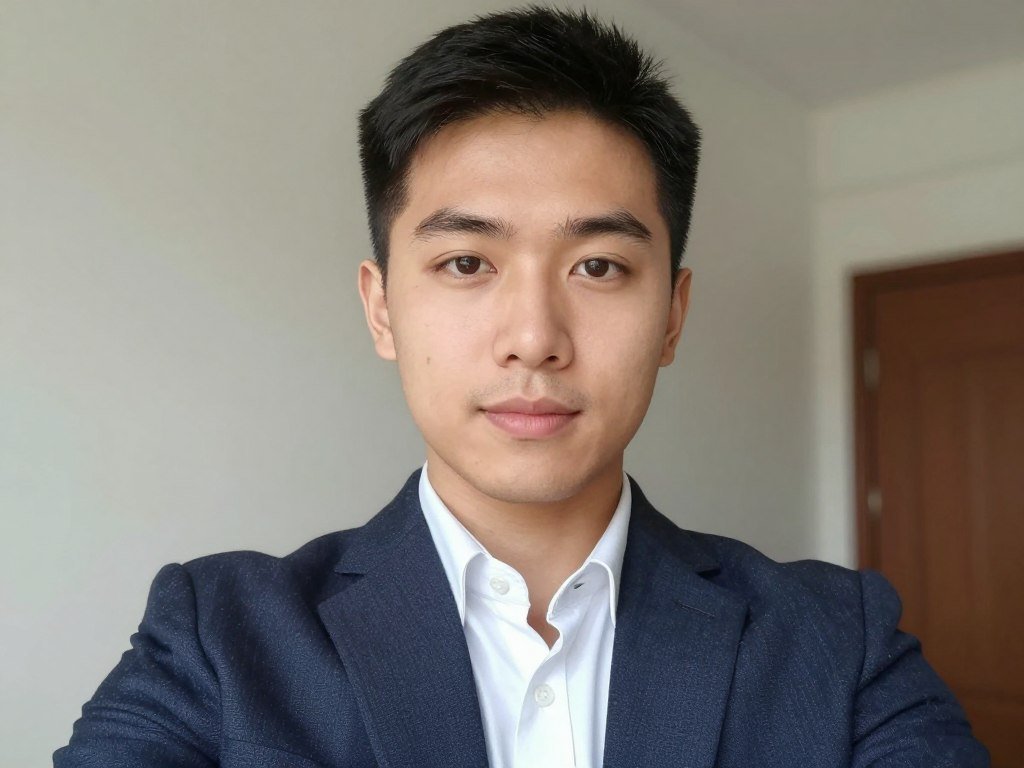
Choose a clear, well-lit reference photo
Use a recent, front-facing photo with your head and shoulders visible. Keep your face centered, and avoid sunglasses, hats, and heavy filters that hide its shape.
Some services ask for several photos to learn your features from more than one angle. Headshot Photo recommends at least eight clear, recent selfies, while other tools may need only one.
Soft, even lighting makes it easier to see your face without harsh shadows. A plain wall or tidy room also gives the model fewer details to mistake for part of your look.
Match the prompt and style to the intended use
Tell the tool what role the portrait should suggest, then name the background, lighting, and clothing you want. Specific instructions work better than a string of mixed styles that pull the image in different directions.
For a prompt-led image, describe the setting and crop in plain terms. This simple prompt guide can help you shape those details without adding needless instructions.
Canva’s workflow starts in Apps, where you find ProfilePhoto and upload a selfie. You can choose a gender identity and decide whether to preserve your expression.
Adobe Firefly offers reference-image controls and prompt editing. Those features can help you guide the style while keeping the face based on your chosen photo.
For a beginner-friendly look at using a reference image and checking results, see this guide to creating AI images. It covers simple steps that also apply to a portrait workflow.
- Clear face and recent image
- Soft, even light
- Role-appropriate clothing and background
Keep the requested styling close to what you would actually wear and use in the role. That makes the final image easier to accept as a portrait of you.
Which free AI Headshot Generator for Professional Photos should you try?
For one ready-to-download portrait, HeadshotPro’s free tool has the clearest stated allowance; for repeated free experimentation, compare daily or credit-based limits. The download matters, since a free generation may only give you a preview.
As of October 2026, the free offers range from one finished file to small trials and daily limits. Content Credentials are metadata that record information about an image’s origin and editing history.

Gemini images carry invisible SynthID and Content Credentials. Gemini may also add a visible sparkle mark, which you can turn off in settings under Media watermark.
The Coalition for Content Provenance and Authenticity explains how Content Credentials record image history. These records can show origin and edits, but do not prove that every detail in an image is true.
Free tools for quick one-off portraits
HeadshotPro’s free tool creates one downloadable 1024 x 1024 HD image from one selfie, without sign-up. It usually takes 5-10 minutes, making it a direct option for a single profile photo.
Free text-to-image generators can also make portraits, but they are general tools rather than dedicated headshot services. Their free access may rely on daily limits, credits, or slower queues.
Aragon’s free version gives you one standard-definition image after you create an account and upload at least six selfies. It takes about 30 minutes, and a waitlist may appear during high demand.
ChatGPT’s free plan includes limited image generation, but OpenAI does not publish a numerical limit. Dreamwave uses one photo, offers a few free spots each day, and takes about two hours.
HeadshotPro’s other free styles are lower-quality previews. Downloading those styles costs $29 or $39, so the free result may not be the one you hoped to keep.
Free allowances for repeated experimentation
| Tool | Free allowance | Input requirement | Turnaround |
|---|---|---|---|
| HeadshotPro | One downloadable HD image | One selfie | 5-10 minutes |
| Canva | Two free credits | Selfie | Not stated |
| Adobe Firefly | Free daily generations | Account and image | Not stated |
| Aragon | One standard-definition image | Account and six selfies | About 30 minutes |
| BetterPic | 10 4K images | 8-12 selfies | 60-90-day shared queue |
Canva gives two free credits, then makes you wait 24 hours for more. Adobe Firefly offers free daily generations with an Adobe account, while partner models and higher-volume use need a paid plan.
Gemini’s free Nano Banana 2 image generation has daily limits that Google may change. Nano Banana Pro requires a paid plan and creates one image per prompt.
BetterPic’s free tier offers 10 4K images from 8-12 selfies, but its shared queue can take 60-90 days. GoStudio gives you 10 free credits and 20 professional styles.
GenerAItion allows six free previews, then charges $12.99 to download a selected 2K image. A preview or credit does not always mean you can save a full-resolution file.
For more tips on free video tools and export limits, see this comparison of free AI video generators. The same question applies to portraits: check what the free plan lets you export.
Before uploading, check whether the free offer produces a downloadable image or only a preview. That one detail can change which tool fits your immediate need.
What do paid AI headshot packages cost and include?
The paid options in this comparison range from small per-run credit purchases to one-time packs with dozens or hundreds of images. Image count is only part of the value, since resolution, edits, and delivery terms also shape what you receive.
As of October 2026, one-time packages start at $29, while Leap charges for each run. Check whether credits expire and whether a redo or edit is included before choosing a package.
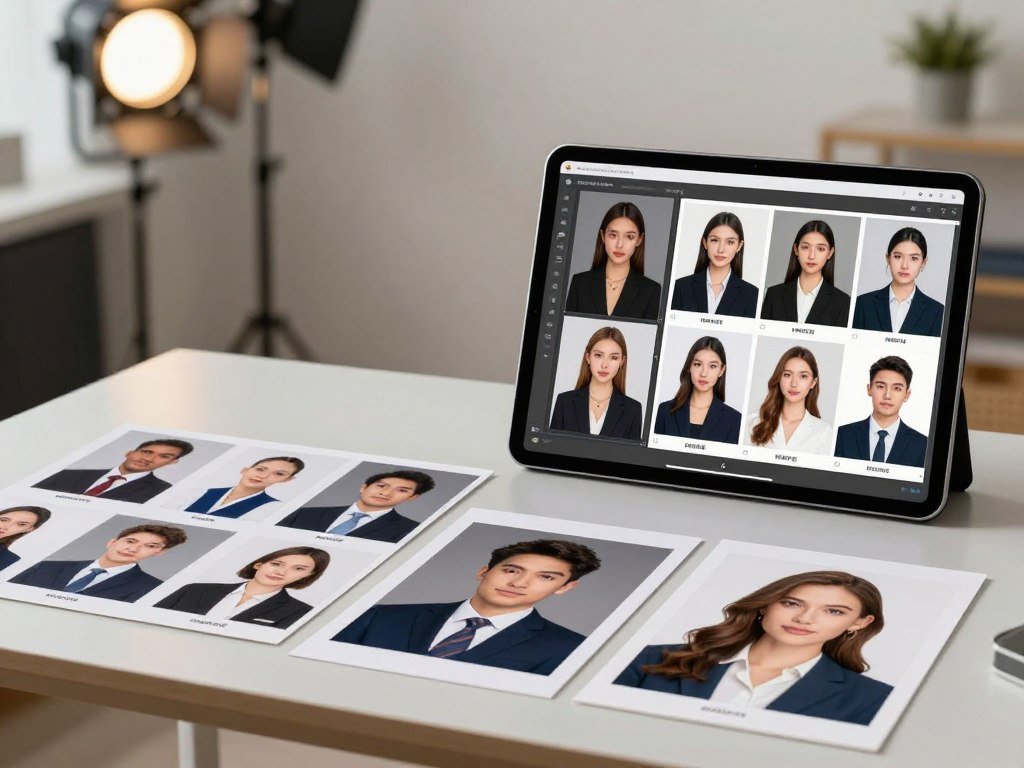
One-time image packs and per-run credits
| Tool | Price | Image count | Extra terms |
|---|---|---|---|
| HeadshotPro | $29-$59 | $29 Starter: 30 images | Credits never expire; free retry within 14 days |
| BetterPic | $35 | 20 photos | 4K output; two edits |
| Aragon | $35 | 40 headshots | One-time plan |
| Secta Labs | About $49 | Roughly 200 headshots | One-time price |
| Leap | Starts at $5 | Up to four headshots per run | Per-run credit purchases |
HeadshotPro’s $29 Starter package includes 30 images and is advertised for delivery in under two hours. Its credits never expire, and the plan includes a free retry within 14 days.
BetterPic also offers a $39 plan with 60 photos and four edits. Its $79 plan includes 120 photos, eight edits, and a free redo.
Aragon lists plans with 60 headshots for $45 and 100 for $75. Secta Labs costs about $49 one time for roughly 200 headshots.
Leap has no free credit or subscription, and credit purchases start at $5. A run uses one to four uploaded photos to make up to four 2K headshots in square, 4:5, or 3:4 crops.
Headshot Photo plans start at $34. Its fastest plan takes about one hour, Professional takes two hours, and Basic takes three hours.
Compare the package to the number of usable images
A package with many images can still leave you with few portraits you want to use. This AI image generator comparison can help you think about how a tool fits your editing and image-making workflow.
Some plans sell a one-time image pack, while Leap sells credits for each run. With a pack, you pay for a set of outputs; with per-run credits, you pay each time you generate another group.
Look at edit credits and output size alongside the image count. A plan with fewer photos may suit you better if it gives you useful edits and the right crop.
Delivery and retry terms can affect how much time you spend waiting for a result you like. HeadshotPro’s advertised delivery for its $29 Starter package is under two hours, not a guarantee that every image will suit you.
Compare the total images, resolution, edits, and delivery terms against the number of portraits you expect to keep. A package is more useful when its terms match your real need.
How many generated photos are likely to be usable?
A large image pack does not guarantee a large number of portraits you will want to use. Usable yield can be far lower than the total number of generated photos.
Three evaluations from September 9, 2026, show how different that yield can be. ProfilePicture.AI made 280 HD 1024 x 1024 photos for $14.75, and about four seemed potentially suitable for professional use.
Profile Pic Maker made 224 photos for $19 in the same evaluation. One or two looked potentially usable for LinkedIn.
PhotoPacks.AI made 100 headshots for $24 in under an hour. Those results were judged realistic and usable for LinkedIn.
These are individual results, not a promise about what every user will receive. Another person may get a different mix of strong portraits and obvious errors.
Your reference photos, prompt, image model, and personal standard for likeness can all affect the outcome. A result that looks close enough to one person may feel wrong to someone else.
Check each finalist at normal size, then enlarge it to inspect details. Look closely at the eyes, teeth, hairline, skin texture, clothing details, and edges around the background.
Eyes can look slightly uneven, while teeth may appear too smooth or too uniform. Hair can blend into a backdrop, and small areas of clothing can change shape between images.
A high output count may hide many near-duplicates. A smaller, more consistent pack can give you a better choice than hundreds of images with only slight changes.
For a clear process for making and checking AI images, read this guide to creating and reviewing AI images. A careful final check helps you spot flaws before a portrait reaches your profile.
Keep only versions that look like you at normal viewing size and remain convincing when enlarged. If a detail draws your eye for the wrong reason, leave that version out.
What should you check before uploading personal photos?
Before uploading a face image, check how long the service keeps it and whether it uses images for model training. Plan terms can differ, even within one provider’s free and paid tools.
Check the retention period, training terms, and who can access the account. A clear answer on each point helps you make a better choice for your own profile or a small team.
Review storage, deletion and model-training terms
HeadshotPro says it deletes free-tool uploads within 24 hours. It also says free selfies and generated images are not used to train models.
For paid HeadshotPro use, inputs are deleted 30 days after generation and are not used to train models. Headshot Photo says it deletes uploaded training selfies within seven days after generation.
Those stated periods differ, so check the terms for the exact tool and plan you choose. A provider may handle a free tool differently from its paid service.
Terms can also explain whether deleted images remain in backups or whether a user must request deletion. Read the current policy before sharing photos of yourself or staff.
Consider account access and team controls
Aragon states that it uses AES-256 encryption and has SOC 2 Type II certification. Those details can help you assess its stated security practices.
For a company account, check who can upload, access, download, or delete staff images. A shared login can make those tasks hard to track, so clear account roles matter.
Before using an AI service with a connected design app, review the account permissions it requests. This guide to ChatGPT apps also covers access and data-control questions for connected tools.
- Deletion timeline
- Model-training opt-out or exclusion
- Account and team access
A photo may show more than a face, including a home, badge, or workplace in the background. Crop out details you do not want to share before you upload.
For a team rollout, confirm that employees know who can access their uploaded images. They should understand how the company account handles those files.
Can you use an AI-generated portrait on LinkedIn?
You can use an AI-generated image on LinkedIn if it still reflects your real likeness. The rule centers on likeness, not a blanket ban on AI-made profile photos.
An image that changes your face enough to mislead viewers can violate LinkedIn’s profile-photo rule. Keep the result close to how you look in person, especially if customers or colleagues will rely on the profile to recognize you.
A 2024 survey of 1,087 U.S. recruiters found a split response. In blind comparisons, 76.5% preferred AI-generated portraits, but 66% said learning a portrait was AI-made would put them off.
In that survey, 88% of recruiters said candidates should disclose AI use. That is a recruiter preference, not a LinkedIn rule, but it may shape how you handle a professional profile.
Recruiters identified AI-generated portraits 39.5% of the time. They were right 29.2% of the time for premium tools and 58.9% for free, lower-quality generators.
Those rates show that detection is imperfect, especially for premium results. As of 2026, LinkedIn had not banned AI headshots outright and had not announced a public AI-detection tool for profile photos.
Think about the setting where people will see the portrait. If you work directly with clients, a close likeness can support trust better than a polished image that changes your features.
Disclosure may also matter in hiring, licensing, or workplace settings, even when a platform does not require it. Follow any rules set by your employer or professional body.
Use a generated portrait only when people who know you would still recognize you.
Compare the final portrait with a recent photo of yourself before making it your public profile image. Small changes can be easy to miss when you review many generated options.
Which generator should you choose for your situation?
For most people who need one usable portrait quickly, start with HeadshotPro’s free downloadable option. For prompt-led control, Adobe Firefly is a strong choice; Canva suits you if you want to edit inside a design workspace.
The best AI headshot generator for professional photos depends on the job you need it to do. HeadshotPro also suits a paid pack with multiple styles and editable variations, while GenerAItion lets you preview before paying to download.
The best free AI headshot generator for one direct download is HeadshotPro. Choose Canva or Firefly if editing and continued experimentation matter more than a single finished portrait.
A free headshot generator may offer a preview instead of a full image. GenerAItion gives six free previews, then charges to download a selected 2K result.
General image tools can suit you if you need more than a profile picture. This free image generator guide compares tools by different creative uses.
- Choose the platform where you plan to use the portrait.
- Check whether the tool’s free or paid offer gives you a preview or download.
- Inspect the likeness before publishing the image.
Select the image that looks like you and fits the profile where you plan to use it. A choice that works for a personal profile may not suit a company team page.
Conclusion
The best result is the portrait you would confidently use because it looks like you and suits its purpose. Good headshots balance a recognizable face, clear image quality, and terms you feel comfortable accepting.
Start with one recent, well-lit selfie and test your preferred tool with its free allowance. Review the image before paying for a larger pack, since more options do not always mean more keepers.
Try one well-lit reference photo first, then decide whether the result earns a place on your profile.
FAQ
Can an AI headshot generator change how my face looks?
Yes, an AI headshot generator can change your features, even when you provide a clear selfie. It may alter your jaw, eyes, hairline, or skin texture while trying to create a polished portrait. Compare each result with a recent photo of yourself. Reject any version that no longer looks like the person colleagues or customers know.
Is a 1024 x 1024 image enough for a professional profile?
Yes, a square 1024 x 1024 file is ample for many professional profile uses. It gives you enough pixels for common online crops, including a small profile photo. A higher-resolution output is a better pick when you plan to print the image large or crop it more than once. Check the final crop on the platform before publishing.
Can I use the same portrait on LinkedIn and my resume?
Usually, you can use the same portrait on LinkedIn and your resume if the crop and expression suit both. A centered head-and-shoulders image often fits an online profile and a resume layout. Check that the background does not clash with either format, and use a current image that still looks like you. Follow any employer or industry rules.
How can I make an AI headshot look less artificial?
Use a clear, recent reference photo with soft, even light to give the generator a solid starting point. Avoid strong filters and ask for styling that matches your real work setting. Inspect skin texture, eyes, hair edges, and clothing details in the final image. A natural expression and simple background can also help the portrait feel believable.
Should I use AI headshots for a regulated profession?
Check your employer, licensing body, and platform requirements before publishing an AI-generated portrait. Some fields have rules about public profiles, client-facing images, or how you represent your professional identity. A generated image may raise extra questions if it changes your features or suggests a setting you do not use. When in doubt, use a real photo or ask the relevant authority.
What should I do if the generated image does not look like me?
Try a clearer, more recent reference photo or run the generator again with a simpler style request. Some tools also let you adjust the prompt or choose a different image pack. Compare new results with your real face, not just with other generated portraits. Do not publish an image that changes your recognizable likeness or could mislead people about who they will meet.



