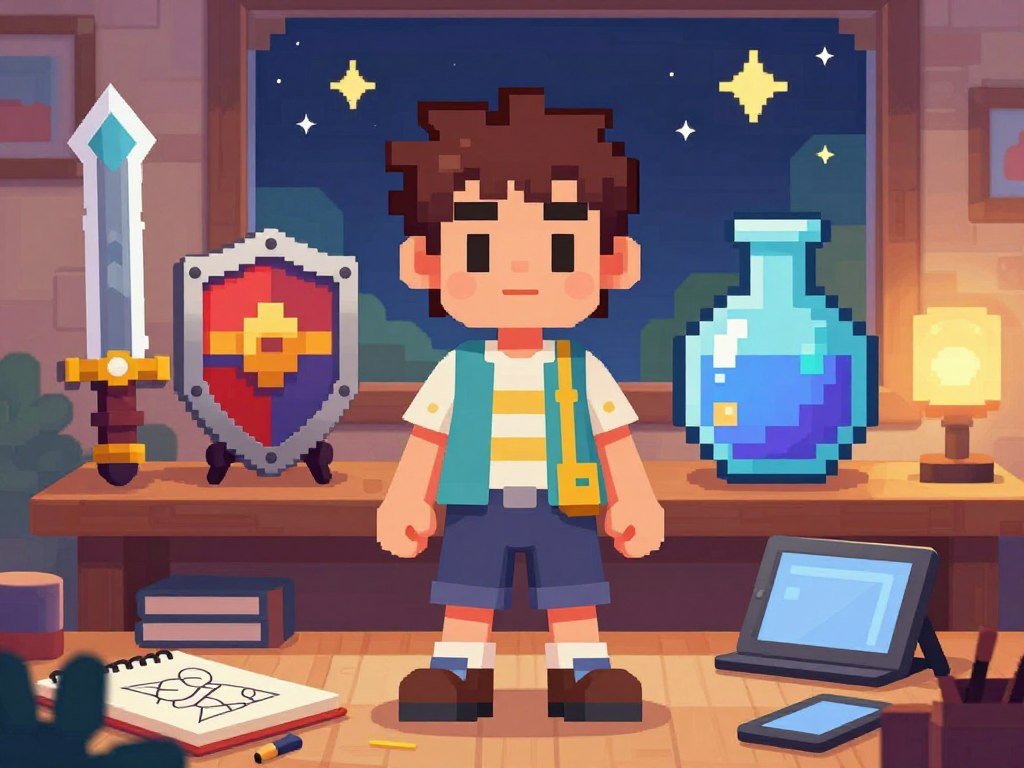
A character concept can become a useful starting sprite much faster when you describe its view, silhouette, and style before generating. An AI Pixel Art Generator for Game Assets can help you build characters, items, icons, and animation drafts for an indie game. A sprite sheet is one image file containing multiple sprite frames, arranged for animation or game-engine import.
Text prompts and reference images can help turn a rough idea into artwork that fits your project. Still, a generated image may need pixel-grid, palette, transparency, or frame corrections before it works in a game. Plan time to inspect and edit the result rather than expecting a finished production asset.
Key Takeaways
- Start with one clear asset idea and its role in the game.
- Describe the view, silhouette, visual style, and target size.
- Use references to guide related characters and game assets.
- Check grid, palette, transparency, and animation alignment.
- Test the exported image in the game before making more assets.
Treat the first output as a draft to inspect, not an automatic final asset.
What Makes a Sprite Ready for a Game?
A usable game sprite needs consistent pixels, controlled colors, clean edges, and a background that does not cover the game world. Production-ready means the image fits your project’s visual rules and technical needs, not just that it looks like pixel art.
Check five details before adding a sprite to a game: its square-pixel grid, shared palette, transparent background, hard-edged outline, and alignment across frames. A square-pixel grid keeps each pixel evenly shaped. Related sprites should share colors so characters, items, and scenes feel like one game.
A polished pixel-art illustration is not automatically a production sprite; the image must also fit the project’s grid and scene needs.
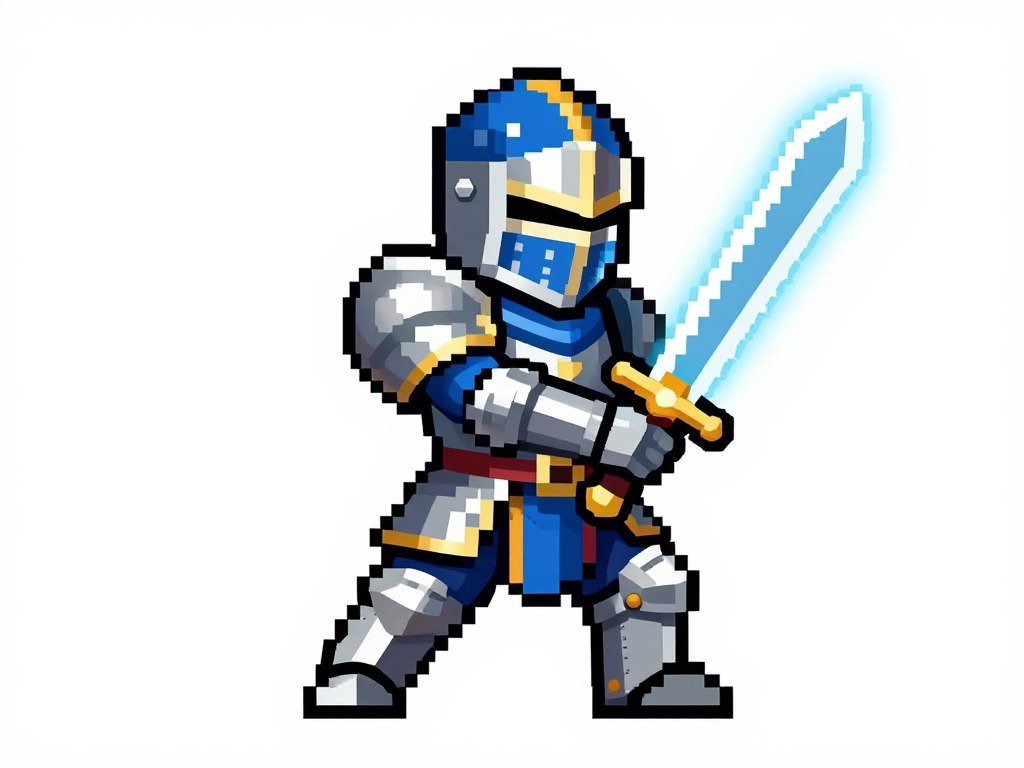
Pixel grid, palette, and outline
A pixel-art-looking illustration may still have soft edges, uneven pixel sizes, or too many colors. Those traits can make it stand out beside hand-drawn sprites. Hard outlines keep the shape clear, while a limited palette helps the asset match the rest of the game.
Look closely at diagonal edges and small details. Anti-aliasing adds blended colors between an outline and its surroundings, which can blur the crisp look of pixel art. A deliberate grid helps each shape read at the size players will see.
Transparency and animation alignment
A transparent-background sprite lets the scene show through around the character. PNG images can store an alpha channel, which records which areas are transparent. An opaque background can make an otherwise good character awkward to layer over terrain or other objects.
Animation frames need matching canvas sizes and foot positions. A sprite sheet groups frames in one image file, but uneven frames can still cause visible jumps during play.
- Confirm that pixels follow one square-pixel grid.
- Use a palette shared across related assets.
- Check that the background is transparent where needed.
- Look for crisp outlines without anti-aliasing.
- Compare frame canvas sizes and foot positions.
Check the feet and canvas edges across every frame before assembling a sprite sheet.
How Does an AI Pixel Art Generator for Game Assets Fit a Sprite Workflow?
A text prompt becomes more useful when it describes what the sprite must do in the game, not just how it should look. Game purpose helps narrow the image generation choices, from a side-view hero to a small map icon.
Use a two-stage process: describe the asset, then refine a chosen result. An AI pixel art generator from text can create starting images, but the prompt should guide the view, framing, colors, and scale.
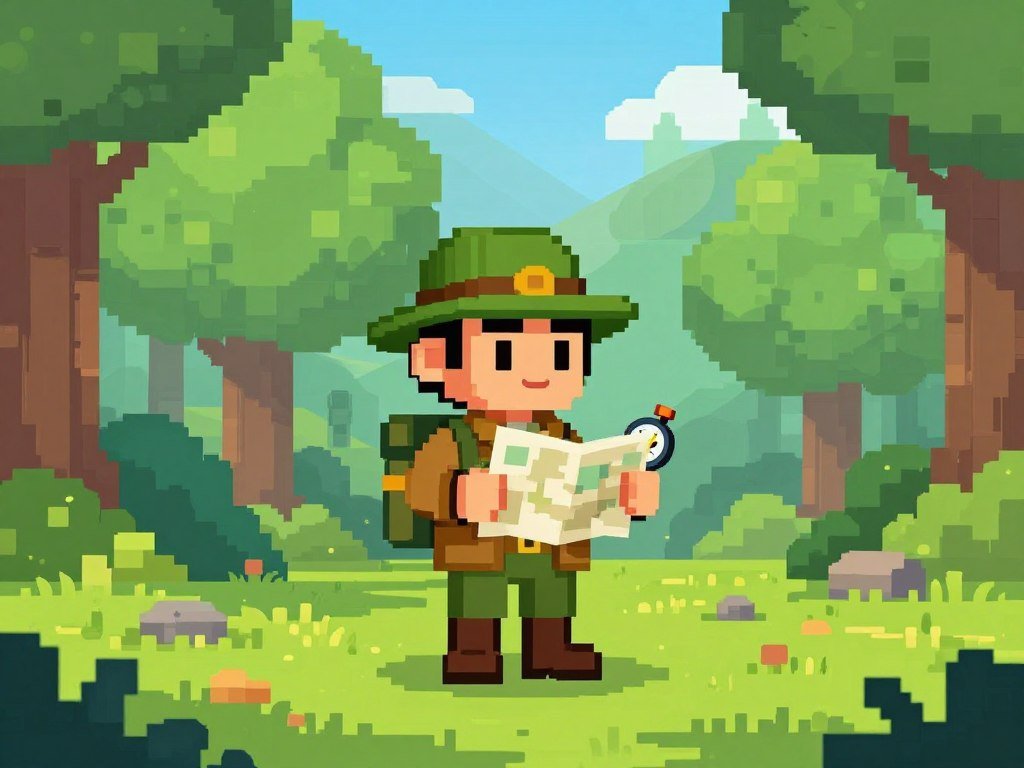
Describe the asset and its view
Choose one subject and say how the player will see it. Include full-body framing when the whole character must appear, and keep the subject centered when you need room around it.
A prompt such as “full-body side-view forest ranger, centered, limited green palette, flat solid background” gives a generator more to follow than a vague style request. Add a pixel-era reference and a detail level that suits the role.
Use a five-part prompt checklist:
- Subject: name the character, item, or icon.
- View: say side-view, front-view, top-down, or isometric.
- Framing: set full-body, close-up, or centered composition.
- Palette: name a few colors or a limited range.
- Pixel size: give the intended output size or grid.
Pixelbin recommends naming a target such as 8×8 or 16×16 in the prompt when you want that output size. A reference image can also help when the tool accepts uploads. For broader prompt ideas, see this simple image prompt formula.
Refine a chosen result
Generate a few variations, then choose the one with the clearest shape and strongest fit. Keep the original result so edits do not erase a useful option.
Change one feature at a time when refining the image. You might adjust the cloak, simplify the weapon, or change the angle without asking the generator to redesign everything.
Image-to-pixel workflows can start with an uploaded photo or illustration. The result may need more manual changes than an image designed for a game grid from the start.
For more ways to plan a generated image, read this beginner image creation guide. For a small icon, simplify the silhouette and remove fine details that will disappear at low resolution.
What Sprite Size Should You Choose?
Choose the smallest canvas that preserves the silhouette and details the player must recognize. Fit matters more than raw size, because a large image can still look wrong beside sprites built for a smaller project grid.
Traditional game characters often use 16×16- or 32×32-pixel canvases. The right choice depends on the asset’s job and the size it will appear on screen.
| Canvas size | Common use | What to check |
|---|---|---|
| 16×16 pixels | Minimal icons or small retro characters | Clear silhouette with few details |
| 32×32 pixels | Compact character sprites | Readable face and costume shapes |
| 64×64 pixels | More detailed characters | Fits the game’s art scale |
| 384×384 pixels | PixExact maximum custom canvas | Useful only when the project needs it |
Sprite Fusion offers exact 16×16, 32×32, and 64×64 output sizes. PixExact supports custom canvases from 16×16 to 384×384 pixels.
A tool’s selectable canvas is not always the best resolution for a particular game. Matching related assets to the project grid matters more than choosing the largest available size. A 64×64 character may look out of place beside compact 16×16 terrain tiles.
Try a small test sprite beside the game’s existing art. Check whether the face, weapon, or key item stays easy to recognize at its expected display size.
Test the sprite at its intended on-screen scale before committing to a larger canvas.
How Can You Keep Characters and Art Style Consistent?
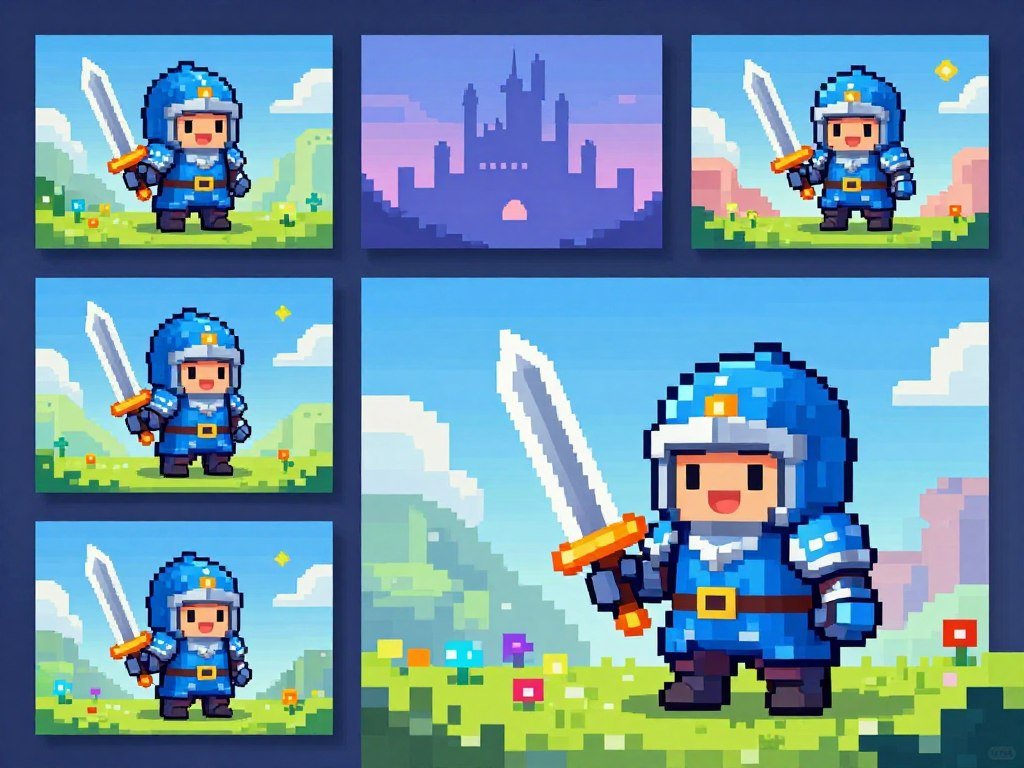
Consistency improves when every new asset starts from the same visual reference and a short list of character traits. A shared reference can guide color, proportions, and rendering across characters and items.
Keep a written record of the details that make each character recognizable. Include outfit colors, accessories, silhouette, and face shape so new poses do not drift away from the original.
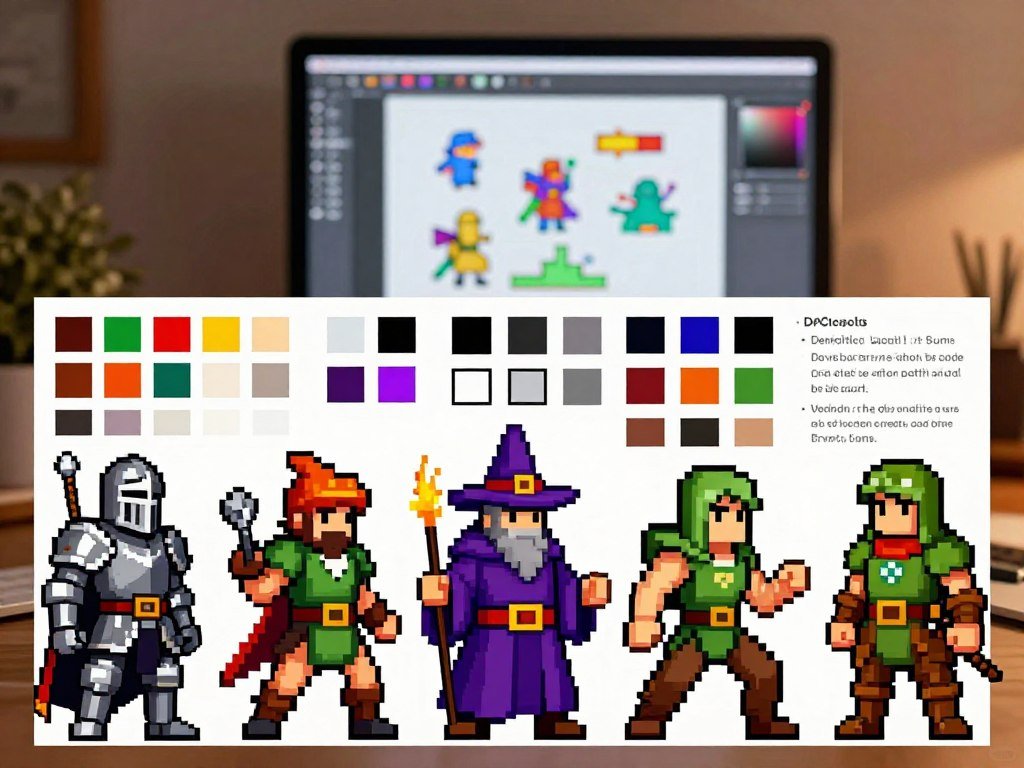
Set a style reference
A style reference is an image used to guide a matching asset. It can help a generator repeat a palette, body shape, and way of shading. Sprite Fusion supports using one sprite as a style reference for new assets.
PicLumen accepts text prompts and reference images for game-asset generation. Use the same reference when creating related non-player characters, enemies, or item art. A reference-based image workflow can also help you plan which traits should carry across new images.
Color alone may not be enough. A new pose can look like a different character if the reference preserves the palette but changes proportions or costume details.
Lock recurring character details
Write a brief character note before generating new poses. Keep the notes concrete, such as “short blue coat, square backpack, narrow face, red scarf.” That gives you a quick comparison point for each version.
Use the same reference and character notes for related assets. Then compare the new image with the original, rather than judging it from memory.
For groups of characters, decide which traits belong to the whole game and which belong to one person. A shared outline style can unify the cast while each character keeps a distinct shape or accessory.
Compare a new asset beside the original reference at the same displayed size.
How Do You Make Directional Character Sprites?
A top-down character usually needs more than a front-facing sprite if players can move in several directions. Directional views let the game show the character facing the way it moves.
Review each direction for consistent shape, clothing, scale, and facing. Top-down and isometric games often need several views so the character does not appear to slide or turn into someone else.
Sprite Fusion can generate N, NE, E, SE, S, SW, W, and NW views as one grouped eight-direction batch. This can make it easier to check the set side by side.
Ludo’s Directional Sprites feature renders rigged 3D characters into transparent PNG sprite sheets. It supports up to eight directions and 14 styles.
These tools use different approaches. Generating views from one image asks the model to infer unseen sides. Rendering a rigged 3D character uses a model that can turn through set angles.
- Consistent silhouette across the set.
- Matching costume details in each view.
- Stable apparent scale from one direction to another.
- Correct facing for each labeled direction.
A hat, cape, or weapon can change shape as the view turns. Check those details before using the sprites together in movement.
Inspect neighboring views for changes in proportions or clothing before using the set in a walk cycle.
What Should You Check Before Using AI Sprite Animation?
A convincing animation needs more than motion: the character must stay aligned while its pose changes. Frame consistency helps keep a walk or idle cycle from looking jittery.
Inspect canvas size, foot placement, outlines, and repeated or distorted poses. A tool can create motion without making a clean loop, so even a short sequence needs frame-by-frame review.
Match canvas and foot position
Keep every frame on a consistent canvas and check where the feet meet the ground. If the feet jump between frames, the character may appear to bounce or slide.
Watch for outlines that flicker, limbs that change length, and poses that repeat by mistake. The character should keep its basic shape even as its arms and legs move.
Research on directional sprite frame generation tested three models trained on 280 curated sprite triplets. Tests on 42 triplets found comparable quality across previous-frame, middle-frame, and next-frame generation.
Choose an animation workflow
Prompt-led motion asks a tool to create poses from text or an image. Skeleton-based controls use a rig, a structure of connected parts, to guide movement. The first can be quick to try; the second can offer more control over how a character bends.
Limits on frame count and duration affect whether a tool fits an idle, walk, or longer action. PixelLab’s animation tools are capped at 128×128 pixels. Ludo supports animation sheets up to five seconds and 64 frames, with optional GIF and individual-frame exports.
Sprite Fusion supports prompt-led animation and animation exports. A brief idle may need only a few frames, while a longer action needs enough poses to show the full move without abrupt jumps.
Scrub the final loop one frame at a time to catch foot sliding and sudden silhouette changes.
Which Other Game Assets Can You Generate?
A consistent asset set can include much more than player characters. Supporting artwork can cover the rooms, objects, and interface that make a game world feel complete.
Generate a small sample of each asset type before building a large set. Tiles need to meet cleanly at their edges, while standalone items need clear silhouettes.
- Terrain tiles and dungeon walls.
- Props and collectibles.
- Weapons and inventory icons.
- UI elements such as health bars and buttons.
- Backgrounds or environments.
PixExact lists character sprites, tilesets, map tiles, item icons, and UI elements as 2D asset types. Sprite Fusion provides tilemap and scene-generation tools.
Map tiles often repeat across a level, so even a small edge mismatch can create a visible seam. Check a few tiles in a repeating pattern before you draw a whole map around them.
Standalone weapons and collectibles have a different job. Their shape should stay easy to read beside the character and against the game background.
Scene and background generation is not the same as making a set of individually editable game objects. A full scene may work as one image, while a game often needs separate pieces that can move or change.
Generate a small representative set of tiles before building a whole map around them.
Can You Turn an Existing Image Into Pixel Art?
An existing illustration can be converted into a pixel-art starting point, but conversion does not automatically make it game-ready. Grid conversion changes how an image is sampled; it does not decide whether the sprite suits your game.
Inspect converted images for blurry edges and leftover background pixels. A photo or illustration may contain details that become muddy when reduced to a small number of pixels.
Use this five-step cleanup sequence:
- Upload an image or select an animation frame.
- Snap the image to a square-pixel grid.
- Reduce the palette to a limited set of colors.
- Remove or clean the background.
- Align related frames before export.
Pixel Snap can snap AI images or video frames to a square-pixel grid, limit palettes, clean backgrounds, and align animation frames. It can export sprite sheets or individual frames.
Pixelbin accepts WEBP, JPG, JPEG, and PNG uploads up to 10 MB. Its service is advertised as requiring no sign-up.
Conversion turns an existing picture into pixel art. A sprite designed for a particular game grid starts with that project’s visual needs instead. This difference can affect how much cleanup the image needs.
For broader tool choices, see this AI image generator comparison. Zoom in to check for stray background pixels along the sprite outline.
Which Generator Fits Each Pixel Art Workflow?
For most game developers who need animated characters and directional views, PixelLab is the strongest all-around fit, while Retro Diffusion suits a pixel-art-first workflow. The best match depends on what you need to make and how much control you want.
Choose by workflow, not by a single sample image. A generator that makes a striking portrait may still be a poor fit for animation, tiles, or consistent game assets.
Tools built around a true pixel grid
PixelLab, Retro Diffusion, Sprixen, and Sprite-AI output on a true pixel grid. That can help preserve crisp pixel shapes without an extra reduction step.
PixelLab suits developers who prioritize character animation, directional rotations, tilesets, and inpainting. In 2026, it offered skeleton-based and text-prompted character animation, automatic four- and eight-direction rotations, and exports for Unity, Godot, and GameMaker.
Retro Diffusion is a strong fit for pixel-art-focused workflows. Sprixen emphasizes style consistency, while Sprite-AI can suit quick generation. For broader model comparisons, read this guide to image generator tools.
Tools with broader model choices
Scenario suits people who want a broad model library or custom training. In 2026, it offered more than 650 models from over 40 providers, with custom model training starting at $45 per month.
Ludo suits animated 2D sprite-sheet workflows. It exports animated assets as transparent PNG sprite sheets for Unity, Godot, and GameMaker.
Ludo, Scenario, Layer, and Leonardo may need a downscaling pass for pixel art. Downscaling can affect crisp edges, so inspect the result at native size.
Compare the workflow, not just the image
| Tool | True pixel grid | Best-fit workflow |
|---|---|---|
| PixelLab | Yes | Animation and directional assets |
| Retro Diffusion | Yes | Pixel-art workflow |
| Sprixen | Yes | Style consistency |
| Sprite-AI | Yes | Quick generation |
| Ludo | May need downscaling | Animated 2D sprite sheets |
Also compare how each tool handles edits, references, and export files. A clean sample image matters less if the workflow cannot support the project’s repeated tasks.
Judge each candidate by one representative character, one item, and one animation from your own project.
When Does an Editor Extension Beat a Browser Tool?
Choose an editor extension when staying beside your hand-edited sprites matters more than having every web feature in the same place. Local work can make it easier to switch between generated art and manual pixel edits.
Check whether the feature you need runs in the extension or on its website. Related products may have different models and tools in each place.
Work inside a pixel editor
Retro Diffusion’s Aseprite extension is intended for static local generation. It uses smaller models than the website and does not include the website’s top models or animation features.
Animation through the extension requires its API and credits. That makes the extension convenient for static drafts and cleanup, but it does not provide every feature found online.
Use a browser workflow for broader generation
Retro Diffusion’s website supports animation, while its Aseprite extension focuses on static local generation. The distinction matters if you want to create motion without switching to an API-based process.
Sprite Fusion includes a browser-based pixel editor for manual edits and imports. You can bring in a sprite, correct a few pixels, and keep working in the same browser workflow.
A browser tool may suit generation and quick edits, while an extension can fit an established pixel-art routine. The better choice depends on where you do most of your cleanup.
Check whether the exact feature you need runs locally or depends on a separate API.
Which Free, No-Sign-Up, and iPhone Options Are Available?
For a no-account browser test, Template.net is an option; for an iPhone filter workflow, pxlart is the relevant app. Free access can mean a no-sign-up web tool, a limited credit allowance, or an app with in-app purchases.
A free download does not always mean every feature is free. Pixel-art filters also do not guarantee exact game-sprite sizing.
| Option | Access | Useful detail |
|---|---|---|
| Template.net | Free and no sign-up | Accepts text, voice, and image |
| Retro Diffusion website | 50 free credits | One credit covers an image up to 276×276 |
| pxlart | Free iPhone app with in-app purchases | Requires iOS 17.0 or later |
| pxlart library | Private DISK storage | Save to Photos or share from preview |
Template.net advertises a free generator that works without signing up. It accepts text, voice, and uploaded-image inputs, with PNG, JPG, SVG, and WEBP downloads.
Retro Diffusion’s website offers 50 free credits without a credit card. One credit generates an image up to 276×276 pixels, while larger images cost more credits.
pxlart is a free iPhone app with in-app purchases and requires iOS 17.0 or later. Its 12 filters include 8-bit, 16-bit, isometric, voxel, and dithered styles.
Generated sprites go to pxlart’s private DISK library. You can save them to Photos or share from the preview.
For a wider look at free image tools, see this free image generator comparison. Check the intended output dimensions before treating a free preview as a finished sprite.
How Do Prices, Credits, and Commercial Rights Compare?
Compare the purchase model and the rights attached to the output, not just the headline monthly price. Usage limits can change the real cost when each generation draws from a credit balance.
Check the plan’s commercial rights before using generated art in a paid game. A one-time editor purchase, a monthly subscription, and per-generation credits cover different things.
| Tool | Plan or purchase | Usage detail |
|---|---|---|
| PixelLab | $12, $24, or $50 monthly | Paid plans include commercial licensing |
| Retro Diffusion Aseprite extension | $20 Lite or $65 full, one time | Static local generation needs no credits or subscription |
| Ludo | $20 monthly or $15 monthly billed yearly | Entry plan |
| Scenario | Free plan; paid from $15 monthly | Free plan includes 50 daily credits |
| Layer.ai | $10 monthly for 300 Creative Units | Usage rises $60 per 1,000 units |
Subscription, credit, and one-time pricing
PixelLab’s free trial includes 40 fast generations and requires no credit card. Basic generations cost one credit, while newer models cost about 40 credits per generation.
Other monthly options have different credit rules. Sprite-AI offers 15 free generations and a Creator plan at $8 per month. Sprixen costs $10 monthly, and its Style Lock keeps palette, resolution, proportions, and art direction consistent.
Sprite Fusion Creator costs $19 monthly for 1,050 credits. Its $49 monthly plan includes 3,000 credits, and both plans list commercial use.
Aseprite costs $19.99, while Libresprite and Piskel are free pixel-art editors. These software costs differ from generator plans and image-generation credits.
Meshy Pro costs $20 monthly for 1,000 credits, and a textured model costs roughly 30 credits. Tripo Pro is listed at $20 monthly for 3,000 credits.
Check the license before shipping
Meshy’s free plan includes 100 credits and 10 Meshy 6 Lite downloads each month. Its assets use a CC BY 4.0 license, which requires attribution for commercial use.
PicLumen allows commercial use with a paid plan, subject to its terms. PixelLab includes commercial licensing on all paid plans, while Sprite Fusion lists commercial use on its two Creator plans.
Do not treat monthly plan credits as a per-image price. A one-time software purchase covers a different type of access than credits spent each time you generate an asset.
Confirm the license for the specific plan before shipping generated art in a commercial game.
How Do You Export and Import Pixel Art Into a Game Engine?
A PNG export is often the simplest handoff for a 2D sprite, while an editor plugin can reduce file switching. File export gives you an image to import, while a plugin connects an editor with a game engine.
“Exports to an engine” can mean a file you import yourself, not a dedicated plugin. Check which kind of handoff a tool offers before building it into your workflow.
PixExact exports transparent PNG assets for Unity, Godot, RPG Maker, Tiled, and LDtk. PNG is a common format for 2D art with transparent areas.
Sprite Fusion has native Unity and Godot plugins. It can also export image or animation assets for other game engines.
A plugin may reduce file switching, while a PNG can fit a wider range of projects. The import step still belongs to your game workflow when a tool only creates an image file.
Keep the exported file organized with its source art and any animation frames. Clear names make it easier to find the right version when a character has several poses or directions.
Verify that the imported image retains transparency and the intended pixel dimensions.
Can AI Generate 3D Assets for a Game?
Yes, AI can generate 3D game assets, but a model workflow is separate from creating a 2D pixel sprite. 3D generators create models that need review before they fit a game.
Check topology, materials, scale, and project fit before using a generated model. Mesh topology describes how the model’s faces and edges form its surface.
Textures add color and surface detail, while rigging connects a model to a skeleton for movement. The target engine also affects which file formats and setup steps will work.
Meshy supports GLB, FBX, OBJ, STL, 3MF, USDZ, and BLEND exports. Its Meshy 7.1 release on September 10, 2026, offers Smart Topology meshes from 100 to 300,000 faces and a native 8K base-color texture.
Meshy also offers auto-rigging with more than 600 animation presets. Its plugins include Blender, Unity, Unreal Engine, Godot, and Roblox Studio.
A high-detail mesh can still be a poor fit for a project if its shape, scale, or materials cause problems. A model may need changes before its rig or textures work as intended.
Check the model in the target engine before relying on its exported mesh or rig.
What Should You Check Before Importing a Pixel Sprite?
A crisp preview can turn soft in-game if the engine smooths the sprite’s pixels. Import settings affect whether the image keeps the sharp look you saw in the editor.
Use a five-point check before adding a full art set: preserve dimensions, set filtering, verify transparency, test display scale, and compare related sprites.
A clean preview is not proof of a clean in-game sprite; texture filtering can blur pixel edges after import.
Preserve crisp pixels in the engine
Unity’s pixel-art import guidance uses Point filtering for crisp texture display. Godot’s pixel-art workflow requires texture filtering to be disabled.
When smoothing stays on, the engine blends nearby colors as the image scales. That can soften outlines that looked sharp in the source image.
Run a small production test
Use this import checklist:
- Preserve the intended pixel dimensions.
- Disable smoothing or filtering where appropriate.
- Verify that transparent areas remain clear.
- Test the sprite at the game’s display scale.
- Compare it with related palette and grid rules.
Sprites that appear together should share a grid and palette. Check the imported character beside nearby tiles or items, rather than judging it alone.
A small scene can reveal issues that an editor preview hides. Look for soft edges, background blocks, and a scale that feels out of place.
Test one sprite in the actual scene before importing a full asset set.
Conclusion
The right generator is the one that fits the sprite work your game actually needs. Start with a small test, then keep the workflow that makes useful art without adding too much cleanup.
Pick one representative character, a target canvas, and a style reference. Generate a few options, then check the strongest result in your game project.
Write one detailed character prompt, generate a small set of options, and test the strongest result in your game project.
FAQ
Can you use AI to make pixel art?
Yes, AI generators can create pixel-art-style images and sprites from text prompts or reference images. The output may still need editing before it fits a game. Check the pixel grid, palette, and transparent areas, then review every animation frame. A result that looks crisp at full size can become muddy when shown at the game’s actual display scale.
Which AI pixel art tool is better, Retro Diffusion or PixelLab?
PixelLab is a better fit for character animation, directional views, and tilesets. Retro Diffusion suits a pixel-art-focused workflow, especially when you want static local generation in its Aseprite extension. Its website supports animation, but extension animation uses a separate API and credits. Compare each tool using the same character and task before choosing.
Is pixel art still popular?
Yes, pixel art remains a recognizable style for indie games and retro-inspired projects. Its appeal comes from readable shapes and a clear visual language, not just nostalgia. Players still need to understand characters, items, and hazards quickly. A consistent palette and distinct silhouettes help preserve that clarity across a full game.
Can AI make 3D game assets?
Yes, 3D generators can create models for games, but a model needs more than a good preview. Check its topology, textures, rig, scale, and engine fit before using it. Some models may need edits to move well or match the project’s visual style. Test the exported model in the target engine before building it into a scene.
Which AI is best for game assets?
PixelLab fits character animation and directional assets, Retro Diffusion fits pixel-art-focused work, and Meshy fits 3D models. The best match depends on the assets your project needs and the amount of editing you can do. Compare one character, one item, or one model from your own game. Check the export and usage rights as well as the image.



