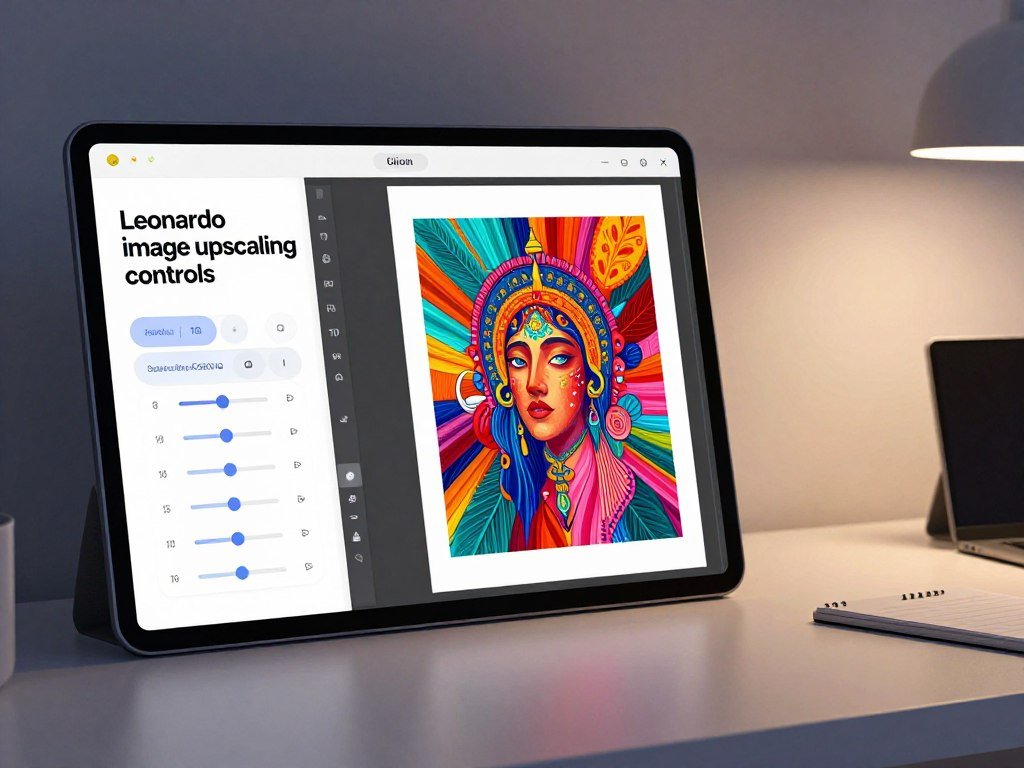
You can enlarge an existing creation or upload a photo in Leonardo, then choose settings that balance fidelity and detail reconstruction. This helps when an image looks good on screen but needs more pixels for a larger display or print. The right choice depends on whether you want to preserve the source or repair visible flaws.
Interpolation means estimating new pixel values from surrounding pixels when resizing an image. AI upscaling can also rebuild details, but added detail is an interpretation, not proof of what the original image contained. A clear source gives the tool a better starting point.
Use a careful review to decide whether the result suits your intended use. This tutorial gives you a practical workflow for selecting an image and judging its output. Treat the finished result as a new version to inspect, not a perfect recovery of details the original never contained.
Key Takeaways
- Start with the clearest source image you have.
- Use a preservation setting when the original composition matters.
- Allow more reconstruction only when visible flaws need repair.
- Choose an output size that fits your display or print.
- Inspect small details before keeping the finished file.
How to Upscale Images in Leonardo AI
Leonardo lets you begin with an image already in the app or bring in a file of your own. You can upscale by selecting an image, setting controls, and starting the process, with separate interfaces for the two tools.
Universal Upscaler and Pro Upscaler use different workflows. An image upscaler enlarges an existing image; it does not create a new image from a text prompt. The platform also offers other editing tools, as described in this beginner’s guide to Leonardo AI.
Universal Upscaler and Pro Upscaler are separate interfaces, so choose the workflow that fits your image and desired controls.
Use Universal Upscaler with an uploaded or app image
Universal Upscaler sits under AI Tools. It accepts a file you upload or an image already selected from the app. Follow these five actions to run it:
- Open Universal Upscaler under AI Tools.
- Click Add Image to upload a file, or select a recent app image and confirm.
- Adjust Upscaler Style, Creativity Strength, and Upscale Multiplier.
- Click Upscale Image to start the process.
- Open Personal Feed, find the result, and download it.
The settings shape how much the output changes. The Universal Upscaler AI controls help you balance similarity and newly built detail without writing an image prompt. Leonardo’s Universal Upscaler documentation describes its available controls.
Open Pro Upscaler from an image or its page
For Pro Upscaler, hover over an image in your feed and click Upscale Image. You can also open the Upscaler page, then use Add image or New to select an app image or upload a file.
The Leonardo AI Pro Upscaler route starts from a feed image or the tool’s own page. If you are following a Leonardo AI user guide, keep in mind that the two tools do not share one interface.
After processing, confirm that the finished file appears in Personal Feed before leaving the workspace.
Which Leonardo AI settings should you choose?
For a source that already looks right, choose Precise; reserve Creative for flaws that need rebuilding. Precise keeps the original composition closer to the source, while Creative gives the model more freedom to rebuild details.
Use the mode that matches the image’s condition, not just the level of sharpness you want. That choice affects the balance between fidelity, clarity, and new textures.
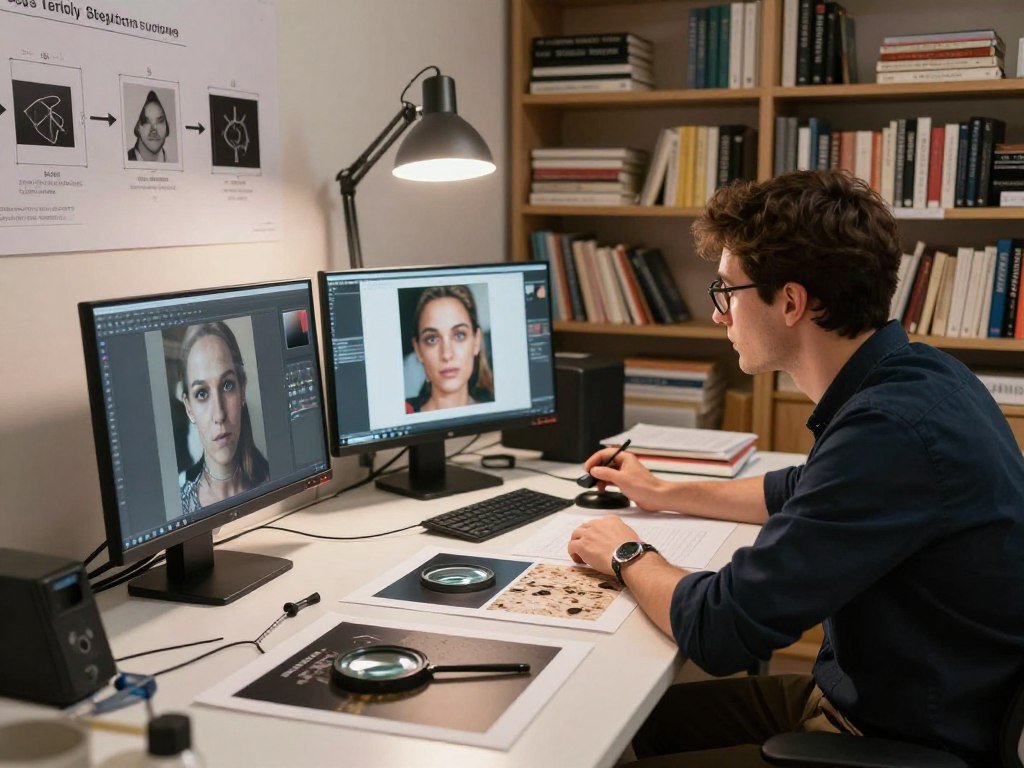
Choose Precise to preserve the source
Precise suits photos, artwork, or layouts where identity and composition must stay close to the original image. Its Fix AI Image Artifacts toggle can be on or off. Turn it on for synthetic noise, fake film grain, or minor compression artifacts.
Leave the toggle off for a real photo or a clean source. An AI image upscale and sharpen workflow does not need an upscale image AI prompt in Universal Upscaler, because its settings control that process.
| Configuration | Suited to | What it changes | Fidelity tradeoff |
|---|---|---|---|
| Precise, artifacts off | Clean photos and artwork | Preserves source detail | Highest source fidelity |
| Precise, artifacts on | Synthetic noise or minor compression flaws | Reduces visible artifacts | Small changes to flawed areas |
| Creative, strength chosen for the flaw | Visible structural errors | Rebuilds image details | More change from the source |
Choose Creative to repair visible flaws
Creative rebuilds details that the source cannot clearly support. Choose Subtle for light refinement, Balanced as a starting point for modest structural flaws, and Strong for significant errors when more change is acceptable.
These options help you control how much the tool alters edges, textures, and small features. For a useful AI image upscale and sharpen result, match the strength to the flaw instead of applying the strongest setting by default.
If you are also creating artwork, this beginner guide to making AI images covers generation and editing choices. Preview small facial features and text closely before accepting a generative repair.
How large can Leonardo make an image?
Leonardo’s Pro Upscaler can reach 105 megapixels, but the output depends on the starting dimensions and available enlargement step. Pro Upscaler enlarges images from 2x to 8x, though the selected multiplier does not guarantee a particular final size.
The tool uses defined enlargement steps. If a result would exceed 105 megapixels, the platform limits it to the next lower step. That can make the final pixel dimensions smaller than your selected multiplier suggests.
Match the multiplier to the final use
Use 2x for a modest digital enhancement. A 3x-6x enlargement can suit higher-resolution displays or standard print, while 8x targets very large output and gives the model more freedom to rebuild details.
For example, a 5056×3392-pixel image enlarged to 10112×6784 pixels measures 68.59 megapixels. An 8K display measures 7680×4320 pixels, so an 8K target depends on both the source and the available enlargement step.
A free image upscaler for 8K output still needs a source image and enlargement setting capable of reaching those dimensions. Pro Upscaler accepts JPG, PNG, and WebP files up to 20 MB.
Check the source before enlarging
Check the source structure before choosing a multiplier. A large output cannot restore details that the original image never captured, and fine textures may be interpreted by the model.
- Inspect the source structure and look for clear shapes.
- Identify the final display or print dimensions.
- Select the smallest multiplier that meets those dimensions.
- Check fine textures and edges after processing.
For a broader view of image-generation tools and their uses, compare the options in this free text-to-image generator guide. Start with a source that already has clear structure, since fine textures can be interpreted rather than faithfully preserved.
How many tokens does Leonardo AI upscaling use?
Leonardo’s Free plan gives you 150 tokens per day in 2026, and the listed Upscaler charge is 5 tokens. The daily balance resets every 24 hours, and unused tokens expire, so plan several attempts with that limit in mind.
The table shows the listed costs for common actions. Your generation choices can affect other costs, so check the balance shown in your account before starting a run.
Plan around the daily token balance
A free Universal Upscaler is available within the daily token allowance. The allowance can cover multiple listed Upscaler uses, though other tasks may also draw from the same balance.
| Item | Token amount | Condition |
|---|---|---|
| Daily Free plan allowance | 150 tokens | Resets every 24 hours |
| Upscaler | 5 tokens | Per listed Upscaler use |
| Default image generation | 1 token | Image up to 768×768 pixels |
Leonardo’s 2026 Free plan gives 150 tokens per day, and unused tokens expire at the reset. The listed Upscaler charge is also 5 tokens per use.
Compare the Upscaler charge with image generation
A default image up to 768×768 pixels costs 1 token in the 2026 token table. Upscaling uses more tokens per listed action than that default generation example.
A free image upscaler for 8K output may take more than one day’s allowance if you need several attempts. You can also compare free-plan limits across providers in this 2026 free image generator comparison or review the AI image generator tool guide.
Free-plan limits and costs can matter when you test several versions of one image. Check the current balance before a run, since unused daily tokens do not carry over.
What can you use instead of AI upscaling?
If you want to enlarge without generative reconstruction, Photoshop and traditional resampling methods offer more predictable controls. Use a conventional method when you need control over how pixels change, rather than details invented by an AI model.
Photoshop’s Image Size window lets you change Resolution with Resample turned off. That changes the print size but adds no pixels. With Resample on, Photoshop can create new pixels using a chosen method.
Resize in Photoshop for more control
Preserve Details 2.0 is a Photoshop option for enlarging photos while retaining edges and fine texture. Photoshop Generative Upscale, in version 27.0 or newer, offers 2x and 4x scales.
Camera Raw Super Resolution quadruples the pixel count and saves a new DNG file. It can suit a photo that needs more pixels without changing the original file.
A 300 PPI setting is a common guideline for high-quality printing, but viewing distance changes the resolution you need. A large print viewed from farther away can need less detail than a small print viewed close up.
Choose a traditional resampling method
Traditional resampling calculates new pixels from existing ones. Nearest-neighbor repeats nearby colors and can create jagged edges; bilinear blends pixel values and may soften edges.
Bicubic generally improves on bilinear, though it takes more computing. Lanczos approximates sinc resampling and generally performs better than basic interpolation.
| Method | How it handles pixels | Suitable use | Common tradeoff | Key control |
|---|---|---|---|---|
| Nearest-neighbor | Repeats nearby colors | Pixel art | Jagged edges | Hard pixel blocks |
| Bilinear | Blends nearby pixel values | Simple resizing | Soft edges | Basic interpolation |
| Bicubic | Uses a wider pixel area | General photo resizing | More computing | Smoother sampling |
| Lanczos | Approximates sinc resampling | Detailed enlargement | Possible ringing near edges | Windowed sinc filter |
| Photoshop options | Resamples or rebuilds pixels | Photo enlargement | Method affects texture | Resample, Preserve Details, or AI scale |
For a closer look at the Photoshop choices, see Adobe’s Image Size and enlargement options. For print, check the actual physical dimensions and viewing distance rather than relying on PPI alone.
Conclusion
A successful upscale depends on matching the tool’s freedom to the detail you need to preserve. A clean source gives the process a stronger base, while a mode suited to the image controls how much the result can change.
Try one image at a conservative setting, inspect its edges and textures at full size, and download it only when it holds up for your intended use.
FAQ
Is there an AI that can upscale images?
Yes, AI upscalers add or reconstruct pixels, and Leonardo’s Universal Upscaler and Pro Upscaler work with app images or uploads. Universal Upscaler gives you a shorter set of controls, while Pro Upscaler offers Precise and Creative modes. Pick a tool based on whether you want to keep the source close or rebuild flaws.
What is the best upscaling technique?
AI reconstruction works best when missing detail needs rebuilding, while Photoshop Preserve Details 2.0 suits controlled photo enlargement. AI can add plausible features, but those features may differ from the original scene. A conventional resampling method changes pixel values without asking a generative model to invent image content.
How to upscale an image without using AI?
Use Photoshop Image Size with Resample turned on, or choose a traditional method such as bicubic or Lanczos. These methods calculate new pixels from the source and give you control over the resize. Changing Resolution with Resample off changes the print size, but it adds no pixels to the image.
How can I make my photo resolution higher?
Resample the photo or use an AI upscaler to add pixels. Resampling creates new pixel values from nearby ones, while an AI tool may also rebuild details. Changing print resolution without Resample does not add pixels, so it cannot create more image detail for a larger display.
What is the best free image enhancer?
No single free image enhancer suits every photo, because some preserve the source while others rebuild details. Leonardo’s 2026 Free plan gives you 150 tokens per day, and its listed Upscaler charge is 5 tokens. Try a representative image and judge whether the output keeps the features that matter to you.
Is there a free image upscaler available?
Yes, Leonardo’s 2026 Free plan includes daily tokens that can cover the listed 5-token Upscaler charge. The daily balance resets every 24 hours, and unused tokens expire rather than carrying forward. Your available amount also has to cover other tasks you choose that day.
Which AI is better for enhancing photos?
Leonardo is a useful choice when you want Precise and Creative controls in one workflow. Precise suits a source that needs to stay close to its original look, while Creative suits flaws that need reconstruction. Test the same photo with a modest setting first, then compare facial details, edges, and texture.



