
A strong campaign visual starts with one clear idea and the details people need to act. An AI Poster Generator for Events and Marketing can help turn that idea into a first visual draft. Use it to explore a look for a concert, store offer, fundraiser, or business campaign. The goal is a practical starting point, not a finished message that needs no review.
Bring your vision and early ideas into a brief before you open a design tool. Include the purpose of the event, who you want to reach, and what action people should take. Visual hierarchy is the order in which size, contrast, and placement guide attention through a design. That order helps people find the main message quickly.
A first AI draft can offer useful shapes, colors, and layouts, but your team still makes the final choices. Check that every detail matches the event and that the visual fits your business or campaign. Bring the event goal and its essential information together before opening a design tool.
Key Takeaways
- Start with one clear event or campaign goal.
- Use a written brief to guide the first visual.
- Treat the AI draft as a starting point for human editing.
- Check event details and brand choices before sharing.
- Choose a design that makes the next action easy to find.
How an AI Poster Generator for Events and Marketing Turns a Brief Into a Draft
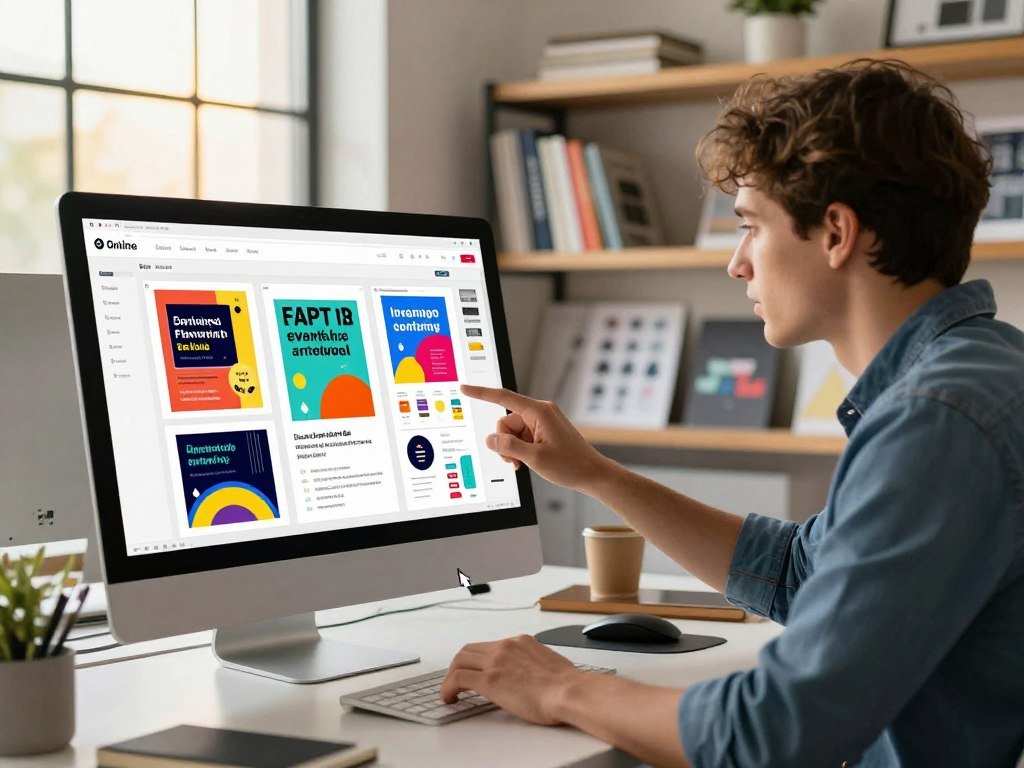
A short event brief can give an online generator enough direction to make a first visual draft. An AI poster generator for events and marketing online turns written direction into a poster concept, often with several layouts to review. Start with text, then judge whether the visual supports the event goal.
A free AI poster generator for events and marketing can provide a first draft, though free access and editing limits depend on the tool. A free AI poster generator from text can help start the visual before you make manual refinements. The generated result is a concept, not an approved campaign asset.
From event brief to first visual
Enter a short description of the event or offer and the kind of audience you want to reach. The generator uses your prompt to create imagery, layout ideas, or template options. Some tools place the text directly into a design, while others focus on a background image.
Canva AI offers Watercolor, Filmic, Neon, Color Pencil, and Retrowave styles. It can regenerate a draft with a different style or aspect ratio. Adobe Express creates template options from a text prompt and lets you add brand assets. These are examples of prompt-based approaches, not the only choices.
A beginner’s guide to creating AI images can help you understand how a prompt shapes the subject, setting, and mood. Use that knowledge to make a visual that fits your event rather than a generic theme.
From first visual to editable design
The generated image and layout may not include editable copy, logos, or final brand choices. Move the parts you want into a design editor, then replace or adjust text and assets. A poster maker with editable templates can give you more control over placement and spacing.
Separate the AI draft from the finished design: the finished design is the editable version after text, branding, and layout corrections. A comparison of ChatGPT-connected creative apps can also help you choose a workflow for making and refining visuals.
Treat the first result as a layout concept that still needs your event details and brand decisions.
Save a copy of the initial version before editing, so you can compare later changes with the original idea.
What Should You Put in an AI Poster Prompt?
A useful AI poster generator prompt names what the audience must learn and what the design should feel like. Include the event or offer, audience, key wording, date, venue, and call to action. Specific details give the generator a clearer direction than a broad request for an attractive poster.
Keep exact event wording together in the prompt, then check it against approved information. Adobe Express guidance includes industry, style, and occasion. Venngage recommends naming the subject, background, colors, text, theme, emotion, and creative direction.
Specify the information the audience needs
Write the most important message first. Then add the details people need to attend, buy, register, or respond. A clear call to action tells the audience what to do next, such as reserve a seat or visit a store.
- Event or campaign purpose
- Exact headline and essential details
- Audience and call to action
- Color palette and mood
- Style and layout direction
For an event, include the date, venue, and any offer terms that affect a person’s choice. Tell the generator which details should stand out and which can sit in smaller type. Do not rely on a template to decide what matters most.
Describe the mood and visual direction
Name a style that suits the event, such as clean, playful, or formal, and describe the setting or background. Useful direction can also mention light, composition, and open space for words. A repeatable guide to writing AI image prompts can help you refine visual choices without making the prompt hard to follow.
Keep references about creative direction, not a request to copy a specific artist or existing design. A useful AI poster generator prompt names the subject, background, colors, and text, then adds the intended emotion and layout preferences. Your prompt can describe a warm community feel or a bold launch, without naming another campaign to imitate.
Make the wording of dates, addresses, and calls to action exact so those details can be checked against the final design.
Which Details Should You Fix by Hand?
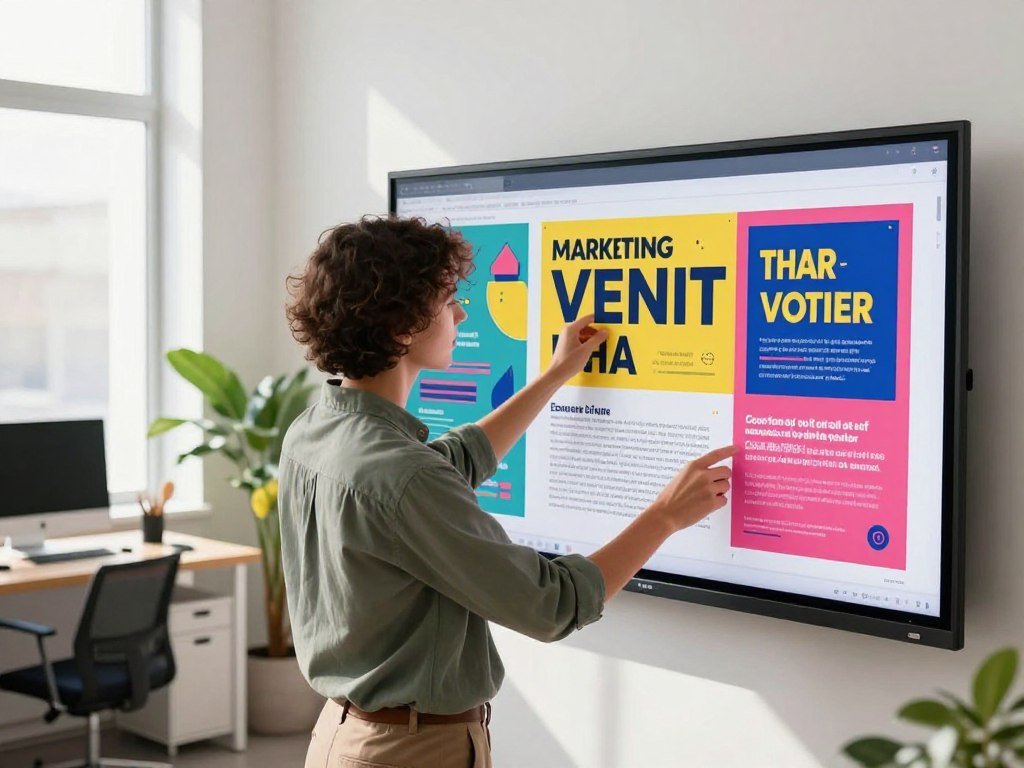
Check every word, date, venue, price, and call to action before sharing a poster. Small mistakes can send people to the wrong place or change what an offer means. Compare the text with the event’s approved information, not with what you remember.
Ideogram reports 95% text-rendering accuracy as its own model claim, not a guarantee for any specific output. Even well-rendered copy can contain a wrong letter or an unexpected word. A comparison of AI image generators can help you weigh text features alongside the editing work your team needs.
Verify every word that can change attendance
Read the headline, date, venue, price, offer terms, contact details, and call to action. Check names and addresses character by character. A tiny change in a time or location can make an event poster unusable.
If the design includes several lines of copy, check that each line belongs to the right event. Do not assume the generator used the wording from your prompt exactly. Review any small print that explains limits, booking steps, or a deadline.
Refine the visual without losing the message
Editing should make the main point easier to see. Replace a confusing phrase, remove a distracting object, or adjust the crop if it hides a key detail. Canva offers Magic Edit, Magic Eraser, and Add Text to Photo for these kinds of changes.
Check contrast when a text color sits on a busy image. If the message gets lost, change the background or move the text to a clearer area. A clean edit can help more than generating a wholly new image.
Read every line at the size your audience will see it, not only while zoomed in on a desktop.
What Size and Resolution Should You Choose for Print?
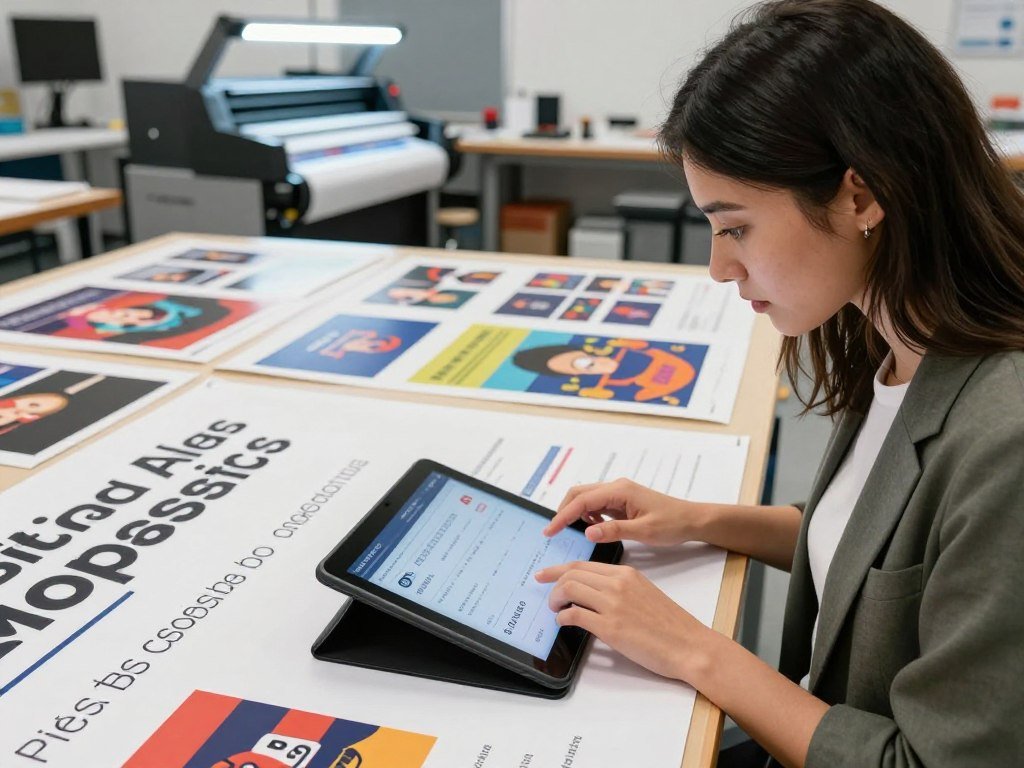
Choose the finished print dimensions before judging whether an image has enough detail. Common poster choices include A2, A3, and 18 by 24 inches. Final size matters because print resolution describes image detail at the dimensions you will print.
DPI means dots per inch, a measure of print resolution. Use 200-300 DPI at final size for close viewing, or 100-150 DPI for a large banner viewed from 10 feet or more. A file that looks sharp on screen may not hold detail when enlarged.
Match the page dimensions to the job
Pick a page size based on where people will see the poster and how much information it carries. These common options give you a starting point:
- A2: 16.5 by 23.4 inches
- A3: 11.7 by 16.5 inches
- 18 by 24 inches: a common poster size
Adobe Express identifies 11 by 17 inches as a standard poster size, which may suit a smaller notice. A large event banner calls for more space and a different viewing distance. Set the finished dimensions before you assess the image file.
Set resolution for the viewing distance
Use the higher range when people will stand close enough to inspect small type or fine detail. A banner viewed from 10 feet or more can use the lower range listed above. The viewing distance changes how much image detail people can notice.
AI-generated images are raster files, made from pixels. Enlarging a raster image does not turn it into a vector, which can scale without losing sharpness. For crisp scaling, layer vector text and logos over the AI background.
Check the exported file at final size and viewing distance before ordering a full print run.
Which Generator Fits Your Budget and Workflow?
The best fit for a one-off event draft may be different from the tool a team uses for recurring campaigns. Canva is a practical start for editable templates, Adobe Express suits brand-led work, VEED offers a no-login draft trial, and Ideogram supports credit-based plans. Choose by workflow, not by a tool’s name alone.
The best AI poster generator for events and marketing depends on whether you value editing, brand assets, a quick trial, or credit-based generation. Free AI poster generator options include free entry points and trials, but features vary. VEED’s no-login trial makes four image choices, with style and aspect-ratio options plus a PNG download; removing its watermark requires a paid plan.
Adobe Express Premium through the U.S. App Store costs $9.99 per month or $99.99 per year, with 250 generative credits. Ideogram plans list priority credits each month, while its API uses pay-as-you-go credit pricing.
Ideogram Plus costs $20 monthly or $15 per month billed annually, with 2,400 priority credits each month. Ideogram Pro costs $60 monthly or $42 per month billed annually, with 7,500 credits. Ideogram Team costs $30 per user monthly or $20 per user monthly billed annually, with 3,600 credits per user.
| Plan | Monthly billing | Annual billing | Priority credits per month |
|---|---|---|---|
| Ideogram Plus | $20 per month | $15 per month | 2,400 |
| Ideogram Pro | $60 per month | $42 per month | 7,500 |
| Ideogram Team | $30 per user per month | $20 per user per month | 3,600 per user |
Match the tool to the job
Canva suits a small business that wants to make edits inside a template. Adobe Express fits a team that plans to use its brand tools and assets. VEED is handy for trying a draft without signing in. Ideogram gives frequent users plan and API choices.
Ideogram’s API pay-as-you-go rate is 1 cent per credit, and its default limit is 10 in-flight requests. That can suit a team that generates drafts through an API rather than a poster editor.
Compare the included credits and billing interval against the number of drafts your workflow actually needs.
How Can You Keep Brand Elements Consistent?
A recognizable campaign design carries the same logo, colors, and core message from one placement to another. Keep an approved logo, a set color palette, and reusable copy beside each new design. Consistent choices help people connect posters across a campaign.
A brand kit and approved assets make it easier to keep each design on brand. Adobe Express Premium includes brand kits, one-click resizing, and access to more than 200 million royalty-free Adobe Stock assets. Check that each stock asset fits your campaign and its use.
Adobe Express Premium also includes 250 generative credits for images, videos, templates, and other content. A guide to earning with AI discusses the need to preserve a client’s style and check rights for creative assets.
The Canva AI poster generator is one way to begin a design, while paid editing features affect what a Free user can do next. Canva Magic Write is on Canva Free, with a 1,500-word input limit and roughly 2,000-word output limit.
| Canva feature | Free-plan availability | Key limit |
|---|---|---|
| Magic Write | Available | 1,500-word input; roughly 2,000-word output |
| Magic Resize and Translate | Not included | Paid plan required |
| Background Remover | Not available | Paid plan required |
| Pixel Eraser | Available with a limit | Free users cannot use it on premium stock images |
| AI generation categories | Standard AI available | Video is Premium AI; high-quality video clips are Ultra AI |
Keep a simple source of truth
Write down the exact color references and the approved logo file name. That record helps a teammate avoid guessing when making a new template or changing a headline. Reuse approved copy for recurring offers, but update dates and terms for each event.
Keep a clean, approved logo file and a written color reference beside the design before making campaign variations.
What Accessibility Checks Apply to Public-Facing Posters?
A public-sector poster posted on a government website or app can raise accessibility obligations beyond the printed design. Title II covers state and local government web content and mobile apps, including covered third-party arrangements. Where you post matters, since a print-only poster is not the same as web or app content.
The technical standard for covered content is WCAG 2.1 Level AA. The U.S. Department of Justice set different compliance dates by entity size in an April 20, 2026 interim final rule. Public entities should confirm how the rule applies to their content and arrangements.
When Title II covers the digital version
Covered state and local government content includes information provided through third-party arrangements. A poster image on an agency website or app may be part of that web content. The printed sheet alone is a different case from its digital version.
Check that type is legible and that text stands out from its background. A person should not need to guess at a date or venue because the colors blend together. Provide the essential event details as readable text outside the image, too.
What the extended deadlines mean
The April 20, 2026 rule extended the compliance date to April 26, 2027 for state and local government entities with populations of 50,000 or more. Public entities with populations under 50,000 and special district governments have until April 26, 2028.
These dates do not change the need to make event information usable for people who read it online. An image can support the message, while a readable text version gives people another way to access key details.
Make the event’s essential details available as readable text, not only as words embedded in an image.
Which File Format Should You Export?
Choose the export based on where the design is going, not only on which button is easiest to click. JPG and PNG work for digital sharing, while PDF can suit a printer or a page meant to keep its layout. Match the file to the printer, platform, or editing workflow that will receive it.
Ask the receiving printer or platform which file type it accepts before you send the final design. Canva poster downloads include PNG, PDF, JPG, and SVG, and Canva design exports also include PPTX. Adobe Express offers JPG, PNG, and PDF poster downloads.
| Format | Canva | Adobe Express | Template.net |
|---|---|---|---|
| JPG | Download | Download | Download and export |
| PNG | Download | Download | Download and export |
| Download | Download | Download and export |
Formats for sharing and editing
JPG files often suit a simple image for a website or message. PNG can be useful when you want a clean image file with transparent areas. PDF keeps the page layout together and is often used for print handoff.
Template.net lists JPG, PNG, and PDF as download formats. Its export options also include PNG, PDF, SVG, and HTML. Those lists describe different actions, so choose the one that matches how you need to use the file.
Formats for print and motion
Canva’s SVG option can support vector artwork, and PPTX can move a design into a slide deck. Adobe Express offers MP4 for animated posters. A moving design may suit a screen placement, while a still file may be easier to print.
The Smithsonian Institution Archives recommends PDF/A for text and uncompressed TIFF for images in long-term electronic record preservation. Those formats address archival needs, not routine poster exports.
Open the exported file once before sharing it to confirm that text, image placement, and page dimensions survived the export.
How Do You Adapt One Design for Print and Social Media?
A design that reads clearly on a tall story canvas may lose its message when automatically squeezed into a wide placement. Make a separate version for each social media placement, then adjust the hierarchy, crop, safe margins, and call to action. Do not stretch one master file to fit every shape.
Resizing changes where the audience sees the message, so review each layout on its own. Common canvas options include these aspect ratios:
- 9:16 for vertical stories
- 4:5 for feed posts
- 16:9 for landscape placements
Rework the layout for each screen
A tall story can give a headline, image, and call to action room to stack. A feed post may need a shorter headline and a tighter crop. A landscape placement gives more width, but can make a tall design feel empty.
Canva Magic Resize is a Pro feature. An automatic resize can save setup time, but it cannot decide which face, logo, or message deserves the most space. Review the result before treating it as finished.
Check every version for clipped text, hidden logos, and important faces near the edge. Move the call to action where it stays visible on the chosen placement. Keep enough space around key details so platform crops do not cut them off.
Prepare a separate print version
Use a separate print layout instead of sending a social image to a printer unchanged. Printed posters need their own page shape and may need more room for details than a feed post. Keep the headline and event information clear in both versions.
Make a fresh copy for each placement so edits to one version do not change the others. Name each file for its destination, such as story, feed, or print. That simple label can prevent the wrong artwork from going live.
Preview every version in its intended placement before scheduling or sending it to print.
How Can Your Team Review and Launch the Final Design?
A short approval routine prevents a late edit from replacing the version everyone agreed to publish. Keep one approved master file, assign a reviewer for event facts, and ask another teammate to check brand details. One final approver should sign off on the version ready to launch.
Collaboration helps people make changes, but it does not replace final approval. Canva autosaves designs and supports real-time collaboration. Canva Free includes 5GB of storage, while Canva Pro offers unlimited folders with up to 1TB of storage.
Collect feedback on one approved version
Give reviewers the same file or shared design, and ask each person to check one kind of detail. One reviewer checks event facts, another checks logo and color use, and the approver confirms the final export. Keep feedback tied to the version under review.
- Spelling and event information
- Logo and color use
- Mobile-size readability
- Correct approved export
Shared editing can reduce duplicate files and lost changes. Autosave can preserve edits, but a teammate may still change the design after approval. Mark the approved version clearly and keep later edits separate until they receive another review.
Share and schedule the finished campaign asset
Canva’s Content Planner is a Pro feature for creating and scheduling social content. Scheduling helps set a planned publication time, but it does not guarantee that people will see or respond to a post. Pair the schedule with a clear owner for the final asset.
Before launch, confirm the destination account, publication time, and approved file. Keep the final copy and design together so the person scheduling the post does not need to guess which version to use.
Give one person ownership of the approved master file, and let that person confirm the publication time.
Name one person to own the approved master file and confirm the publication time before launch.
Conclusion
A useful campaign design begins with a clear brief and ends with a version checked for its real audience. A focused prompt can help you explore a look, but accurate event details and brand checks make the result usable. Choose a file and layout that suit where people will see the poster.
Start with one event or business goal and the details your audience needs to act. Then write a brief containing the event purpose, exact headline, essential details, and preferred visual direction. Write the brief now, generate a first draft, and verify every essential detail before publishing.
FAQ
Can I use AI-generated artwork in a paid advertisement?
Yes, you can use AI-generated artwork in a paid ad when the generator’s terms allow commercial use and you have rights to every included asset. Check the terms for the specific tool, model, and plan. Review uploaded logos, photos, fonts, and stock images separately. Permission for an AI output does not automatically clear rights for those other materials.
Should I put all event information inside the generated image?
No, do not rely on generated image text for every event detail. Keep essential wording exact and proofread it against approved information. If the generator distorts small copy, add the date, venue, and call to action in an editor. For a digital poster, make key details available as readable text outside the image, too.
Can one poster design work for both print and Instagram?
One campaign idea can work in both places, but make separate print and Instagram versions. Instagram placements use set shapes, while print needs a layout suited to the final page size. Check the crop and safe margins for each version, then preview the Instagram design at its intended aspect ratio before posting.
Does AI-generated artwork need to be vector for large-format printing?
No, AI-generated artwork does not always need to be vector for large-format printing. A raster image can work if it has enough detail at the final size and viewing distance. Vector text and logos keep crisp edges when scaled. You can place those vector elements over a raster background to combine both types.
Can a public agency share an event poster as an image only?
No, a public agency should provide essential event details as readable text for covered web or app content. An image-only poster may make information hard to access for some people. Check the applicable WCAG 2.1 Level AA requirements, including how they apply to third-party content. A print-only poster is not the same as a digital post.
What should I do if the AI uses the wrong brand colors?
Correct the palette in an editor and rebuild key type or logos there. A prompt can suggest brand colors, but it may not preserve exact color values in every result. Use your approved color reference and logo file for the finished design. Check the final version against those approved assets before making campaign variations.



