You can turn a written scene or idea into a short, shareable clip by choosing a tool, describing the action clearly, and refining the result. Text-to-video is a process that uses a written prompt to generate moving visuals. It can help creators who need a quick concept, product visual, or social media post without filming.
AI generation gives you a first draft, not a promise of a finished production. A model may miss a detail, change an object, or create movement that does not fit your project. You can still use a strong clip as a starting point, then edit it for your audience and publishing goal.
Think of the generated clip as one part of a larger project when your final content needs narration, several scenes, or careful editing. A clear goal helps you decide whether a single shot is enough or whether you need more pieces. Start with one clear scene and a specific publishing goal, then judge the output against that goal.
Key Takeaways
- Decide whether you need one generated clip or a full video project.
- Write a prompt around one subject, one action, and one setting.
- Choose a generator that fits your input and desired output.
- Review the whole clip before adding it to your content.
- Check export limits and commercial-use terms before publishing.
- Use editing to fix weak shots, sound, captions, and branding.
What Can Text-to-Video Tools Make?
A text prompt can produce anything from one moving scene to a longer project, depending on whether the tool generates visuals alone or assembles a script with narration and other media. A clip generator creates moving images from text, while a script-to-video tool builds a video with several parts. One generated clip is not the same as a finished, edited video.
A text-to-video generator suits a single visual idea, such as a flower opening in a sunny field. The output is usually a short clip you can review or add to a larger edit. You can get useful motion without filming, but a model may not create the full sequence, voiceover, and captions you pictured.

Short generated clips from a scene prompt
Text video tools take written instructions and return a scene, not necessarily a complete video creation package. You describe what should appear and move, then the model creates a clip. Canva, for example, can add a generated clip to a project for further editing.
Expect to assemble several outputs if your concept calls for multiple shots. A single-clip generator can be a poor fit when you expect a polished, multi-scene production from one prompt. It may give you a usable shot, but it does not automatically plan a whole story.
A generated clip gives you footage for a scene, while a full video project brings narration, visuals, and editing together.
Script-led videos assembled from multiple elements
A script-to-video workflow starts with structured text and can combine footage, narration, subtitles, and edits. VEED can build footage, narration, and subtitles from a prompt or script. That setup works better when your video needs several sections and a clear spoken message.
An editor is the better starting point when you already have footage and need to shape it. Some tools focus on polishing existing clips rather than generating new visuals. For more on the difference between making a clip and building a longer video, read this step-by-step guide to creating AI videos.
Choose a clip generator for a scene idea and a script-to-video workflow when the finished piece needs narration and multiple sections.
How to Create AI Videos From Text Prompts
A reliable first attempt takes four moves: define the output, choose a generation mode, create a scene, and save the version worth refining. Keep the first pass small, so you can see how the tool handles your idea before adding more scenes. Save the chosen output before starting another variation.
First, decide whether you need a standalone clip or a scene for a larger edit. That choice affects the tool and model you need, along with what you will do after generation. A quick social post may need one shot, while a product story may need several clips and an edit.
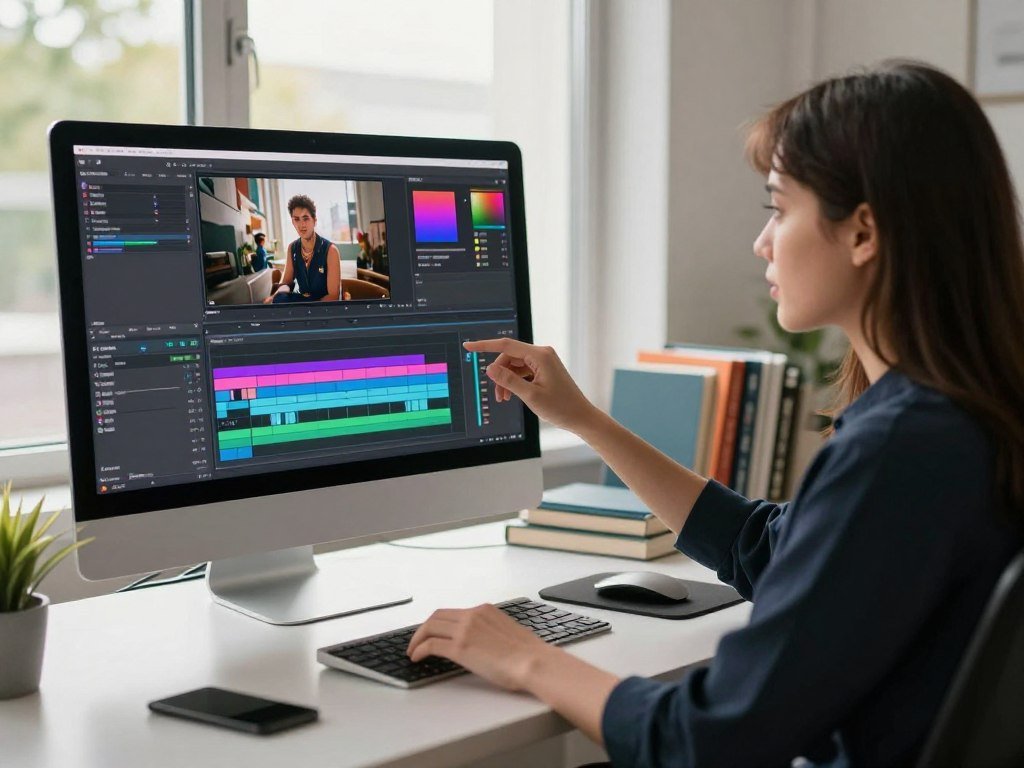
- Define the output. Choose a standalone clip or one scene within a full video project.
- Choose a tool and model that accept the input you need, such as text or an image.
- Enter one scene prompt and generate video from that instruction.
- Review the variations and save the clip you want to refine before generating again.
For a direct text video workflow, start with a model that accepts a written prompt. If you have a still image, choose a tool with image-to-video instead. Model features and output limits differ, so check that the tool can create the kind of clip your project needs.
Canva generates one 16:9 clip up to 8 seconds per prompt and includes synchronized audio. That means a multi-shot sequence needs separate prompts or editing. Adobe Firefly clip length depends on the model: most make clips up to 8 seconds, while some reach 15 seconds.
Adobe Firefly videos can be downloaded as MP4 files, with resolution up to 4K. Those limits can help you decide whether an output fits your planned edit. For more help with a broader workflow, use this guide to treating AI output as a first draft when checking content for your audience.
Save a promising result before generating another variation so a later output does not replace the one you wanted to keep.
What Should You Put in a Text Prompt?
A useful prompt names a specific subject doing a visible action in a setting, then adds only the camera and style details that matter to the scene. Concrete details help a model avoid a generic result. Give one clear action rather than a list of unrelated events.
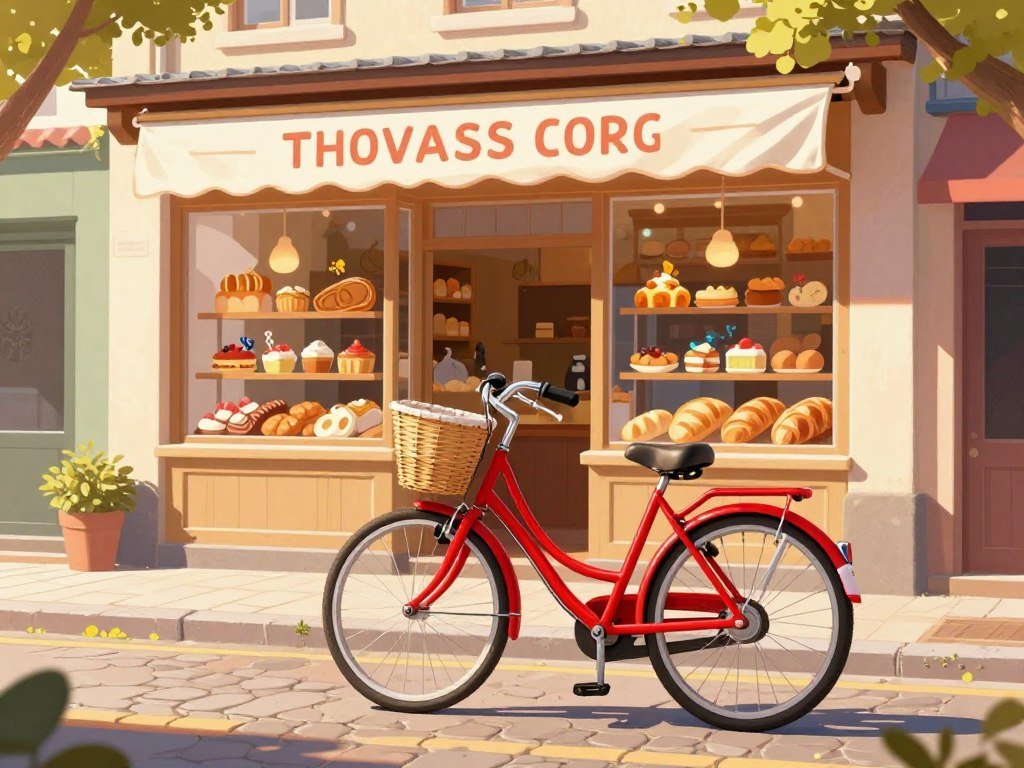
For example, “A red bicycle rolls past a corner bakery at sunrise, filmed from sidewalk height.” The subject is a red bicycle, the action is rolling past, and the setting is a bakery at sunrise. The framing choice gives the model one simple view to try.
Describe the subject, action, and setting
Tell the video model what matters most in the scene. “A dog” leaves many choices open, while “a small black dog trots across a wet park path” narrows the subject and action. Add context that changes the shot, such as rain, a quiet street, or a crowded room.
A video prompt can include the subject, action, scene or context, and camera angle, but it does not need all four every time. A detailed subject can reduce generic outputs. For more examples of shaping a clear text prompt, keep the instruction focused on the result you want.
Add framing, motion, and visual style
Framing and camera motion affect how the scene feels. A close view can show a product label, while a wide view can place a person in a landscape. You can also name a style, such as soft daylight, a hand-drawn look, or muted colors.
Lighting can make a scene feel warm, cool, bright, or tense. Use it to support the subject rather than adding style words that pull in different directions. A prompt with “bright noon light” and “deep night shadows” gives the model competing signals.
Some advanced camera angles may vary because a model does not officially support them. The result might tilt oddly or place the subject outside the frame, even when the prompt sounds precise. If a camera direction produces an awkward view, simplify the angle and keep the subject and action clear.
Which Video Generator Fits Your Project?
For cinematic visuals, compare Luma, Runway, and Veo; for a narrated marketing piece, start with a script-led option such as HeyGen or InVideo. The right video generator depends on whether your project starts with text, a script, or an image. Match the tool to the work you need to finish.
Some models focus on moving visuals, while other platforms help you build a finished project from several elements. Adobe Firefly and Canva AI may suit creators who already work in design suites or use brand materials there. You can compare how different apps fit a social content workflow in this comparison of AI apps for common tasks.
- Cinematic visuals: Compare Luma, Runway, or Veo for generated scenes with a film-like look.
- Script-led marketing: Try HeyGen or InVideo when the video needs a spoken message.
- Design-suite workflows: Consider Adobe Firefly or Canva AI when your work uses brand materials.
- Image-led motion or clip extension: PixVerse V6 supports text-to-video, image-to-video, video extension, character references, and native audio.
PixVerse V6 supports generations from 1 to 15 seconds and output up to 1080p. Its options can help when you want motion from an image or more footage from an existing clip. A reference image can guide the result, but it does not ensure every detail stays unchanged.
Do not build a current workflow around Sora. OpenAI shut down the Sora app on April 26, 2026, and discontinued the Sora API on September 24, 2026. Those dates make it an unavailable choice for new projects.
Pick the tool that matches the work you need to finish, not just the model name that sounds most advanced.
How Much Does AI Video Generation Cost?
Estimate generation spend from the model’s per-second rate and the number of seconds you generate, then add any subscription or API credit purchase. Every retry counts, even when you do not keep the result. Budget for generated seconds, not only the final video runtime.
API rates can make different models easy to compare, but credits are not the same as dollars across platforms. Runway developer credits cost $0.01 each, with a minimum added purchase of 1,000 credits. A 10-second generation at 12 credits per second uses 120 credits before any retries.
| Model or plan | Rate or price | What the rate covers |
|---|---|---|
| Runway Gen-4.5 API | 12 credits per second | Generated video time |
| Runway Gen-4 Turbo API | 5 credits per second | Generated video time |
| Veo 3.1 API, no audio | 20 credits per second | Video without audio |
| Veo 3.1 API, with audio | 40 credits per second | Video with audio |
| PixVerse V6, 1080p, no audio | 18 credits per second | 1080p video without audio |
Runway Gen-4.5 uses 12 credits per generated second, while Gen-4 Turbo uses 5 credits per second. Veo 3.1 Fast costs 10 credits per second without audio and 15 with audio. PixVerse V6 at 1080p costs 23 credits per second with audio.
Compare credit-based generation rates
Runway’s free plan gives a one-time 125-credit deposit that does not expire. The Runway Standard plan costs $12 per month, includes more credits than the free plan, removes the watermark, and offers higher export quality. Paid access may suit frequent work, but each model still has its own generation rate.
Google Veo Plus costs $4.99 per month for 200 credits, while Pro costs $19.99 per month for 1,000 credits. InVideo AI starts at $10 per seat per month with annual billing. Its $30-per-seat monthly tier unlocks frontier AI models.
Separate monthly subscriptions from API credits
Runway Standard and Pro monthly credits do not roll over. Max can roll over up to one month of unused credits. That difference matters if your generation schedule changes from month to month.
API credits are tied to generated output, while subscriptions bundle access under plan terms. Count draft versions and retries when planning spend, since a discarded clip still uses generation time. Before starting a batch, multiply the planned generated seconds by the applicable rate and leave room for revisions.
What Does a Free Plan Actually Include?
A free plan is useful only if its refresh schedule, export rules, and intended use fit the video you need to make. Free access can mean very different things, from recurring credits to limited exports. Check generation, refresh, watermark, resolution, and commercial-use terms separately.
Some plans give you a set number of videos, while others limit minutes, storage, or export frequency. A free label does not tell you whether you can download the result cleanly or use it for a business. Compare the limits that affect your actual project.
| Tool | Free allowance | Refresh or output limit |
|---|---|---|
| HeyGen | 3 videos per month | Monthly video limit |
| Synthesia | 10 minutes per month, 1,200 credits | Monthly allowance |
| InVideo AI | 10 minutes | 4 exports per week |
| Veed | Subtitles, exports up to 30 minutes, 1GB storage | No recurring generation allowance |
| Arcade | 200 credits per month, 3 published demos, 1 Brand Kit | Watermarked demos, no GIF or MP4 export |
HeyGen’s free plan includes three videos per month. Synthesia offers 10 minutes per month and 1,200 credits, while InVideo AI allows 10 minutes and four exports per week. Veed includes AI subtitles, exports up to 30 minutes, and 1GB of storage, but no recurring generation allowance.
Check how credits refresh and expire
Runway’s 125 free credits are a one-time deposit, not a monthly grant. Google Flow offers 50 credits per day without a subscription, and unused daily credits expire. Generation costs vary by model, so a daily allowance may produce different amounts of footage.
Canva’s free plan offers limited Magic Media AI generation each month. Adobe Firefly Free includes a daily generation allotment. For a broader look at free AI video generator options, compare both the amount of access and the export rules.
Check export limits and usage terms
Canva offers 1080p exports on most templates, with watermark-free exports when you use only free assets. Kapwing free-account exports contain a watermark. Those limits may matter even when you can make a clip without paying.
Arcade’s free plan includes commercial-use rights, but its demos have watermarks and exclude GIF or MP4 export. A generation allowance, refresh schedule, watermark policy, export resolution, and commercial-use terms each set a different limit. Check all five before building a project around a free allowance.
What Video Format Should You Export?
Choose the aspect ratio for the platform before generating or editing, since a landscape scene may not frame well in a vertical feed. The frame shape matters because it decides how much of the scene viewers can see. Keep the subject inside the frame you plan to publish.
YouTube landscape video uses a 16:9 frame, with Full HD dimensions of 1920 × 1080 pixels. Vertical YouTube Shorts use 1080 × 1920 pixels in 9:16. A square video at 1080 × 1080 pixels also qualifies as a Short.
| Placement | Aspect ratio | Pixel dimensions |
|---|---|---|
| YouTube landscape | 16:9 | 1920 × 1080 |
| Vertical YouTube Short | 9:16 | 1080 × 1920 |
| Square YouTube Short | 1:1 | 1080 × 1080 |
A YouTube Short can run up to 3 minutes. YouTube treats a vertical or square video under 3 minutes as a Short. That gives you room for a short story or product clip without forcing every post into a tall frame.
If you are deciding between a wide shot and a vertical crop, think about the key action. A person walking across a wide scene may be cut off when reframed vertically. A close product shot may work in either format if the subject stays centered.
The common 16:9 format is 16 units wide by 9 high, or about 1.78:1, as explained in this guide to the 16:9 aspect ratio. YouTube recommends uploading video in its actual aspect ratio without adding black bars. Export the video in its intended frame shape and let the platform display it without added black bars.
How Do You Refine and Check a Generated Clip?
Keep a generated clip only if its subject, motion, and sound work for the project, not merely because its first frame looks polished. Review the whole clip before you spend time editing around it. A striking image cannot rescue movement or audio that conflicts with your message.
Use an editor to trim extra seconds, replace a weak shot, add subtitles or music, and apply brand elements. Those changes can turn separate clips into a full video project. A simple transition can connect shots, but it cannot fix a scene that changes the product or the message.
Edit the scene and the surrounding project
Trim pauses at the start or end when they slow the video down. Replace a shot if the subject moves in a way that distracts from the story. Add narration, captions, or music only after the visuals support the point you want to make.
Kapwing supports fully edited projects from 15 seconds to 5 minutes, with MP4 exports up to 1080p. It accepts script text up to 1,000 characters. For still-image workflows, this guide to creating and refining AI images covers ways reference images can guide style and composition.
Apply a logo or brand color in the editor when the generated version looks distorted. You can also adjust timing so that a subtitle appears with the matching action. A clean edit makes the clip easier to follow without hiding a flawed moment.
Test whether the result is usable
Check each candidate against five points before publishing:
- Prompt adherence: Does the clip show the subject and action you requested?
- Visual persistence: Do key details stay consistent throughout the shot?
- Physical logic: Do objects move and interact in a believable way?
- Audio alignment: Does the sound match the motion and timing?
- Production usability: Can the clip fit the edit and serve its intended purpose?
A video-generation test can compare prompt adherence, visual persistence, physical logic, audio alignment, and production usability. A visually attractive clip can still fail when its motion or audio disagrees with the message. Watch the finished sequence once with sound and once muted to catch both audio mismatches and visual continuity problems.
Can You Use AI-Generated Video Commercially?
You can use a generated clip in an ad or product page only when the selected model and plan permit that specific commercial use. Check the license for the exact workflow, since terms can differ between models inside one service. Commercial-use permission does not prove that you own copyright.
A commercial-use license is permission to use an output in business work. Copyright protection is a separate question about who owns protected creative choices. The U.S. Copyright Office says a work needs meaningful human creative choices for copyright protection.
Check the model and plan license
Adobe positions its Firefly Video Model for commercially safe output, but partner models may have different usage terms. Paid tiers from Runway, HeyGen, and Synthesia offer commercial rights, with terms that vary by platform and plan. A license for one model does not automatically cover every model in the same tool.
Adobe Firefly Standard costs $9.99 per month and provides credits and full AI access. IP indemnification requires the appropriate plan. Read the terms that apply to the model and plan you actually use, especially for a product campaign or branded content.
Separate copyright from permission to use
Check whether the commercial-use license covers only generated output or also any stock footage, audio, and imagery you add. Third-party media can have separate rights. Keep track of each element that appears in the final edit, not just the generated scene.
Meaningful human choices may include decisions about the scene, selected shots, timing, and edits. The legal treatment depends on the work and the choices made, so permission to use a clip does not settle copyright ownership. For business ideas beyond a single campaign, explore ways to monetize AI-assisted work.
A commercial-use license gives permission under a platform’s terms, but it does not guarantee copyright protection or clear every added media asset.
Keep a record of the model, plan terms, and any third-party media permissions attached to the final project.
Conclusion
A strong first result comes from matching one clear scene to the right kind of generator. A single clip can work for a quick post, while a longer piece needs careful assembly and review. Editing turns a rough output into content that fits your audience and brand.
You do not need to solve every scene at once. Start with one action, then keep the version that best supports your purpose. Write a one-scene prompt for your next project, generate a draft, and save the version that best serves its intended audience.
FAQ
How many seconds should an AI-generated video clip be?
An AI-generated clip can range from a few seconds to longer outputs, depending on the model. PixVerse V6 supports generations from 1 to 15 seconds, while Canva makes clips up to 8 seconds per prompt. Pick a length that gives the action time to read without adding empty motion. A longer story usually works better as several edited clips.
Can AI video generators keep the same character across scenes?
Yes, some models and workflows offer character references or consistency controls to guide the same character across scenes. PixVerse V6 supports character references, for example. These tools can help preserve a look, but they do not guarantee identical details in every shot. Check features like clothing, face shape, and accessories across the full sequence.
Can I add a voiceover after generating a silent clip?
Yes, an editor can add a voiceover, music, or sound effects after you generate a silent clip. Record or import audio, then align its timing with the action on screen. Leave room for pauses where viewers need to read or watch. Play the final edit with sound to catch late cues, clipped words, or music that masks speech.
How do I make a longer video from short AI clips?
Assemble multiple short clips in an editor, then review continuity at every cut. Keep the same visual direction across shots, including color, lighting, and character details. Use transitions only when they help the story move forward. If one clip changes the product or scene in a distracting way, replace it instead of hiding the mismatch with effects.
Can I make a product video from a photo?
Yes, image-to-video tools can animate a still photo into a moving product clip. Describe the motion you want, such as a slow turn or a gentle camera push, and keep the product itself unchanged. Check labels, shape, color, and small parts in the result. Replace any shot that alters a detail customers rely on to identify the item.
What should I do if AI-generated text or a logo looks wrong?
Replace inaccurate lettering with editable text or a clean brand asset in the video editor. Generated lettering can bend, blur, or change between frames, so avoid treating it as final packaging or signage. Place the correct logo over the scene and check its size and position. Review the exported video at full size for any new distortion.



