A changed line, a dubbed clip or a portrait that needs to speak can each call for a different AI workflow. A tool may retime a face in existing footage or animate a still image. Some workflows also translate speech or generate a voice, so the right platform depends on what you have and what you need.
This roundup compares seven options by practical fit for creators, from editing a recorded scene to building an avatar presentation. You will see where free access can help you test, and where paid plans or credits may affect a project. The aim is a useful shortlist, not a claim that one tool wins every job.
Small details can shape the choice. A clear face and a new audio track call for a different workflow than a script, a portrait, or several speakers in another language. Start by identifying what you already have, footage, a portrait or a script.
Key Takeaways
- Choose a footage-first tool when you already have a filmed face and replacement audio.
- Use a talking-photo workflow to animate a still portrait.
- Match translation and dubbing needs to the number of speakers and target languages.
- Check clip length, credits, watermarks and export quality before paying.
- Review the full generated clip, not only a single frame.
Best AI Lip Sync Tools for Videos Compared by Workflow
For a typical presenter translation, shortlist HeyGen; for a talking photo, consider D-ID; for multi-speaker dubbing, consider Vozo AI. Starting asset matters because lip sync tools can change recorded footage, animate a still, or support a broader video workflow.
Choose by input type first, then compare plan details and output controls. The table narrows the field by likely fit and a practical point to check before committing.
| Tool | Best fit | Starting input | What to check |
|---|---|---|---|
| HeyGen | Presenter videos and localization | Video, audio or script | Mode, credits and export plan |
| CapCut | Accessible editing workflow | Video and voice audio | Desktop, region and app version |
| Vozo AI | Multilingual or multi-speaker dubbing | Video and dubbed audio | Speaker-to-face assignment |
| Sync Labs | Developers working with existing footage | Video and audio | Usage-based generation fees |
| Runway | Creative scenes | Image or video | Dialogue, face and credit limits |
Match the tool to the asset you already have before weighing its plan details.
Synthesia is also covered as a business-dubbing option, while D-ID suits talking-photo projects. If you are comparing broader AI video generators by task, keep presenter work separate from generated scenes and editing.
The table is a shortlist, not a promise that every input will work equally well. A side view, a long exchange or a face blocked by an object can change the result. Match the shortlist to your starting asset before comparing plan details.
How Does AI Lip Sync Work, and Where Does It Fail?
A lip-sync model listens for speech sounds, predicts the mouth shapes associated with them and adjusts the face across video frames. A viseme is a visible mouth shape associated with a speech sound. The model must align those shapes with the audio, not simply move the lips at random.
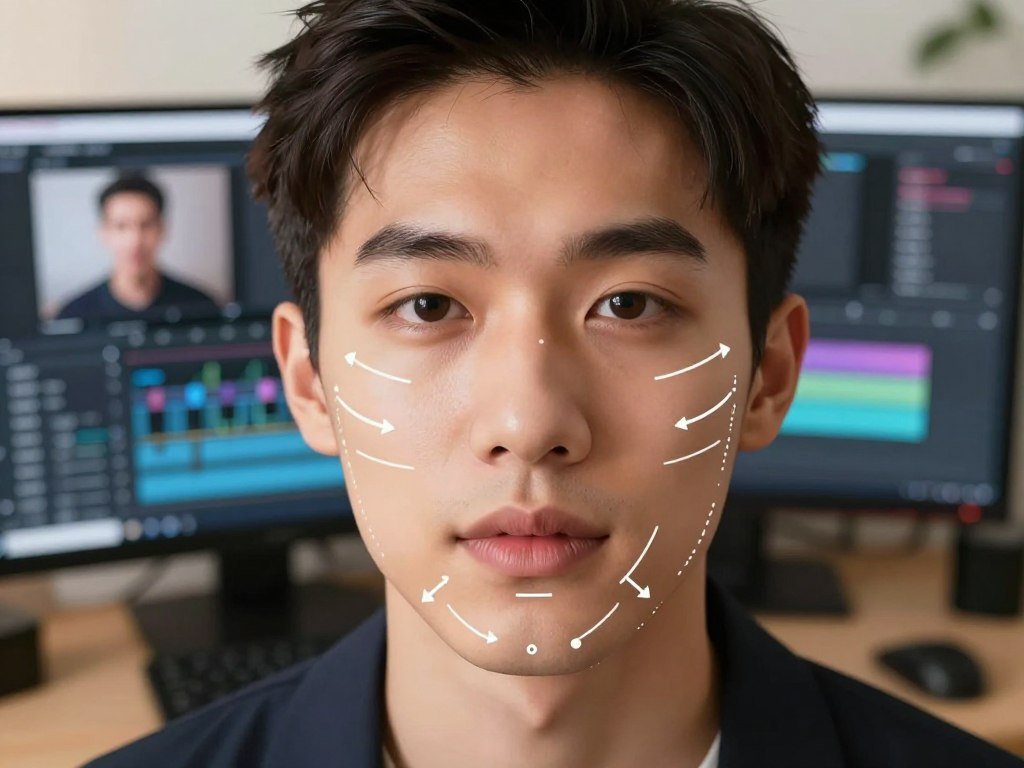
A technically timed mouth can still look false if the jaw, cheeks or eyes do not move naturally. Facial-landmark detection helps the system locate the mouth and nearby features. The software then uses that map to adjust a face, portrait or generated avatar.
From speech sounds to mouth shapes
The process often follows four stages. Each one shapes the next, so an error in the audio or face can carry through the clip.
- The model analyzes audio and identifies phonemes, the small sound units in speech.
- It predicts the visemes that best match those sounds.
- It animates the face in existing footage, a still portrait or a generated avatar.
- It creates frame-by-frame output for the video.
A viseme can match more than one speech sound, so the model uses timing and context. It also needs to coordinate the jaw and surrounding face. A mouth that moves while the rest of the face stays frozen may feel detached from the speaker.
Why faces and footage affect the result
A visible mouth, clear audio and a steady shot give the model a simpler task. A face turned away, covered by a hand or crossed by a microphone leaves less information to work with. Fast head movement can also make the mouth hard to track.
Audio and video length matter, too. If the selected speech ends before the clip or runs past it, the model may create an awkward stop or stretch. Background noise and overlapping voices can make speech sounds harder to read.
These limits affect footage-first sync, portrait animation and generated presenters in different ways. The tool may align the mouth but still miss the speaker’s expression or rhythm. A convincing result needs the mouth and the surrounding face to move in time with the same speech.
Which Lip Sync Workflow Fits Your Footage?
If you already have a recording, choose a footage-first tool; if you only have a portrait, choose a talking-photo workflow. The input decides whether the system edits a performance or creates one from a still image.
A footage-first sync tool needs a face already visible in the video. Portrait animation creates movement from a still, while an avatar workflow builds a presenter from a script. Those are different jobs, even if each ends with a speaking face.
| Starting asset | Workflow | Typical result | Main trade-off |
|---|---|---|---|
| Existing video plus replacement audio | Retiming filmed speech | Same scene with a new line | Face must be visible |
| Still photo plus audio | Talking-photo animation | Portrait speaks the track | Little original motion |
| Script for an avatar | Generated presenter | New speech performance | Less control over filmed detail |
| Existing footage needing translation and dubbing | Translate, dub and sync | Localized version of a clip | Translation and lip alignment differ |
Re-syncing an existing recording
Use this route when the same filmed person and scene should remain recognizable. The model works with a recording and replacement audio, then adjusts mouth movements to fit the new speech. It does not turn a still image into a filmed performance.
A footage-first workflow can suit a changed line, voice-over or localized version. Yet translation quality and lip alignment are separate tasks. A fluent translation may still need editing, and a well-timed mouth does not make a poor translation sound natural.
Animating a portrait or generating a presenter
A talking photo starts with a still portrait and adds motion to create speech. A script-led avatar starts with text and produces a presenter performance. Both avoid needing a suitable filmed scene, but they may not preserve the small movements in an original recording.
If you need a specific character or drawn figure, check whether the tool accepts that kind of image and keeps its look. Broader video generator choices by workflow can help when your project may need a presenter, a generated scene or an edited clip. Pick the workflow that preserves the asset you want viewers to recognize.
HeyGen: How Well Does It Handle Translation?
HeyGen is a strong fit when you want to translate or redub a presenter video without building the whole workflow yourself. Its two modes target different camera conditions, while its script translation supports more than 175 languages and dialects.
Speed mode costs 6 credits per minute; Precision mode costs 10 credits per minute. Speed is meant for front-facing, single-speaker footage. Precision handles side profiles, speaker changes, camera-angle changes and objects near the mouth.
HeyGen accepts MP4, MOV and WEBM video up to 5 GB, plus MP3 or WAV audio. Short lip-sync clips usually render in 2-5 minutes. Voice cloning can start from a 15-second sample, which may help keep a dubbed voice close to the original.
Prepare these four inputs before you start:
- A supported video file that shows the speaker.
- An audio file or a script for the new speech.
- A visible speaker whose mouth is not blocked.
- The target language for translation or dubbing.
Free access includes 1-3 videos, depending on region, with each video up to one minute and no credit card required. Creator costs $29 per month and supports videos up to 30 minutes; Pro costs $49 monthly, adds 4K export and supports the same length. Business costs $149 per month and supports videos up to 60 minutes.
The free plan is a limited trial, not unrestricted export. Its sharing link is 720p and watermarked, while paid plans offer export options tied to their plan. For a profile angle or a speaker change, choose Precision rather than assuming the faster mode will handle it.
CapCut: Can It Lip-Sync Existing Video and Avatars?
Yes, CapCut has a lip-sync feature, but it may not appear in every app version or region. The tool can work with real people, AI avatars and pets, making it useful when you already edit in CapCut.
CapCut supports 13 languages and more than 1,000 AI-generated voices. You can also upload your own voice audio, so the feature can use a recorded track rather than a generated voice.
The feature is available in CapCut’s desktop version, but it may not appear in every region or app build. A missing button does not prove that CapCut has no lip-sync capability. The menu can differ across desktop, mobile and local releases.
That matters if you have already built an edit in the app. You may be able to test the sync within the same project instead of exporting to a separate tool. Results can still depend on the clip and how clearly the subject’s mouth appears.
For a person or avatar, choose a clear clip and a voice track that covers the line you want to replace. For a pet, the system is animating a subject with a different face shape, so check whether the result suits your intended style.
CapCut can be an accessible lip sync tool when its feature is present and the clip fits. The feature menu, rather than the editor’s general reputation, tells you what your install can do. Check the desktop app and its current feature menu before rebuilding your workflow around another editor.
Vozo AI: When Is Multi-Speaker Dubbing the Better Fit?
Vozo AI is worth considering when the job is a longer dubbed clip or audio in a language outside your usual workflow. Multiple speakers make the process more demanding because each voice must stay with the right face.
Vozo supports clips up to 60 minutes and 4K resolution. It accepts uploaded lip-sync audio in any language, which can fit a workflow where you already have a prepared dub.
The free plan includes about 2 lip-sync minutes, useful for a small test rather than a full production. Creator costs $29 per month and includes about 15 lip-sync minutes. A longer clip or several language versions can use that allowance quickly.
In a multi-speaker scene, check which voice is assigned to each face. If two people take turns, a wrong assignment can make the right mouth movement appear on the wrong person. Dialogue that overlaps adds another challenge, since the audio may not separate speakers cleanly.
Vozo can suit creators who need a longer video or multilingual dubbing without splitting every scene into a separate short task. Its stated 4K and 60-minute support do not mean every free user receives that full export allowance. Plan terms still shape what you can render and download.
Run a short test with a section that includes each speaker before starting the full clip. That test can reveal assignment problems early and help you judge how the workflow handles your audio. Confirm the allowance for your selected plan before budgeting a multi-speaker project.
Sync Labs: Is It Built for Accuracy or API Workflows?
Sync Labs is the better fit when lip retargeting needs to sit inside a developer or production workflow. It specializes in changing mouth movements on footage you already have, rather than wrapping the whole job in an all-in-one editor.
The sync-3 model supports more than 95 languages and native 4K output. A dedicated engine can help when a team needs to connect video and audio processing with a wider pipeline.
This option makes most sense when you already have existing footage and an audio track. A developer can connect mouth retargeting to a product, editing system or production process. A creator seeking a simple, guided edit may prefer a more self-contained platform.
Sync Labs offers a free plan, and paid plans start at $5 per month plus usage-based generation fees. The subscription alone may not show the full cost. Clip length and the amount of generation can change what you spend beyond the base fee.
That pricing structure can fit a small integration test, but a batch of long clips needs a usage estimate. Check how the tool fits your input and output steps before building it into production. A strong model does not remove the need to budget each generation.
For a developer, the main question is whether the sync engine fits the rest of the workflow and the team’s tools. For a one-off clip, setup time may matter more than API access. Estimate the usage charge for the planned clip length before running a batch.
Synthesia: What Does AI Dubbing Cost?
Synthesia is aimed at structured business video, and its dubbing uses a substantial per-minute credit allowance. Runtime matters because lip-synced AI dubbing costs 240 credits per minute.
Self-serve users have 32 dubbing languages, while enterprise users have 139. The available language set depends on whether you use a self-serve or enterprise account.
Synthesia Starter costs $29 per month. Creator costs $89 per month. Those subscription prices are separate from the credits needed for dubbing, so the plan fee alone does not describe the cost of a finished multilingual video.
At 240 credits per minute, a five-minute dub needs 1,200 credits. A ten-minute version needs 2,400 credits. Those examples help you estimate the requirement from runtime, but your available credit balance still shapes what you can complete.
This can suit a business team that already makes training or internal videos on the platform. Before starting, count the full runtime of each language version, not only the original clip. Repeated language exports can multiply the total credit need.
Plan selection also affects language access, so confirm that the required languages fit your account type. A short sample may help you review the voice and mouth timing before dubbing a whole course. Estimate the credit requirement from the full runtime before approving a multilingual training project.
Runway: Can It Sync Multiple Faces in One Scene?
Runway can handle a scene with multiple animated faces, but each dialogue and input still has defined limits. It fits creative projects where lip sync is part of a wider video toolkit.
A project can include up to 10 dialogues, each up to 40 seconds, and up to 4 animated faces in one scene. Image or video input can reach 2K resolution.
Before generating, verify these four details:
- The number of dialogues in the project.
- The length of each dialogue segment.
- The number of visible faces that need animation.
- The input image or video resolution.
Runway charges 5 credits per second. A 40-second dialogue therefore costs 200 credits, before accounting for any other dialogue in the project. A long scene with several turns can use credits quickly.
This tool can make sense when you already use Runway for creative video work and want lip sync inside that process. The face limit and dialogue rules still shape the scene. A project that exceeds them may need shorter segments or a different setup.
Check whether every speaking face remains visible throughout the planned dialogue. The tool can animate several faces, but a hidden or tiny face may not give the model much to work with. Break a longer exchange into supported dialogue segments and check the credit estimate first.
D-ID: Is It Best for a Talking-Photo Presenter?
D-ID is a straightforward option when the starting asset is a portrait or presenter rather than a complex filmed scene. A talking photo creates speech motion from a still image, unlike retiming a face in an existing recording.
D-ID Lite costs $4.70 per month when billed annually and is for personal use only. Commercial use starts on Pro, so the lowest listed price does not cover every publishing need.
Video Translate supports 29 languages and videos up to five minutes on Lite, Pro and Advanced plans. Enterprise allows longer videos. Those limits can suit a short presenter clip, while a longer talk needs a plan with extended video support.
A portrait-led workflow can be useful when you do not have a filmed speaker. It also gives you less original body movement to preserve. A still image may speak convincingly, but it will not carry the full gestures and camera motion of a filmed scene.
Choose a portrait with a clear, forward-facing face if you want the mouth to read well. A profile or tightly cropped face can make the generated movement harder to judge. Check the plan’s license terms against your use before preparing a client deliverable.
If the video will appear in paid work, Lite’s personal-use term is not enough. The price also depends on annual billing, so compare the billing period as well as the monthly figure. Confirm the required license tier before using a generated presenter in paid or client work.
What Do Free and Paid Lip Sync Plans Include?
Free lip sync options exist, but the useful allowance depends on clip length, export quality and whether you can self-host. Free access often means a brief trial, a watermark, a time cap or local computing work rather than unlimited finished video.
A free lip sync video generator may suit a short test, but a watermarked or low-resolution export may not work for a client deliverable. Check what the free output actually lets you download before building a project around it.
Free browser trials and their limits
FreeLipSync offers no-sign-up videos up to 20 seconds. Magic Hour has a free plan that adds a watermark. Both can help you try a short sample, but neither promise means you can export a polished long-form video without limits.
Other trial models offer a few minutes or a limited number of credits. For example, Rask AI’s free trial includes 3 minutes. A small allowance can tell you whether the workflow fits, but it may not cover every scene or language in a finished project.
Free access differs across video services, and credits may renew or apply only to certain tasks. A guide to free AI video generators and their limits can help you compare access, export quality and watermarks across a broader set of tools.
Open-source tools and self-hosting
MuseTalk 1.5 is an open-source route under the MIT license. You need your own computing resources to run it, so the software may be free while the hardware and setup still take time or money.
Self-hosting can offer more control over where your project runs, but it asks more of you than a browser trial. You need compatible computing resources and enough time to set up the workflow. That can suit a technical creator, not someone who needs a quick edit.
Comparing paid plans and usage fees
| Tool | Free allowance | Paid entry | Relevant limit |
|---|---|---|---|
| Rask AI | 3-minute free trial | Creator $39/month; Creator Pro $99/month | Lip sync included on paid plans |
| LipDub | 1 minute | Core $29/month plus $3.50/minute | Core 10-minute clips; Growth 60; Scale 120 and 4K |
| Higgsfield | 200 credits on Starter | Starter $15/month; Plus $49/month | Plus includes 1,000 credits; Audio Translate has 18 languages |
| Magic Hour | Free plan with watermark | Creator $19/month, or $12/month billed annually | Business supports 4K |
| Kling | No free allowance listed here | Paid plans start at $10/month | 3-30 seconds at 720p, 1080p or 4K |
Higgsfield’s Audio Translate supports 18 languages. PixVerse V6, released in March 2026, supports 1-15-second video at 1080p in five aspect ratios: 16:9, 4:3, 1:1, 3:4 and 9:16. Those limits matter if you need a specific frame shape or a short social clip.
Check three budget details before you pick a plan:
- The monthly base fee for access.
- Any usage charge or credits consumed per clip.
- Watermarks and commercial-use conditions.
Compare the total cost of a finished output, including per-minute charges and credits, rather than only the monthly fee. A short test may use little, while several language versions can raise the total. Compare the cost of the finished output you need, not just the lowest advertised monthly amount.
How Can You Add Lip Sync to Existing Footage?
Start with the same face and the same spoken line you expect to use in the final edit. A footage-first workflow needs both existing footage and replacement audio, so prepare the two assets before generating.
An AI lip sync video generator usually needs a face already visible in the video. If you only have a still portrait, use a talking-photo workflow instead. A clear, front-facing shot with an unobstructed mouth gives the model an easier input.
Follow these five steps:
- Choose a clear source clip with the speaker’s face in view.
- Prepare the replacement audio and trim it to the spoken line.
- Select a mode suited to the shot and its camera angle.
- Generate a short sample using the intended line.
- Review the result, then export within the plan’s limits.
The video and audio should cover the full line you want in the edit. In some editors, the shorter selected video or audio segment sets the output duration. A clip that ends early can cut off the final word, while excess footage may leave an unneeded section.
Trim the source and replacement track so their start points make sense together. If the video begins with a pause but the new audio begins with speech, the mouth may move too soon. A short sample can show whether the chosen mode fits the shot before you process the full recording.
Keep the source video intact while you test. That gives you a clean copy to return to if the generated mouth, timing or export does not suit the edit. Keep the source clip and audio unchanged until you have checked the generated version.
How Do You Judge a Lip Sync Result Before Publishing?
Watch the complete clip at normal speed before pausing on the moments that are hardest to animate. Full playback shows whether the face stays believable over time, while a single frame can hide timing problems.
A single attractive still frame cannot prove that the whole clip works. Check the mouth, face, audio and export as one result, then revise any section that breaks the speaker’s identity or rhythm.
Check mouth timing and facial identity
Watch for B, M and P sounds, which need visible lip closure. During a silent pause, the mouth should rest instead of continuing to move. Teeth and jaw motion should fit the speech rather than flicker or shift sharply.
Look at the face across the whole clip. The model should preserve the speaker’s key features, not change their expression or identity from frame to frame. A good mouth shape cannot make up for a face that keeps shifting.
Review motion, audio and export
| Check | Usable result | Reason to revise |
|---|---|---|
| Speech and pauses | Mouth closes on B, M and P; rests in silence | Late closure or moving mouth during pauses |
| Identity | Face and teeth stay consistent | Features shift or expression looks unlike the speaker |
| Head movement or obstruction | Face remains trackable | Turn or object hides the mouth |
| Timing or export | Line ends cleanly at usable quality | Cut-off word, drift or poor export |
Check the clip at normal speed first, then pause on difficult frames. A frame-by-frame review can catch a brief mouth slip, but it should not replace listening to the full spoken line. Make sure the audio begins and ends where the scene needs it.
The export should meet the quality and format needed for its final use. A smooth preview may still look rough after a lower-resolution export. Reject a result if the final word, a pause or a face turn breaks the illusion.
What Privacy and Consent Checks Should You Make?
Get permission from the person whose face or voice will appear before you generate or publish the clip. Permission matters for clients, customers, actors and executives, especially when a video makes them appear to say new words.
Consent to animate a likeness does not grant rights to the underlying photo, audio or music. Check each asset’s rights as well as the person’s permission before you share the result.
Check consent and rights for every likeness
A face or voice can make a generated clip feel like a real statement. Get clear permission for the intended use, not only for making a private test. A client’s approval to edit one video may not cover later use in ads or training.
Keep a record of permission and the asset rights tied to the project. Check whether the platform’s terms allow your planned commercial use. For account tools in general, reviewing privacy and data controls can help you think through access, retention and training settings.
Use this four-point checklist:
- Confirm permission for each face and voice.
- Check commercial rights for the output and source assets.
- Review the platform’s data handling terms.
- Limit uploads to the files needed for the task.
Understand what uploaded media may be used for
CapCut’s US Privacy Policy was last updated April 15, 2026. It says the app may collect uploaded or generated photos, images, audio, video and related metadata, along with device and network information and approximate location.
The policy also says CapCut may gather details about content, including whether it contains a face, its location and words spoken. It may scan, analyze and review content to train, test and improve machine-learning models and algorithms.
The policy states that face or body information used for an effect is deleted after the effect is applied. It says that information is not retained or used to identify the person in the content. You can also compare app permissions and history controls with a privacy checklist for consumer AI apps.
Use only the files needed for the edit, especially when a clip includes people who did not ask to be part of a test. Save the consent record with the project files so the intended use stays clear. Keep a record of consent and asset rights alongside the project files.
Why Was CapCut Banned in the US, and Is It Available?
CapCut was available through the listed US app-store pages on October 19, 2026, despite ongoing concern about its legal status. Availability can change, so an app-store listing is a time-specific status rather than a promise about future access.
On October 19, 2026, CapCut’s US Apple App Store page was live, and its US-configured Google Play page offered an Install button. That date describes the listed status at that time.
The Protecting Americans from Foreign Adversary Controlled Applications Act includes a limit on who can face enforcement under one provision. Section 2(f)(2) excludes individual users from Attorney General enforcement under that provision.
Section 2(f)(2) excludes individual users from that specific Attorney General enforcement action. This clause does not settle every legal, regulatory or platform question about CapCut. It also does not guarantee that every app store or device will offer the app in the same way.
A live store listing on one date does not settle every legal or access question.
For a creator, the practical point is that an app-store page can change after a project begins. A team with a deadline should know what happens if an app update, store change or local rule affects access.
Check the current listing in the app store for your device and region. If the project depends on a specific editor, keep a backup plan for editing or exporting your work. Check the current US app-store listing and applicable rules before starting a time-sensitive project.
Conclusion
The best fit is the tool that matches your starting asset, output needs and willingness to manage credits or editing. The input workflow matters more than a broad “best” label, since a filmed speaker, portrait and script need different approaches.
A short sample tells you more than a long feature list. It reveals whether the face, audio, timing and export suit the actual project you plan to publish.
Test one short clip with the exact footage and audio you plan to publish, then commit only if the result and usage terms fit.
FAQ
What AI has the best lip-sync?
HeyGen is a strong pick for presenter translation and localization, while Sync Labs suits developers retiming existing footage. The best choice depends on the job, not just mouth accuracy. HeyGen combines translation and presenter tools, while Sync Labs can fit a production pipeline. For a portrait that needs to speak, D-ID may fit better than either one.
How can I add lip-sync to a video using AI?
Upload a clear video and replacement audio, select a mode suited to the shot, then generate a short sample. Watch the full clip and inspect difficult moments before exporting within your plan limits. The video should already show the face you want to animate. If you only have a still portrait, choose a talking-photo workflow instead.
What is the best AI tool to use for videos?
HeyGen suits presenter translation, D-ID suits talking photos, Vozo AI suits multi-speaker dubbing, and Runway suits creative scenes. Those tools start from different assets and serve different results. Choose based on what you have, such as filmed footage, a portrait or a script. Then check clip length, credits and export terms for your project.
Is lip-sync AI free?
Some tools offer free trials or short free allowances, but those limits can affect whether the result is usable. A watermark, clip cap, low-resolution export or credit charge may block a finished project. FreeLipSync offers clips up to 20 seconds without sign-up. Open-source tools may avoid a subscription but need your own computing resources.
Can CapCut do lipsync?
Yes, CapCut can lip-sync people, AI avatars and pets, using generated voices or uploaded voice audio. The feature supports 13 languages and more than 1,000 AI voices. It may not appear in every region or app version, and it is available in the desktop version. Check your current feature menu before changing editors.



