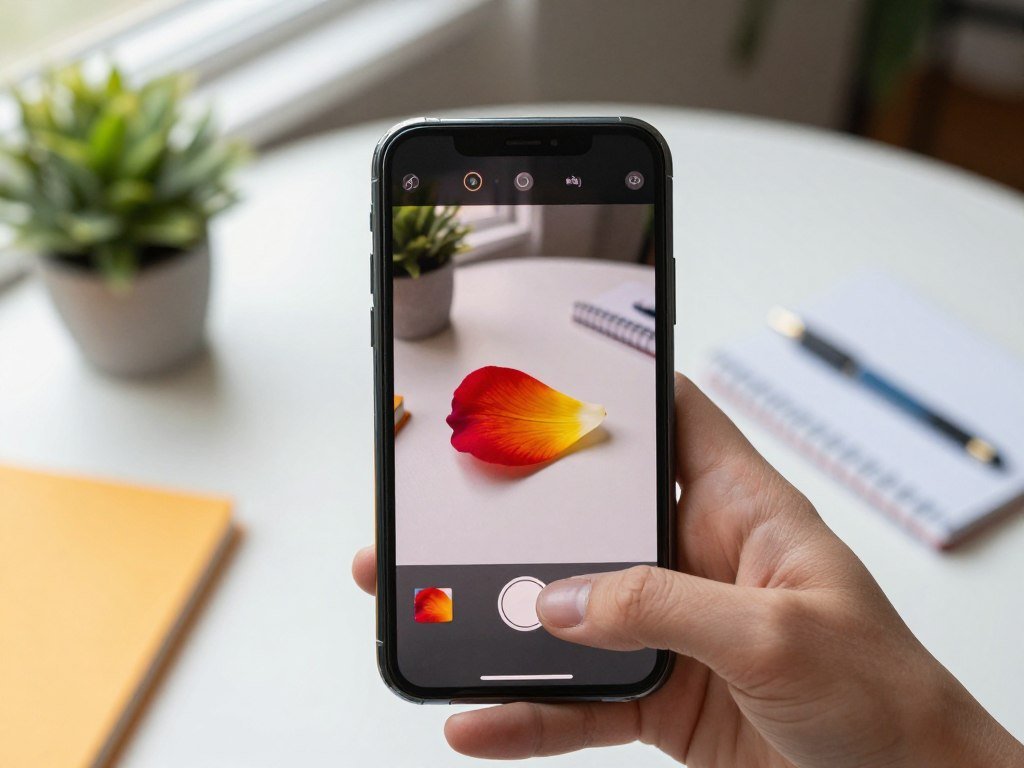
A photo can work as a search query when you do not know the right words for what you are looking at. You might want to match an item, identify a plant, or learn where an image appears online. A reverse image search uses a photo or its URL as the query to find visually related images and webpages.
The same visual search can start with a saved photo, an image on a webpage, or a camera view. You can use a phone camera to search before you know an object’s name, or start with an image already on your computer. Google Lens shows matches and details that can help you decide what to inspect next.
Start with the photo or webpage image you already have, then choose the device-specific route that fits it.
Key Takeaways
- Google Lens searches from saved photos, webpage images, and camera views.
- A reverse image search can find visually related pages without typed search terms.
- Results may show object matches, similar pictures, or webpages using an image.
- A close match is a clue to investigate, not proof of an image’s source.
- You can crop an image or add words to narrow some search results.
How to Search by Image on Google with Google Lens
Google Lens turns a picture into a visual query, so you can begin with what you see rather than a description. It is Google’s visual search tool, and it works in Chrome, Firefox, Safari, and Edge. A reverse image search with a photo can find related pages even when you do not know what terms to type.
Google Lens handles more than 25 billion visual searches each month, a figure reported in June 2026. You can read Google’s monthly visual search figure alongside its product details. Results can point to the same image online, pictures that look alike, or information about an object in the photo.
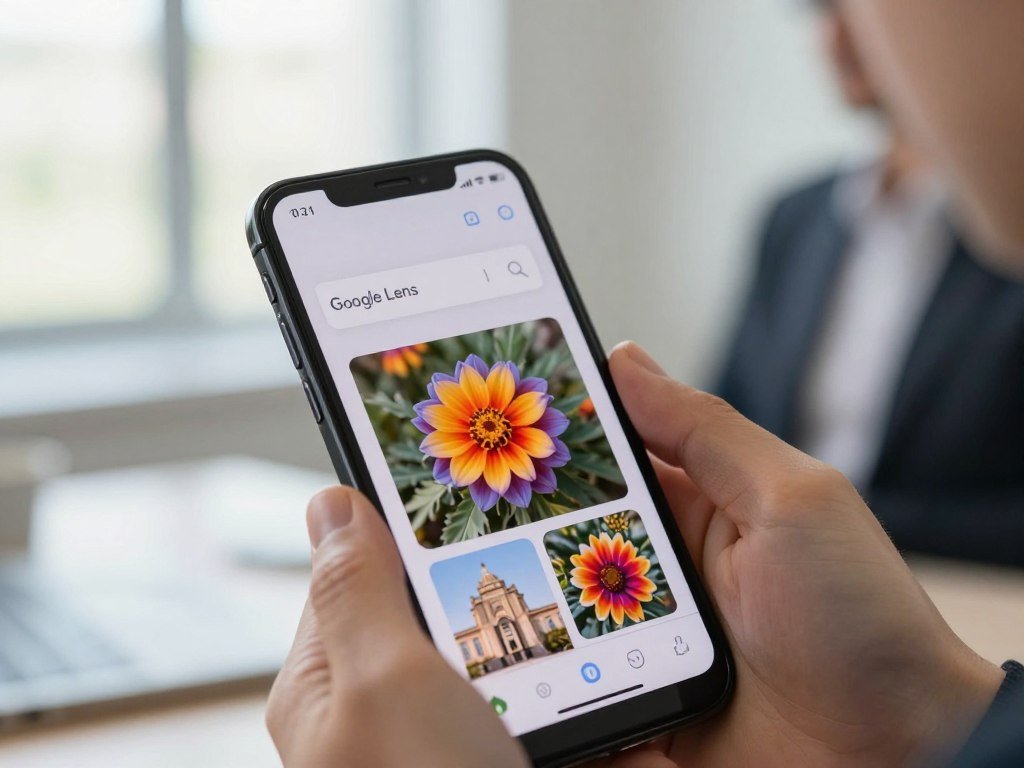
Find matching images and webpages
A reverse image search can look for the same photo or its online appearances. A search for similar images instead finds pictures that share visual features, even if they are not copies. That distinction matters when you want to trace an image rather than find another item that looks like it.
Search results can include:
- AI Overviews with a summary about the visual query.
- Object matches that identify something shown in the picture.
- Similar images with related visual details.
- Webpages using the same or a similar image.
Treat a close visual match as a lead to inspect, not proof that two images have the same source.
Search a picture to learn about its contents
When you search Google Lens, you can look for information about the subject, not just another copy of the picture. A photo of a landmark may lead to details about that place, while a product image may show related items. The exact results depend on what Lens can recognize in the image.
These results can still help when you have no useful words to enter in Google search. Open a result and read its page to learn how the image is being used. A page that shows a similar picture may discuss a different object or event.
Upload an Image to Google on a Computer
If the picture is saved on your computer, go to google.com and use the image-search control to upload it. Upload is the direct choice when the file is already on your device. Google image search also accepts a dragged file or an image URL, and it works in Chrome, Firefox, Safari, and Edge.
Choose the method that matches where the image is stored: use a file for a local picture and its URL for an online one. The search bar gives you a way to start a reverse image search without typing a description first.

Upload a saved image
Open google.com on your computer and select the image-search control beside the search field. Choose the option to upload a file, then browse to the folder that holds the picture. Select the file and confirm your choice to send it to Google Lens.
This upload image method works well when you already have a photo, screenshot, or downloaded image. You do not need to move it to a website or type a description. If you are searching for an image computer users saved in a common folder, choose that file directly.
Drag a file into the search box
Keep the Google image search page open and find the image file in a folder or on your desktop. Drag the file into the search box, then release it when the page accepts the image. Lens uses the file to build the visual query.
Drag and drop can be quicker than browsing through folders when the file is already visible. It is also useful if you have the image open in a folder window beside your browser. If the drop does not start a search, use the upload control instead.
Paste an image URL
Use an image URL when the picture is online and you do not have a saved copy. Copy the image address from the webpage, open Google’s image-search control, and choose the option to paste a link. Put the address in the field and submit it.
The methods differ in what you need before the search:
| Method | What you start with | What to do | Best fit |
|---|---|---|---|
| Upload | Saved image file | Browse and select the file | Image already on computer |
| Drag and drop | Visible file and browser | Drag file into search box | Quick access to a local file |
| Image URL | Online image address | Paste address in search field | Image available on a website |
| Webpage image in Chrome | Image open in Chrome | Use the image’s Lens option | Search without saving a copy |
Each route can start an image search, but the address must point to the image itself for a URL search. A webpage address may lead to the page instead of the picture. Before searching by URL, copy the image address itself rather than the address of the webpage around it.
Search by Image on an iPhone or Android Phone
On a phone, start in the Google app or Chrome and tap the Lens icon to choose a photo or take a picture. Choose a saved image for something you already captured, or use the camera for an object in front of you. The available steps differ a little between Android and Apple devices.
On Android, Chrome can search a camera view, screenshot, or saved image from a new tab using the Google Lens icon. On iPhone or iPad, you can start a photo search in the Google app, Chrome, or Safari.

Use a photo or camera on Android
Open a new tab in Chrome or open the Google app, then tap the Lens icon in the search bar. To use a saved picture, select it from your camera roll or image library. Chrome can also use a screenshot saved on the phone.
To take photo and search right away, tap the camera option and point your phone at the object. Keep the subject in view, then tap the shutter button. Lens will use that camera image as the query.
Search from an iPhone or iPad
Open the Google app, Chrome, or Safari and tap the Lens icon where it appears. Select a camera-roll photo or take a new picture with the camera view. The Google app offers a direct route from its search bar, while Chrome and Safari can also start a photo search.
In iPhone or iPad Chrome, Google must be the default search engine for webpage-image search. That setting applies when you start with an image already open on a webpage, rather than a picture in your camera roll. If iPhone Chrome does not offer webpage-image search, check whether Google is set as its default search engine.
Search a Webpage Image in Google Chrome
If the picture is already on a webpage, Chrome can send that image straight to Lens without saving a copy first. Start from the image you can see in the browser, then choose its Lens search option. This route is handy when a website shows an item you want to identify.
On a computer, right-click the webpage image and choose “Search image with Google Lens” to open results in a side panel. On Android Chrome, touch and hold the image, then choose the same option.

The device changes where the search begins and where you see its results:
| Device | Starting point | Action | Where results appear |
|---|---|---|---|
| Computer webpage image | Image open in Chrome | Right-click, choose Lens search | Chrome side panel |
| Android webpage image | Image open in Chrome | Touch and hold, choose Lens search | Google Lens results |
| Android camera or saved image | New Chrome tab or photo library | Tap Lens, take or select image | Google Lens results |
Android Chrome can also scan QR codes and barcodes, so an image search can lead to product details without a typed name. On Android, add a few search terms after selecting an image when you need to narrow the results.
What Can Google Lens Identify?
A photo of a plant, landmark, menu, or product can answer a different question depending on what Lens recognizes. Google Lens can identify plants, animals, landmarks, and buildings, then show related information. A place result may include ratings, hours of operation, or historical facts.
Lens can translate text into every language supported by Google Translate in 2026, and it can extract selected words or numbers. Google’s Lens feature guide also describes ways to identify subjects, translate text, and find products.
Recognize plants, animals, and places
Use Lens when you want information about a plant, animal, landmark, or building in a picture. For a place, follow a relevant place result to see more details. Google Maps is not a separate photo-upload search route; Lens identifies the place, then a place result can lead you to Maps.
Lens can also identify popular dishes shown on restaurant menus based on Google Maps reviews in 2026. It may help you make sense of a menu when the dish name is unfamiliar. Results can depend on what the image shows and what Lens recognizes.
Read, translate, and shop from a picture
Lens can select text in an image so you can copy or translate chosen words. In 2026, US shopping results can show similar apparel and home goods, plus places that sell them. A barcode search can also return product information, including where to buy the item.
These are five distinct ways to use a visual search:
- Identify a plant or animal in a photo.
- Learn about a landmark or building.
- Translate text or copy selected words and numbers.
- Find similar apparel or home goods and shopping options.
- Identify popular dishes on restaurant menus.
For design work, tools such as Canva and Photoshop apps can create or edit images, but they do not replace a reverse image search. For text in a picture, select the words Lens recognizes before copying or translating them.
How to Refine Image Search Results
If a picture contains several objects, crop the search area around the one you want to investigate. A smaller crop can help Lens focus on one part image instead of mixing details from the whole scene. Android Chrome also lets you add search terms after selecting an image.
Compare exact matches with related images before deciding which result fits your search. Use these steps to narrow the results:
- Crop tightly around the object you want to find.
- Add a descriptive term when the app offers that option.
- Compare exact matches with visually similar results.
- Open a matching webpage to check its context.
Related images can help you find image details when an exact copy does not appear. Check the page hosting a match before treating it as the original source.
What Happens to Your Images and Search Activity?
You can manage Lens activity through Google’s visual-search history setting and My Activity. Visual search history is off by default in 2026, and you can manage or delete Lens activity in your Google account. The account controls let you choose whether to save this activity.
Turn off “Include Visual Search History” or use My Activity to manage and delete Lens activity. That is the place to review activity tied to your account.
Your first Chrome Lens search of webpage content requires agreement to process page data. Chrome sends a screenshot and page data for that search. For a specific query, the page data is kept temporarily for processing and is not used for training as a result of that query.
Review the page-data prompt before starting a Lens search inside Chrome.
Is Google Lens Free, and What Can Limit a Search?
Google Lens reverse image search is free, and you can run searches without a subscription or a search-count cap. Some features need an internet connection in 2026, so a weak or missing connection can affect what loads.
A missing exact match does not prove that an image has no online appearances. Lens may return related pictures or object details instead of the precise image you searched.
You can take a picture and try to find it on the internet by opening Lens and submitting the camera photo.
That search may find matching objects, similar images, or related webpages, but an exact match is not guaranteed. If a feature will not load, check the internet connection before changing the image.
Conclusion
Choose the image source you already have, then let Lens show the closest useful matches. A saved photo, a webpage image, or a camera view can all start an image search. Cropping the picture or adding a few words can make the results more useful.
You do not need to know an object’s name before you begin. Lens can give you a visual lead, while the pages behind the results help you check details and context.
Try one photo now, and open a result page to confirm the details that matter to you.
FAQ
How do I put an image into a Google search?
On a computer, upload or drag a file into the Google Lens search field, or paste an image URL. On a phone, select a saved photo or take one with Lens. The search field accepts the image itself, so you do not need to describe it first. A short term can help narrow the results afterward.
How do I search by image on my iPhone?
Use the Google app, Chrome, or Safari to select a camera-roll photo or take a picture with Lens. Open the app or browser, tap its Lens icon, and choose the photo or camera option. In iPhone Chrome, Google must be the default search engine to search an image already open on a webpage.
How can I search for an item using a picture?
Open Lens, select or take the picture, then inspect object matches and any shopping results. A clear image of the item helps Lens focus on its shape and details. You can also look at similar images when the exact item does not appear. In the US, shopping results can include similar apparel and home goods.
Can I take a picture of something and have Google find it?
Yes, take or select a picture in Lens and review the matching objects, similar images, and related webpages. Tap the camera option to take a new picture, or choose one already on your phone. Lens uses the image as a visual query, so you can start without knowing the object’s name.
Can I take a picture of an item and find out where to buy it?
Yes, Lens can show US shopping results for similar apparel and home goods, plus buying information from a barcode search. Take or select a picture, then inspect product matches and their details. A barcode can help surface information about the exact product, while visual matches may show similar items.
Can I take a picture of something and then find out what it is?
Yes, Lens can identify plants, animals, landmarks, buildings, and popular dishes on restaurant menus. Take a picture or select one from your phone, then check the object matches and related information. Menu dish identification draws on Google Maps reviews, while place results can lead to details about landmarks.
Is Google Lens still free?
Yes, reverse image search is free, with no subscription or limit on search count. You can submit images from a computer or phone without paying for each search. Some features need an internet connection, and results may show related pictures rather than an exact match.
Can I take a picture of something and try to find it on the internet?
Yes, submit a camera photo in Lens to look for matching objects, similar images, and related webpages. You can take a new picture or select one already saved on your phone. Lens may not find an exact match, and some features need an internet connection to load results.



