
A paused scene can give you enough visual detail to start narrowing down a title, even if you remember nothing else. A clear, distinctive image gives you a better starting point than a dark shot of a plain room. You can capture a still, try a visual search, then check each candidate against details you remember.
A search result is a lead, not proof. Its accuracy depends on whether the image shows useful clues, such as a face, sign, or unusual prop. A memorable moment may help you recognize a scene, but separate what you saw from what you inferred.
Keep one detail you clearly saw separate from anything you are only guessing.
Key Takeaways
- Choose a still with a clear subject and setting.
- Try visual search before guessing at titles.
- Compare candidate titles with details you recall.
- Use a second image when the first gives broad matches.
- Keep uncertain memories separate from clear visual clues.
How to Capture a Screenshot That Helps
Choose a frame that shows both the recognizable subject and enough of the setting to establish what is happening. A useful screenshot gives a movie finder more than a close-up face or an empty wall. Context can make one frame stand out from many similar scenes.
On an iPhone or Android phone, pause the video and use the device’s usual screenshot controls. Menus and button combinations differ by device, and some apps block screenshots. Playback restrictions vary by app, so a paused video may not always allow capture.

Before uploading, make sure the subject and enough of the scene remain visible in the screenshot.
Use this four-step process to save a search image:
- Pause at a frame with visible action, not a transition or blank screen.
- Take a screenshot on your iPhone or Android device using its normal controls.
- Find or save the image in Photos or Gallery.
- Check that the subject and surrounding scene remain visible before uploading.
Screenshots commonly save as PNG or JPEG files. Those formats work for many visual search tools, though each service may set its own file limits. If a screenshot is blocked, try another device or a different playback app that permits capture.
Subtitles, playback controls, and watermarks can cover signs, faces, or props. A very tight crop can remove the setting that gives the frame meaning. The eSafety Commissioner’s Android screenshot steps explain common controls and where saved images may appear.
Try another moment when an overlay hides a useful clue. Before uploading, check that a playback bar or caption has not covered the one detail you hoped the tool would recognize.
How to Find a Movie Using a Screenshot with Google Lens
Google Lens is a straightforward first try when you have a still saved on your phone or computer. Upload an existing screenshot or take a new photo, then inspect visual matches and the pages behind them. Treat each possible title as a candidate clue, not a confirmed identification.
Google Lens can search images and screenshots through the Google app on mobile and Chrome on desktop. On Android in 2026, the Google app search bar offers a broadly available route. Assistant and Camera access depend on the phone, while Lens itself can search a saved image or a new photo.
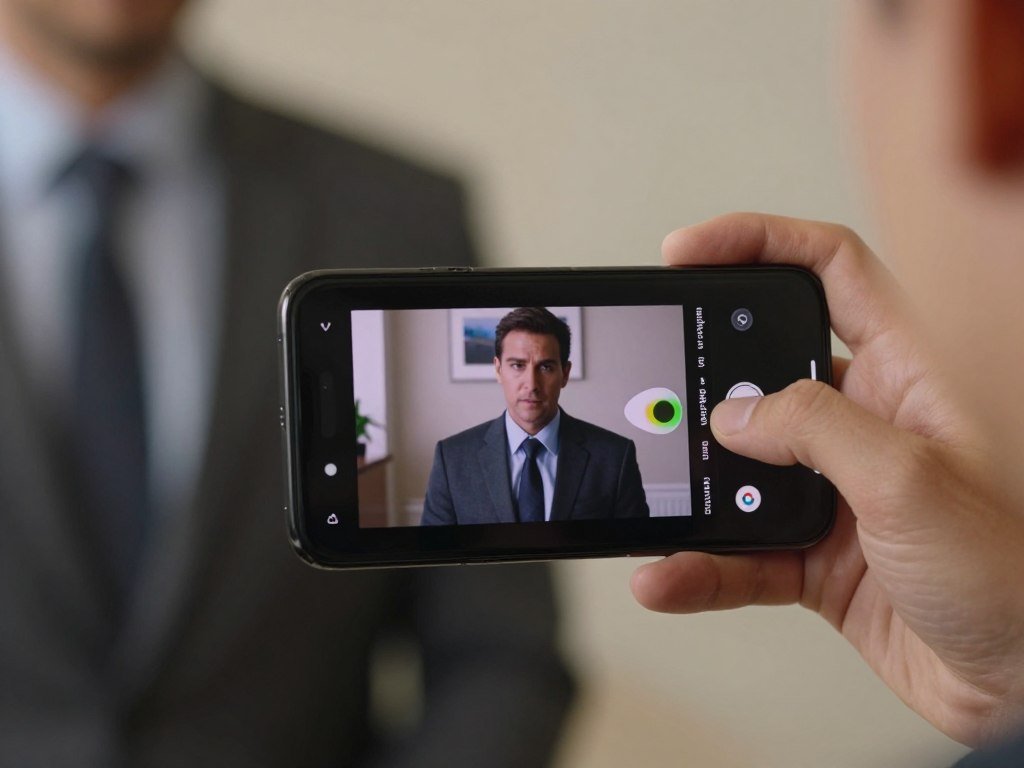
Use Google Lens on a phone or computer
On a phone, open the Google app and tap the Lens icon near the search bar. Select the saved screenshot, or use the camera option to search a new photo. On a computer, open Chrome and use Lens to search an image or screenshot.
You can find a movie using a screenshot online by uploading the still to Lens and reviewing the matches. Open promising source pages to see whether they name a film, show, or episode. Google Lens ranks visual matches by similarity and relevance, so a close visual result may still point to the wrong title.
To find a movie using a screenshot on Android, start with the Google app search bar. Some phones also open Lens through Google Assistant or the Camera app. Google’s Lens product page describes its image-search options.
Try Circle to Search on supported Android phones
Circle to Search can look up an image or video on your Android screen without switching apps. Press and hold the navigation bar or home button, then circle or tap the part you want to search. The exact gesture depends on the phone.
This option works only on selected Android phone models and in apps that allow screen captures. A streaming app may restrict the feature along with ordinary screenshots. If the scene cannot be captured, try a different still from a permitted source instead.
Lens is a general visual search tool, so it may return actors, costumes, or similar images rather than a movie finder result. If Lens returns general lookalikes instead of a title, keep the screenshot and compare a more specialized matching tool.
Which Screenshot Search Tool Fits Your Image?
Pick the tool according to the clue you want back, not just the fact that it accepts a picture. Google Lens suits broad visual discovery, TinEye focuses on image copies, and AiMovieFinder suggests film titles from scene details. Your goal determines which results are most useful.
A reverse-image search is a search that uses an image to find matching copies, visually similar pictures, or pages where the image appears. Depending on the service, results can show copies, altered versions, similar pictures, or source pages. A reverse-image search may find where an image appears without identifying the film itself.
Choose broad visual discovery or copy matching
Google Lens is the broad visual-search choice. It can find objects, products, text, landmarks, and similar images. A free first attempt is Google Lens through the Google app or Chrome; this does not promise that every feature or service is free.
TinEye is more useful when you want copies or altered versions of a still. It searches an index of over 86.5 billion images and can find cropped, edited, or resized copies. TinEye says it does not save or index search images, and it can sort results by first occurrence, largest version, or most edited version.
Running the same still through two services can show different matches because their indexes and result types differ. That can reveal a page using the image, even when neither tool names the movie. A search result still needs to fit the scene you remember.
Try a movie-frame identification tool
AiMovieFinder is built to suggest likely film titles from visible scene elements. In 2026, it accepts a movie screenshot or still in PNG or JPG format. Its analysis looks at faces, costumes, locations, props, colors, and composition.
AiMovieFinder can return up to five likely movie titles with release years and reasons for each match. It may also provide an IMDb verification link when metadata is available. Those details make it easier to judge why a title appeared, but they do not prove the match.
| Tool | Best fit | Image input or matching focus | What results can show |
|---|---|---|---|
| Google Lens | Broad visual discovery | Objects, text, places, similar images | Visual matches and source pages |
| TinEye | Finding image copies | Exact, cropped, edited, or resized copies | Copies and altered versions |
| AiMovieFinder | Film-title suggestions | Scene faces, costumes, places, props, colors | Up to five likely titles and match reasons |
If your goal is the film title rather than the image’s online history, prioritize results that explain a scene-based candidate.
What to Try When the Screenshot Search Misses
A result list full of lookalikes usually calls for a more distinctive crop or one extra clue, not a longer guess. A clear face, costume, sign, prop, or unusual location can help narrow movie-frame candidates. Change the evidence before changing the story you remember.
A reverse-image search can find pages using the same image or visually similar pictures, but that may not identify the source video. A still can find an image match without finding the exact clip. A video may be easier to locate when the still appears on a page that names or hosts it.

Try these four adjustments when the first search gives too many candidates or none that fit:
- Compare the full frame with a crop around one distinctive subject, object, or piece of text.
- Search a second still that shows a different angle or moment.
- Add one clue, such as the approximate era, language, character relationship, or nearby action.
- Search a remembered line of dialogue when the words stand out more than the visuals.
Search both the full frame and a crop, since each can reveal different matches. A high-resolution screenshot or clear video still can also give a search tool more detail to compare. For a line, use a short, distinctive quote rather than a common phrase such as “come here.”
A remembered detail can help narrow results, but an uncertain actor or decade can send the search off course. You can also try Reddit’s r/tipofmytongue for an unusually obscure scene. Share only a frame you feel comfortable posting publicly.
If your first search produces no useful title, vary one part of the query and review the new candidates. Change one uncertain assumption at a time so a mistaken decade or actor resemblance does not steer every retry.
How to Check a Likely Title and Use Other Clues
A title becomes convincing when its year, cast, and story details fit the scene you actually remember. Check more than genre: compare the setting, character relationships, plot, and source scene. Several independent details should point to the same film or episode.
IMDb and the American Film Institute Catalog can help you check a candidate’s title, release year, and cast. Do not accept a title just because its genre or one actor seems familiar. A guessed actor, decade, or country can misdirect your search, so mark uncertain memories as guesses.
A strong candidate fits several details you remember, not just the general kind of story.
| Clue | Useful method | What to check |
|---|---|---|
| Screenshot | Visual search and scene details | Faces, setting, props, and source scene |
| Dialogue | Search distinctive words in quotation marks | Who said the line, if known |
| Plot or scene description | Use specific actions, setting, and character ties | Suggested title, plot, and cast |
To find a movie by describing it for free, try a regular web search with specific scene details or ask a free-to-access community. Include what happens, where it happens, and how the characters relate. No one service can promise a match.
Dialogue can work well when a quote uses unusual words or names. Put the distinctive words in quotation marks, then add the speaker or scene if you know it. A common line may lead to unrelated films, songs, or shows.
If a candidate explains only the genre but not the unusual details in the frame, keep checking rather than settling on it.
Conclusion
Start with the clearest still you have and one detail you know is visible. A distinctive screenshot gives you a useful lead, but it cannot prove a title on its own. Try the image in a visual search tool, then compare the strongest candidate with details you remember about the scene.
Trust a match when the frame and the film details agree, not when a single search result looks familiar. Keep a note of what you know and what you guessed; that small distinction can stop a weak candidate from becoming your answer. Save the most convincing candidate only after its scene and film details line up.
FAQ
Is there a way to find a video from a picture?
Yes, a picture can help you find a video when the same still appears on an indexed page or source site. A visual search may show matching image pages or similar frames. Those results do not guarantee an exact video match, though. Check the page itself for a title, clip, or link, then compare its scene with the still you have.
How to take a screenshot movie?
Pause the movie and use your phone or computer’s normal screenshot controls. On many Android phones, the common button method uses Power and Volume down, though controls vary by device. Some streaming apps block screenshots, so the capture may come out blank or fail. Saved images usually appear in Photos or Gallery on a phone.
Is there an app that can identify movies?
Yes, image-search apps and dedicated movie-frame tools can suggest possible titles from a still. Google Lens may find similar images or pages, while a movie-frame tool may return film candidates. Neither result is certain on its own. Check the title against the scene, release year, cast, or plot before treating it as the answer.
Can I find a movie using a screenshot?
Yes, upload a clear still to a visual search tool to look for related images and pages. Some tools show similar pictures, while others may suggest movie titles. A distinctive face, costume, sign, or prop can make the search more useful than a plain background. Treat each result as a lead and compare it with details you remember.
How can I find a movie I don’t know the name of?
Combine a distinctive still with specific clues about the plot, setting, cast, or dialogue. Search a short, unusual line in quotation marks, or describe an action and the characters involved. A community that helps identify films may offer another lead when search tools miss. Keep uncertain memories labeled as guesses, since a mistaken actor or decade can misdirect the search.
Can AI identify a movie?
Yes, AI tools can suggest likely movie titles by analyzing visual cues such as faces, costumes, props, and settings. The result is a candidate, not a confirmed identification. Check whether the suggested film’s year, cast, plot, and scene fit what you remember. AI may confuse similar-looking scenes or return a related image without naming its original film.



