
If you undo a change by mistake, redo can bring that action back without making you repeat the work. For example, you might remove a line of text, press undo, then realize the line was correct. Redo restores it. The undo history is the sequence of recent actions an app can reverse. When you need the redo shortcut key, the main options depend on your computer and the app. You can try the usual keyboard command, then check the app’s own menu if it behaves differently. That can save time when you are fixing a mistake in a document, spreadsheet, or image. The right key combination depends on both your operating system and the app you are using.
Key Takeaways
- Redo restores an action you removed with undo.
- The undo history holds recent actions an app can reverse.
- Windows and Mac apps can use different keyboard shortcuts.
- Some apps use a shortcut that differs from the usual platform command.
- The app’s menu or toolbar may offer Redo without a keyboard.
What Does Redo Do, and When Can You Use It?
Redo restores an action you have already undone, rather than repeating an unrelated edit. Undo redo commands work together through an app’s undo history, which tracks recent actions. Redo becomes available after you undo an action.
A simple text edit shows how the actions connect. Type a word, remove it with undo, then use redo to restore that word. The same pattern can apply to formatting or other changes, depending on the app.
Redo can restore only an action that undo removed from the current history.
- Make an edit, such as typing a word.
- Undo the edit, so the word disappears.
- Redo the action, so the word returns.

Some applications let you redo more than one command. After restoring one action, press the redo command again to restore another undone action, if the app allows it. Microsoft Office can undo multiple actions, and some Mac apps support multiple redo commands.
Apple’s undo and redo guidance calls for clear results when users reverse or restore commands. That matters when several edits look similar, such as changing font size across a paragraph. If you have not undone an action, there is usually nothing in the redo history to restore.
Redo Shortcut Key for Windows and Mac: Which Keys Should You Press?
On Windows, start with Ctrl+Y; on a Mac, start with Shift-Command-Z. These keyboard shortcuts restore an undone action, but an application can choose a different command. Google Docs on a PC uses Ctrl+Shift+Z.
Try the shortcut that matches the app you have open, not just the computer you use. A browser-based editor may set its own key combination. Google Docs is a clear example: its PC shortcut differs from the usual Windows command.

| Platform or app | Redo shortcut | What it applies to |
|---|---|---|
| Windows | Ctrl+Y | An action undone with Ctrl+Z |
| Mac | Shift-Command-Z | An undone command |
| Google Docs on a PC | Ctrl+Shift+Z | An undone action |
On a Mac, hold Shift and Command, then press Z. Apple’s menu convention pairs Command-Z for undo with Shift-Command-Z for redo. In an app with a Mac keyboard, this can feel natural once you know the pair.
On Windows, Ctrl+Y is the common starting point for restoring an action undone with Ctrl+Z. The two commands form a familiar undo redo pair in many programs. Yet keyboard shortcuts are set by each application, so a familiar key may have another function elsewhere.
If you work in a browser, remember that web browsers and web apps can handle commands differently. The active app may receive the key press instead of the browser. If the standard combination fails, check the app-specific examples before assuming redo is unavailable.
Which Redo Shortcuts Do Popular Apps Use?
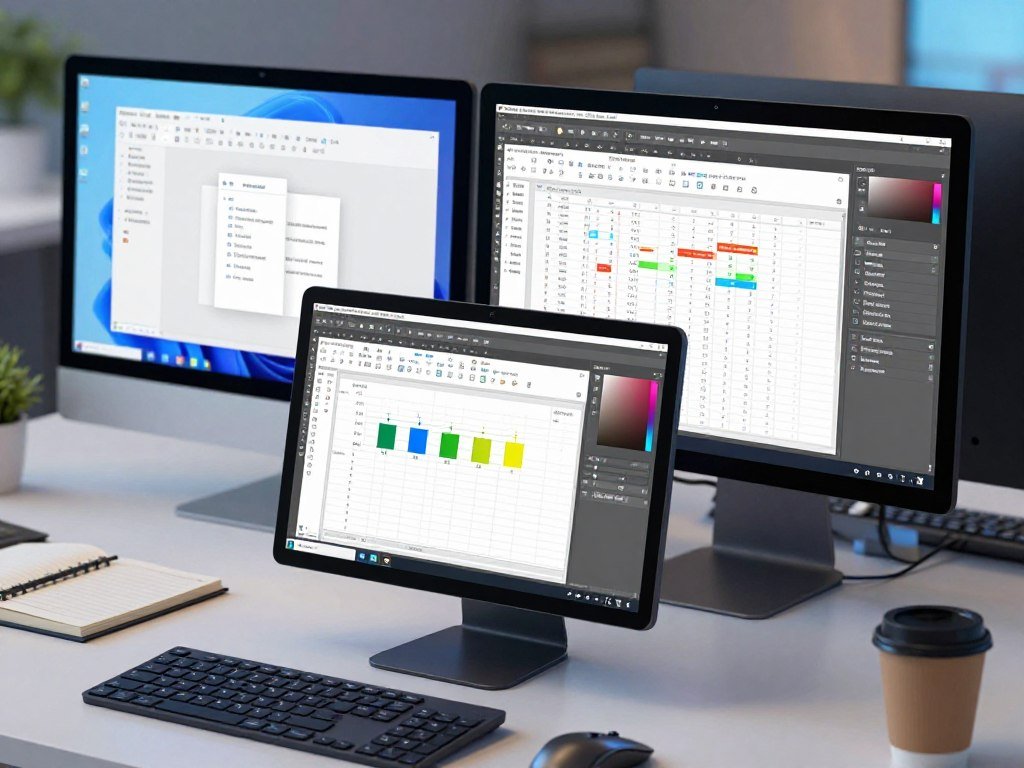
In Microsoft Word for Windows, press Ctrl+Y to redo the previous action when the app can redo it. That condition matters because Word cannot restore every command. Excel and Photoshop use app-specific shortcuts that differ by platform.
Check the app you are using before pressing a shortcut from memory. Microsoft Word, Excel, and Adobe Photoshop do not all follow the same Windows pattern. Their Mac keyboard commands can also vary.
Microsoft Word
Word for Windows uses Ctrl+Y to redo the previous action, if possible. The command can restore a change that you just undid, such as typing or formatting. What it can restore depends on the action and the undo history.
If the previous action cannot be redone, pressing the keys may not change the document. That does not mean the command is broken. The action may no longer be available to restore.
Excel
Excel uses Ctrl+Y on Windows and Command+Y on Mac. Use redo after undo: Excel makes the command available only after you undo an action.
For example, undo a cell edit, then use redo to bring that edit back. A spreadsheet may contain many small changes, so confirm the selected cell before restoring an action. Excel’s command follows its own app rules rather than one universal Windows or Mac shortcut.
Adobe Photoshop
Photoshop uses Shift+Ctrl+Z on Windows and Shift-Command-Z on Mac. The Windows combination differs from the usual Ctrl+Y command. This matters when you switch between an image editor and a text or spreadsheet app.
Photoshop’s command restores an undone edit within the image’s history. If you memorized a different shortcut in another program, pause before pressing it here. In Photoshop, use the app-specific combination rather than assuming Ctrl+Y will redo an edit.
Can You Redo Without a Keyboard Shortcut?
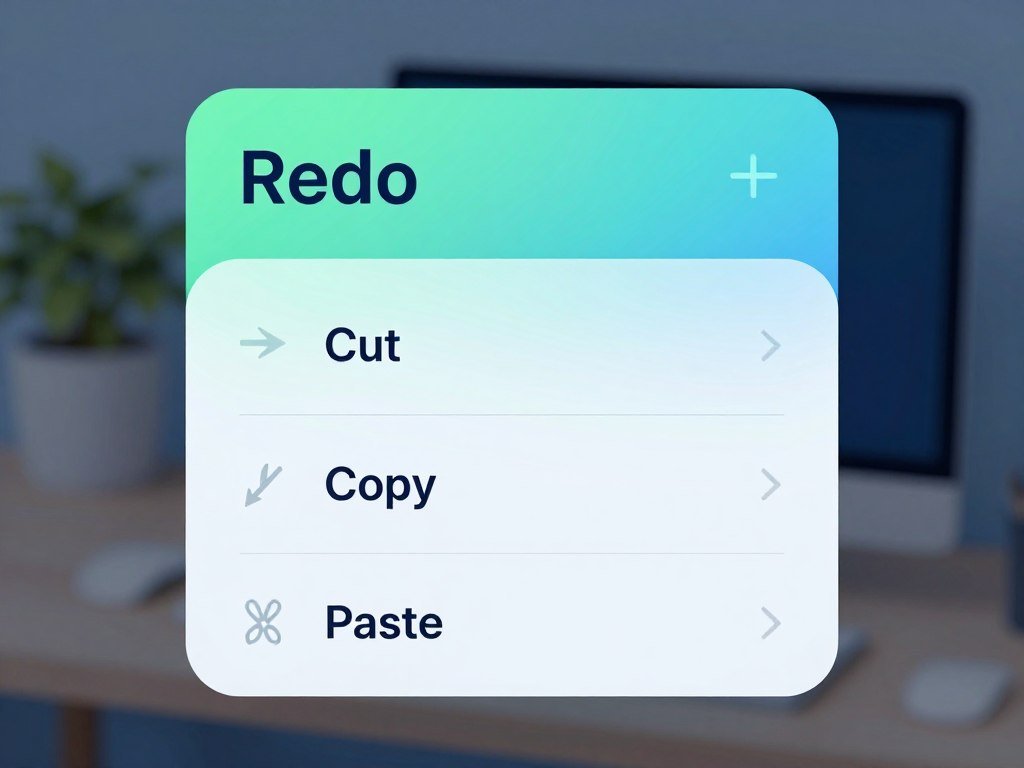
If a key combination is inconvenient, look for Redo in the app’s menu or toolbar. A mouse option can be easier when you are learning a new program. The exact route depends on the app and version.
On a Mac, many apps place Redo under Edit. Microsoft Office puts a Redo button on the Quick Access Toolbar after you undo an action. Office for the web supports basic undo and redo in its ribbon.
| Platform or environment | Redo route | Availability |
|---|---|---|
| Mac apps | Edit > Redo | Menu option in most apps |
| Windows Office | Redo on the Quick Access Toolbar | Button appears after undo |
| Office for the web | Redo in the ribbon | Basic redo supported |
The Edit menu can also show whether Redo is ready to use. If the command looks dim, the app has no action available to restore. The Microsoft Office button appears only after an action has been undone, so it may not show when you first open a file.
Office for the web keeps undo and redo basic, while desktop Office has advanced options. If you rely on more detailed editing controls, the web version may not offer the same features. In Office for the web, use the ribbon for basic redo and switch to desktop Office for advanced options.
Why Is Redo Not Working?
If Redo is dim or does nothing, first check whether an undo has actually left an action available to restore. The history matters, since redo depends on a recent undo. Some actions cannot be undone, even when the command works correctly.
Use this checklist to narrow down the cause without changing more content by mistake:
- Confirm that you just undid an action.
- Look for a disabled Redo command.
- Check the app’s shortcut settings or help.
- Consider whether the action can be undone or has fallen outside the available history.
Check whether an action is available to redo
Redo has nothing to restore until you undo an action. If the command is disabled, the app is signaling that no redo action is available. Some commands, including saving a file, cannot be undone.
Microsoft Office programs have a default undo and redo maximum of 100 actions. A long series of edits can push an older action outside the available history. The 100-action Office history limit sets the usual range for those programs.
Check the app’s shortcut and undo history
Applications can assign different jobs to the same keyboard shortcut. Check the program’s shortcut settings or help if a key runs another command. If you use Cursor with imported VS Code keybindings, review the imported keybindings for conflicts with Cursor commands.
Then consider what happened to the action you want back. An action may be impossible to undo, or it may no longer sit in the available history. In Office, remember that the default undo/redo history holds up to 100 actions, and some actions, including saving, cannot be undone.
How Is Redo Different From Repeat?
Redo restores something you undid, while repeat performs a simple action again. The difference is the goal: redo brings back a past change, while repeat makes a new one. In Microsoft Office, Ctrl+Y or F4 can redo or repeat, depending on the action.
For example, undo a paste and redo it to restore the paste. Repeat can apply a simple action again, such as pasting copied content in another place. The result may look similar, but redo restores an undone action and repeat performs another action.
Excel does not show Repeat on the Quick Access Toolbar by default. Some Excel actions also cannot be repeated, so the command may not apply to every change. A shortcut that repeats an action can save steps when you enter similar content in several cells.
Repeat creates another simple action; redo restores an action removed by undo.
F4 may need an extra key on some keyboards. If F4 does not work on your keyboard, try holding Fn or F-Lock while pressing it.
Conclusion
The fastest place to start is Ctrl+Y on Windows or Shift-Command-Z on a Mac, unless your app uses a different command. Redo restores an action you removed with undo, but the application sets which keyboard command works.
If the shortcut is unclear, the app’s Edit menu can show whether Redo is available. That is a useful check before trying another key combination, especially when switching between programs.
Try the shortcut after one undo, then use the app’s Edit menu if you need to confirm the available Redo command.
FAQ
Can I redo several actions in a row?
Yes, some apps let you redo several actions in a row. After the first redo, use the redo command again to restore the next undone action. Each command restores one more action when the app supports it. If no more actions remain in the redo history, the command becomes unavailable.
Can I redo an action after saving a file?
Yes, you may still be able to redo other actions after saving a file. In Office, saving itself cannot be undone, but other edits may remain in the undo history. Office programs have a default history maximum of 100 actions. The save command does not mean every earlier edit has vanished.
Why does Ctrl+Y do something different in my app?
Ctrl+Y can do something different because applications set their own keyboard shortcuts. Check the app’s shortcut settings or help to find its redo command. For example, Photoshop on Windows uses Shift+Ctrl+Z for redo. A shortcut that works in a spreadsheet may trigger another command in an image editor.
Can F4 redo an action in Microsoft Office?
Yes, F4 can redo an undone action or repeat a simple action in Microsoft Office. What it does depends on the action and the app’s current state. Some keyboards require you to hold Fn or F-Lock while pressing F4. Try it after undoing an action to see whether it restores that change.
Does every app have a redo button?
No, not every app has a visible Redo button. Look in the app’s menu or toolbar for the command. In Windows Office, the Quick Access Toolbar’s Redo button appears after you undo an action. A menu may still show whether redo is available, even when the toolbar has no button.



