A stolen password does not have to be enough to open your account when a second sign-in check is turned on. That extra check can block access even when someone knows your password. It adds a layer of security to email, banking, social media, and other accounts.
Services commonly offer a code, prompt, or security key as the second check. A one-time password (OTP) is a temporary code used once to verify a sign-in. Some services send it by text, while an authenticator app can make one on your phone.
The setup steps are usually short, though menu names differ by service. You will learn how to find the setting, choose a method, and check that it works. You can also plan for a lost phone before it causes trouble.
Start with the email, financial, and social accounts you would most want to keep out of someone else’s hands.
Key Takeaways
- Add a second sign-in check to important accounts.
- Choose a method you can use reliably.
- Keep recovery details current and secure.
- Enter codes only on the service’s sign-in page.
- Check that the chosen method shows as active.
How to Enable Two-Factor Authentication on Any Account
On most services, you can begin in account settings and finish by confirming one second-factor method. Look for Security, sign-in security, or password and security. Choose a second factor you can access when you sign in.
A two-factor authentication login adds another check to a password-based sign-in. Passkey sign-in can work differently because a passkey may replace the password and second step. Some services also require two-step verification for certain features; YouTube creators, for example, need it to apply for the Partner Program.
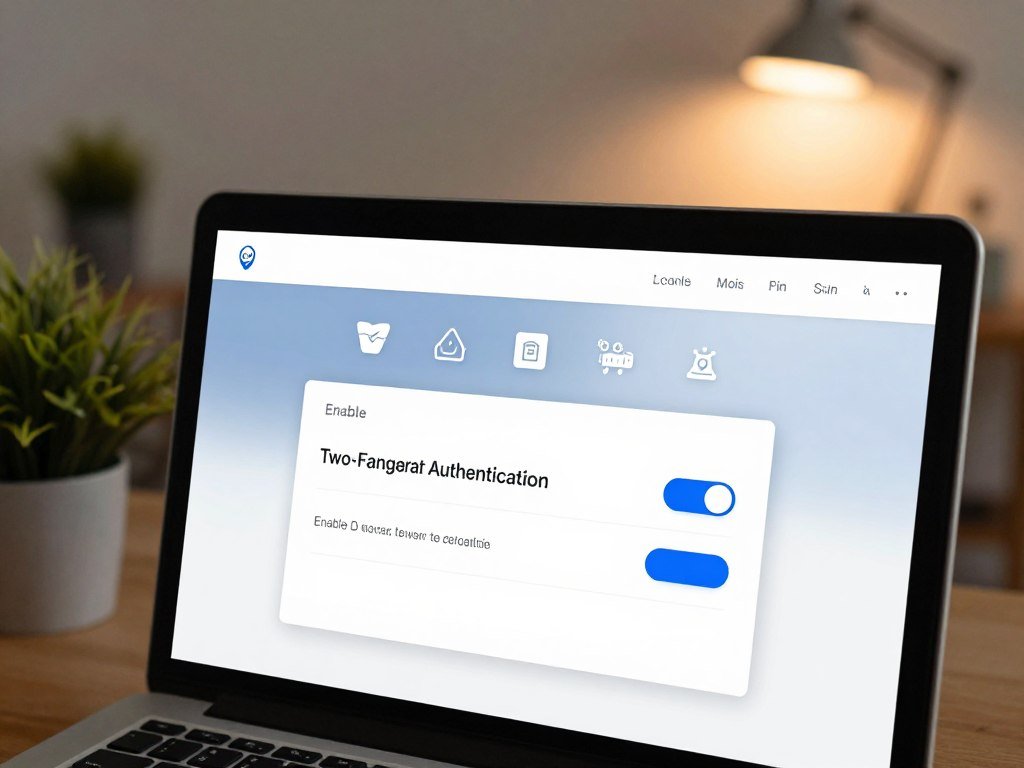
Use this sequence as a starting point. Google calls its setup 2-Step Verification, and other services may use similar wording.
- Sign in to the account you want to protect.
- Open account settings, then find account security.
- Choose Security, Sign-In & Security, or Password and Security.
- Select Two-Factor Authentication or 2-Step Verification.
- Choose a method and complete its confirmation step.
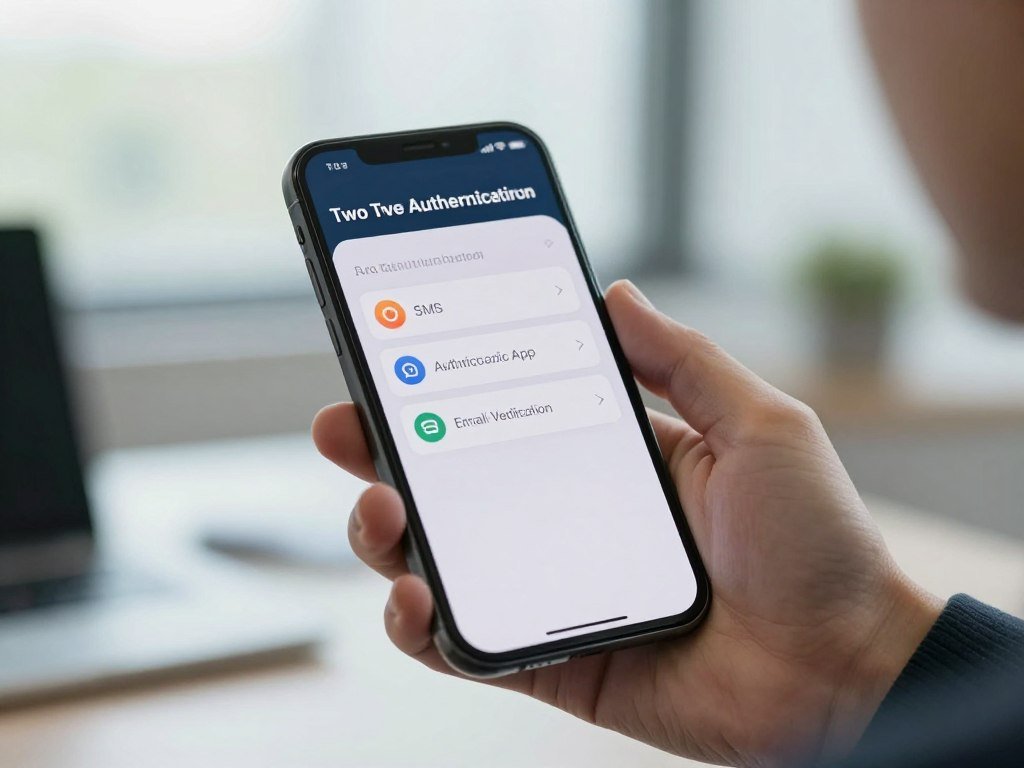
Common choices include an authenticator app, SMS, a phone call, or a security key. Follow the screen prompts to confirm your phone number, scan a QR code, or connect the key. YouTube’s two-step verification requirement is one example of an account feature tied to this setting.
The added step makes a password alone less useful to someone else. CISA explains how multifactor authentication adds another identity check, including through apps, texts, and biometrics.
Enter the verification code only in the service’s own setup or sign-in screen, never in a message from someone requesting it.
If the screen offers a choice, select the method you have ready and finish its test before leaving settings. The account may ask you to sign in again to confirm the change.
Which Two-Factor Authentication Method Should You Choose?
An authenticator app avoids carrier delivery, while a security key offers the strongest phishing resistance among these options. For most people, an authenticator app is a practical balance of access and security. The right method is one you can use without relying on a text that might not arrive.
FIDO2 and WebAuthn credentials are tied to a website’s domain, so a fake site on another domain cannot complete the exchange. A password or app code entered on a fake page can still be stolen or relayed.
SMS, authenticator apps, and push prompts
SMS sends a code by text, and a phone call can read one aloud. Both are simple, but attackers may intercept texts through a carrier network or take over a number with a SIM-swap attack.
Authenticator apps generate OTP codes, often called 2-factor authentication OTP codes. Time-based codes refresh every 30 seconds. They avoid carrier delivery, but real-time phishing can trick you into entering a code on a fake sign-in page.
A push prompt asks you to approve or deny a sign-in on your phone. It is quick when you are signing in, but repeated unwanted requests can wear you down. Attackers may use that pressure in an MFA fatigue attack.
You can download a two-factor authentication app from your phone’s app store, then scan the service’s QR code or enter its setup details. 2FAS works on Android and iOS, offers extensions for Brave, Chrome, Edge, Firefox, Opera, and Safari, and needs no account. Aegis is Android-only and supports importing and exporting tokens.
| Method | How it arrives | Main advantage | Main limitation |
|---|---|---|---|
| SMS or call | Text or phone call | Works with a phone number | SIM swaps and carrier interception |
| Authenticator app | Code in a phone app | No carrier delivery needed | Phishing can relay a code |
| Push prompt | Approval alert on a device | One tap can confirm a sign-in | Repeated prompts can cause fatigue |
| Passkey | Stored on a device or synced | Resists fake website sign-ins | May not meet every separate MFA rule |
| FIDO2/WebAuthn security key | Physical key connected or tapped | Domain-bound phishing resistance | You need the key at sign-in |
Passkeys and security keys resist phishing
Passkeys and security keys use cryptographic credentials rather than a code you type into a page. NIST’s Special Publication 800-63B sets rules for authentication strength and identifies phishing-resistant options.
A device PIN unlocks a passkey on your device; it is not the account credential sent to the service. Security keys can work across supported devices, while a passkey may be stored on or synced through your device ecosystem. Keep a usable fallback until you have tested another sign-in or recovery route.
Microsoft Authenticator suits Microsoft accounts, and Google Authenticator suits Google accounts, though both can handle other accounts. Google Authenticator manages multiple accounts and offers passcode or biometric unlocking. Authy supports watchOS and requires an account and phone number.
If you use SMS, treat any unexpected request for your code as a warning that someone may be trying to take over the account.
Set Up Two-Factor Authentication on Popular Accounts
Google, Apple, Microsoft, Facebook, Instagram, Slack, and Epic put their 2FA controls in account-security settings, but the menu labels differ. Follow the path for your device or account type, then complete the service’s code or app check. Menu names matter, especially when a service offers more than one route.
Confirm that the account shows your chosen method as active before you leave its security settings. Keep in mind that some services apply the setting to each workspace or account separately.
Google and Apple account setup
For Google, open Google Account > Security & sign-in > How you sign in to Google > Turn on 2-Step Verification. Follow the prompts to confirm a method. Google sign-in can use a password plus a second step, or a passkey.
On an iPhone or iPad, open Settings > your name > Sign-In & Security > turn on two-factor authentication. When you sign in on a new device or the web, Apple asks for your account password and a six-digit code. It can show the code on a trusted device or send it to a trusted phone number by text or call.
Apple usually does not ask for another code on that device after your first sign-in. It may ask again if you sign out, erase the device, or need a security-related password change.
Microsoft, Facebook, and Instagram setup
For Microsoft, go to account.microsoft.com/security > Manage how I sign in > Additional security > Two-step verification. Microsoft recommends three pieces of security information and requires two forms of identification for sign-in recovery. It is phasing out SMS for personal-account authentication and recovery.
For Facebook, open Settings > Security and Login > Two-Factor Authentication > Setup in Authentication app. Scan the QR code, then enter the six-digit code. Microsoft Authenticator can add Facebook by scanning its QR code or entering its manual code and URL.
Meta’s Accounts Center also offers Password and security > Two-factor authentication. Select the Facebook or Instagram account you want to set up. Instagram codes come from the method selected for that Instagram account; Facebook authenticator codes come from the linked authenticator app.
Slack and Epic account setup
Slack setup begins in your account settings. Choose an authenticator app or SMS, then enter the six-digit code. Set it up separately for each workspace, since one workspace’s setting does not cover another.
Epic setup starts in Password and security. Choose Set up under Two-Factor Authentication, enter a code, and wait for confirmation. Epic requires 2FA for some free-game claims, Fortnite gifts, and competitive events.
| Account | Settings path | Confirmation | Special detail |
|---|---|---|---|
| Google Account > Security & sign-in > How you sign in to Google | Turn on 2-Step Verification and follow prompts | Password plus second step or passkey | |
| Apple | iPhone or iPad Settings > your name > Sign-In & Security | Turn on two-factor authentication | Six-digit code on trusted device or phone |
| Microsoft | account.microsoft.com/security > Manage how I sign in > Additional security | Turn on Two-step verification | Recommends three pieces of security information |
| Settings > Security and Login > Two-Factor Authentication | Scan QR code and enter six-digit code | Can also use Meta Accounts Center |
Before leaving setup, confirm that the service shows the selected method as active.
What If a Verification Code Does Not Arrive?
A missing code often means the account is sending it to a different trusted device, number, or method than the one you are checking. Start by checking the route shown on the sign-in screen, then make sure your phone number is current. Enter two-factor authentication codes online only on the legitimate service sign-in page, never in chat or email.
Check the delivery method and account details
Check whether you chose a text message, phone call, authenticator app, or trusted-device prompt. A code sent to an old phone number will not reach your current phone. For Google, SMS or voice-call verification codes have six digits.
If you use SMS, a delayed text may relate to carrier delivery or number checks. Google may take up to seven days to trust a phone number for 2-Step Verification. It may also disable a suspicious new number and allow 30 days for confirmation.
Microsoft’s code troubleshooting steps include checking the registered number, phone signal, blocked numbers, and notification settings. Try another configured method if the service offers one.
Fix setup errors and sign-in prompts
Two-factor authentication may fail to turn on because a phone number is still being checked, the account uses a managed work or school setup, or you chose a method you cannot confirm. These are different issues, so read the service’s exact message before trying again.
Google work, school, or group account users may need help from an administrator. A new phone number can also face Google’s trust checks even when it is correct. If the account is managed, ask the administrator which sign-in methods are allowed.
For an Epic setup error, wait a short time and try again. A code can expire or arrive after you have moved past the screen that requested it. Use a fresh code on the current setup page.
Never turn off an available second factor just to get past a code-delivery delay.
How Can You Avoid Getting Locked Out?
A recovery code stored somewhere you can reach without your phone can prevent a temporary lockout from becoming a permanent one. Save a backup route before changing devices, and keep your account information up to date. Store recovery codes somewhere secure and separate from your phone.
Use this checklist while your current phone still works:
- Save recovery codes somewhere secure.
- Keep trusted phone numbers and devices current.
- Confirm how your authenticator app backs up and restores codes.
- Check whether work or school credentials need to be registered again.
Google backup codes have eight digits and can be printed or downloaded. Slack backup codes are single-use and appear in account settings. Microsoft Authenticator can back up and restore third-party OTP codes, but work or school credentials must be registered again.
Microsoft Authenticator backups restore only to the same device type. Starting in January 2027, Microsoft Authenticator backup will use Google One instead of a Microsoft personal account.
Apple account recovery can take a few days or longer if all trusted devices and phone numbers are unavailable. Contacting Apple cannot speed up that wait. Test that your backup route is still available before replacing or erasing your current phone.
Conclusion
Turning on a second sign-in check is a practical step you can take to make a stolen password less useful. Choose a method you can access during an ordinary sign-in, not one that only works under ideal conditions.
Save a recovery route before you need it, and keep its details somewhere safe. That small task can protect your access when a phone is lost or replaced.
Choose one important account today, enable its preferred second factor, and save its recovery codes securely.
FAQ
How to apply 2 factor authentication?
Sign in, open Security or Sign-In & Security, choose the 2FA setting, select a second factor, and complete its verification. You may confirm a phone number, scan a QR code with an authenticator app, or connect a security key. The service should then show the method as active. Keep your recovery details handy before testing a new sign-in.
How do I get an iCloud verification code?
Apple can show an iCloud verification code on a trusted device or send it to a trusted phone number by text or phone call. The code has six digits. If you are signing in on a new device, enter it on Apple’s sign-in screen after your password. Do not share the code with anyone who contacts you unexpectedly.
How do I approve my Facebook login from another device?
Approve a Facebook login only through a prompt on a trusted device when you started that login. Check the device and sign-in details before tapping approve. If no prompt appears, use another method already set up on your account, such as an authenticator code. Never approve an alert for a sign-in you do not recognize.
Is 2FA the same as 2-Step Verification?
Usually, both terms describe an extra sign-in check after or alongside your main sign-in. Each service chooses its own methods, so one account may offer texts and app codes while another supports keys or prompts. Passkeys can work differently because they may replace the password-based sign-in instead of adding a separate second step.
What are the downsides of two-factor authentication?
Two-factor authentication can lock you out if you lose access to your phone, key, or trusted device. Text codes carry SIM-swap and carrier-interception risks. Fake sites can relay authenticator codes in real time, and repeated push alerts can pressure you into approving a sign-in. A secure recovery route can reduce the risk of losing account access.
Do you have to pay to enable 2FA?
Account security settings and authenticator apps are typically available without a setup fee. A carrier may charge for text messages based on your mobile plan, so SMS can have a separate cost. A security key may also cost money to buy, while app-based codes do not require a physical key.
How do I know if I have enabled 2FA?
Check the account’s security settings and confirm that your chosen method shows as active. Some services also show which phone number, app, or device will receive the next check. Test a new sign-in only when you can still reach your recovery method, so a prompt or code cannot leave you stuck outside the account.



