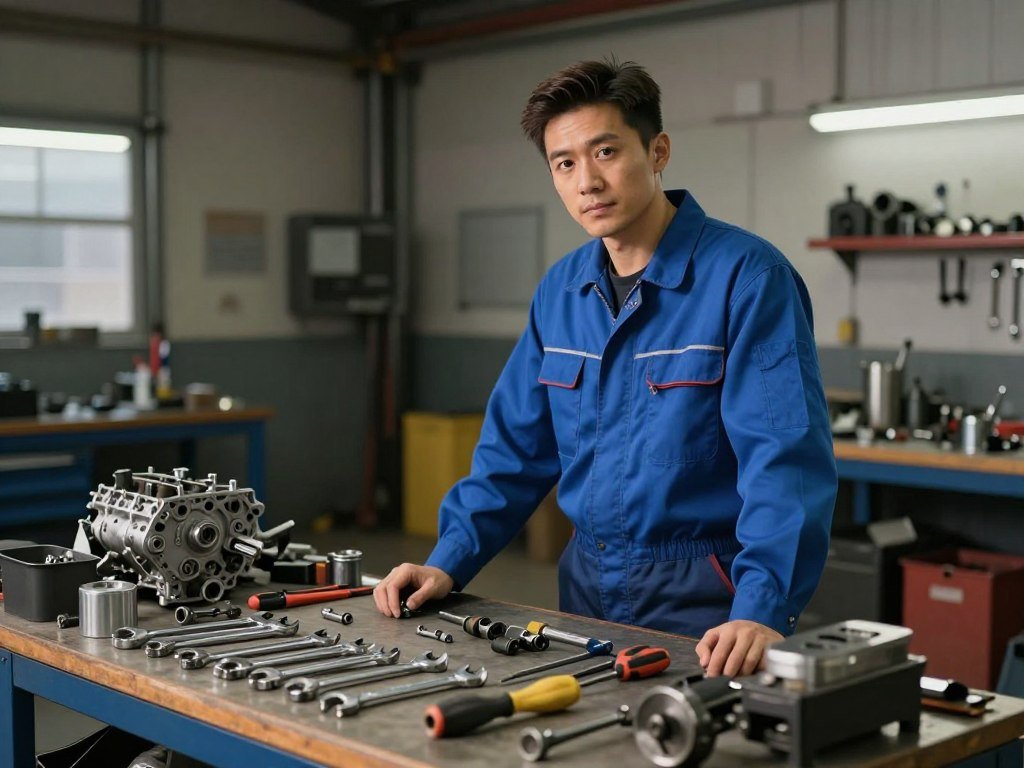
A memorable OC can start with a single visual detail, such as a mechanic whose spotless uniform says as much as a long backstory. If you are shaping a story, game, personal project, or social media post, one strong image can help others picture your idea. It can also give you a starting point when the character still feels unfinished.
This page focuses on visual creation. Written lore and interactive chatbots serve different needs, so they call for different tools. A useful first image does not need a complete biography. It needs a few defining details that point toward the character you want to see.
A reference sheet is a set of views, expressions, or poses that helps keep a character’s appearance clear across creative work. You may need one later, or you may only want a single portrait today. Both are practical goals, and your choice can change as the concept grows.
Give yourself room to revise the idea. An early image can reveal that a color, shape, or expression works better than the words you first chose. The aim is not to settle every detail before you begin. It is to make a clear visual choice you can build on.
Pick one defining detail you want the first image to preserve, such as a distinctive outfit, silhouette, or mood.
Key Takeaways
- Start with one visual detail that makes your OC easy to recognize.
- Use a short description rather than writing a full character biography.
- Choose a portrait, avatar, token, or reference sheet based on your project.
- Expect early images to need review and small changes.
- Check a tool’s terms before sharing or publishing its output.
How to Use an AI Character Generator for Original Characters
A prompt that names a character’s role, appearance, and one memorable detail gives the generator more to work with than a request for a cool hero. An AI character generator from text turns a written description into an image. Clear details about clothing, facial features, pose, and setting help direct the result.
Specific visual instructions give the model clearer direction than a string of vague adjectives. The result can still differ from your exact idea, so treat the first generation as a draft. Add the details that matter most before adding decorative ones.
Build a useful prompt from defining details
Use this five-part checklist to describe your character without writing a full biography:
- Role or concept, such as a skyship medic.
- Appearance, including hair, face, build, or key features.
- Outfit or gear, such as a patched coat and brass tools.
- One memorable detail, such as a green glass eye.
- Mood or setting, such as calm in a rain-soaked harbor.
These details help the generator understand what should appear in the image. A role alone can lead to many possible designs, while a specific item or pose narrows the choice. Keep style words focused, too. “Soft watercolor” gives clearer direction than several broad terms like “beautiful,” “epic,” and “amazing.”
A useful text-to-image generator comparison can help you see how different tools handle written descriptions and edits. Keep the prompt focused on visible details rather than private character history. The generator cannot show a secret unless you turn it into something visual, such as a guarded expression or hidden badge.
Refine the first image without losing the concept
Generate an image, then check what matches your idea and what does not. Your character may have the right outfit but the wrong age, pose, or mood. Choose one or two details to change, then generate again. This makes it easier to see which wording affects the result.
Keep the core concept steady while you test small changes. A prompt cannot guarantee an exact image, but clear edits make each new result easier to judge.
CharGen can make a portrait in under 30 seconds from a description with details such as race, class, gear, and mood. It can also use a D&D Beyond link or a character sheet PDF to draft an image prompt. That option suits tabletop characters, but you do not need a game sheet to create an OC.
Adobe Firefly limits prompts to 750 characters and offers daily free generations to users with a free Adobe account. A short prompt can still carry a clear visual plan if you choose the most important details first. Keep a short copy of the best prompt so you can make a deliberate change instead of rebuilding the description from scratch.
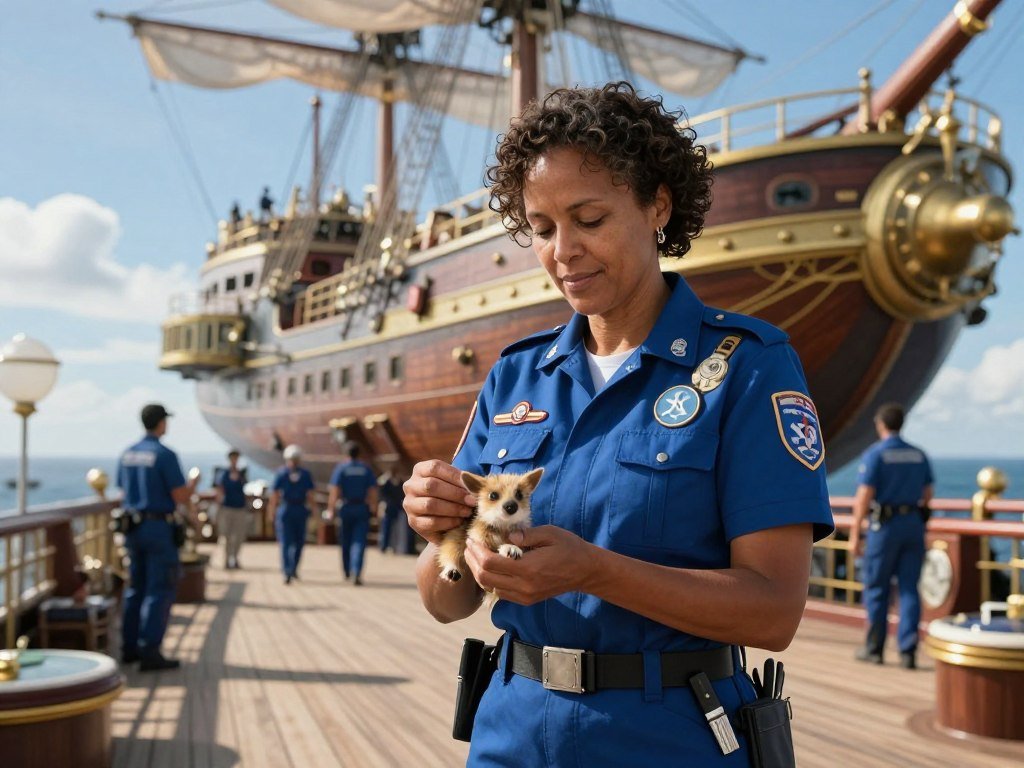
What Can One OC Generator Make Beyond a Portrait?
A social avatar needs a clear face, while a tabletop token needs a readable silhouette at small size. An OC generator can create both, along with portraits and other character images. Choose the format that fits where the character will appear, not just the one that looks most polished on its own.
A single portrait and a set of visual references solve different design needs. A portrait gives you one view to share or display. A reference sheet gathers several views, expressions, or poses to guide later work.
Portraits, avatars, and tabletop assets
A portrait works well for a profile, story page, or character introduction. An avatar needs a face and expression that remain clear inside a small crop. If you need to place a figure over a page or graphic, look for an asset with a transparent background. That makes it easier to add your own setting later.
CharGen can generate portraits, avatars, and VTT tokens in round, square, or hex shapes with transparent backgrounds. VTT means virtual tabletop, where players use tokens to represent characters during online games. Pick a shape that matches the table’s setup, then check that the character remains easy to recognize when reduced.
A D&D character can be visualized from class, race, gear, and mood details. The class might suggest a staff or armor, while the mood helps guide the character’s expression. The token shape depends on the needs of your table. An elaborate costume can look good in a full portrait yet become a blur in a tiny game token.
Reference sheets for stories and games
A reference sheet is a set of views, expressions, or poses that helps keep a character’s appearance clear across creative work. It can support character design for a comic, game, or story. A turnaround shows the character from different angles, while expression and pose views help you picture them in new scenes.
CharacterGen lists front, side, and back turnaround views, along with 6-8 expressions and 5-10 pose references. Its stated complete-package generation time is 2-3 minutes, though peak periods can take up to 5 minutes. These views can help you plan how a design reads from more than one angle.
A one-off portrait may be enough when you need a cover image or a profile picture. A reference package can be more useful when you expect to draw the character in several scenes. Neither option is the default for every project. The right choice depends on how much visual detail you need to reuse.
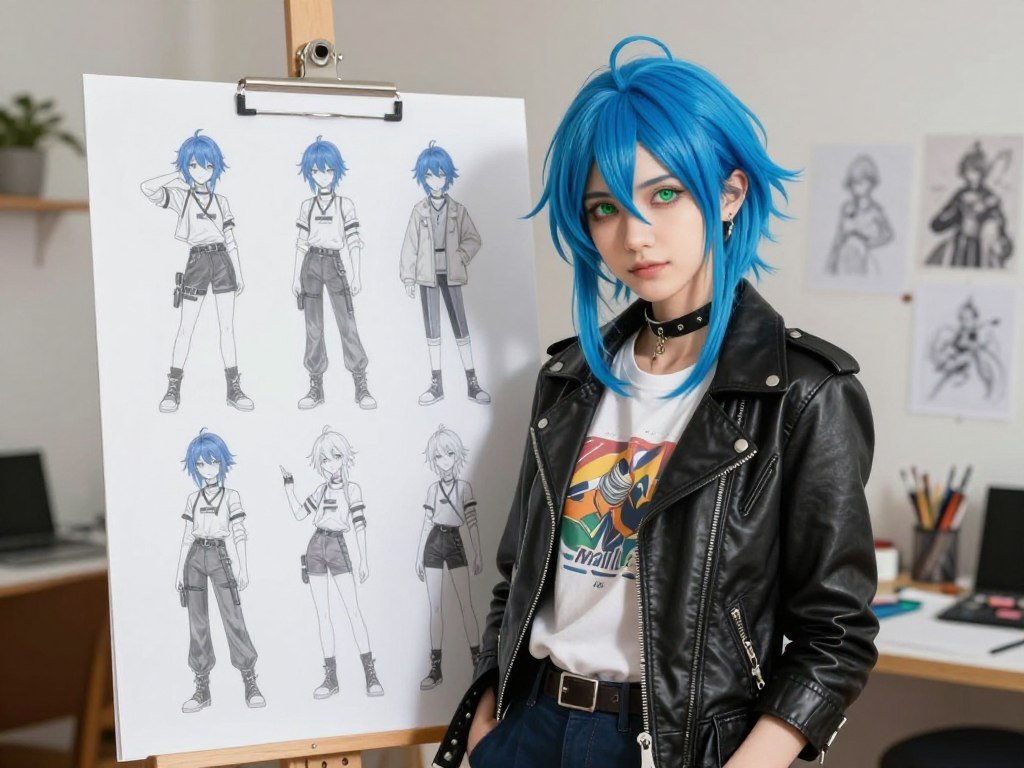
Before generating, decide whether you need a single image or a set of views that can guide future scenes.
Which Free Character Generator Fits Your Workflow?
A free character generator is easiest to test when its allowance matches your schedule, whether that means daily tokens or a one-time credit balance. Free options are available online, but their allowances may reset daily, depend on a visit or sign-in, or arrive once. Check the grant type before planning a large set of images.
Daily credits, sign-in bonuses, and one-time credits are not interchangeable. The table compares five options by how their free access works, not by promising the same number of generations across different tools.
| Tool | Free allowance | How it is granted | Notable condition |
|---|---|---|---|
| Bing Image Creator | 10 Fast creations; unlimited Standard creations | For signed-in users | Fast and Standard modes differ |
| Canva | 50 AI uses per month | Free tier | Pro lists 500 AI uses monthly |
| Leonardo AI | 150 tokens per day | Free tier | Daily token balance |
| Krea AI | 100 compute units per day | Free tier | Daily unit balance |
| Ideogram | 10 credits per day | Free tier | Daily credit balance |
Bing Image Creator gives signed-in users 10 free creations in Fast mode and unlimited creations in Standard mode. Canva’s free tier includes 50 AI uses per month, while Canva Pro lists 500 per month at $15. The unit names differ, so a credit, token, or use does not mean the same amount of image work everywhere.
CharGen gives a free account 10 gold each day a user visits, up to 100 gold. Each premium model has three free tries before a paid plan is needed to unlock it. Mage’s free plan instead provides a one-time allocation of 300 Gems, and its listed free output has no watermark. These plans suit different testing habits.
PixAI users can earn credits through daily logins, events, and competitions, with added credit benefits through memberships. Those credits do not follow the same pattern as a fixed daily allowance. If you compare more tools, a guide to image generators can help you weigh their workflows and image features.
Check these four details before you start creating:
- Reset schedule: daily, monthly, or one-time balance.
- Model access: whether the free tier includes the model you want.
- Watermark or output rules: what appears on saved images.
- Sign-in needs: whether an account is required to generate.
Check the reset rule before planning a large batch, since a daily allowance is different from a one-time allocation.
Which Art Style Should You Choose for an OC?
A character’s style should support the project’s mood, not compete with the details that make the OC recognizable. An anime look may suit a bright game avatar, while a painterly style can fit a quiet fantasy story. Let the concept lead before you pick a visual treatment.
Test one clear style at a time. Mixed cues can pull the image in different directions, making it harder to judge the character design itself.
Anime and illustrated styles
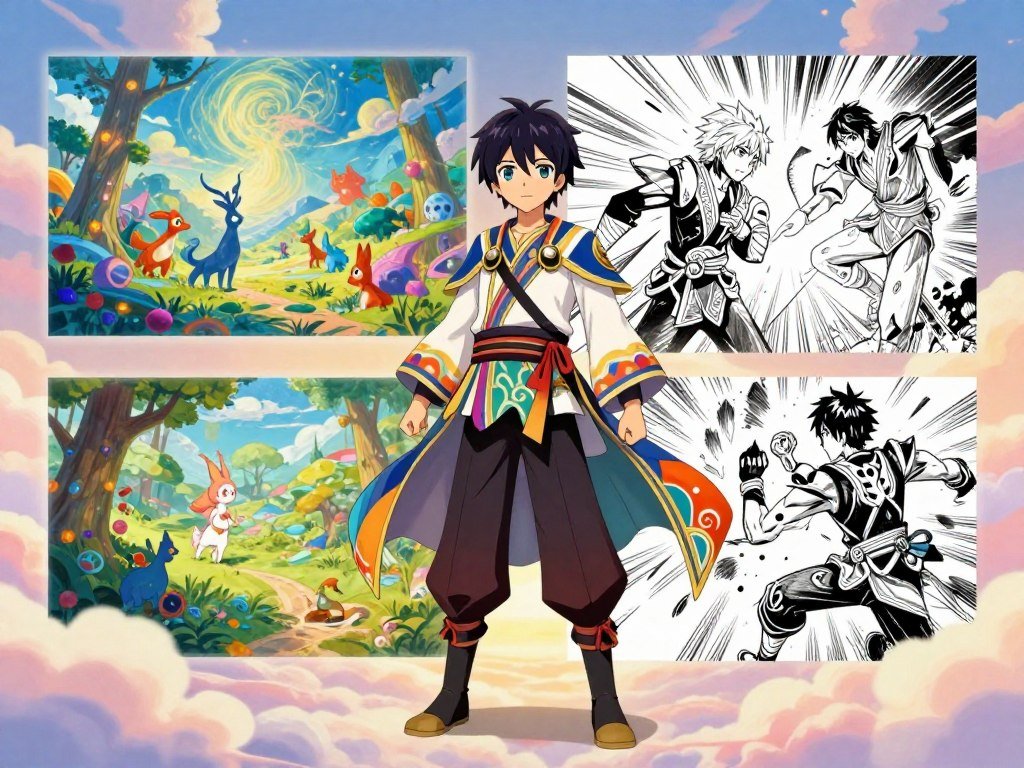
An AI character generator for original characters anime can help you shape a stylized design when that look fits the project. Anime can work for a game cast, a comic, or an avatar with expressive features. A softer illustrated look may suit a gentle story, while a sharper line style can give an action character more edge.
PixAI offers anime-focused models, including LoRAs, which are add-on models trained for a certain style or character. Its tools include inpainting, outpainting, ControlNet, image-description extraction, and high-resolution upscaling. These features offer different ways to work with images, but they do not promise a specific result.
PixAI also offers tools for training character and style LoRAs, plus Picture to Art, which transforms photos into animated characters. A photo-to-art treatment may help when you want a familiar face turned into a drawn design. For a fully invented OC, a text description can be enough to set the direction without using a photo.
Specific design choices make an anime character feel less generic. Try a wide coat with a red lining, a bent hair clip, or a smile that looks almost too calm. The detail should fit the character’s role, not just fill empty space. You can then choose a setting that gives the detail room to read.
Fantasy, painterly, and mixed-media looks
Fantasy art can feel soft and luminous, or dark and rough, depending on the brushwork and colors. Ink styles make strong outlines stand out. Animation styles can keep shapes simple and readable. Mixed-media directions can combine textures, such as pencil lines with painted color, if the parts support one another.
Hotpot offers Mythic Painting, Arcane Illustration, Heroic Animation, Dark Fantasy, and Ink styles. Canva lists Watercolor, Filmic, Neon, Color Pencil, and Retrowave. These examples show how broad a style menu can be, but a label alone does not define the full image. Your prompt still needs to make the character’s main visual features clear.
A common mistake is asking for both a flat cartoon and a photorealistic portrait in the same prompt. Those cues point toward different shapes, surfaces, and lighting. Pick one visual direction for the first image, then compare another in a separate generation. You can choose between them based on how well each serves the character.
Canva also supports social graphics and presentation drafts, which can help when a character needs to sit inside a larger design. A comparison of creative AI apps can offer more context on visual editing workflows. Save the style wording that best fits the concept before changing the outfit or background.
Can You Make an AI Character From a Photo?
A clear photo gives the generator a visual starting point when words alone do not capture the face, silhouette, or styling you have in mind. A photo-based workflow uses an uploaded image as a visual reference, then changes style, outfit, pose, or setting through added direction. The photo guides the design, but it does not control every detail.
A reference image can guide structure without guaranteeing a perfect likeness or unchanged identity. A strong starting image makes it easier for a tool to read the features you want to carry into a new character design.
Use this three-part input checklist:
- Choose a clear face or silhouette.
- Use even lighting across the main features.
- Avoid a busy background that hides key details.
Adobe Firefly allows an uploaded image to guide a generation or be animated with text directions. OpenArt accepts a reference image as a starting point for defining appearance and visual identity. Flick recommends beginning a character reference with a clean, well-lit, front-facing portrait.
These tools use the photo as a visual cue, not as a promise that every feature will stay fixed. A changed angle, outfit, or art style can shift the face or body shape. Compare the result with the traits you care about most, such as a distinctive nose, hairline, or shoulder outline.
A photo can also guide clothing or color choices without serving as a strict face reference. For example, a fabric texture or pose may be the useful part of an image. Keep the added direction focused on the change you want, so the tool has a clear goal instead of several competing ones.
Some generators let you make an image from a text prompt, then use a reference image for later versions. That gives you a way to begin with an invented design and guide its appearance as the idea develops. You can also start from a photo when you already have a visual base in mind.
For more on guiding an image with text and references, see this practical guide to making AI images. Use an image you have permission to upload, and choose one with the defining features visible.
How Do You Keep an OC Consistent Across Images?
The most practical first step toward identity consistency is to save one approved reference image and reuse it when building new scenes. That image gives later generations a visual anchor. Keep the key traits visible as you change the scene, angle, or outfit.
A reusable reference image usually gives you a clearer starting point than prompt text alone. More advanced controls can add control, but they often take extra setup and depend on the tool.
Reuse a reference image for practical continuity
Choose an image that captures the features you want to keep, then bring it into later generations as a reference. Flick recommends this approach for maintaining character identity across new scenes and angles. It can work well when the character’s face, hair, or main outfit should stay recognizable.
Reusing the same seed and verbatim description is another option. Flick rates it as low effort with medium consistency, while a reusable reference image offers a stronger visual guide. A seed is a value that can help repeat a generation’s starting conditions, but it does not lock every visible detail.
Save the prompt along with the reference image. That gives you a record of the words that shaped the look and makes it easier to compare changes. If you create a new background, keep the face and core outfit steady first. Later, test a new pose or accessory as a separate change.
Use specialized reference controls or trained models
Some tools have controls for attaching a character reference or changing how strongly the model follows it. Midjourney Omni Reference uses the –oref parameter and the –ow weight parameter. The default weight is 100, but those settings belong to Midjourney and are not universal controls.
LoRA training can offer more control when you have a set of images showing the same character. Flick rates training a LoRA on 15-50 character images as high effort with very high consistency. That takes more preparation than reusing a single image, so it may suit a long-running project better than a one-off portrait.
Saved-character workflows can also reduce repeated setup. OpenArt lets users reuse a defined character across image and video generations. This can help when the OC appears in more than one kind of content, such as a still scene and a short clip.
Consistency does not mean every image must look identical. A story may call for a winter coat in one scene and travel gear in another. The goal is to keep recognizable traits while allowing changes that fit the scene. Change one major variable at a time so you can spot which adjustment is causing visual drift.
Can an AI Character Generator Make Videos?
A video workflow can start by animating one approved image or by generating a character directly into a scene. An image-to-video tool adds motion to a still, while scene-based tools can build a sequence around text or reference images. The starting point affects how much control you have over the character’s look.
Image animation and avatar-led video serve different jobs. One adds movement to existing art; the other can present a character speaking or acting within a designed scene.
Animate a still image
Image-to-video can add motion to a still character image, such as a head turn, a breeze moving hair, or a slow camera move. PixAI’s Animate feature can create videos from static images. This path can be useful when you already have a visual design and want to test a short action.
Keep the motion modest in a first test. A large body turn or fast movement may change details that looked stable in the still image. A short clip can help you judge whether the movement fits the character before you plan a longer sequence.
Build an avatar or scene-based video
Reference-driven scene tools can use images to guide a character’s identity as the setting changes. Google Veo 3 and Veo 3.1 use Ingredients to Video reference images for character identity. They also support native synchronized audio and lip-sync, which can match spoken words with mouth movement.
Digital-avatar tools focus more on a presenter speaking to camera. Scene-based video tools focus on action, setting, or story beats. Pick the format that suits the content: a character introducing a project needs a different setup than an OC walking through a fantasy town.
| Tool | Free access | Paid entry | Listed feature or limit |
|---|---|---|---|
| Google Veo | Free monthly credits | Plus $4.99/month; Pro $19.99/month | 200 or 1,000 credits by plan |
| Runway | Limited credits | Standard $12/month | More credits, no watermark, higher export quality |
| Vyond | Free trial | Plans start at $58/month | Trial output has a watermark |
| Synthesia | Limited credits | Starter $14/month | Free plan has limited credits |
| LiveAvatar by HeyGen | Limited credits | Essential $99/month | Free plan has limited credits |
These plans differ in both access and output. A watermarked trial is not the same as free credits that can be used within a plan. For example, Vyond’s free trial has watermarked output, while the other listed free options provide limited or monthly credits. Google Veo Plus includes 200 credits, and Pro includes 1,000.
Before making a full scene, decide whether you need an animated still, a speaking avatar, or a character acting in a setting. Test a short sequence with the intended motion and voice before building a longer character-led video.
What Do Paid Character Generator Plans Cost?
Paid plans range from a $6.99 weekly subscription for one named iPhone app to $200 per month for a plan with extensive video features. For image work, costs can buy higher volume, model access, or editing and consistency tools. Match the plan to the work you expect to make.
The best value depends on your intended output and how often you create. A portrait-only project may not need the same plan as a creator making many scenes and videos.
| Plan | Price | Included generation or feature | Best fit |
|---|---|---|---|
| Mage Basic | $10/month | Unlimited generation on supported image models | Frequent image creation |
| Mage Pro | $30/month | Unlimited Mango V2; Characters system | Reusable character work |
| Mage Pro Plus | $60/month | 4K Enhance; higher-resolution Mango 3S; unlimited Blueberry 2 and Raspberry video | Image and video projects |
| Mage Max | $200/month | Unlimited Motion Control video; unlimited 10-second durations; 15,000 Gems | Extensive video generation |
| Midjourney Basic | $10/month | About 200 Fast images | Smaller image batches |
Mage Basic costs $10 per month for unlimited generation on its supported image-model lineup. Mage Pro adds unlimited Mango V2 generation and a Characters system. Pro Plus adds 4K Enhance, higher-resolution Mango 3S generation, and unlimited Blueberry 2 and Raspberry video generation.
Mage Max includes unlimited Motion Control video, unlimited 10-second video durations, and 15,000 Gems for external-model access. Midjourney Standard costs $30 per month and includes unlimited Relax generations. Its Basic plan is a lower-cost option with about 200 Fast images each month.
Ideogram Basic costs $8 per month and includes 400 priority credits. Adobe Firefly Standard costs $9.99 per month and includes 2,000 credits. Paid Firefly tiers provide unlimited standard text-to-image generation, which may suit users who create many still images.
CharGen offers more than 160 image models, including GPT Image 2, Midjourney, Flux Pro, and Imagen 4. The AI Character Photo Generator iPhone app requires a paid subscription for photo AI and generation features. Its premium option costs $6.99 per week, a billing period that differs from monthly plans.
Before paying, list the outputs you need and how often you expect to make them. A higher tier may add video, editing, or access to more models, while a lower tier may cover occasional portraits. Compare the exact allowance you will use, not just the monthly headline price.
What Should You Check Before Sharing or Publishing AI Character Art?
Before sharing an image, check both what the service may do with uploaded material and what rights its terms grant for your intended use. Read the tool’s terms for the specific project, since upload rules and use rights can differ. Do not assume every generator grants commercial rights.
AI-assisted art is not automatically copyrightable, and commercial permission is not automatic. Copyright treatment can depend on human authorship and the person’s contribution. Meaningful edits can help you make the image your own project asset, but they do not replace a review of the tool’s terms.
Bing Image Creator requires sign-in for personal prompts and image uploads. It cautions users not to share sensitive information and says provided images may be used to improve Bing image-processing services. Think about what you upload before using a service, especially if an image includes private material.
The AI Character Photo Generator iPhone app’s privacy disclosure says identifiers may be used to track users across other companies’ apps and websites. It also says location, identifiers, and usage data may be linked to the user’s identity. Those details can matter when you decide whether an app fits your workflow.
For a project intended to earn money, review both the generator’s terms and the platform where you plan to sell or share the work. This overview of ways to monetize AI work discusses why commercial terms and human contributions matter. Do not treat a generated image as cleared for every use.
Review the finished image before you publish it. Check text, facial features, hands, clothing details, and background objects for errors that may distract from the design. Make meaningful human edits before treating the result as a finished project asset, and keep an eye out for details that conflict with your character’s concept.
Check the tool’s data rules and use terms before sharing or publishing. Keep the prompt, reference images, and meaningful edits together as a record of your work.
Canva supports JPG, PNG, PDF, and PPTX exports. It also provides a way to report harmful generated content. Choose an export type that fits the place you plan to share the image, then review how it looks at its final size.
Keep a record of the prompt, reference images, and substantial edits used to develop a character for a published project.
Conclusion
A strong first OC image comes from a clear concept and a tool that fits the way you plan to use it. Start with a distinct visual detail, then decide whether your project needs a portrait, a token, or several views. You do not need to settle every part of the character before making a first draft.
Choose tools by the output and workflow you need, not by the longest feature list. A single image can help you test the idea, while a set of references can support later scenes. Review the result and keep the version that best reflects the concept.
For a practical first step, write a short description, generate one image, and save the version that best captures the concept. Write your defining detail now and use it as the anchor for your first generation.
FAQ
Can an AI character generator create an OC backstory as well as an image?
Some tools can help with both, but visual generators mainly create images and design references. They may not build a full backstory with history, goals, and relationships. If lore matters, use a character-writing tool or draft the story yourself, then bring a few visible details into the image prompt. Interactive chatbots serve yet another purpose: they respond in a character’s voice.
What is the difference between a character portrait and a reference sheet?
A character portrait usually shows one view, often framed around the face or upper body. A reference sheet can organize multiple angles, expressions, and poses for later creative work. The portrait may suit a profile or introduction, while a sheet can help you keep visual details straight across scenes. You can begin with one portrait and add views when the project needs them.
Do I need a reference photo to make an original character?
No, a text description can start an original character design. You can describe visible traits, clothing, and mood without uploading a photo. A reference image helps guide appearance when one is available, but it is optional. It can also be a drawing or another image you have permission to use, rather than a photograph of a person.
Can I use AI-generated character art in a published project?
You may be able to use it, but check the specific tool’s terms and your planned use first. Rights and commercial permission are not automatic across all generators. Copyright treatment can depend on the human-authored parts of the work and the person’s contribution. Keep notes on your prompts and edits, and review the rules for any platform where you publish or sell the project.
How can I make an anime OC look different from a generic character?
Give the character a specific silhouette, outfit detail, expression, and setting rather than relying on “anime” alone. A cropped jacket with one bright sleeve, a guarded smile, or a badge from a made-up club can make the design more distinct. Choose details that fit the character’s role, then check that the face and silhouette still read clearly at small size.
Is a character generator the same as an AI roleplay chatbot?
No, a visual character generator creates images or design references, while a roleplay chatbot is built for interactive dialogue and persona behavior. A generator can help you decide what a character looks like. A chatbot can respond as that character in a conversation. Some services may offer both kinds of features, but the tasks are different, so check what the tool actually creates.



