A photo that looks sharp on a phone can lose detail when enlarged for a print, a product listing, or a presentation. AI super-resolution is a method that enlarges an image while estimating detail missing from its pixels. The estimated texture can look real, but the process cannot guarantee that it reflects the original scene.
This comparison helps you choose a tool by source type, output size, privacy, and budget. You will see where each option fits, what limits to check, and how to judge the result. Start with the largest, clearest original file you have, because an upscaler cannot recover detail that was never captured.
Key Takeaways
- Nero AI Image Upscaler is a flexible first option for common image tasks.
- Topaz Gigapixel suits desktop work that needs source-specific controls.
- Upscayl offers free local processing for compatible computers.
- Mobile apps can help when your photos are already on your phone.
- Check output dimensions, privacy terms, and billing before a large job.
Best AI Image Upscalers for High-Resolution Photos: Seven Picks by Use Case
For a flexible first choice, start with Nero AI Image Upscaler; choose another pick when a specific workflow matters more than convenience. Several workflows in one service can make it a useful starting image upscaler, though no tool fits every source equally well.
Match the tool to the job, not to its largest advertised scale. A family snapshot, an old scan, and a digital drawing need different kinds of care. These seven image upscalers cover common needs without claiming that one result will suit every image.
Choose an upscaler for the image and output you need, not for its headline multiplier.
Nero AI Image Upscaler for flexible everyday use
Nero AI Image Upscaler is a convenient option when you want several image workflows in one service. It suits users who handle a mix of personal photos, work images, and creative files, rather than one narrow image type. Its range of tools can help you move from a quick enlargement to a more tailored edit without switching services.
The trade-off is that a flexible tool still needs a careful final check. An estimated face or fine surface detail may not match the original exactly. For example, you might enlarge a product photo for a web listing, then inspect its label before publishing. It is a sensible first tool when convenience matters more than specialist controls.
Topaz Gigapixel for hands-on photo control
Topaz Gigapixel suits a desktop user who wants more control over how different source images are handled. Its range of models gives you ways to approach compressed photos, text, faces, or digital art. That makes it a practical best image choice for a photographer or designer with varied files and time to compare settings.
More choices can mean more decisions, and desktop work may feel slow for a one-image task. A useful example is enlarging an old, blocky family scan: you can try a model aimed at low-resolution images and inspect the face closely. The main trade-off is a more hands-on workflow than a simple browser tool.
Upscayl for free local processing
Upscayl is a fit for users who want free, open-source processing on their own computer. Local processing means the computer does the work on your device, rather than sending the image to remote servers. It also supports batch work, which can help when you have a folder of images to enlarge.
The computer must have a Vulkan-capable GPU, so Upscayl will not suit every setup. Its local approach can appeal when you prefer not to upload personal images. For example, you could process a set of family scans at home and review the output before sharing it. The key trade-off is hardware support, not a monthly image quota.
Let’s Enhance for browser-based batches
Let’s Enhance suits people who want browser access and need to work through several images. It can process batches of up to 20 images at a time, which helps with a small catalog or a group of event photos. You do not need to install a desktop app to start a job.
A browser workflow depends on an internet connection and requires uploading your files. That may not fit confidential client work or private family images. For example, a small online shop could prepare product images in one batch, then review each result for accurate labels and colors. Check its output controls before building a repeatable process around it.
Pixelbin for mobile editing
Pixelbin is a useful option when you want to enlarge images from an iPhone or another mobile device. Its app gives you a direct path from a photo on your phone to an edited file, which can suit quick social posts or shared images. Batch support can also help if you are working with several pictures at once.
The available scale and access depend on the plan, so the largest option may not be part of free use. A practical example is cleaning up a phone image before adding it to a presentation. The trade-off is that a mobile-first process may offer less room for close inspection than a desktop screen.
Remini for portrait restoration
Remini is aimed at users who want to improve portraits and older photos of people. Its photo and video enhancement tools can be useful when a face is the main reason for editing. That focus makes it a more direct option than a general image upscaler for a soft portrait or a faded family picture.
Portrait enhancement can change the look of a face, so a sharper result is not always a more faithful one. For example, compare the person’s eyes, skin, and smile with the source before sharing a restored portrait. Some functions, including batch processing in its iOS app, require premium access. This is a portrait-led choice, not a universal photo tool.
Bigjpg for anime and illustration
Bigjpg is a strong fit for users enlarging anime, comics, or other illustration. Its style focus can preserve clean edges better than a model built mainly for natural photographs. That makes it a useful tool for a small drawing that needs to appear larger online or in a personal project.
Its free access has limits, and a drawing with tiny lettering still needs a close look. For example, enlarge a character illustration, then check the outline around the eyes and hair for unwanted changes. Bigjpg is less suited to someone who wants one all-purpose option for portraits, product shots, and graphics.
Match the first tool you try to the image you actually need to enlarge, rather than choosing by the biggest advertised number.
Which free image upscalers are worth trying?
Upscayl is the strongest starting point when you want free, open-source processing on your own computer and have compatible graphics hardware. Bigjpg and iLoveIMG suit different needs. Free access can cover web images or a modest enlargement, but each upscaler sets its own limits.
Check file caps, queues, watermarks, and daily or monthly quotas before relying on a free plan. Upscayl supports local batch processing and needs a Vulkan-capable GPU. Bigjpg allows 20 images per month, up to 3000 by 3000 pixels and 5 MB per file, with enlargement up to 4×.
Free AI image upscalers include Upscayl for local work, Bigjpg for illustration, and iLoveIMG for a simple browser task. Let’s Enhance gives new users 10 free credits, caps free output at 8 megapixels, and adds a watermark. A credit is a unit used when processing an image.
- Upscayl handles local batch work if your GPU supports Vulkan.
- Bigjpg offers a capped 4× trial with a monthly image limit.
- iLoveIMG resizes one image at a time, with 6 MB and 6-megapixel limits.
- Icons8 Smart Upscaler allows five images per month and up to 4× enlargement.
Deep Image also allows five images per month and up to 4× enlargement. PicWish offers five downloads per day, while Img.Upscaler provides 50 monthly credits and up to 4× enlargement. These tools can be enough for a small job, but the number of images alone does not tell you how large an output can be.
Before uploading a batch, confirm the per-file cap and whether downloading the result uses a separate allowance. For more free creative tools, compare the free AI image generator options and their limits.
Which AI image upscalers work on iPhone?
Nero Lens is the most directly specified mobile option for on-device model processing and batch sharing. Pixelbin, Upscale.media, and Remini also offer iOS workflows. Mobile access is convenient, but features and free use differ by app.
Pixelbin’s 8× setting is premium, not part of its free 2× and 4× access. Check the app’s conditions before starting a large group of images, especially if you need a certain size or want to share files directly.
- Nero Lens runs its Photo, Standard, Iris, Anime, and Reconstruct models on the device. It supports batch processing and direct sharing.
- Pixelbin’s iOS app offers 2× and 4× upscaling with signup credits. Its 8× option is premium, and the app supports batches.
- Upscale.media offers free 2× and 4× upscaling through signup credits. One upload can include up to 25 images.
- Remini includes photo and video enhancement tools. Its iOS batch processing is a premium feature.
These apps can suit different moments: a portrait fix, a set of holiday pictures, or one image for a post. For instance, Upscale.media’s upload limit can help when several phone photos need the same quick task. A single large upload does not mean every output will be free, so check the credit terms.
Check whether the app’s free signup credits cover the output size you need before queuing a full set of images.
How far can each image upscaler enlarge a photo?
Nero AI Image Upscaler offers an 8× option, while its maximum usable output depends on the source image and selected settings. The scale factor tells you how much the width and height change, not how much real detail the tool can recover.
An 8× increase in both dimensions creates 64 times the original pixel count. A maximum pixel dimension or megapixel ceiling is a different limit from a scale multiplier. The final output must fit the image’s intended use.
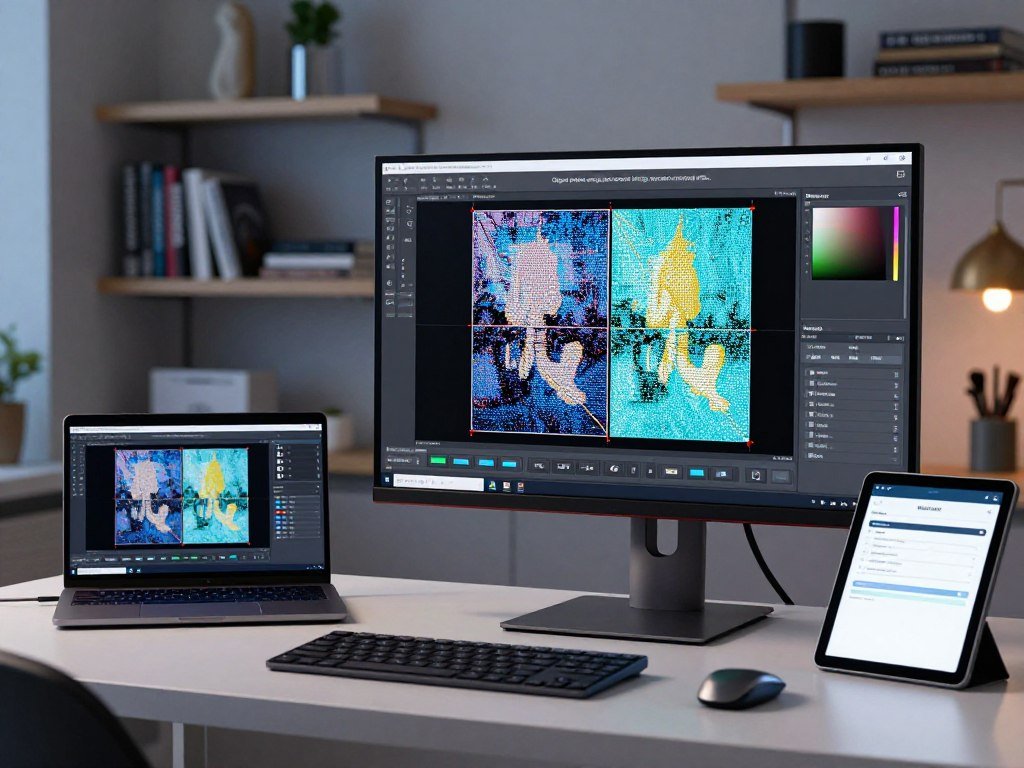
What does 8× enlargement mean in pixels?
An 8× image upscaler makes both the width and height eight times larger if both dimensions reach that factor. A 500-by-500-pixel file would become 4,000 by 4,000 pixels, or 16 million pixels. The pixel count grows much faster than either side.
Which limits matter beyond the multiplier?
Output ceilings, source size, and processing conditions matter along with the listed multiplier. A large output can meet a print requirement, yet still contain soft or estimated detail. Compare the final pixel dimensions with the print or display size you need.
| Tool | Listed enlargement | Output ceiling or condition | Practical note |
|---|---|---|---|
| Nero AI Image Upscaler | 2×, 4×, 8× | Up to 32K and 1024 megapixels, depending on source and settings | Choose a factor that fits the output |
| Topaz Gigapixel | Up to 6× | Listed scale factor | Fits a desktop workflow |
| Upscayl | 4× per pass; up to 16× with Double Upscayl | Multiple passes | Inspect detail after each pass |
| Let’s Enhance | Up to 16× | Batch processing available | Check the final output |
| Luminar Upscale AI | 2×, 4×, 6× | Select a preset scale | Compare the result |
Nero can output up to 32K and 1024 megapixels, depending on the source image and settings. Those ceilings do not mean every starting file can reach them. Nero’s stated output ceiling gives a useful example of why the maximum scale and maximum pixel size must be read separately.
Compare the final pixel dimensions with the actual print or display requirement instead of choosing a tool by its multiplier alone.
Which upscaler fits portraits, graphics, and old photos?
The best model depends first on whether the source is a compressed photo, a face, clean line art, or an intentionally stylized image. Source type shapes the choice more than a high pixel count does.
Faithful enlargement tries to preserve the source; generative enhancement may add detail. Use a photo model for faces and compressed photos, and a model built for art when lines and flat colors matter.
Choose a model for the source image
Topaz Gigapixel’s Low Res model targets low-resolution or highly compressed images. High Fidelity is intended for high-resolution images. Upscayl offers Real-ESRGAN, UltraSharp, and Digital Art models, while Waifu2x focuses on anime and illustration.
| Source type | Tool or model | Useful fit | Point to inspect |
|---|---|---|---|
| Compressed photos | Topaz Low Res | Low-resolution or compressed files | Skin and small edges |
| High-resolution photos | Topaz High Fidelity | Detailed photo sources | Fine texture and face shape |
| Digital art | Upscayl Digital Art | Drawn images and clear colors | Line edges |
| Anime line art | Waifu2x | Anime and illustration | Thin lines and lettering |
| Creative concept art | Magnific Precision or Creative | Faithful or creative enhancement | Added texture and shapes |
Keep generated detail in check
Magnific’s Precision mode is the safer choice for moderate enlargement when you want to keep the source intact. Creative settings can add detail that was not present. That may suit concept art, but it can change a face, surface, or small design element.
Compare the result at full size, not just in a small preview. A fur-like texture or sharp edge may look convincing at first glance while changing the original image. That difference matters when you need fidelity for a portrait or a graphic used in print.
For logos and small lettering, inspect every character closely because an attractive texture can still distort the original design.
How do Nero AI and Topaz Gigapixel compare?
Choose Topaz Gigapixel when model selection is central to the job, and Nero when accepting a broad range of source formats is the priority. Neither tool is a universal winner; the better fit depends on your files and workflow.
Topaz offers source-specific models, while Nero supports a wide range of image formats. Topaz Gigapixel AI suits desktop users who want controls for different image types. Nero AI Image Upscaler suits users who work with varied file formats.
Topaz Gigapixel AI for model choice
Topaz Gigapixel includes Standard, High Fidelity, Low Res, Text and Shapes, Art and CG, Recover, Redefine, and Face Recovery models. The names point to different source needs, such as text, art, compressed photos, or faces. That range can help when you want to test a specific approach on a desktop.
More models also mean more settings to compare. A user restoring a compressed poster might test Text and Shapes, while a photographer may choose a photo-focused model. The tool gives you choices, but you still need to judge whether the output preserves the original image.
Nero AI Image Upscaler for format flexibility
Nero supports JPG, JPEG, PNG, WebP, AVIF, and BMP, plus JFIF, JPE, JIF, and ICO variants. This makes it easier to bring files from different sources into one service. It can suit a user who receives a mix of web images, camera photos, and saved graphics.
Format support does not promise a better result for every image. Topaz may suit a task that needs a source-specific model, while Nero may save steps when file types vary. If you create new visuals as well as edit existing ones, compare image tools for creators by workflow and output needs.
For a one-off comparison, run the same original through both and inspect text, skin, and fine texture at full size.
What happens to photos uploaded to an upscaler?
A cloud upscaler sends your file to a remote service, while Lightroom Super Resolution can run locally without a cloud upload. Local processing keeps the computation on your device; cloud processing uses remote servers.
Check where processing happens and how long the service keeps your image. Nero AI says uploaded images are deleted after 24 hours. That is a product-specific retention window, not a rule for other services.
- Find out whether the tool processes images locally or in the cloud.
- Read the service’s stated image retention period.
- Consider whether the file contains client, personal, or confidential material.
- Remove metadata you do not need before sharing the image.
A browser tool may be easy to use, but uploading a file changes who handles it. That matters for a client portrait, private family scan, or image with location data. For creative services, compare free image tool access and usage terms before sharing a reference image.
For sensitive work, prefer a local workflow unless the service’s data handling fits the image and your organization’s rules.
How do credits and subscriptions affect the real cost?
A credit plan is easiest to budget when you know how many images you process, while a subscription makes more sense for recurring use. Usage pattern changes the real cost: a few occasional files differ from steady monthly work.
Compare the billing term, included tools, and processing allowance before you pay. New Nero AI Image Upscaler accounts receive 10 free Nero Credits. Further processing may use credits based on settings and image requirements.
| Product or plan | Listed price | Billing condition | Relevant inclusion |
|---|---|---|---|
| Topaz Gigapixel | $50 per month or $204 per year | 2026 pricing breakdown | Desktop upscaling |
| Topaz Gigapixel Pro | $499 per year | Annual | Pro license |
| Topaz Studio and Studio Pro | Studio: $399 yearly, $45 monthly with annual commitment, or $69 monthly cancel-anytime; Studio Pro: $799 yearly or $79 monthly with annual commitment | Video credits expire monthly without rollover | Studio has 300 monthly video credits; Pro has 600 |
| Topaz Photo | $58 per month or $252 per year | 2026 pricing breakdown | Upscaling, denoising, sharpening, face recovery, and more |
| Topaz for Web – Image | $109 per year or $12 per month | Monthly price requires annual commitment | Includes Topaz for Mobile |
Topaz Studio includes Topaz Video, Photo, Gigapixel, Mobile, and Web. Studio Pro adds seat management and Pro features. Studio plans include unlimited local and cloud image rendering; their monthly video credits expire at month’s end without rollover.
Topaz Pro licenses add full commercial use for organizations with more than $1 million in annual revenue. Let’s Enhance paid plans start at $9 per month billed yearly or $12 billed monthly. Topaz Photo also includes color and lighting correction, object removal, dust and scratch restoration, text preservation, and a healing brush.
Compare the plan’s billing commitment and included processing with your expected monthly volume before paying.
How can you get a cleaner upscale on the first try?
The cleanest enlargement usually starts with the best source file, not the most aggressive setting. A careful workflow helps preserve details that matter, especially in faces, text, and product labels.
Keep an untouched copy and compare the result with the original at 100% zoom. Moderate settings make it easier to spot changes before they spread across a whole batch.
Start with the clearest source file
Use the largest original file you have, rather than a smaller copy saved from a chat or website. Repeated saves of compressed files can add blocks and blur. Crop only when you need to remove part of the frame or focus the composition.
Save a copy before editing so you can compare the source and the new output. This matters when a tool changes small details without making the whole image look worse. For a product listing, compare the label and edges as well as the overall sharpness.
Choose a conservative setting and inspect the result
Choose a model that fits the source, then begin with a moderate scale. Compare the enhanced image with the original at 100% zoom, where you can see texture and edge changes. Keep the original file untouched for reference.
Photoshop Generative Upscale offers 2×, 3×, and 4× options, processes in Adobe’s cloud, and returns the result as a new layer. Lightroom Super Resolution doubles linear resolution, creating four times the pixel count. It supports batch processing without a cloud upload.
Image creation tools can make new visuals, while upscalers improve existing files. For a wider look at image workflows, compare AI image creation tools with editing options.
Keep the original and the enhanced version together until the enlarged file has passed your full-size review.
When does AI upscaling damage image quality?
An upscale can look crisp in a small preview and still reveal waxy skin, altered text, or invented texture at full size. Generative models may smooth skin, change facial features, create halos, reshape lettering, or add detail that was never captured.
A high pixel count does not guarantee natural detail or faithful edges. A common target for close-viewed prints is 300 PPI, but viewing distance affects the need. A large print viewed from farther away may not need the same density.
- Face identity: check eyes, mouth, and other defining features.
- Small text and logos: confirm letters and marks still match.
- Fine texture: look for invented detail or smoothed surfaces.
- Edges and halos: inspect outlines against the background.
- Color and skin tone: compare them with the original image.
At 8× in both dimensions, an image contains 64 times as many pixels. That larger file can still show odd skin or broken lettering when viewed close up. Print needs depend on image size and viewing distance, so pixel dimensions alone cannot judge the final result.
Reject or rerun an output when an important feature changes, even if the enlarged image looks sharper at a glance.
Which tool should you choose for your workflow?
If you need one general-purpose first try, start with Nero; choose Upscayl for free local use or Topaz when desktop model control matters more. Your current job should drive the choice, since a useful tool for portraits may not suit line art.
Test a representative image before committing to a paid plan. A 2025 best image upscaler list can be a starting point, but models, scale limits, and billing terms can change.
Do 2025 recommendations still fit?
A best AI image upscaler in 2025 list can still help you shortlist tools. Treat it as a starting point, then check the current scale limits, available models, and billing terms. A past recommendation may not fit a new workflow or a changed plan.
The image itself can change the choice. A compressed portrait, a clean logo, and an illustration each call for different checks. A tool that works for a casual post may not suit a print job that needs clear text.
Pick a tool for the job you have now
Choose Topaz for professional desktop control, Upscayl for free local work, and Nero for flexible everyday use. Pixelbin or Upscale.media can suit mobile edits; Remini focuses on portraits, while Bigjpg fits illustration.
Luminar Upscale AI offers a seven-day free trial and one-time prices of 99 EUR for desktop or 129 EUR for all platforms. Pixelcut’s free tier allows three watermark-free downloads per day, with enlargement up to 4×. Those options can suit users who want a trial or only occasional casual edits.
For other creative work, compare apps with image editing features by the task you need to finish.
Before paying, use one representative file from your real workflow and inspect the details that matter most.
Before committing to a paid plan, test one representative image from your real workflow and inspect the features that matter most.
Conclusion
The right upscaler improves the image without changing details you need to preserve. For faithful photos, use a conservative enlargement; choose a generative approach only when newly estimated detail is acceptable.
Test one representative image before processing a whole batch or buying a plan. Compare the parts that matter for your use, such as a face, label, or fine edge. Try one representative file, review it at full size, and keep the original before putting the result into print or publication.
FAQ
Can an AI upscaler restore detail that is not in the original photo?
No. An AI upscaler can estimate plausible detail, but it cannot guarantee that invented texture, facial features, or lettering match the original. The tool may make a soft image look clearer by filling gaps with patterns it has learned. Keep the source, then compare important features before using the enlarged version.
Does 8× mean eight times as many pixels?
No. If both width and height increase by 8×, the total pixel count increases by 64×. For example, a 500-by-500-pixel image becomes 4,000 by 4,000 pixels, or 16 million pixels. The multiplier describes each side, not the total number of pixels.
Can I upscale a photo without uploading it?
Yes. Upscayl processes images locally on your computer, so you do not need to send them to a cloud service. It requires a Vulkan-capable GPU, which may rule out some computers. Local processing can suit private photos, but your device still needs enough supported hardware to run the tool.
Are free AI image upscalers good enough for printing?
Yes, free tools can work for modest print jobs, but judge the actual output before printing. Check its pixel dimensions against the print size and viewing distance. Then inspect faces, text, and texture at full size. A large pixel count alone cannot show whether the image looks natural or preserves small details.
Is Nero AI Image Upscaler free to use?
New Nero AI Image Upscaler accounts receive 10 free Nero Credits. Further processing may require credits, depending on settings and image requirements. Credits are units consumed when processing images, so the number needed can depend on the job. Check your remaining balance before starting a larger set.
Which upscaling model should I use for a compressed photo?
Topaz Gigapixel’s Low Res model is designed for low-resolution or highly compressed images. High Fidelity is intended for high-resolution images. Start with the model that fits the source, then compare the result with the original. Pay close attention to faces and fine edges, which can show changes quickly.
What file formats does Nero AI Image Upscaler support?
Nero AI Image Upscaler supports JPG, JPEG, PNG, WebP, AVIF, and BMP. It also supports JFIF, JPE, JIF, and ICO variants. That range can help when image files come from different devices or apps. The file type alone does not determine how much detail the final enlargement can preserve.



