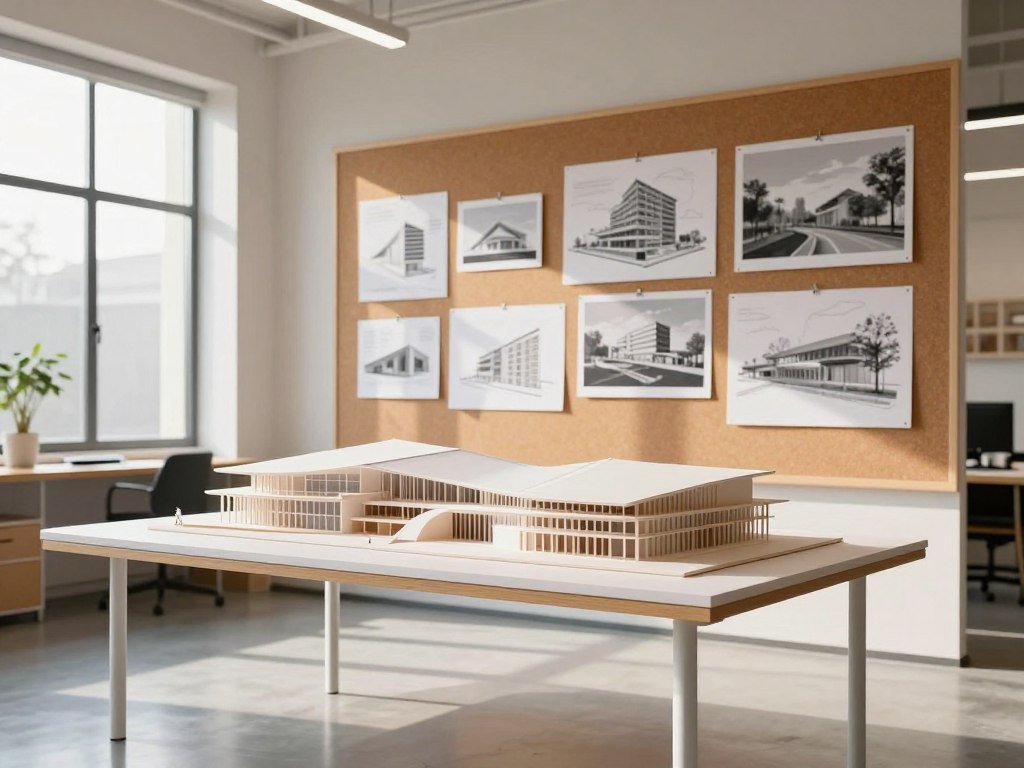
The best AI tool for a building project depends first on whether you need a visual direction, a model-based render or a floor plan. You may have a rough idea, a room photo, a sketch or a digital model, and each calls for a different workflow. A polished image can help you discuss a concept, but it is not the same output as a usable design model.
The right choice can save time and reduce the cost of early exploration. It also depends on how much control you need over materials, openings and shape. Geometry control means how closely a generated image preserves the form, dimensions, openings and other design details of its input. Some tools start with text, while others work from an image or model.
Use the options below to match your project needs to the kind of output each tool can make. Start by deciding what the tool must produce, not by choosing the image that looks most impressive.
Key Takeaways
- Prompt-led generators work well for early visual exploration.
- Model-linked tools suit design teams that need closer control.
- Text-to-plan tools help compare early room layouts.
- Image-to-plan features convert existing plan images into 3D views.
- AI images and plans need review before they guide construction.
What can AI architecture tools do?
Some AI tools generate a new visual from a description, while others start from a plan, sketch or model. The key difference is whether you need a fresh concept image, a render of existing design work or a layout. Some products focus on one stage, while others combine functions.
AI architecture tools can create images and support floor-plan work, but the outputs serve different purposes. A prompt-led image generator may suggest a façade or mood without producing an editable model. A plan tool may arrange rooms without making a polished exterior view.

Create visual concepts and renders
Concept generation means early visual exploration, often from a written prompt. Midjourney can create a new visual direction from text and uploaded images. Krea can edit images and update visuals from live model views. These outputs can help you compare materials, light, form and style before design choices settle.
Rendering starts with something you have already drawn or modeled. A sketch, screenshot or CAD or BIM model can guide the visual result. The input gives the tool a design reference, but the output may still change details. For a wider look at prompt-led tools and image editing, see this guide to AI image generators.
A convincing render shows a possible visual direction, not proof that the source geometry stayed unchanged.
Generate and develop floor plans
AI floor-plan generators include text-to-plan tools, sketch or blueprint visualization tools, and layout software with AI features. Maket, for example, starts with a brief that can name bedrooms, square footage and style. Other tools read a plan image, then create a 3D view or editable layout.
Planner 5D combines plan recognition with design software, while some layout tools focus on arranging rooms. An image generator and a plan generator solve different tasks. Identify the output you need before comparing tools, because an image generator and a plan generator solve different tasks.
How should you choose a tool for your workflow?
A useful first test is whether the tool can start from the file or view you already have. Input fit matters because text, room images, sketches, plans and live model views need different workflows. Geometry control means how closely a generated image preserves the form, dimensions, openings and other design details of its input.
Test the same design input across tools before you commit to a workflow. A result that looks strong from one angle may shift the window layout or roof shape in another view. Revit, SketchUp, Rhino and Blender are common modeling environments that can shape your choice.

Check your input and geometry needs
Match the starting material to the task. A short text brief suits a concept generator, while a room photo works best with a tool designed for room images. A live model view can help a rendering tool retain more of the design’s form.
- Input compatibility: confirm the tool accepts your file or view.
- Geometry control: check whether openings and proportions stay close.
- Output type: decide whether you need an image, plan or model view.
- Cross-view consistency: compare the same design from several angles.
Those checks can narrow the tools to a practical shortlist. If you work in a shared design environment, also see how collaborative visual tools fit a team workflow.
Compare output, consistency and team fit
Image quality matters, but so do speed and the effort needed to correct a result. A fast image that changes key dimensions can take longer to use than a slower, steadier output. Learning curves also matter when several architects need to use the same tool.
Check how the team can share files, review edits and keep useful versions. Compare the full value of a paid plan, including the limits that affect your daily work. A low monthly cost may not help if repeated cleanup takes staff time.
Compare results from the same input across several views before deciding that a tool is reliable enough for a project.
Best AI Architecture Generators for Building Designs by Use Case
For most readers starting from a blank idea, Midjourney is a strong concept-direction pick; model-led ideation points toward Veras, while free image exploration can start with Nano Banana. Choose by starting point, since a prompt, an image and a model call for different tools.
Use this shortlist to match the tool to the work you need done. Midjourney suits mood and visual direction, while Google Nano Banana provides a free-entry route through Gemini. Leonardo AI can help refine sketches and build a canvas composition. Veras fits workflows that begin with a design model.

| Tool | Best-fit use case | Typical starting input | Key trade-off |
|---|---|---|---|
| Midjourney | Concept mood and visual direction | Written prompt or image | Weak geometry control |
| Google Nano Banana | Free image exploration through Gemini | Text prompt or image | Not a design model |
| Leonardo AI | Sketch refinement and canvas composition | Sketch or reference image | Visual editing focus |
| Veras | BIM-adjacent design ideation | Design model view | Best fit needs model input |
Google Nano Banana also works through Gemini for image generation and editing. Leonardo AI offers a canvas for combining images and refining a visual direction. These options can help when you want to test different treatments without rebuilding a model for each idea.
Veras is a better fit when your starting point is a design model. It supports model-linked visualization workflows, which can give your existing design more weight than a text prompt alone. Still, a model input does not guarantee that every generated image preserves every detail.
Use the table to narrow the shortlist, then test the finalists using your own project input.
Which tools are best for early concept images?
If you need a visual direction before you have a stable model, a prompt-led image tool is a sensible place to start. Midjourney suits mood work, while tools such as mnml.ai can refine a render through changes to its details.
Use prompt-led image generation to explore a look, not to lock down architectural geometry. Midjourney is strong for atmosphere, mood boards and broad formal ideas. Its image generation has weak geometry control and limited architectural precision.

Midjourney for mood and visual direction
Midjourney can help you compare a quiet courtyard home with a bold public building, or test different façade styles. It can also create a range of reference images for a first design conversation. As of January 2026, Midjourney plans start at $10 per month.
That price buys access to image generation, not a reliable way to preserve exact dimensions. Treat each output as a visual idea that could inform a mood board. Do not use a generated façade image to settle window spacing or roof measurements.
For other ways to write prompts and refine generated images, see this beginner guide to creating AI images. The same basic habit applies here: describe what matters, then review the image closely.
Prompt-led tools for fast variations
A text prompt gives the generator a starting scene. mnml.ai lets you describe a building, then refine a render by changing details such as time of day, material, site or render style. That makes it useful when you want to keep a general direction while trying visual changes.
Be clear about the building, its setting and the camera view. A few specific prompt elements can make the first result easier to judge:
- Scene type, architectural style and mood
- Materials and colors
- Lighting and weather
- Camera angle
Keep the prompt focused on visible choices rather than technical claims. A request for a stone exterior at dusk can guide an image; it cannot confirm how the wall is built. Use the images to discuss possibilities, not to confirm exact dimensions or façade geometry.
Which tools can render sketches, models and interiors?
A sketch, screenshot or room photo gives a visualization tool more direction than a text prompt alone. The input type matters: Veras supports model-linked ideation, while Vizcom suits sketch-led exploration.
An image input can guide a render without guaranteeing that the tool will preserve its exact form. Choose an image-based tool when you want visual changes, such as a new material or interior style. Use a model-led workflow when the design shape needs closer control.
Sketch and model visualization
Veras accepts inputs tied to Revit, SketchUp, Rhino, Vectorworks, Forma, Archicad and web images. That range makes it useful for architects who want to explore a model view without starting from a blank prompt. A model-linked input can guide the output, but it does not promise a perfect match.
Vizcom supports hand sketches, uploaded references and 3D-support features. It is a natural fit when your early idea lives on paper or in a quick drawing. You can use an image reference to guide color or form, then review the result against the original sketch.
An AI image workflow for property visuals can also help with room presentation, though edits should not mislead viewers about a space.
Interior and multi-scene rendering
Home Design AI focuses on room images and offers more than 20 interior design styles. Its room-image upload feature is limited to room images, so it fits interior redesign rather than broad site planning. It can help you test furnishings, finishes or an overall room mood.
ArchiVinci covers a wider range of scenes, including interiors, exteriors, landscapes, floor plans and masterplans. It accepts images for visualization and describes compatibility with CAD or 3D modeling software. Its range can suit a project that needs more than one scene type.
A room photo, model view and hand sketch are not interchangeable inputs. Match the upload to the tool’s stated input type before spending time preparing a project image.
Which AI tools can create floor plans from a brief?
For a new layout from a written brief, Maket is a relevant early-concept option; Floor Plan AI adds browser-based editing and 2D-to-3D viewing. Both support early layout work, but their starting points and outputs differ.
Use AI floor plans to compare layout ideas, not to certify a building plan. Text-to-plan tools can turn a brief into an early layout. Editing tools can help you revise rooms or view a plan in 3D.
Text-to-plan concepts
Maket takes brief details such as bedroom count, square footage and style. Some workflows can also include lot constraints. Those inputs can help you explore a home layout before you settle on a design direction.
The result is best treated as a layout concept. A generated plan may help you compare room arrangements, but it does not settle every site or design choice. For early planning, the best AI for architecture plans is one that accepts the details you already know.
Browser-based plan editing and exports
Floor Plan AI runs in a browser and supports plan creation, editing, visualization and rendering. Its creator workspace lets you edit a layout and convert a 2D plan into an interactive 3D layout. Listed exports include DXF, PDF, PNG and high-resolution JPG.
| Tool | Starting input | Editing or visualization option | Listed output or export |
|---|---|---|---|
| Maket | Bedrooms, area, style | Early layout concepts | Floor-plan concept |
| Floor Plan AI | Plan brief or layout | Browser editing, 2D-to-3D | DXF, PDF, PNG, JPG |
| Planner 5D | Existing plan image | Plan recognition and 3D | 3D floor plan |
Planner 5D belongs in the comparison as an existing-plan conversion tool, rather than a text-to-plan pick. The three workflows can help you compare layouts, but a generated plan does not confirm that a design meets construction needs.
Check the output format against the next step in your design process before choosing a platform.
Can AI turn an existing floor plan into 3D?
An existing plan image can be converted into a 3D floor plan in Planner 5D when it is supplied as a supported image file. The source can be a flat image, rather than a CAD or 3D model.
Planner 5D can recognize a plan image, then let you adjust the generated layout. This can help you inspect a floor plan in three dimensions, but the conversion still needs a careful check against the source.
Planner 5D plan recognition
Upload an existing plan image to start the conversion. Planner 5D reads the image and creates a 3D floor plan, so you can view the layout from another angle. This differs from a text-to-plan tool, which starts with written requirements rather than an existing drawing.
The source image gives the software a visual guide, not structured design data. A scanned or photographed plan may include marks, labels or faint lines that affect what the tool reads. A clean image can make the plan easier to inspect after conversion.
Image formats and editable results
Planner 5D accepts JPEG, JPG and PNG plan images. Users can adjust AI-generated plans and move or replace elements. That gives you a way to revise the result instead of treating the first layout as fixed.
A CAD or BIM model contains design information that a flat plan image does not. Likewise, a 3D model input differs from a picture of a plan, even if both show the same rooms. ArchiVinci accepts PNG, JPEG and WEBP images for its image-rendering workflow, which is separate from plan recognition.
Review walls, openings and room relationships after conversion instead of assuming the first result matches the source exactly.
Which AI architecture tools can you try for free?
Google Nano Banana through Gemini is the clearest free starting point here for image exploration in 2026. Free entry can help you test a workflow, though each product sets its own access terms.
A free AI home architecture generator can support early visualization, but free access does not make an output a measured construction plan. Compare the kind of work each option permits, not just whether it lets you start without payment.
Free image-generation options
Google Nano Banana can be used for free through Gemini in 2026. That makes it a simple entry point for trying image generation and editing. A free route through Gemini is different from buying a paid subscription to an image platform.
For more free choices, compare the limits on free text-to-image generators. Free plans can have limits on how many images you make or how you edit them, so a free account may suit a quick test better than a busy project.
Free renders and signup credits
mnml.ai offers signup credits without requiring a credit card. Its first image takes about 15 seconds. ArchiVinci offers three free renders with no watermark. These options let you test image output before paying.
Midjourney is a paid option, with subscriptions starting at $10 per month as of January 2026. A subscription may make sense when you need repeated concept images, but it does not turn those images into precise plans.
| Tool | Free-entry option | Stated limit or condition | Best use and paid-price fact |
|---|---|---|---|
| Google Nano Banana | Free through Gemini | Access through Gemini | Image exploration; no paid price stated |
| mnml.ai | Signup credits | No credit card; first image about 15 seconds | Render refinement; no price stated |
| ArchiVinci | Three renders | No watermark | Scene visualization; no price stated |
| Midjourney | No free option stated | Paid subscription | Concept images; starts at $10 per month |
Check the current credit, export and commercial-use conditions before relying on any free tier for client work.
How can teams combine AI tools in a design workflow?
A small team can begin with a concept image, then bring a selected direction into a model-based visualization workflow. That handoff gives the team a clear path from broad ideas to views tied to design work.
Keep the concept image, model view and chosen edits connected as the design changes. Krea supports real-time image updates from live viewports in Revit, Rhino, SketchUp or Blender. Gendo offers a shared canvas for comparing and refining project material.
Move from concept to model-based views
Start with a broad visual direction when the team is still comparing ideas. Once a direction feels useful, bring a sketch or model view into a visualization tool. That lets the team see how the concept relates to the actual project shape.
Krea can update images in real time from live viewports in supported modeling tools. A change to the model view can then shape a new visual result. This workflow can make iteration feel more direct than exporting a new image after every small edit.
- Set the design question the team needs to answer.
- Choose the input that fits that question.
- Compare a small set of visual variations.
- Record which changes should carry into the model.
Keep iteration visible to the team
Gendo is a browser-based collaborative design canvas. Teams can generate, edit, compare, annotate and refine sketches, model exports, reference images and renders in one shared space. That can help keep design feedback near the image it discusses.
Use the canvas to mark which variation the team prefers and why. An annotation such as “keep the deeper entry” is more useful than a reaction with no link to a specific version. Save the input beside the result so colleagues can track what changed.
Keep the chosen model view and its corresponding render together so the team can see what changed.
Can AI-generated building designs be used for construction?
AI-generated renders and layouts can help explore a design, but they are not construction documents. A convincing image can still drift from its input and change openings, proportions or other design details.
AI floor plans need professional review before construction and do not replace stamped architectural drawings for permitting. Treat a render as a visual concept, not a verified record of dimensions or building systems.
Treat renders and layouts as concepts
General image generation can treat an input as inspiration instead of a strict constraint. A generated view may shift the window layout, alter the roof edge or change a wall opening. The result may still look polished, which can make the change easy to miss.
Floor-plan generators can suggest room arrangements, but they do not finish the technical work needed for construction. A plan image also lacks the full information found in a detailed design model. Use concept images to discuss options, not as a record of approved dimensions.
Before construction or permit submission, have a qualified professional check the design and confirm the local documentation requirements.
Get professional review before building
Permitting rules depend on the jurisdiction and the type of work. Local authorities may require stamped architectural drawings or other project documents. A generated plan does not replace those requirements.
Ask a licensed professional to review the layout, site conditions and design details. The relevant building authority can explain local documentation rules, while the professional can help prepare a compliant design. This review can catch problems that a visual tool cannot judge.
Do not treat an attractive AI render as proof that the design is safe, buildable or ready for a permit.
How should you compare costs before choosing?
Compare the work a plan lets you complete, not just its advertised starting price. The best free AI architecture generator depends on whether you need concept images, model-linked visualization or plan work.
A low entry price is poor value if geometry drift or repeated cleanup costs you time. Free and paid plans can differ in image limits, resolution, watermarks, commercial-use terms and team features.
Compare credit-based plans with flat-rate plans by the amount and type of work you expect to do. A tool used for a few concept images may need a different plan from one used throughout a team’s project workflow. Check which limits affect the work you actually expect to finish.
- Monthly or signup credits
- Image resolution and watermarks
- Commercial-use terms
- Collaboration limits
- Export and integration needs
A plan with more image credits may not help if your team needs editable outputs or shared review. Likewise, a low-cost image generator may still require extra work to match the source model. Compare the time spent correcting results as part of the tool’s value.
Test one representative project input and check the export and usage terms before upgrading.
Conclusion
Choose the tool that fits the design task you need to move forward. A concept image, a model-based render and a floor plan each support different parts of an architecture workflow.
Use AI to help explore visual ideas, then keep design decisions tied to the right project files. A generated image is not a substitute for reviewed construction documents.
Pick one representative project input, try it in the best-fitting category and review the result with your design team before building it into the workflow.
FAQ
Can an AI tool keep the same window layout across several views?
Not reliably with general image generators. They may shift windows or change other details between views, even when you use the same reference. Model-linked workflows can offer stronger geometry control because they start from a design model. Check each generated view against the model before sharing it as a consistent set.
Can AI account for zoning and lot constraints when creating a floor plan?
Some text-to-plan workflows accept lot constraints, but that does not confirm local zoning compliance. Rules can depend on the site, the building type and local requirements. A licensed professional must check zoning and site conditions before you rely on a proposed layout. Treat the generated plan as an early concept.
Can I show an AI-generated building image to a client?
Yes, you can use one to help communicate a concept. Label it as a visualization so the client does not mistake it for a verified design or construction document. Explain which details remain open to change, especially windows, materials and proportions. Keep the source sketch or model nearby when discussing the image.
What should I test before paying for an AI architecture tool?
Test a representative input and compare geometry, export quality, usage terms, generation limits and team fit. Use a file or view like one from your real project, rather than a simple demo prompt. Check how much correction the result needs and whether your team can use the output in its next design step.
How do teams keep AI-generated design options organized?
Keep prompts, source images, model views and selected iterations together in a shared workspace or project canvas. Give each option a clear label and note the change it tests. That makes it easier to compare versions and trace feedback to the right image. Keep the source input with the generated result.
Are free AI architecture tools suitable for commercial projects?
Free access does not guarantee commercial-use rights. Check the plan’s terms before using an image in client work or public marketing. Also review any watermark, export or sharing limits that apply to the free account. If several people need access, confirm that the plan allows the team’s intended use.



