
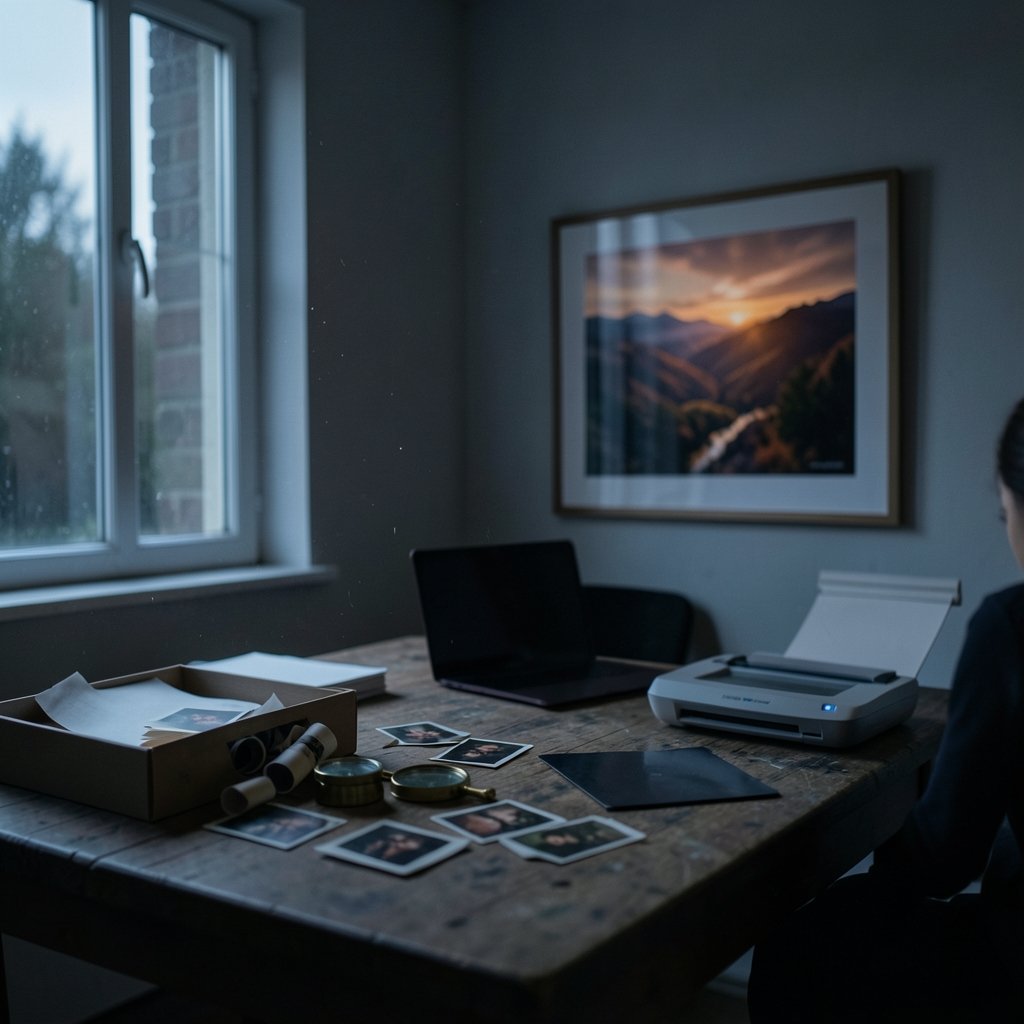
What if the blurry photo from your phone’s early days could hang on a gallery wall at 4K? That question drives a whole category of software now, and the answer in 2027 is more complicated, and more interesting, than a simple “yes.”
AI upscaling has moved from a niche trick for pixel artists into a mainstream job. People use it to rescue old family scans, prep product shots for print, clean up archival footage, and push game textures to modern displays. But the tools differ wildly in what they actually do. Some sharpen. Some invent. A few quietly rewrite history inside your image. Knowing which is which matters more than any feature list. (Best free image search tools for researchers)
What AI Upscaling Actually Does to a Pixel
Super-resolution is the technical name for the task. The software takes a small image and reconstructs a larger one. The catch is that this problem has no single correct answer. Many different high-resolution images could produce the same low-resolution input, so the model has to guess. That guess is where quality lives and dies.
Early deep-learning upscalers used small convolutional networks that learned patterns from paired low- and high-resolution images. Later systems added generative adversarial networks, which push outputs toward textures that look statistically real rather than smooth and plastic. Newer diffusion-based models go further, generating detail that was never in the source. That is powerful for a poster and dangerous for a court exhibit.
The practical takeaway: every upscaler is making decisions for you. Good ones make decisions you would endorse. Great ones let you control how far they go.
2027 Tools at a Glance

The market splits into four rough camps. Each wins in different situations.
| Camp | What it does best | Where it struggles | Best for |
|---|---|---|---|
| Classic CNN upscalers | Fast, faithful, predictable | Soft on fine texture | Batch jobs, archives, e-commerce |
| GAN-based upscalers | Crisp texture, sharp edges | Can add false detail | Art, game assets, social media |
| Diffusion upscalers | Rich, plausible detail | Slow, can hallucinate | Creative work, marketing visuals |
| Hardware-accelerated local apps | Privacy, no upload, no subscription | Limited by your GPU | Sensitive or confidential images |
A single tool rarely covers all four well. Most professionals keep two or three installed and pick per job. That habit alone saves more grief than any single purchase.
Resolution Reality: What 4K Can and Cannot Fix
4K usually means 3840 by 2160 pixels in consumer displays, while cinematic 4K runs 4096 by 2160. Either way, the number describes output size, not recovered truth. Upscaling cannot bring back detail the camera never captured. It interpolates, then fills gaps with learned patterns.
That distinction matters in three places:
- Text and logos. AI upscalers often mangle small type. Letters turn into plausible-looking shapes that read as gibberish. Always zoom to 100 percent and check.
- Faces. Skin texture is where generative models shine and where they also invent pores, teeth, and expressions. For portraits, compare against the original at full size.
- Fine repeating patterns. Fabric weave, chain-link fence, and brickwork are classic failure points. Models either smear them or over-sharpen them into moiré.
A useful rule: if the source is under roughly 500 pixels on the long edge, expect reconstruction, not restoration. If it is above 1500 pixels, most modern tools will produce a clean 4K result with modest effort.
Quality Metrics That Actually Tell You Something
Vendors love to quote PSNR and SSIM, two long-standing ways to score an upscaled image against a reference. Both are useful and both correlate imperfectly with what human eyes notice. A model can post a great PSNR while producing waxy skin and crunchy edges.
Perceptual and no-reference metrics help fill the gap, but no single number settles it. The honest test is side-by-side viewing at 100 percent on a calibrated screen, plus a print proof if the output is headed to paper. Anyone who has compared a dozen upscalers knows the rankings shuffle depending on the image. Run your own samples.
Workflow Tips That Separate Good Results From Great Ones
Experience in this field tends to produce the same handful of lessons, usually after some wasted hours.
Pre-clean before you upscale. Noise, JPEG blocking, and compression artifacts get amplified along with everything else. A light denoise pass first often beats any upscaler setting.
Upscale in stages, not in one leap. Going from 400 pixels to 4K in a single jump invites artifacts. Two or three passes at moderate scale factors usually hold up better, especially with GAN-based tools.
Keep the original untouched. Save every intermediate step. When a client asks for a different look, you want to go back to the source, not to a fourth-generation upscale.
Match the model to the content. Photo, anime, text document, and satellite imagery each want different training. Using an anime model on a wedding photo produces a distinctive, and usually unwelcome, look.
Check licensing before commercial use. Some tools claim rights over outputs, and some model weights carry restrictions. Read the terms, especially for client work.
Test on a crop, not the whole file. A 200-pixel crop tells you in seconds whether a setting works. Full-resolution renders can take minutes each.
Common Mistakes That Wreck Otherwise Good Upscales
The most frequent error is over-processing. People stack sharpening, denoise, and upscale, then wonder why the result looks like a painting. Restraint wins. One good pass beats three aggressive ones.
The second error is trusting the preview. Many apps show a downscaled preview that hides artifacts entirely. Always inspect at full resolution.
The third is ignoring color. Upscaling can shift saturation and contrast slightly. For product photography or print, compare color values before and after, not sharpness alone.
The fourth is forgetting the destination. A 4K file destined for Instagram will be recompressed hard. Exporting at the platform’s native size often looks better than shipping a giant file that gets crushed.
Privacy, Cost, and the Cloud Question
Cloud upscalers are convenient and often faster than a laptop. They also mean uploading your images to someone else’s server. For medical scans, legal evidence, unreleased product shots, or personal photos, that is a real consideration.
Local tools have closed much of the gap. Consumer GPUs and dedicated neural processors now run capable models in seconds. The trade-off is setup time and hardware cost. If you process images in volume, the math often favors local. If you upscale a few images a month, cloud credits are cheaper.
Budget-minded teams should also look beyond the upscaler itself. Subscription sprawl is a genuine problem, and the same discipline that applies to cloud cost management tools that actually cut your bill applies here: audit what you pay for, cancel what you do not use, and consolidate where quality does not suffer.
Choosing a Tool Without Getting Fooled by Demos
Vendor demos are curated. They pick images that flatter the model. A better evaluation process looks like this:
- Gather five images that represent your real work, including one hard case.
- Run each through every candidate at identical settings.
- Compare at 100 percent on the same monitor.
- Print one sample if print is your output.
- Check export formats, batch support, and metadata handling.
- Read the license terms in full.
That process takes an afternoon and saves months of regret. It also mirrors how careful buyers evaluate other crowded software categories, whether that means weighing ClickUp alternatives when work changes after you switch tools or comparing build systems on real projects rather than feature grids.
Where AI Upscaling Still Falls Short
Honesty matters here. Upscaling is not restoration. It cannot recover motion blur, focus miss, or sensor noise that buried the signal. It cannot read a license plate from twelve blurred pixels with any reliability. It cannot be trusted as evidence without disclosure.
Generative upscalers raise a separate concern. When a model invents detail, the output is a new image, not a recovered one. For journalism, forensics, insurance claims, and medical imaging, that distinction should be documented. A growing number of organizations now require a note whenever generative processing touches an evidentiary image.
There is also the texture problem. AI models tend to produce a slightly uniform “AI look” on skin, foliage, and fabric. Trained eyes spot it quickly. For high-end commercial work, many retouchers still blend AI output with hand work rather than shipping it raw.
What to Expect From the Next Generation
Three trends look durable. First, models are getting better at knowing when not to invent, which matters more than raw sharpness. Second, on-device processing keeps improving, shrinking the privacy trade-off. Third, tools are moving toward guided control, letting users dial detail synthesis up or down per region instead of accepting a single global setting.
That last shift is the most useful. A portrait might want faithful skin and slightly more defined eyes. An outdoor photo might want stronger foliage detail. Region-aware control turns upscaling from a gamble into a craft.
Conclusion
The best AI upscaling tool in 2027 is not a single product. It is a short list, chosen for your content, tested on your images, and used with restraint. Super-resolution can do remarkable things with a small file, but it works by guessing, and the guesses are only as good as the model and the operator. Clean your source, upscale in stages, inspect at full size, and keep the original safe. Do that, and 4K from almost any image stops being a magic trick and becomes a reliable part of your workflow.
Frequently Asked Questions
Can AI really turn any image into 4K?
It can produce a 4K file from almost any image, but the quality depends on the source. Images with at least a few hundred pixels of real detail upscale well. Extremely small or heavily compressed images get reconstructed rather than restored, and fine text or faces may contain invented detail.
Is AI upscaling the same as image restoration?
No. Restoration aims to recover what was originally there by reversing blur, noise, and damage. Upscaling enlarges an image and fills gaps with learned patterns. The two are often used together, but only restoration claims to recover original information.
Which is better, cloud or local upscaling?
It depends on volume and sensitivity. Cloud tools are fast and need no hardware, but they require uploading your files. Local tools keep images private and avoid subscriptions, but they depend on your GPU and take setup time. High-volume or confidential work usually favors local processing.
Why do upscaled faces sometimes look wrong?
Faces carry enormous visual significance, and generative models fill in skin texture, teeth, and eye detail from statistical patterns. When the source lacks that information, the model guesses. The result can look uncanny or subtly different from the real person, so always compare against the original.
Does upscaling improve a blurry photo?
It can make a blurry photo look sharper and more presentable, but it cannot recover detail destroyed by motion blur or missed focus. Sharpening and upscaling amplify whatever is there, including artifacts. A light denoise pass before upscaling usually helps.
Can I use upscaled images commercially?
Often yes, but check two things: the tool’s license terms and the model’s usage restrictions. Some vendors claim rights over outputs or limit commercial use, and some model weights carry their own conditions. For client work, confirm the terms in writing before delivery.



