

Roughly 7.5 million people broadcast on Twitch in any given month, and a huge share of them start with nothing more than a console and a laptop. That combination sounds simple until they hit the wall: the console outputs a picture, the laptop has no input, and suddenly a $60 gadget becomes the most important purchase in the whole setup. That gadget is a capture card, and choosing the wrong one is one of the most common and most avoidable mistakes new streamers make.
This guide breaks down what actually matters, which classes of card fit which setups, and where the marketing language tends to oversell. No single card wins for everyone, because “best” depends entirely on what is being streamed, from what device, and at what resolution.
What a Capture Card Actually Does
A capture card takes an HDMI signal from a console, camera, or second PC and converts it into something your streaming software can read. Two things happen at once. The card passes the original signal through to a TV or monitor, and it sends a copy to your computer as a video feed.
That dual job is where most buying decisions go wrong. People focus on the capture resolution and ignore the passthrough, or they buy a card that captures beautifully but introduces enough delay to make fast games unplayable on the passthrough screen. The passthrough signal is usually the one a player actually looks at while gaming, so it needs to be clean and lag-free.
Passthrough vs. Capture Resolution
These are two separate specs and they are rarely identical:
| Feature | What It Means | Why It Matters |
|---|---|---|
| Passthrough resolution | What the card sends to your TV or monitor | Determines how the game looks while you play |
| Capture resolution | What the card sends to your streaming PC | Determines how the stream looks to viewers |
| Passthrough refresh rate | How smooth the TV feed is | Critical for fast-paced games |
| Capture frame rate | Frame rate of the recorded feed | Most platforms cap streams at 60fps anyway |
A card that passes through 4K at 60Hz while capturing at 1080p60 is a perfectly sensible design. It keeps the player’s screen sharp and gives viewers a stream that matches what platforms actually deliver. Chasing 4K capture is usually wasted money for live streaming, because the major platforms compress streams hard enough that 1080p60 is the practical ceiling for most broadcasters.
Internal vs. External: The First Real Decision
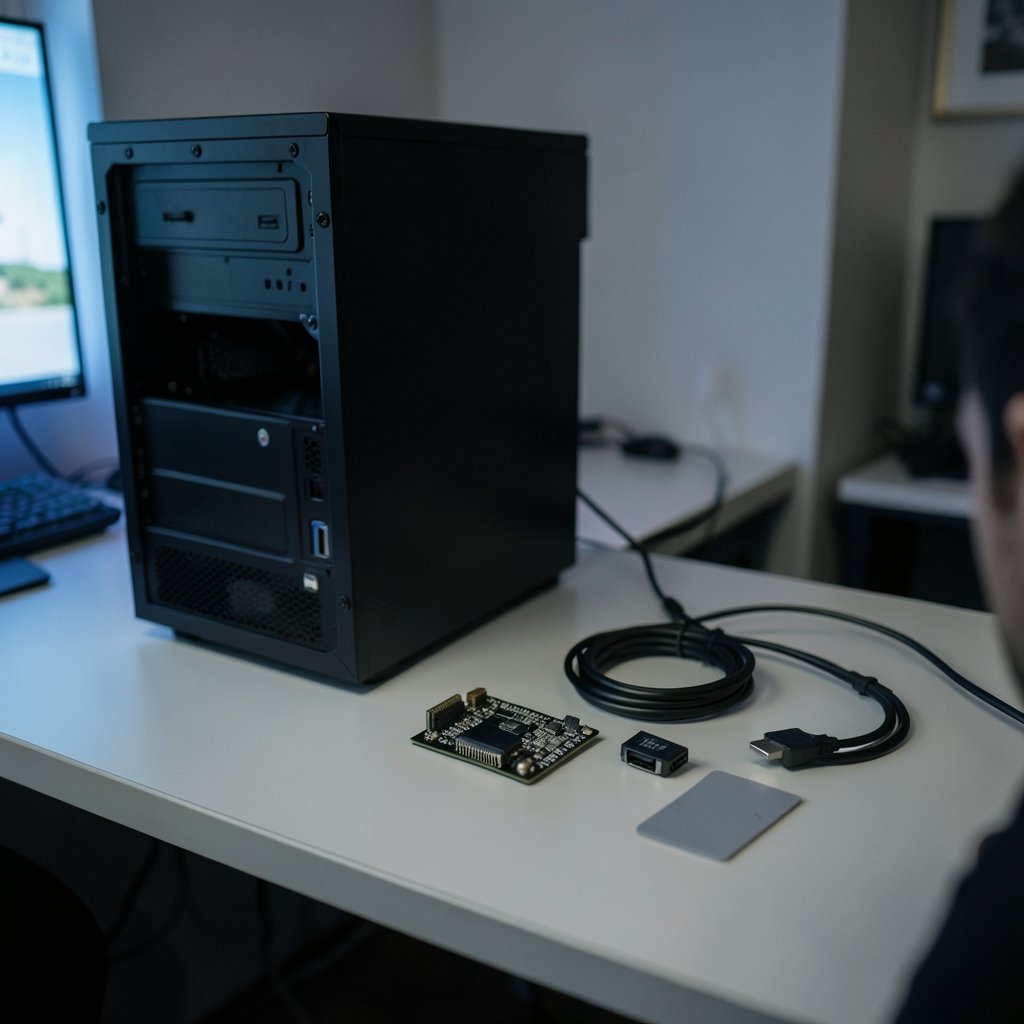
Every capture card on the market falls into one of two physical categories, and this choice shapes everything else.
Internal PCIe cards slot into a desktop’s motherboard. They tend to offer lower latency, avoid USB bandwidth headaches, and often handle higher data rates without fuss. The catch is obvious: they only work in a desktop with a free slot, and installation means opening the case. If a build is already underway, the GPU upgrade and graphics card install guide covers the general process of working inside a case safely, which is the same skill set.
External USB cards plug in and work almost instantly. They are the only option for laptop streamers and the most popular choice for console players who move between rooms. The tradeoff is bandwidth. Uncompressed 1080p60 video needs roughly 3 Gbps of throughput, so a USB 3.0 port or better is a hard requirement. Plugging a capture card into a USB 2.0 port is one of the most common setup failures, and it usually shows up as a black screen or stuttering feed rather than a clear error message.
A Quick Rule of Thumb
- Desktop, permanent setup, fast competitive games: internal card.
- Laptop, console, or a setup that moves: external card.
- Dual-PC streaming: internal card in the streaming machine, almost always.
Matching the Card to the Source
The device being captured matters as much as the card itself. A card that suits a PlayStation 5 will frustrate someone streaming from a mirrorless camera, and vice versa.
Console Streaming
Modern consoles output HDMI 2.1 and can push 4K at 120Hz. A capture card does not need to match that fully, but it should passthrough enough of it that the gaming experience stays intact. A card limited to 1080p60 passthrough will visibly downgrade a next-gen console’s output on the TV. Look for 4K60 passthrough at minimum, and 4K120 passthrough if the budget allows and the display supports it.
Camera and DSLR Streaming
Creators using a dedicated camera need a card that behaves like a webcam, presenting a clean UVC signal with no driver friction. These cards are usually small, cheap, and single-purpose. The failure mode here is heat: tiny metal-bodied cards run warm, and a cheap one can drop frames after an hour of continuous use. A card with a metal housing and no plastic shell is worth the small premium.
Dual-PC Streaming
A second PC dedicated to encoding takes load off the gaming machine. This setup demands an internal card, because the whole point is a stable, high-bandwidth feed between two machines on the same desk. Latency and reliability matter more than passthrough features here, since the gaming monitor is connected directly to the gaming PC.
The Specs That Actually Change Your Stream
Marketing pages list dozens of numbers. Only a handful affect the finished broadcast.
Capture frame rate at 1080p60 is the baseline. Anything less is a compromise; anything more is largely invisible to viewers after platform compression.
Encoding load is often overlooked. Capture cards handle the input, but the CPU or GPU still has to encode. A card does not reduce encoding load unless it has built-in hardware encoding, and even then the quality tradeoff is real. Streamers running a single PC should budget CPU headroom for encoding, or use the GPU encoder.
Audio handling deserves more attention than it gets. Some cards pass audio through HDMI cleanly; others require separate configuration or introduce a delay that desyncs lips from voices. Checking audio behavior before buying saves hours of troubleshooting.
Driver and software support is the quiet dealbreaker. A card with flaky drivers will work perfectly for one person and refuse to be recognized for another. Sticking with established brands reduces this risk considerably, and it is why the two dominant names in consumer capture keep showing up in every recommendation list.
Where Budget Goes Further
Spending more buys passthrough quality, build quality, and reliability, not dramatically better stream output. A viewer watching on a phone at 720p cannot tell whether the source was captured on a $100 card or a $400 one.
The smarter allocation is usually to spend on the card that removes friction, then put remaining budget into lighting, audio, and a stable internet connection. A great microphone and decent key light will improve a stream far more than an extra $200 of capture hardware. The same logic applies across the hobby: the best streaming devices for every TV matter more to most households than a marginal spec bump, and the best media streaming services compared shows how much of the experience comes from the service layer rather than the hardware.
For anyone also weighing subscriptions and connectivity, the best VPNs for streaming in 2026 is a useful companion read, since network stability affects a broadcast as much as any card does. And for streamers who branch into tabletop or party content between gaming sessions, the Zap card game is a reminder that not every stream needs a capture card at all; a simple overhead camera setup handles card content fine, and the best card games make for easy, low-cost broadcast filler.
Common Mistakes That Wreck a Capture Setup
These come up constantly in support forums and they are almost always avoidable.
- Using the wrong USB port. Front-panel ports and hubs often fail to deliver full bandwidth. Plug directly into a rear motherboard port.
- Forgetting HDCP. Protected content will not pass through most cards. Consoles sometimes enable it by default, and the fix is a setting, not a new card.
- Ignoring passthrough lag. A card with heavy internal processing can make the passthrough screen feel sluggish. Competitive players should test this immediately.
- Overpaying for 4K capture. Platforms compress to 1080p or lower. Capture at 1080p60 and pass through at the highest rate the display supports.
- Skipping the audio check. Test audio sync on day one, while the return window is still open.
- Buying before checking the PC. A laptop with only USB-C ports may need an adapter, and some adapters break capture entirely.
Setting Realistic Expectations
A capture card will not make a stream look professional on its own. It solves one problem: getting video from point A to point B reliably. Everything else, from framing to bitrate to commentary, sits outside the card’s control. (Video capture)
The honest framing is that a mid-range card from a well-known brand, matched to the source device, will serve nearly every streamer for years. The expensive cards exist for people with specific needs: high-refresh passthrough, multi-input switching, or professional production workflows. Most broadcasters do not have those needs, and buying for them is how budgets disappear without a visible improvement on screen.
Reliability beats specification. A card that works every single time is worth more than one that wins a spec sheet comparison and drops a frame every twenty minutes.
Conclusion
The best capture card for streaming is the one that matches the source device, fits the computer, and disappears from the workflow. Console players should prioritize clean passthrough at 4K60 or better. Laptop streamers need an external USB card on a full-bandwidth port. Dual-PC setups benefit from internal PCIe cards for their lower latency. Camera streamers want a simple, cool-running UVC device.
Spend enough to get a reputable brand and solid build quality, then stop. Put the rest of the budget into audio, lighting, and a wired connection. The card is plumbing, not performance, and the streams that look best are rarely the ones with the most expensive plumbing.
Frequently Asked Questions
Do I need a capture card to stream from a console?
Yes, in almost every case. Consoles do not output a video feed a computer can read directly. A capture card bridges that gap. The only exceptions are consoles that support native broadcasting apps, which offer far less control over overlays and audio.
Is a 4K capture card worth it for streaming?
Usually not for the capture side. Major platforms compress streams heavily, so 1080p60 is the practical ceiling for most broadcasters. A card that captures at 1080p60 but passes through 4K is often the better value, because the passthrough is what the player actually sees.
What is the difference between passthrough and capture?
Passthrough is the signal sent to the TV or monitor the player watches. Capture is the copy sent to the streaming computer. They can run at different resolutions and refresh rates, and the passthrough spec usually matters more for gameplay feel.
Why does my capture card show a black screen?
The most common causes are HDCP protection being enabled on the source, the card being plugged into a USB 2.0 port or a hub, or the capture software not being pointed at the correct device. Check the port first, then the HDCP setting, then the software input selection.
Can I use a capture card with a laptop?
Yes, external USB cards are designed for exactly this. The requirement is a USB 3.0 or faster port that delivers full bandwidth. Avoid unpowered hubs, and confirm the laptop’s ports are not throttled, since some slim models share bandwidth across ports. (USB Implementers Forum)
Do capture cards reduce the load on my PC?
Not meaningfully. The card handles video input, but the CPU or GPU still does the encoding. Cards with built-in hardware encoding shift some work, but at a quality cost. Streamers on a single PC should plan for encoding headroom regardless of which card they choose.



