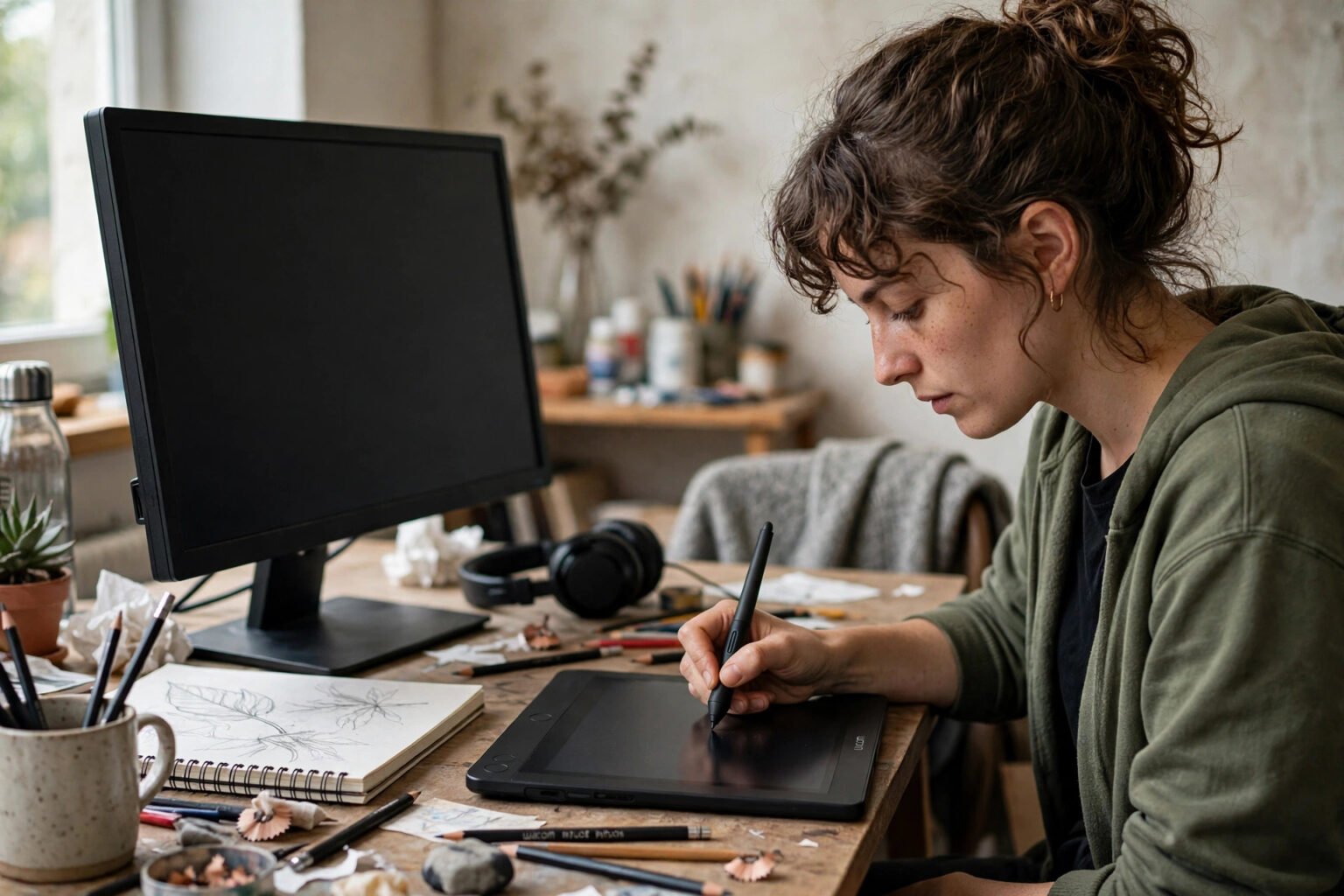
The best drawing tablets without a screen are the ones that disappear while you work: a pen, a flat surface, and a cursor that follows your hand on the monitor in front of you. In short: the Wacom Intuos S is the best screenless tablet for most beginners, the XP-Pen Deco 01 V2 and Huion Inspiroy H1060P offer more space and pressure levels for less money, and the Wacom One pen tablet is the best step up for artists who want Wacom’s pen feel without paying for a display.
A screenless pen tablet — also called a graphics tablet — has no display of its own: you draw on its surface while looking at your computer monitor, where the line appears. That sounds awkward, and for the first hour it is. Then your hand learns the mapping: the tablet is cheap and light, your eyes stay on a large monitor, and your hand never covers the work.
Key takeaways
- A screenless pen tablet maps to your monitor: you draw on the tablet and watch the screen.
- Wacom’s Intuos and One tablets use 4,096 pressure levels; XP-Pen and Huion offer 8,192. Both are enough for smooth, natural lines.
- Active area matters more than pressure levels: a larger area gives your arm room to draw, while a small one suits a laptop.
- All four brands in this guide use battery-free pens.
- Buy a pen display only if you need to see your hand on the artwork itself.
How a screenless tablet works
A pen tablet has an active area that is mapped to your monitor: move the pen to the top-left of the active area and the cursor goes to the top-left of the screen. Lift the pen and the cursor still follows, hovering, until you press down to draw. The pen is pressure-sensitive: press lightly for a thin line, harder for a thick one.
The main specification is pressure levels: a tablet with 4,096 levels distinguishes 4,096 degrees of pressure, while one with 8,192 distinguishes twice as many. In practice, the difference between 4,096 and 8,192 is subtle. Do not choose a tablet on pressure levels alone. Active area matters more: the Wacom Intuos S has an active area of 152 x 95 mm, about the size of a paperback, while the XP-Pen Deco 01 V2 offers 10 x 6.25 inches, closer to an A4 sheet.
The best drawing tablets without a screen at a glance
| Tablet | Pressure levels | Active area | Shortcut keys | Best for |
|---|---|---|---|---|
| Wacom Intuos S | 4,096 | 152 x 95 mm (6.0 x 3.7 in) | 4 ExpressKeys | Beginners and students |
| Wacom Intuos M (Bluetooth) | 4,096 | 216 x 135 mm (8.5 x 5.3 in) | 4 ExpressKeys | Serious hobbyists |
| Wacom One pen tablet (S/M) | 4,096 | S: 152 x 95 mm; M: 216 x 135 mm | None on tablet | Wacom quality on a budget |
| XP-Pen Deco 01 V2 | 8,192 | 10 x 6.25 in | 8 ExpressKeys | Large-area value |
| Huion Inspiroy H1060P | 8,192 | 10 x 6.25 in | 12 press keys + 16 soft keys | Shortcut-heavy workflows |
Caption: Screenless pen tablets compared. Prices vary by retailer — check current pricing before buying.
The best drawing tablets without a screen in 2027
Wacom Intuos S
Best for: beginners, students and anyone buying their first drawing tablet.
The Intuos S is the default first tablet for a reason. It is small, light at 250 g, and simple: a battery-free pen with 4,096 levels of pressure sensitivity, four customisable ExpressKeys, and an active area of 152 x 95 mm. It connects by USB, or wirelessly on the Bluetooth version (CTL-4100WL), and works with Windows, macOS, Chromebook and selected Android devices.
The pen uses electromagnetic resonance, so there is no battery to charge. Wacom’s driver software is the most mature in this guide, and the tablet is bundled with creative software on registration, including Clip Studio Paint Pro in many regions. The small active area and 4,096 pressure levels will not hold a beginner back. Students should also read our comparison of the iPad Air and iPad Pro for students, since an iPad with a stylus is the main alternative.
Wacom Intuos M (Bluetooth)
Best for: hobbyists and semi-professional artists who have outgrown a small tablet.
The Intuos M is the Intuos S, scaled up: the active area grows to 216 x 135 mm, which gives your arm room for broader strokes and makes detailed work less cramped. It keeps the same 4,096 pressure levels, battery-free pen and four ExpressKeys, and the Bluetooth version works wirelessly.
The larger size is the whole point, and the whole cost: the Intuos M is heavier at 410 g, takes up more desk space, and costs noticeably more. Buy it if you value Wacom’s drivers and software bundle over raw specifications.
Wacom One pen tablet
Best for: artists who want Wacom’s pen feel at the lowest price, and Chromebook users.
The Wacom One pen tablet is Wacom’s budget line — but check the box, as there are two products called Wacom One: this pen tablet, which has no screen, and the Wacom One pen display, which does. It comes in small and medium sizes with the same active areas as the Intuos S and M, the same 4,096 pressure levels, and a battery-free pen.
It is simpler than the Intuos — no ExpressKeys, a plainer design — but you get Wacom’s pen technology and driver support at a lower price, plus broad compatibility with Windows, macOS, Chromebook and Android. Keyboard shortcuts can replace the missing ExpressKeys. Do not buy it expecting a screen.
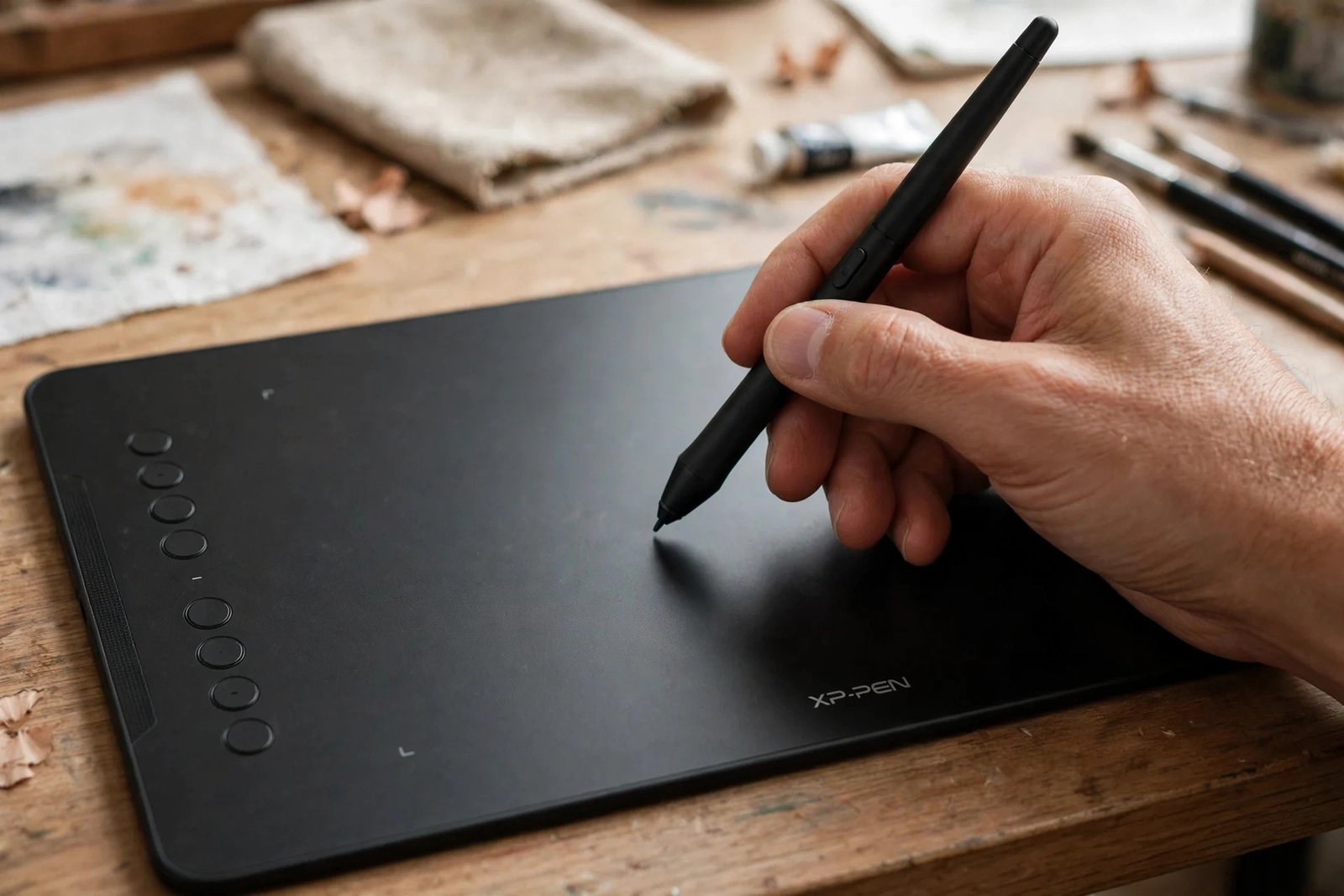
XP-Pen Deco series
Best for: artists who want the largest drawing area for the least money.
Two models cover most buyers. The Deco 01 V2 is the flagship value pick: a 10 x 6.25-inch active area, 8,192 levels of pressure sensitivity, tilt support up to 60 degrees, a battery-free pen, and eight customisable ExpressKeys. The Deco mini7 is the portable version, with a 7 x 4.37-inch active area and the same pressure levels and tilt support in a smaller body.
On paper, the Deco 01 V2 beats every Wacom here: twice the pressure levels, a larger active area, and a lower price. In use, the gap is smaller than the numbers suggest, but the large area is genuinely useful for illustration and photo retouching. The trade-offs are less polished driver software and a plainer software bundle. The Deco 01 V2 is the best screenless tablet for most artists on a budget with a proper desk; the Deco mini7 suits a laptop bag or a small desk.
Huion Inspiroy series
Best for: artists who live on keyboard shortcuts, and anyone who wants the most keys for the money.
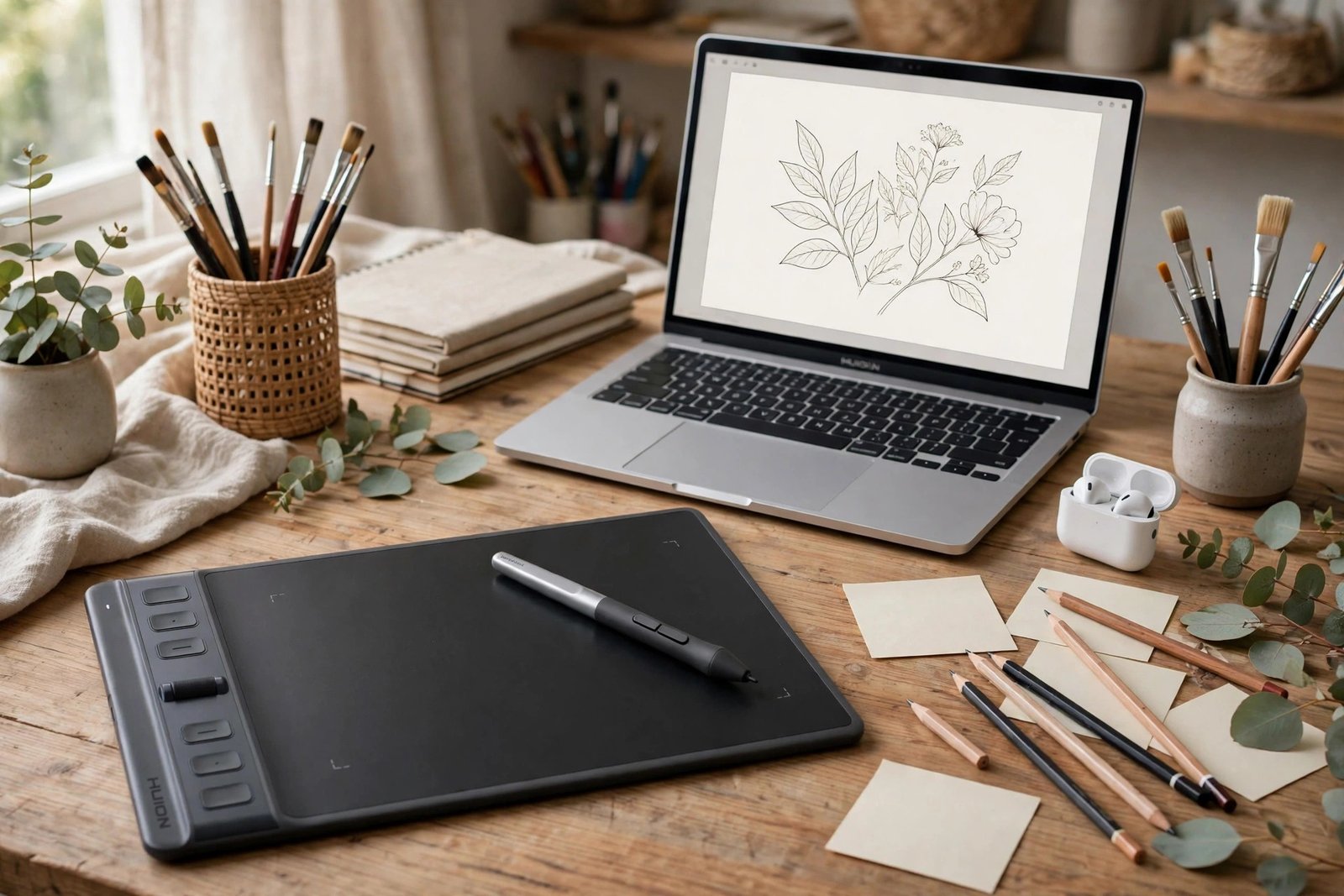
Huion’s Inspiroy range is the shortcut-heavy alternative to XP-Pen. The Inspiroy H1060P is the large model: a 10 x 6.25-inch active area, 8,192 pressure levels, tilt up to 60 degrees, a battery-free pen, and 12 customisable press keys plus 16 soft keys. The Inspiroy H640P is the compact version, with a 6 x 4-inch active area, 8,192 pressure levels, and six press keys.
The H1060P suits Photoshop or Clip Studio Paint users who want undo, brush size, zoom and layer controls under their left hand. The H640P is one of the cheapest credible drawing tablets available — though the Intuos S has better driver support. If you draw on the move, see our guide to the best iPad cases.
Pen vs mouse: how the workflow changes
A mouse is a pointing device: you move it, click, and drag. A pen tablet is a drawing device: you hold the pen like a pencil and draw, while the tablet translates pressure, tilt and position into brush strokes.
Undo, brush size and zoom move to the ExpressKeys or your keyboard hand. You learn to hover the pen to move the cursor without drawing, and to lift it to stop a stroke. Expect a week of awkwardness, but most artists adjust within a few days. Keep the mouse plugged in for menus and browsing; use the pen for drawing.
Screenless tablet or pen display: which should you buy?
Buy a screenless tablet if you already have a good monitor and work at a desk. A screenless tablet costs a fraction of a pen display, weighs less, and lets you use a large, colour-accurate monitor. That covers most beginners, students, hobbyists and photo editors.
Buy a pen display if you need to see your hand on the artwork — for precise inking, tracing, calligraphy, or animation. A pen display also suits artists who never adjusted to the hand-eye split after a week or two of trying. The cost is real: a decent pen display costs several times as much. A third option is a tablet computer such as an iPad with a stylus, which suits portable sketching but is a different budget. Chromebook owners should note that the Wacom Intuos and Wacom One tablets list Chromebook compatibility — see our Chromebook vs iPad for school guide.
A five-point checklist before you buy
If any answer is unclear, check the manufacturer’s specification page rather than a retail listing.
- How big is your desk — and your monitor? A large active area suits a large desk; a small tablet suits a laptop.
- Which software will you use? Check the drivers support your operating system and art software.
- Do you need shortcut keys? Huion offers the most keys; Wacom One offers none.
- Will you travel with it? The Intuos S and Deco mini7 fit a laptop bag; the Deco 01 V2 and H1060P are desk tablets.
- Are you buying a screen by mistake? The Wacom One pen tablet has no screen; the Wacom One pen display does.
Frequently asked questions
Are drawing tablets without a screen hard to use?
They feel strange at first, because you draw on the tablet while looking at the monitor. Most people adjust within a week.
How many pressure levels do I need?
4,096 levels are enough for smooth, natural lines — that is what Wacom’s Intuos and One tablets offer. 8,192 levels, offered by XP-Pen and Huion, give finer control in theory, but most artists cannot tell the difference in practice.
Can I use a drawing tablet with a Chromebook?
Yes, for some models. Wacom lists Chromebook compatibility for the Intuos and Wacom One pen tablets, and XP-Pen lists ChromeOS support for the Deco series.
Do I need a computer to use a pen tablet?
Yes. A screenless pen tablet has no computer inside — it is an input device for a Windows PC, Mac, Chromebook or compatible Android device. If you want to draw without a computer, you need a tablet computer such as an iPad.
Is a Wacom tablet worth the extra cost over XP-Pen or Huion?
For beginners, often yes: Wacom’s drivers are the most reliable and its software bundle the most generous. For experienced artists, XP-Pen and Huion offer more for less money.
Can a drawing tablet replace a mouse?
For drawing and photo editing, yes — most artists end up preferring the pen. For general computer use, keep the mouse.
The bottom line
The best drawing tablet without a screen is the one that fits your desk, your software and your budget — not the one with the biggest numbers on the box. Start with the Intuos S for the safest first tablet, the Deco 01 V2 or H1060P for the most space for your money, and the Wacom One pen tablet for Wacom quality at the lowest price. Buy it, give yourself a week to adjust, and draw every day.