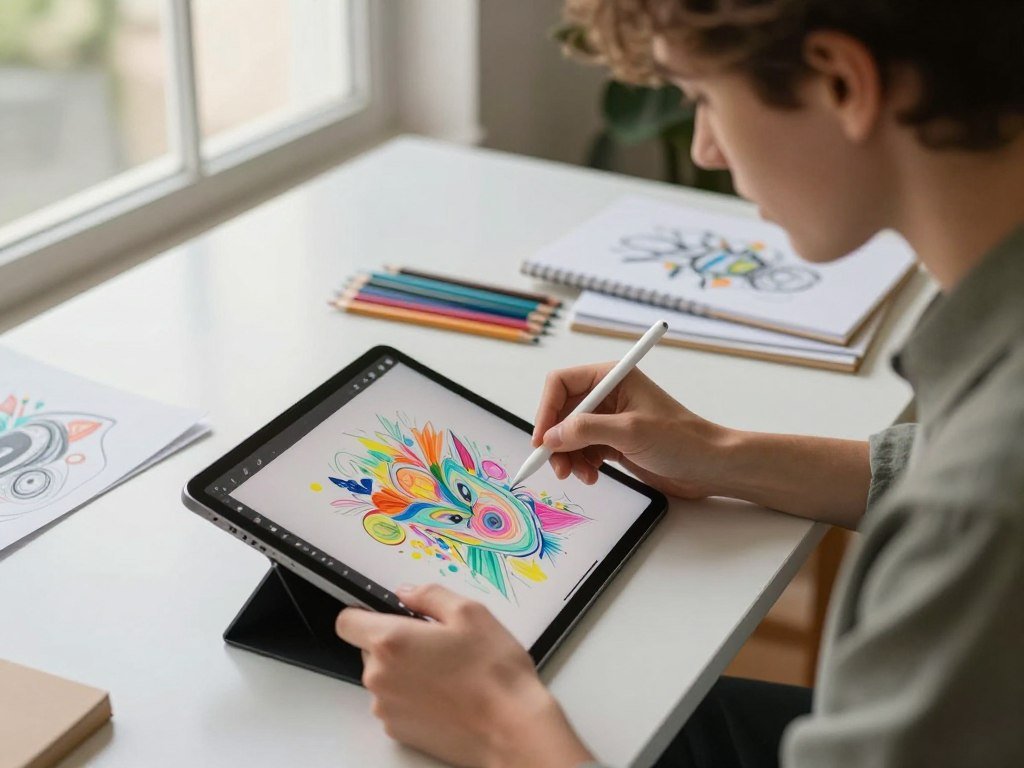
You can start making digital art without buying a premium app, but the right first choice depends on what and where you want to create. Raster artwork is digital artwork built from pixels, which can lose sharpness when enlarged substantially.
Your device matters as much as your experience. You might want to paint a character, build a comic page, make a clean logo, or sketch an idea during a break. Each goal calls for different tools, and some work best in a browser while others need an installed app.
This list helps you compare free and free-tier choices by the art you want to make. A short test on the device you already own is a practical way to find a comfortable creative workflow.
Key Takeaways
- Krita is a strong starting point for desktop painting and illustration.
- Paint offers a simple sketching option for Windows 11 users.
- Inkscape is designed for vector artwork, such as logos and icons.
- Fresco and Sketchbook suit touch-based drawing on supported devices.
- Kleki lets you draw in a browser without installing a desktop app.
Best Free Drawing Software for Different Art Styles
For most desktop painters, Krita is the strongest free starting point, while tablet artists and vector designers may prefer Fresco or Inkscape. These tools cover painting, touch-based creation, vector design, and quick browser sketches.
| Software | Best fit | Platform | Free access |
|---|---|---|---|
| Krita | Painting and illustration | Windows, macOS, Linux | Free and open source |
| Paint | Basic sketches and text-prompt image concepts | Windows 11 | Included with Windows 11 |
| Adobe Fresco | Touch drawing and painting | iPad, iPhone, Windows | Free app |
| Inkscape | Vector artwork, logos, and icons | Windows, macOS, Linux | Free and open source |
| Kleki | Quick browser-based sketches | Web browser | Free |
Krita is the strongest all-round desktop painting pick. For digital drawing, these choices also include touch-based work, vector design, and quick browser sketches. Your device and planned art help narrow the selection.
Paint can turn text prompts into image concepts, which may suit early idea work. If you are comparing AI tools for creative tasks, this 2026 AI chatbot comparison can help you assess how those tools fit your process.
Match the tool to the kind of work you actually plan to make, rather than choosing by feature count alone.
Try to picture a real project, not an imaginary one that uses every feature. A comic page, a phone sketch, and a logo each need a different kind of drawing software. The best free drawing choice for a person who paints daily may frustrate someone who only wants to jot down shapes and notes.
A free app can still have different access terms, and a program included with an operating system may be limited to that system. The table shows the basic fit and access type, while later sections explain what each tool feels like to use.
Match the tool to the kind of work you actually plan to make, rather than choosing by feature count alone.
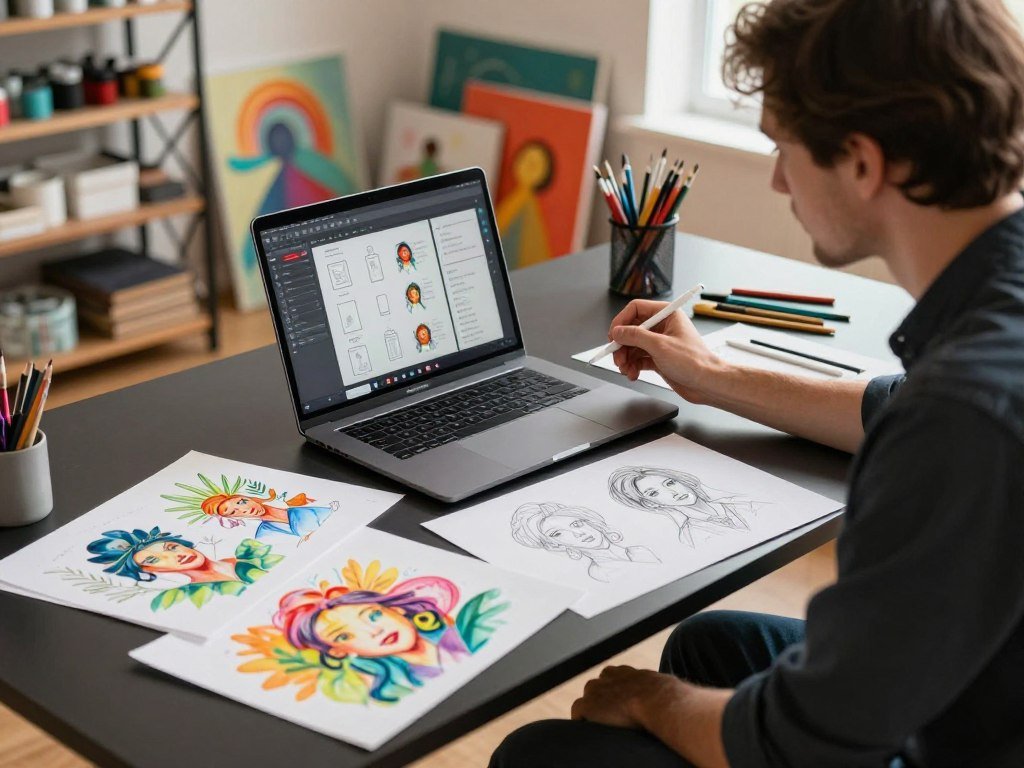
Which Free Drawing Apps Work Best on PC?
Krita is the best first choice for PC artists who want a free painting-focused tool with room to grow. For PC painting, it gives you a broad set of brushes, layers, and art tools without a purchase.
Krita, Paint, and MyPaint each suit a different kind of drawing experience. The best free drawing software for PC depends on whether you want a deep painting workspace or a quick way to sketch.

Krita for painting, illustration, and animation
Krita is free and open source for Windows, macOS, and Linux. Its customizable brushes, layers, and animation tools make it a strong fit for painting and illustration. You can also open PSD files, a format used by Adobe Photoshop.
The interface has many panels and settings, so it can take time to learn. You can change the layout and brush options as your needs grow. Beginners may find the range of tools busy at first, but you can start with a basic brush and blank canvas.
Krita released versions 5.3.4 and 6.0.4 on September 15, 2026, with bug fixes and improvements. That release also brought video exports to Android, which is a separate platform feature, not a desktop export feature. For AI-assisted image ideas, you can also compare ChatGPT alternatives and their tools.
Microsoft Paint for quick sketches and AI-assisted concepts
Paint is included with Windows 11 and works well for quick sketches, simple edits, and rough ideas. It has layers, transparency, refined brushes, and pen support. That makes it more useful for drawing than the basic canvas many people remember.
Paint Image Creator generates images from text prompts. Cocreator combines a sketch with a prompt to refine or reinterpret the idea. These tools can help you explore a concept, but they are not a substitute for drawing every line by hand.
The layout is easy to approach, and the familiar Windows setup can make a first sketch less daunting. Paint is less suited to artists who want a highly customizable painting environment or an extensive animation workflow. Its platform is also limited to Windows 11.
MyPaint for a focused, natural painting workflow
MyPaint is free and open source for Windows, macOS, and Linux. Its infinite canvas suits artists who want to keep sketching outward without planning a fixed page size first. The painting workspace stays focused on the canvas and brush.
That simple approach may feel comfortable if you prefer fewer panels and controls. MyPaint is a narrower tool than Krita, so artists who need a broad set of animation or editing features may want another app. Its brush response can feel different from Krita’s, even when both use similar brush types.
Try the same short sketch in Krita and MyPaint to see which brush response and interface suit your hand.
Which Free Apps Make Comics and Manga Easier?
MediBang Paint is the more direct fit for comic pages, while FireAlpaca is a lightweight alternative for artists who want a simpler setup. For comics, panels and page organization can matter as much as the brush selection.
MediBang Paint includes comic-panel tools, while FireAlpaca offers perspective and comic tools in a lighter interface. Their workflows suit artists who want to draw sequential art without starting in a general-purpose painting app.
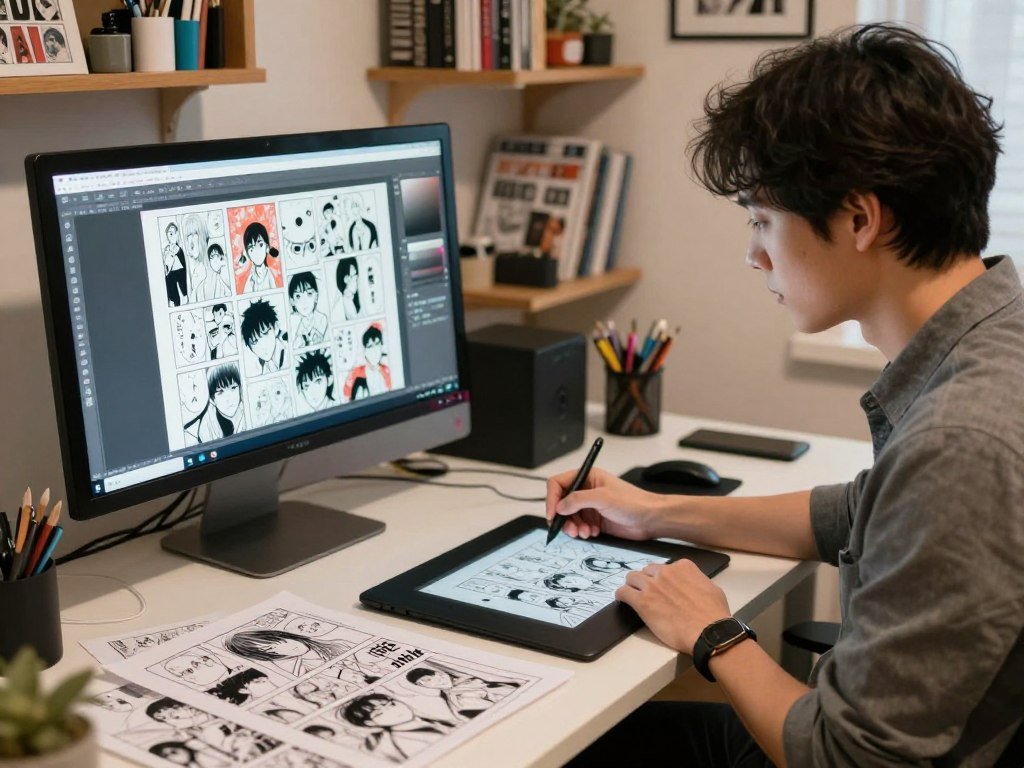
MediBang Paint for panels and comic workflows
MediBang Paint supports Windows, macOS, iOS, and Android. Its comic-panel tools help you build page layouts, while cloud sync can keep files available across supported devices. That can help if you start a page on a computer and continue on a tablet.
The free version includes ads and optional premium features. Ads may interrupt the work area, and some extras may require payment. The app’s range of platforms is useful, but the exact experience can differ between mobile and desktop versions.
Cloud sync is not essential if you work on one device and save files locally. A single-device setup can be simpler, especially if you prefer to keep every page in your own folders. You can still use the comic tools without making cloud access central to your routine.
FireAlpaca for lightweight illustration and comic tools
FireAlpaca is free for Windows, macOS, and Linux. Its lighter interface can make the canvas feel less crowded, which suits artists who want to begin drawing without setting up many panels. It includes perspective and comic tools for planned backgrounds and page work.
Those tools can help with straight lines, panels, and perspective guides. FireAlpaca is a practical pick for a simpler workflow, but artists who need a broader feature set may prefer another choice. A smaller interface can feel clear, though it may not cover every task in a large project.
Before you commit to a long comic, test how the app saves and organizes multi-page work. Check whether each page stays easy to find after you close the program. A neat file setup matters once sketches, finished pages, and revisions begin to pile up.
Before building a long comic project, test how your chosen app saves and organizes multi-page work.
What Free Software Works for Vector Art and Image Editing?
Choose Inkscape for artwork that needs to scale cleanly, and GIMP when editing pixels or photographs is central to the job. The main difference is how each program builds an image.
Vector artwork stays crisp as you resize it, while raster artwork is made of pixels. Inkscape is built for vector graphics, and GIMP is better suited to image editing and raster-based art.
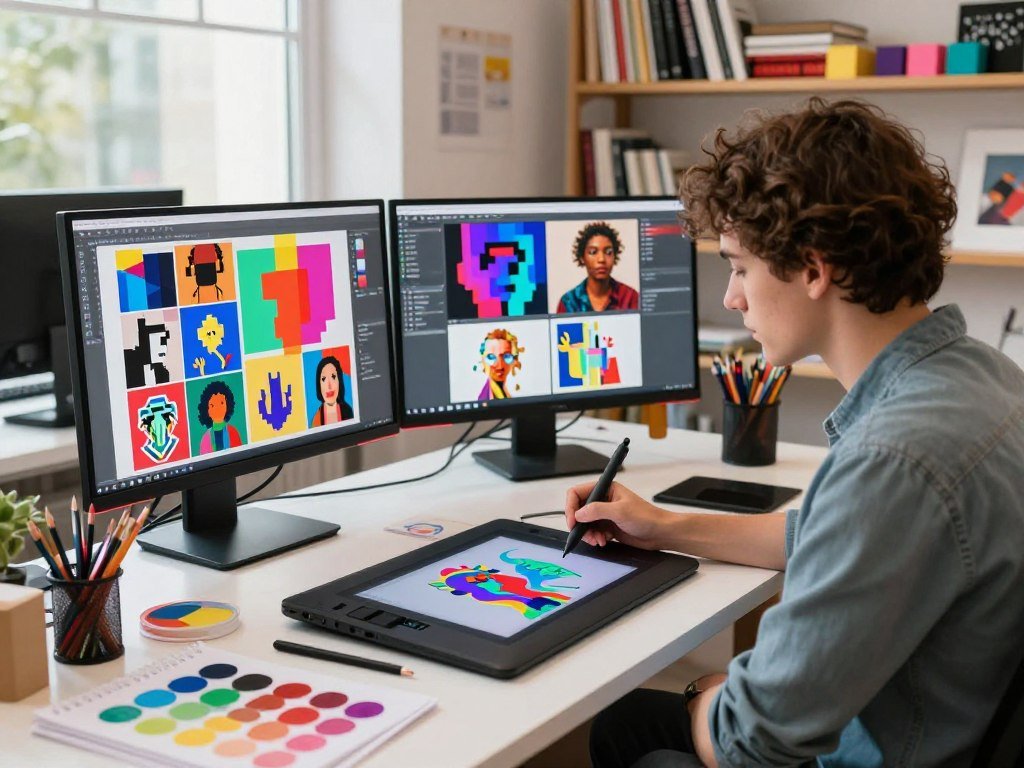
Inkscape for scalable vector artwork
Inkscape is free and open source for Windows, macOS, and Linux. It focuses on paths and shapes that you can change without painting each pixel. That makes it a good fit for logos, icons, diagrams, and other design work that may need several sizes.
A logo made from vector paths can be resized for a small icon or a large sign while keeping clean edges. You can adjust points, lines, and shapes instead of erasing and repainting parts of a pixel image. This gives you more control over precise design work.
Vector tools can feel unfamiliar if you usually paint with brushes. Inkscape asks you to work with objects, paths, and points, so its workflow differs from a painting canvas. It is not meant to replace a raster painting app for every kind of illustration.
GIMP for image editing and raster-based art
GIMP is free and open source for Windows, macOS, and Linux. It supports layers, masks, filters, and plugins, which help with photo edits, image composition, and pixel-based artwork. You can combine images, adjust colors, and refine selected parts of a picture.
GIMP can also support painted work, but its broader role is image editing rather than painting-first art. Its interface has many tools and options, so new users may need time to learn where controls live. That range can help when a project includes several kinds of edits.
Choose based on the finished file you need. A logo or icon often benefits from paths that stay clear at many sizes. A photo edit or layered pixel image belongs more naturally in GIMP’s workflow.
Decide whether the final work must resize cleanly or remain a pixel-based image before choosing between these two workflows.
Which Free Drawing Apps Fit Tablets and Phones?
For a touch-first painting experience, Adobe Fresco is a strong free option, while Sketchbook is a flexible choice for sketching. On a tablet, the stylus and screen shape how each app feels in your hand.
Check pressure sensitivity on your own device before starting detailed work. Pressure sensitivity is the stylus response that changes a stroke based on how firmly you press.
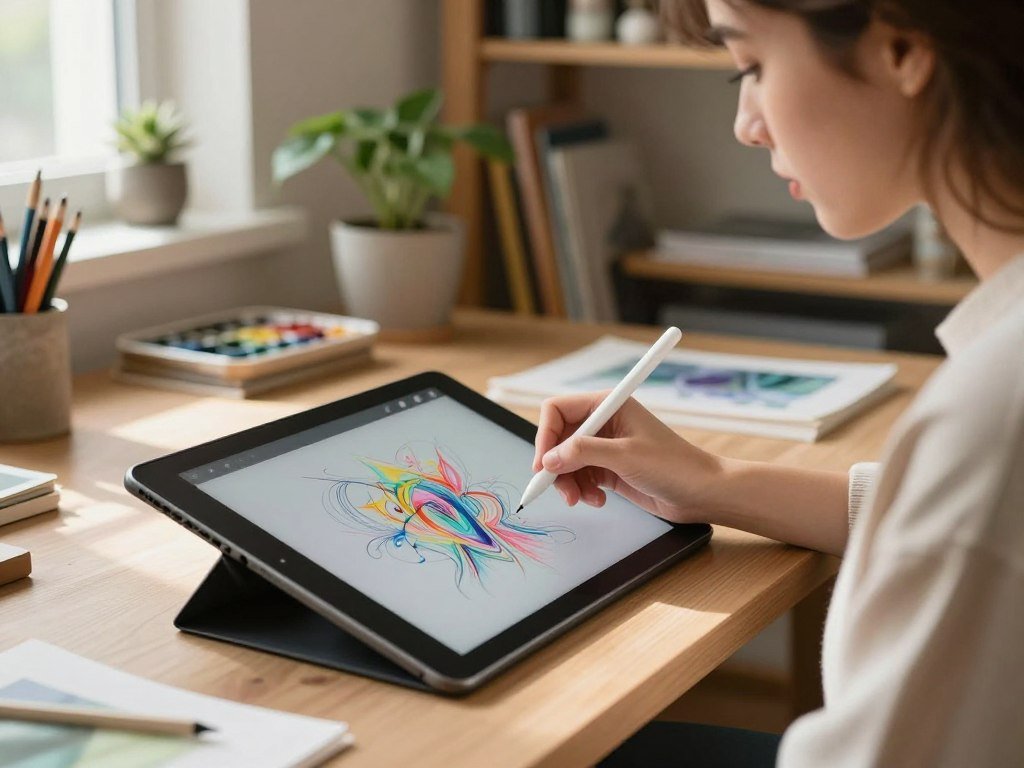
Adobe Fresco for touch-based painting
Adobe Fresco is available for iPad, iPhone, and Windows. It provides vector, raster, and live brushes, with a workflow made for touch drawing and painting. Live brushes can make painting feel closer to working with real media.
That mix of brush types can help if you like switching between crisp shapes and pixel-based strokes. The interface is designed for touch, which can feel natural on a tablet or phone. Your screen size and device controls still affect how easy it is to make precise marks.
Fresco is not available on every mobile platform, and its tools may not act the same on each supported device. A brush feature on one platform may have different controls or limits on another. Check how it works with the device you plan to use.
Sketchbook for sketching across devices
Sketchbook is available on Android, iOS, Windows, and Mac. Its clean interface keeps attention on the canvas, while brushes and layer support give you room for studies and finished sketches. The controls are arranged to keep common drawing tasks easy to reach.
Sketchbook has a free-to-use option and optional premium extras. Free access and paid features may differ by platform, so the app experience can change between devices. The simpler workspace may suit quick sketching, though it may not have every tool you expect from a full painting program.
Stylus support also depends on the device, operating system, and app version. A stylus may draw a line without changing its width by pressure. Test pressure response with light and firm strokes before you begin a detailed piece.
Before starting a detailed piece, make a test stroke with the stylus you intend to use.
Can You Draw Online for Free Without Installing an App?
Yes, you can draw online for free in Kleki without installing a desktop program. For a quick start, open the web-based app in a browser and use its canvas for sketches or practice.
Kleki includes layers and blend modes, but pressure sensitivity depends on your device and browser. Browser tools are handy for quick work, while artists who need extensive painting or animation features may prefer installed software.
A free drawing website can be useful when you want to test an idea on a shared computer or avoid an installation. The drawing experience can vary with the browser and device. Try a small file before trusting a browser canvas with a project you cannot easily replace.
Check these basics before making more than a quick sketch:
- Open the canvas.
- Test brush size and undo.
- Check whether layers work as needed.
- Export a small image and inspect the result.
PNG and JPEG are common image formats for exported artwork. A small export test lets you see whether the file opens as expected outside the browser. It also gives you a chance to spot any change in color or image quality.
Export a test image before committing important work to any browser-based tool.
Which Free Drawing Software Is Best for Beginners on PC?
For a first PC sketch, start with Paint; choose Krita if you already want a fuller painting toolkit. For most beginners, Paint makes it easy to test a pen and draw without learning a large set of controls first.
Paint is an easy starting point, while Krita is a stronger next step for painting-focused work. There is no need to find one best free option for every workflow.
Paint comes with Windows 11 and supports layers, transparency, refined brushes, and pen input. Those features leave room for more than a single rough sketch, while the familiar setup can make the first session feel simple.
Krita is free and open source, and it supports Windows, macOS, and Linux. Its wider painting toolkit may suit you once you want more control over brushes, layers, and illustration. Beginners often gain more from an interface they can use comfortably than from a long feature list.
Use this checklist to test a PC drawing app:
- Confirm operating-system compatibility.
- Check that your preferred stylus works.
- Try the default brushes.
- Test layers and undo.
- Save and reopen a sample file.
These checks can catch a basic problem before you spend time on a finished drawing. A file that saves and opens as expected gives you a safe place to practice. You can then decide whether the current app meets your needs.
Keep the first test project small enough to try the main tools without getting stuck in setup.
How Can You Tell Whether a Drawing App Is Truly Free?
“Free” can mean open-source software, an included Windows app, an ad-supported tier, optional paid extras, or a limited trial. Read the access model before you rely on a tool for ongoing work.
A free trial is time-limited access, not a permanently free version. The examples below show how free drawing software can differ in what you receive and what limits may apply.
| Access model | Examples | What you get | Limitation |
|---|---|---|---|
| Free and open source | Krita, GIMP, Inkscape | No purchase required to use the software | Follow each program’s license |
| Included with an operating system | Microsoft Paint | Included with Windows 11 | Windows-only availability |
| Free with ads or optional extras | MediBang Paint, Sketchbook | Free access with optional premium features or ads | Check current app terms |
| Time-limited trial | Clip Studio Paint | 3-month free trial | Trial access is not a permanent free version |
Krita, GIMP, and Inkscape are free and open-source programs. Free and open-source software means users can run, study, modify, and share it under its license. That is different from an app that offers free access with ads or charges for extra features.
Krita lets you create and sell artwork made with the program. Separate rights still apply to imported brushes, images, fonts, and other assets. Read each asset’s terms if you plan to use it in work for sale or promotion.
Use this checklist to review practical limits beyond the access model:
- Check whether an account is needed.
- Confirm offline access.
- Test export options.
- Review the license for any third-party assets.
Clip Studio Paint supports Windows, macOS, iPad, iPhone, and Android, with a 3-month free trial. A trial can give you time to test an app, but access ends when the trial period ends unless you choose another access option.
Do not treat a time-limited trial as a permanent free version when planning a long project.
Check the app’s current access terms before building a project around features you may later need to pay for.
Conclusion
A good first app is the one that lets you start creating comfortably on the device you have. Your art style matters too: a painting canvas, a comic page, and a clean logo call for different tools.
Start with a free option that covers the work you actually do. You do not need every feature before making your first finished piece, and you can switch later if your needs change.
Install or open your leading choice, make one small test sketch, and keep it only if the workflow feels right.
FAQ
What is the difference between drawing and sketching?
Sketching is usually exploratory or preliminary, while drawing can be loose or finished. A sketch may help you plan a pose, layout, or idea before you add detail. The terms overlap in everyday use, so artists may call a quick study a drawing or describe early drawing as sketching.
Is tracing art illegal?
Tracing is not automatically illegal, but copying protected work and sharing it without permission can raise copyright issues. The result, the source material, and how you use it all matter. Fair use depends on the circumstances, so tracing a reference for private practice differs from publishing or selling a close copy.
Is Krita completely free?
Yes, Krita is free and open source, and you can use it to create and sell artwork. Its license applies to the software, not to every image or brush you import. Check the separate rights for photos, fonts, textures, and other assets before including them in paid work.
Can I use free drawing software for commercial work?
Yes, many free drawing programs allow commercial work, but check the software license and the terms for any assets you use. A brush pack, font, stock image, or texture may have its own limits. Keep a record of asset terms when a project will be sold, shared, or used to promote a business.
Can free drawing apps open PSD files?
Some free drawing apps can open PSD files, including Krita. Compatibility with layers and specific effects can differ, so an imported file may not look exactly the same. Save a copy before opening it, then check the layers, text, masks, and effects that matter to your project.
Do free drawing apps work offline?
Many installed drawing apps support offline work, but browser-based tools and cloud sync may need an internet connection. You can often draw locally in a desktop app without signing in, though some features may rely on online services. Test offline access before traveling or working somewhere with limited internet.



