
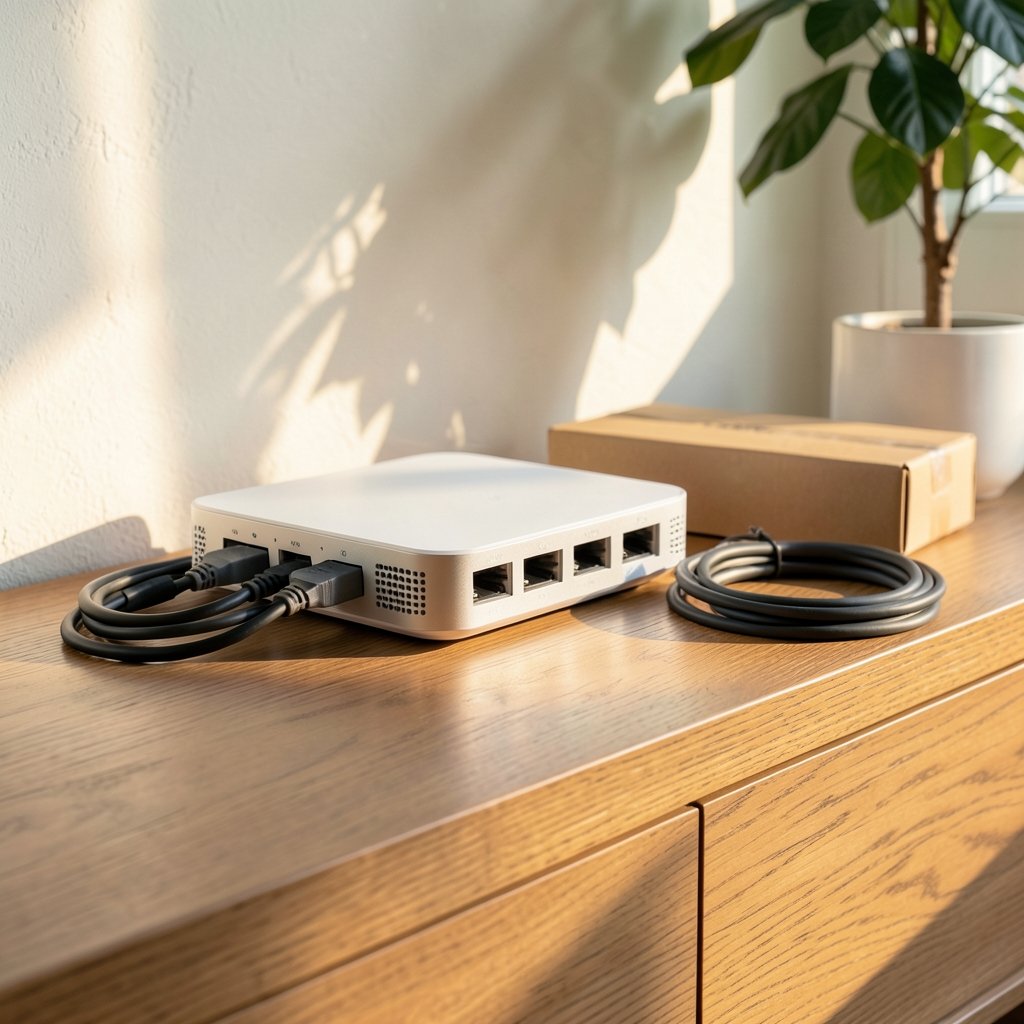
Quick Answer: What are the best gaming routers for beginners?
The best gaming router for a beginner is a solid mid-range Wi-Fi 6 model with at least four Gigabit LAN ports, working quality-of-service (QoS) controls, and automatic firmware updates. You do not need the most expensive box on the shelf; you need one that lets you plug in a cable and prioritize your game traffic.
Options differ in three ways: Wi-Fi 6 versus Wi-Fi 7 (the newer standard costs more and mainly helps crowded homes), built-in QoS versus basic traffic controls, and mesh-ready designs versus single-unit routers. A mesh system makes sense for large homes, while a single strong router suits apartments.
Before buying, compare Wi-Fi standard, LAN port count and speed, QoS quality, bufferbloat controls, firmware update policy, and price.
Why “Gaming Router” Labels Deserve Some Skepticism
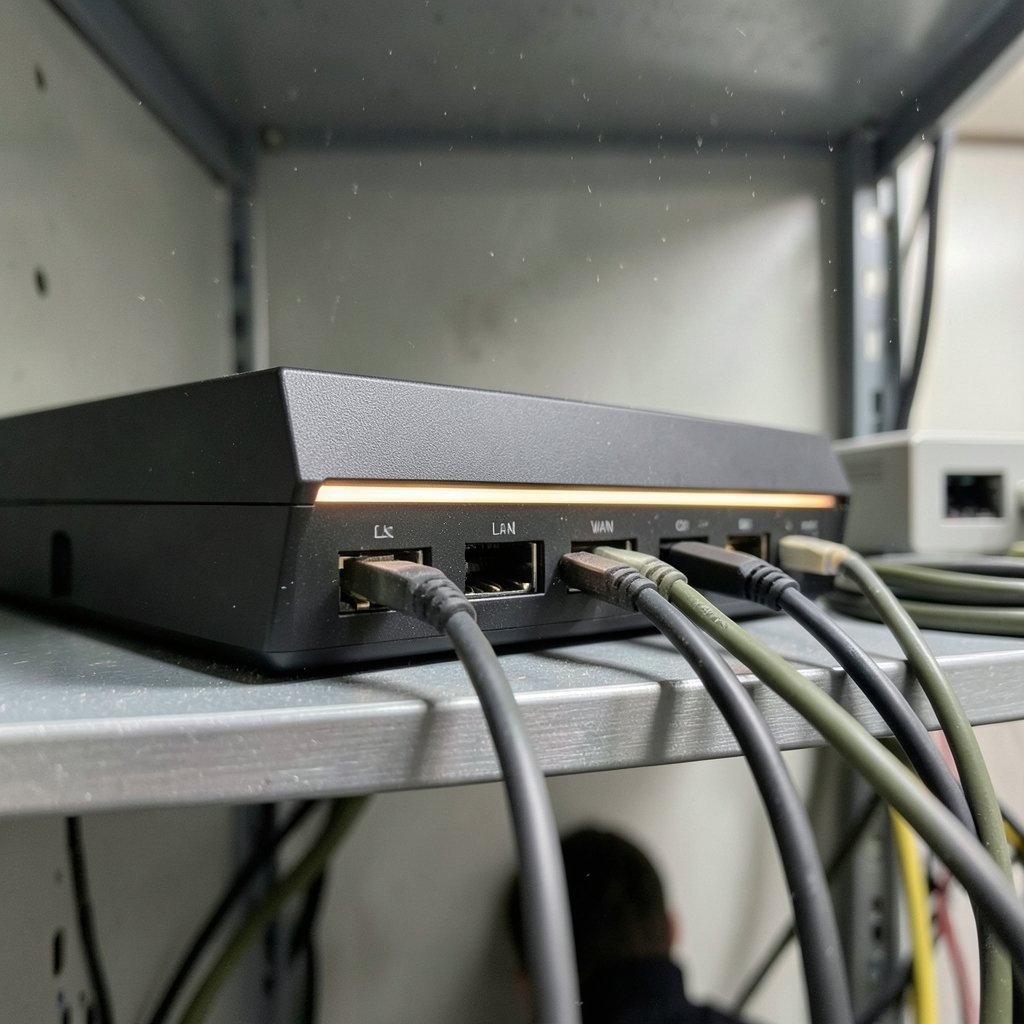
Walk down any electronics aisle and you will see black, angular boxes with glowing accents and names that sound like sports cars. They promise lower ping, faster downloads, and victory. Here is the honest version: “gaming router” is largely a marketing category. The measurable differences between a gaming-branded router and a good mid-range model come down to a few practical things: how well the QoS is implemented, how many LAN ports exist and how fast they are, and whether one radio band is reserved for your gaming devices. RGB lighting has never won a match.
That does not mean gaming routers are useless. It means beginners should shop for features, not logos. A router with excellent QoS and four Gigabit ports will beat a flashier model with weak traffic controls every time.
There is also a budget reality worth naming. If money is tight across your whole setup, a router is one line item among several. Readers weighing a laptop purchase against networking gear may find a guide to the best gaming laptops under 1000 that actually fits the budget useful for balancing priorities. The point is simple: spend where the bottleneck actually is.
Start With the Basics: What a Router Actually Does for Gaming
A router moves traffic between your devices and your internet provider. For gaming, three things matter more than raw speed numbers on the box.
Latency and jitter. Latency is delay; jitter is how much that delay wobbles. Stable latency feels smooth even if the number is modest. Wobbly latency feels terrible even if the average looks fine.
Congestion handling. When someone else in the house streams a show or downloads a game update, your connection saturates. Without traffic management, latency spikes. This is called bufferbloat, and it is a common cause of “lag” that a faster internet plan will not fix. Modern queue management features address it, and beginner-friendly routers increasingly expose this as a simple toggle.
Wired options. Ethernet beats Wi-Fi for latency-sensitive gaming, full stop. A router with enough LAN ports (typically four) lets a console or PC connect by cable. For most beginners, this single change delivers the biggest latency and jitter improvement available.
The Features That Actually Matter
Wi-Fi 6 as the sensible baseline
Wi-Fi 6 (802.11ax) is the standard to target. It handles many devices at once far better than older Wi-Fi 5 gear, and prices have settled. Wi-Fi 6E adds a 6 GHz band, and Wi-Fi 7 (802.11be) arrived with certification in early 2024. Both depend on 6 GHz availability, which varies by country, so check local rules before paying extra. For a single gaming device, the practical gains of Wi-Fi 7 over good Wi-Fi 6 are modest; its headline features mainly help dense, multi-device homes.
QoS: the feature that earns its keep
Quality of service (QoS) prioritization matters most in shared households. It lets the router push gaming traffic ahead of streaming and downloads. Implementation quality varies widely by vendor, and labels like “game accelerator” or “gaming port” are not standardized. Treat vendor claims skeptically and look for routers that let you prioritize by device or application.
Bufferbloat controls
Look for smart queue management (SQM) or similar toggles. If the router’s admin panel has a one-click “reduce latency under load” option, that is a genuinely useful beginner feature.
Ports, NAT, and console friendliness
On PlayStation and Xbox, a “strict” or “moderate” NAT type can block matchmaking or voice chat. UPnP, enabled by default on most consumer routers, usually fixes this; manual port forwarding is the fallback. Check that the router has at least four Gigabit LAN ports and, if you have multi-Gig internet, consider a 2.5G WAN port.
Firmware updates
Consumer routers are a common attack target. Enable automatic firmware updates where offered, and change the default admin password on day one.
| Feature | Why it matters | Beginner priority |
|---|---|---|
| Wi-Fi 6 | Handles many devices well | High |
| 4+ Gigabit LAN ports | Wired gaming for console or PC | High |
| Working QoS | Prioritizes game traffic | High |
| Bufferbloat/SQM toggle | Stops latency spikes under load | Medium-high |
| UPnP support | Fixes strict NAT on consoles | Medium |
| 2.5G WAN port | Only useful with multi-Gig plans | Low-medium |
| RGB lighting | Looks nice, changes nothing | Ignore |
Matching the Router to Your Home
Small apartment, one or two gamers
A single Wi-Fi 6 router with strong QoS is plenty. Place it centrally, use the 5 GHz band for gaming devices, and connect the console or PC by cable if possible. This is the cheapest path to a good experience.
Large house or thick walls
A mesh system with wired backhaul between nodes reduces latency compared with wireless backhaul. Mesh nodes that talk to each other over Ethernet cable are dramatically more stable. If running cable is impossible, place nodes where the signal is still strong, not at the far dead zone.
Crowded households
This is where QoS and bufferbloat controls earn their price. A household with four streamers and two gamers needs traffic management more than raw throughput. A mid-range router with good QoS will outperform a premium router with weak controls.
Console-first setups
Prioritize LAN ports and UPnP reliability. A dedicated gaming port that gives one device priority is a nice bonus, though its real-world effect depends on the implementation.
Common Mistakes Beginners Make
Buying speed instead of stability. An 800 Mbps plan with bufferbloat feels worse than a 200 Mbps plan with good queue management.
Ignoring the cable. Wi-Fi is convenient, but a $5 Ethernet cable often beats a $200 router upgrade for latency.
Placing the router in a closet. Walls, metal, and appliances degrade signal. Central placement and a bit of height are free performance wins.
Skipping the admin panel. Most beginners never open the router settings. Ten minutes spent enabling QoS, checking NAT type, and setting a strong password pays off for years.
Chasing Wi-Fi 7 too early. Unless your home is packed with devices or your country has wide 6 GHz availability, good Wi-Fi 6 is the smarter buy.
Forgetting the rest of the network. A router is one piece. If you are still assembling a setup, a step-by-step guide to build a gaming PC for beginners step by step on a first build covers how the pieces fit together.
How to Set Up a New Router in Under an Hour
- Connect the router to your modem and power it on.
- Open the admin panel using the address printed on the router label.
- Change the default admin password immediately.
- Update the firmware, then enable automatic updates.
- Name your Wi-Fi networks clearly (for example, split 2.4 GHz and 5 GHz names).
- Enable QoS and prioritize your gaming device.
- Turn on any bufferbloat or SQM toggle the router offers.
- Confirm UPnP is enabled, then test NAT type on your console.
- Plug the console or PC into a LAN port with an Ethernet cable.
- Run a speed and latency test while other devices stream, to check for spikes.
That last step matters. Testing under load reveals bufferbloat in a way an idle speed test never will.
What About Wi-Fi 7 and 6E?
Wi-Fi 7’s main features, multi-link operation and wider 320 MHz channels, mostly help homes with many devices competing for airtime. Early independent testing is limited, and results vary by client hardware. If your phone and console are older, they cannot use the new features anyway.
Wi-Fi 6E and Wi-Fi 7 both lean on the 6 GHz band, and regulators differ on whether that band is fully open, partially open, or closed. Paying for 6E or 7 in a country with limited 6 GHz access is money wasted. Check before you buy.
The balanced position: buy Wi-Fi 6 now if your budget is moderate, and treat 6E or 7 as a premium upgrade for crowded homes with compatible devices.
Budget Tiers and What You Get
| Tier | Typical experience | Best for |
|---|---|---|
| Entry | Wi-Fi 6, basic QoS, 4 LAN ports | Apartments, single gamer |
| Mid-range | Better QoS, SQM toggle, stronger radios | Families, mixed streaming and gaming |
| Premium | Wi-Fi 6E/7, 2.5G ports, advanced controls | Dense homes, multi-Gig internet |
Notice what is missing: nowhere does the table say “more RGB equals more wins.” The pattern holds across every tier. You are paying for traffic management, ports, and radio quality.
When the Router Is Not the Problem
Sometimes the router is fine and something else is causing grief. If pages load slowly but games run smoothly, the issue may be elsewhere on the network. A guide on whether a Wi-Fi router is worth buying for beginners in everyday use helps separate genuine hardware limits from configuration problems.
Similarly, if a monitor looks blurry or washed out during long sessions, the display, not the router, deserves attention. A comparison of gaming monitor versus TV and how room lighting changes viewing explains why the same screen can look great at noon and awful at night. And if you are simply deciding whether new display hardware is warranted, a practical take on whether a gaming monitor is worth buying for beginners covers the trade-offs without hype.
For readers building a broader home setup, understanding how a web application firewall works for beginners and what it blocks clarifies the difference between protecting a website and protecting a home network. They are not the same job, and a gaming router does not replace either.
Conclusion
The best gaming router for a beginner is not the most expensive or the most aggressively styled one. It is a Wi-Fi 6 model with at least four Gigabit LAN ports, QoS that genuinely prioritizes your device, a bufferbloat toggle, and automatic firmware updates. Place it centrally, plug in a cable where you can, enable UPnP for console matchmaking, and test your connection while the rest of the house is streaming.
Wi-Fi 6E and Wi-Fi 7 are worth considering only if your country has broad 6 GHz access and your home is crowded with modern devices. Otherwise, a sensible mid-range router set up properly will outperform a premium box left on default settings. Buy for features, configure it once, and spend the saved money on games.
FAQ
Do I need a gaming router to play online?
No. Any modern router with a stable connection can handle online play. A gaming-labeled router helps mainly through better QoS, more LAN ports, and dedicated traffic prioritization. A well-configured mid-range router covers most beginners.
Is Wi-Fi 6 enough, or should I wait for Wi-Fi 7?
Wi-Fi 6 is enough for most households. Wi-Fi 7 helps dense homes with many modern devices, but single-device gaming gains over good Wi-Fi 6 are modest, and 6 GHz availability varies by country.
Why does my ping spike when someone else streams?
That is likely bufferbloat: latency rises when the connection saturates. Look for a router with smart queue management or a latency-under-load toggle, and enable QoS for your gaming device.
Should I connect my console by cable or Wi-Fi?
Cable is better for latency and jitter. Ethernet removes wireless interference entirely. If cable is impossible, use the 5 GHz band and keep the router in line of sight where you can.
What does strict NAT mean on my console?
Strict or moderate NAT can block matchmaking and voice chat. Enable UPnP on the router first; if that fails, set up manual port forwarding for your console.
How often should I update router firmware?
Enable automatic updates if the router offers them, and check manually every few months. Firmware patches close security holes, and consumer routers are a common attack target.



