

Roughly one in five laptop users still reaches for an external mouse, and MacBook owners are no exception. Apple’s trackpad is genuinely excellent, but for spreadsheet work, design software, or long editing sessions, a mouse reduces wrist strain and speeds up precision tasks. The catch: not every mouse plays nicely with macOS. Scroll direction feels backwards, side buttons do nothing, and some wireless models stutter on Bluetooth.
This guide breaks down what matters when choosing a mouse for a MacBook, which models earn their price, and the mistakes that trip up most buyers. (Best usb c hubs for macbook laptops)
Why MacBook Users Need to Shop Differently
A mouse built for Windows is not automatically a good match for a Mac. Three things separate a smooth experience from a frustrating one.
Port reality. Since 2016, MacBook Pro models have shipped without USB-A ports, and the MacBook Air followed suit. Many mice rely on a USB-A dongle for their most reliable connection. If the mouse is dongle-only, you need a hub or adapter. That is why MacBook owners often pair a new mouse with a good USB-C hub before committing to dongle-based gear.
Software support. Extra buttons, gesture mapping, and DPI profiles depend on vendor software. Some utilities are Windows-only or lag behind macOS releases. Always check the manufacturer’s compatibility page and note its last-updated date rather than assuming support.
Scroll behavior. macOS uses “natural scrolling” by default, which feels inverted to many Windows converts. You can flip it in System Settings under Mouse, but some third-party drivers override the system setting, so test scrolling before you settle in.
What to Look For in a MacBook Mouse
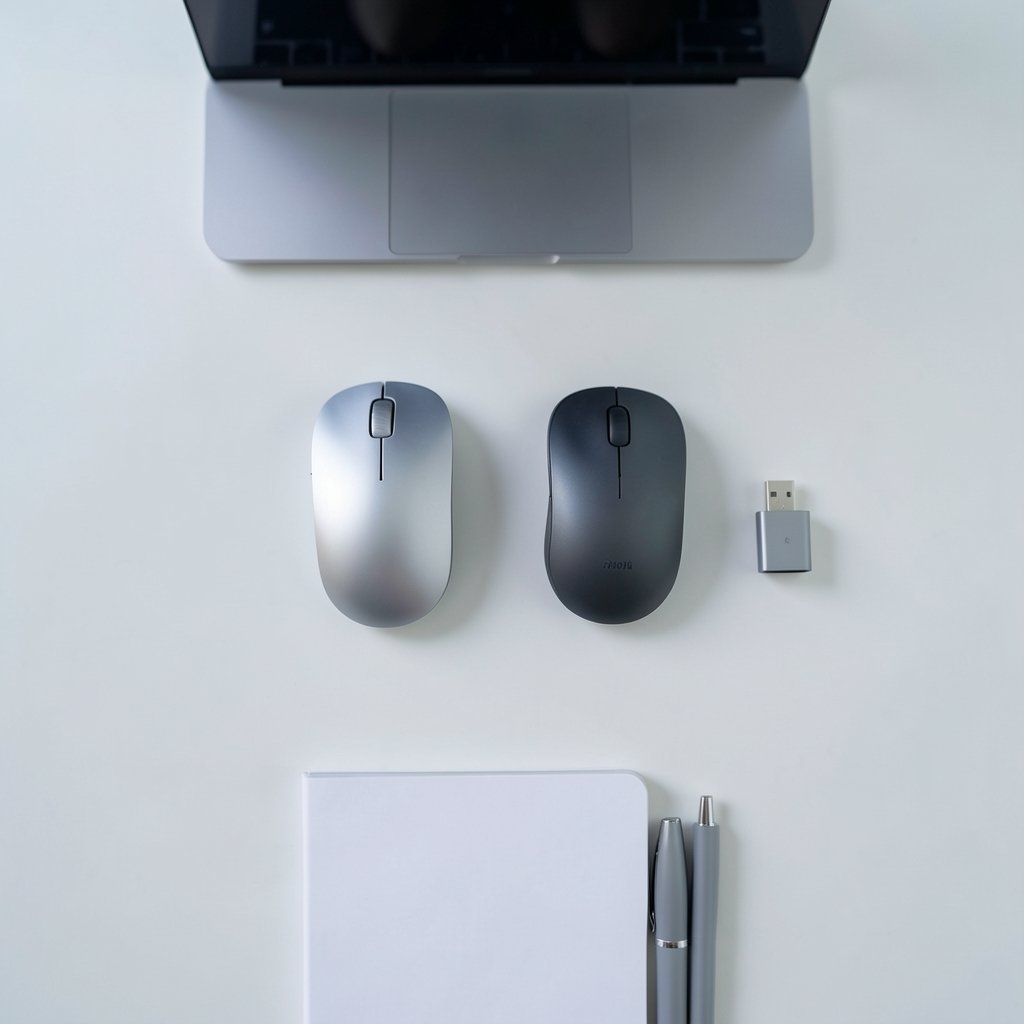
Before brand names, get the criteria right. A mouse that fits your hand and workflow beats one that wins a spec sheet.
| Feature | Why It Matters on a MacBook | Practical Tip |
|---|---|---|
| Connectivity | Bluetooth avoids dongles entirely; 2.4 GHz dongles are more stable but need USB-A | Prefer Bluetooth or a USB-C receiver |
| macOS software | Adds button remapping and gestures | Confirm current macOS support on the vendor page |
| Ergonomics | Prevents wrist strain in long sessions | Match shape to grip style: palm, claw, or fingertip |
| Battery | Built-in cells need charging; AA batteries swap instantly | Check charge port type (USB-C is ideal) |
| Portability | Thin, light models suit travel | Weigh flat travel mice against desk comfort |
| Multi-device switching | Jump between MacBook, iPad, and PC | Look for a dedicated switch button |
Bluetooth vs. Dongle: The Trade-Off Nobody Explains
Bluetooth is the cleanest option for a MacBook. No adapter, no lost receiver, one less port occupied. The downside is that Bluetooth can be more susceptible to interference in crowded wireless environments, and wake-from-sleep can occasionally lag.
A 2.4 GHz dongle usually delivers a more consistent connection, which matters for gaming and precision work. But on a modern MacBook, that dongle needs a USB-C adapter or hub. If you already carry a hub, dongle-based mice are a fine choice. If you travel light, Bluetooth wins. (Best usb c hub for macbook air)
The best setup is often both: a mouse that supports Bluetooth and ships with a dongle, so you can switch depending on the day.
Ergonomics: The Spec Sheet Won’t Save Your Wrist
Most buying mistakes happen here. People order the thinnest, sleekest mouse, then discover after a week of eight-hour days that their hand cramps. Flat travel mice are wonderful in a bag and punishing at a desk.
A few practical rules from common ergonomic guidance:
- Match the mouse to your grip. Palm grippers need a taller, longer body; fingertip users can go small and flat.
- Keep the wrist neutral, not bent upward. A slight tilt or vertical design helps some users.
- If you work long hours, consider alternating between mouse and trackpad to vary hand position.
Apple’s own Magic Mouse is a case study in this tension. Its low profile and touch surface enable swipe gestures, but its shape offers little palm support, and its charging port sits on the underside, meaning you cannot use it while charging. It is a beautiful object; it is not an ergonomic one. (Apple Support: Connect a wireless mouse to your Mac)
The Best Mice for MacBook by Use Case
There is no single winner. The right pick depends on whether you prioritize portability, comfort, precision, or budget.
Best All-Rounder: Logitech MX Mouse Line
The Logitech MX mouse line is the default recommendation for Mac-heavy workflows. It pairs over Bluetooth with up to three devices, charges via USB-C on recent models, and its companion software supports macOS with button remapping and per-app profiles. The sculpted shape suits palm grippers, and the thumb rest reduces fatigue.
Trade-offs: it is large and heavy for travel, and the software is where most complaints surface — installation quirks and occasional macOS update friction are common themes in user forums. Verify the current macOS version support on Logitech’s site before buying.
Best for Travel: Logitech MX Anywhere Series
If the MacBook Air is your constant companion, a compact mouse makes more sense. The MX Anywhere line is small, tracks on glass and odd surfaces, and pairs over Bluetooth. It is the practical choice for coffee-shop work and cramped tray tables.
The compromise is comfort. Small mice force a claw or fingertip grip, which most people cannot sustain for a full workday.
Best Budget Pick: Logitech M-series and Similar
You do not need to spend much for a reliable Bluetooth mouse. Logitech’s entry-level M-series models connect over Bluetooth, run on AA batteries for months, and cost a fraction of premium options. They lack programmable buttons and premium sensors, but for browsing, documents, and light design work they are entirely adequate.
Best for Precision and Creative Work
Designers and video editors benefit from higher sensor resolution and programmable buttons. Models from Logitech’s MX line and comparable offerings from other manufacturers let you map shortcuts to buttons, which speeds up timeline scrubbing and layer work. Pair one with a USB-C hub if you also run external drives and a display, since port pressure adds up fast.
Best for Apple-Only Users: Apple Magic Mouse
If gestures, silky scrolling, and zero third-party software appeal to you, the Magic Mouse integrates deeply with macOS. Swipe surfaces work like the trackpad. But the ergonomics and bottom-mounted charging port are real drawbacks, and the price is high relative to function. Buy it for the gesture experience, not for comfort.
Common Mistakes MacBook Buyers Make
A few recurring errors account for most returns and regrets.
- Buying dongle-only without checking ports. Confirm your MacBook’s port layout first. If there is no USB-A, budget for an adapter or hub.
- Skipping the software check. Download the vendor utility before the return window closes and confirm every button works.
- Choosing size over comfort. A travel mouse should be a second mouse, not your only one, if you work long days.
- Ignoring scroll direction. Flip natural scrolling in System Settings and retest before deciding the mouse is faulty.
- Assuming Bluetooth is always stable. Interference from USB 3.0 hubs and crowded 2.4 GHz environments can cause stutter; try a different port or distance.
- Forgetting about charging. Check the cable type. A mouse that charges over USB-C means one less cable in your bag.
Test everything inside the return window. That single habit prevents most bad purchases.
How to Set Up a New Mouse on macOS
Setup takes minutes if you follow the right order.
- Charge the mouse fully or insert fresh batteries.
- Open System Settings, then Bluetooth, and put the mouse in pairing mode.
- Select the device and confirm the connection.
- Adjust tracking speed and scrolling under System Settings, then Mouse.
- Install the vendor utility if you want button remapping, and grant it the accessibility permissions macOS requests.
- Test every button and gesture in the apps you actually use.
If the mouse ships with a dongle, plug it into a USB-C hub or adapter rather than a monitor’s passthrough port, which sometimes drops input during sleep.
Who Should Buy What
Match the recommendation to the person, not the spec sheet.
- Students and commuters: a compact Bluetooth mouse with long battery life.
- Office and spreadsheet workers: a full-size ergonomic model with programmable buttons.
- Designers and editors: a precision mouse with per-app profiles plus a reliable hub.
- Casual users: a budget Bluetooth mouse is genuinely enough.
- Apple loyalists: the Magic Mouse, accepted with its ergonomic compromises.
If you are building out a desk setup more broadly, the same logic applies to accessories as to reading lists — pick for your actual habits, not the hype. The tool should serve the work, not the other way around.
Conclusion
The best mouse for a MacBook is the one that fits your ports, your software, and your hand. Bluetooth models remove dongle headaches, but a hub makes dongle-based mice viable and often more stable. Ergonomics deserve more weight than thinness, and vendor software support deserves a check before you buy, not after. Start with your grip style and daily workload, confirm macOS compatibility on the manufacturer’s current documentation, and test everything inside the return window. Do that, and you will avoid the scroll-direction confusion, dead side buttons, and wrist aches that send so many MacBook owners back to the trackpad.
Frequently Asked Questions
Do I need a special mouse for a MacBook?
No, but you should check two things: connectivity and software. A Bluetooth mouse works without adapters. A dongle-only mouse needs a USB-C adapter or hub on modern MacBooks. Extra buttons require vendor software that supports your macOS version. (Computer mouse)
Is the Apple Magic Mouse worth it?
It depends on what you value. The Magic Mouse offers excellent gesture integration and seamless macOS support. However, its low profile provides little palm support, and the charging port on the underside prevents use while charging. Buy it for gestures, not ergonomics.
Can I use a Windows mouse with a MacBook?
Yes. Basic functions like pointing, clicking, and scrolling work immediately over Bluetooth or a dongle. Advanced features such as button remapping and DPI profiles may require vendor software that does not support macOS, so verify compatibility first.
Why does scrolling feel backwards on my Mac?
macOS enables natural scrolling by default, which mimics touchscreen behavior. You can reverse it in System Settings under Mouse. If a third-party driver overrides the system setting, adjust scrolling inside that app instead.
Is Bluetooth or a USB dongle better for a MacBook?
Bluetooth is more convenient because it needs no adapter. A 2.4 GHz dongle often provides a more stable connection, especially for precision work, but requires a USB-A port or adapter. Many premium mice support both, which is the most flexible option.
How long do wireless mice last on a charge?
It varies widely. Many premium rechargeable models run for weeks to a couple of months per charge, while AA-battery models can last several months to over a year depending on usage. Check the manufacturer’s stated battery life and charging port type before buying.
One Last Word on Warranty and Support
Before you commit, check the warranty terms and how the vendor handles macOS updates. A two-year warranty is common on premium mice, but coverage often excludes batteries that lose capacity. Logitech, Apple, and other major brands publish support pages listing current macOS compatibility, so confirm your exact model and OS version there rather than trusting a retail listing. Save the receipt and register the product on arrival; support claims go far more smoothly with proof of purchase on file. With ports, software, and ergonomics settled, you can buy with confidence and get back to work.



