

Two monitors beat one monitor for almost every kind of desk work. One screen holds the main task while the other keeps email, chat, or a video call in view, and the constant switching between windows simply disappears. For developers, writers, and analysts, a second screen is the cheapest productivity upgrade available.
The best monitors for dual setups share a few traits: thin bezels so the gap between screens is barely noticeable, identical panels so colours and brightness match, VESA mounts for alignment, and enough connectivity to daisy-chain or drive both from one laptop. Buying two of the same monitor beats mixing models.
This guide compares eight monitors that work brilliantly in pairs, from affordable 27-inch QHD panels to 4K flagships with daisy-chaining and docks. Every pick was judged on bezel size, colour matching, connectivity, ergonomics, and value.
Key takeaways
- Buy two identical monitors: matched panels, bezels, and colour make a dual setup feel like one screen.
- 27-inch QHD is the sweet spot for dual setups, with enough space per screen at a sensible price.
- Thin bezels and VESA mounts matter more in a dual setup than in a single-monitor one.
- DisplayPort daisy-chaining or a USB-C hub keeps two monitors on one cable.
- A good pair of 27-inch QHD monitors starts around $500, while a 4K pair runs from $900.
At a glance: the shortlist
| Monitor | Best for | Starting price | Standout limit |
|---|---|---|---|
| LG UltraFine 27UP850N | Best overall | $449 | No daisy-chaining |
| Dell UltraSharp U2723QE | Best for daisy-chaining | $649 | Premium price per pair |
| ASUS ProArt PA279CRV | Best colour-matched pair | $469 | Stand height range limited |
| Samsung ViewFinity S6 S27A600U | Best value pair | $279 | QHD, not 4K |
| BenQ GW2790QT | Best budget pair | $249 | Basic colour accuracy |
| HP E27 G5 | Best for office dual setups | $259 | 1080p resolution |
| ViewSonic VG2756-2K | Best with built-in docking | $329 | 60Hz only |
| Lenovo ThinkVision T27h-30 | Best thin-bezel pair | $299 | No USB-C video on some units |
LG UltraFine 27UP850N — Best overall
The LG UltraFine 27UP850N is the monitor to buy twice. Its 27-inch 4K IPS panel delivers sharp text and accurate colour, its three-sided borderless design keeps the gap between two screens to a few millimetres, and its 96W USB-C port charges a laptop while driving the display. Two side by side look like one wide screen with a hairline seam.
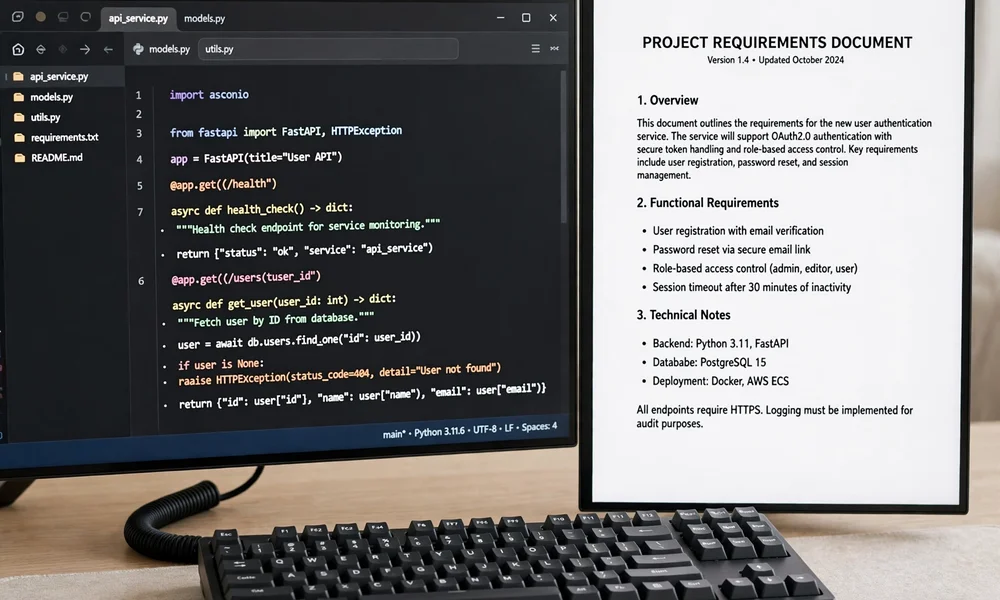
Colour coverage is strong at 95 percent of DCI-P3, so the pair suits design review as well as documents, and the adjustable stand makes it easy to align both screens. For a dual setup that has to do everything, this is the default choice.
Pros: Sharp 4K text, very thin bezels, 96W USB-C, good colour, adjustable stand.
Cons: No DisplayPort daisy-chaining, speakers are weak, premium price per pair.
Dell UltraSharp U2723QE — Best for daisy-chaining
The Dell UltraSharp U2723QE is the best dual-monitor choice when you want one cable from the laptop to both screens. Its DisplayPort output supports daisy-chaining, so the laptop connects to the first monitor and the first connects to the second, with no dock and no second video cable. The 27-inch 4K IPS Black panel delivers roughly twice the contrast of a standard IPS display, so dark themes look genuinely dark on both screens.
A built-in USB-C hub with 90W power delivery, a KVM switch, and a fully adjustable stand complete the package. Two of these are an investment, but they are the cleanest dual setup without a dock.
Pros: DisplayPort daisy-chaining, IPS Black contrast, 90W USB-C hub, KVM switch.
Cons: Expensive as a pair, 60Hz refresh rate, no built-in speakers worth using.
ASUS ProArt PA279CRV — Best colour-matched pair
When two monitors must show the same colours, the ASUS ProArt PA279CRV is the pick. Each unit is factory calibrated to a Delta E of less than 2 and covers 99 percent of DCI-P3 and sRGB, so a photo or a design looks identical on both screens. That matters for photographers, video editors, and front-end developers who compare work across screens.
The 27-inch 4K IPS panel is sharp, the 96W USB-C port charges a laptop, and the compact stand fits two monitors on a small desk. If colour matching is the priority, buy this pair.
Pros: Factory-calibrated colour, 4K sharpness, 96W USB-C, compact footprint.
Cons: Stand height range is limited, speakers are weak, no KVM switch.
Samsung ViewFinity S6 S27A600U — Best value pair
The Samsung ViewFinity S6 S27A600U is the value pick for a dual setup. Its 27-inch QHD IPS panel is sharp enough for documents and code at a normal viewing distance, its slim bezels keep the seam narrow, and its 90W USB-C port charges a laptop. At around $279 per monitor, a pair costs less than one flagship 4K display.
The stand adjusts for height, tilt, and pivot, and the monitor includes a KVM switch for sharing a keyboard and mouse between two computers. Colour is good for office work, though not up to the ProArt or UltraSharp standard.
Pros: Very affordable as a pair, slim bezels, 90W USB-C, KVM switch, adjustable stand.
Cons: QHD rather than 4K, average colour accuracy, 60Hz only.
BenQ GW2790QT — Best budget pair
The BenQ GW2790QT proves that a dual setup does not need to cost $1,000. Its 27-inch QHD IPS panel includes BenQ’s eye-care features, low blue light, and flicker-free backlighting, which matter when you sit between two screens all day. The thin bezel design keeps the pair looking tidy, and the built-in USB-C hub with 65W charging connects a laptop with one cable.
Speakers are built in and usable for video calls, which saves desk space, and the monitor includes a KVM switch. Colour accuracy is basic, so this pair suits documents, code, and spreadsheets, not design work.
Pros: Cheapest good pair, eye-care features, usable speakers, USB-C hub, KVM switch.
Cons: Basic colour accuracy, QHD only, plastic build.
HP E27 G5 — Best for office dual setups
The HP E27 G5 is the workhorse of office dual setups. Its 27-inch 1080p IPS panel is bright and even, its micro-edge bezels make the pair look like one screen, and its stand adjusts for height, tilt, swivel, and pivot. HP’s business warranty makes it an easy choice for offices buying monitors in bulk.
At 1080p, text is softer than on QHD or 4K panels, so this pair suits email, spreadsheets, and calls more than code or design. The price is the lowest in this guide, and the build is solid for daily office use.
Pros: Very cheap as a pair, micro-edge bezels, good warranty, solid stand.
Cons: 1080p resolution, no USB-C video, average colour.
ViewSonic VG2756-2K — Best with built-in docking
The ViewSonic VG2756-2K is the dual-monitor pick for laptop users who hate docks. Its built-in dock includes USB-C with 90W power delivery, Ethernet, DisplayPort, HDMI, and USB-A ports, so one monitor becomes the hub for the whole desk and the second connects to it. Two of these give you a full workstation with one cable to the laptop.
The 27-inch QHD IPS panel is sharp and bright, the thin bezels suit a pair, and the stand adjusts for height, tilt, swivel, and pivot. For a home office that needs to stay tidy, this is the practical choice. If you are setting up a permanent workspace, our guide to the best monitors for home offices covers full-size desk displays.
Pros: Full built-in dock, 90W USB-C, Ethernet port, thin bezels, adjustable stand.
Cons: 60Hz only, QHD rather than 4K, bulky base.
Lenovo ThinkVision T27h-30 — Best thin-bezel pair
The Lenovo ThinkVision T27h-30 has the thinnest bezels in this guide, with a near-edgeless design that makes two screens blend into one. Its 27-inch QHD IPS panel covers 99 percent of sRGB, so colours match across the pair, and the stand adjusts for height, tilt, swivel, and pivot with a small footprint.
Lenovo includes USB-C with 90W power delivery and a KVM switch, and the monitor is certified for low blue light. It is a strong pick for developers and analysts who want a seamless dual setup on a reasonable budget. Coders benefit from the extra screen, so compare our guide to the best monitors for coding if your second screen is mainly for an editor and a terminal.
Pros: Near-edgeless bezels, good sRGB colour, 90W USB-C, KVM switch, small footprint.
Cons: No USB-C video on some units, 60Hz only, no built-in speakers.
How to choose
Start with the rule that matters most: buy two identical monitors. Matched panels mean matched brightness, colour, and bezels, and a dual setup with mismatched screens is distracting every day. If budget forces a compromise, match the size and resolution at minimum.
Next, decide on size and resolution. Two 27-inch QHD monitors are the sweet spot for most desks: enough space per screen, a sensible price per pair, and sharp text. Two 27-inch 4K monitors are better for code and design, but they cost roughly twice as much and need a more powerful laptop. Two 24-inch monitors suit small desks, and two 32-inch monitors need a deep desk and an arm.
Finally, plan the connection. DisplayPort daisy-chaining is the cleanest option if your monitors and laptop support it, followed by a USB-C hub or a monitor with a dock. Measure your desk before ordering: two 27-inch monitors need about 120 centimetres of width, and a monitor arm is more flexible than two stands. If you are torn between two screens and one wide one, compare our guide to the best ultrawide monitors for work before deciding.
Checklist: before you buy
- Buy two identical monitors, or at least the same size and resolution.
- Measure your desk: two 27-inch monitors need about 120 centimetres of width.
- Check your laptop or PC can drive two external displays, and at what resolution.
- Look for thin bezels and VESA mounts, or budget for a dual arm.
- Confirm USB-C power delivery against your laptop’s charger, aiming for 65W or more.
- Check the return policy and dead-pixel policy, and check current pricing, since prices shift often.
Frequently asked questions
Is a dual monitor setup better than one ultrawide?
For most desk work, yes. Two monitors let you full-screen an app on each screen, mix orientations, and replace one screen cheaply if it fails. An ultrawide is better if you want one seamless screen with no bezel in the middle, especially for video editing.
Do I need two identical monitors?
It is strongly recommended. Identical monitors match in brightness, colour, and bezel size, so the pair feels like one workspace. Mixing models works, but the difference in colour and height is noticeable daily.
Can my laptop drive two monitors?
Most modern laptops can, through USB-C, HDMI, DisplayPort, or a dock. Check your laptop’s specifications for the maximum number of external displays, since some ultrabooks are limited to one external 4K display.
What is daisy-chaining?
Daisy-chaining connects the laptop to the first monitor and the first to the second over DisplayPort, so one cable drives both screens. Both monitors and the laptop need DisplayPort 1.2 or later.
Should both monitors be the same orientation?
Usually, yes, but a portrait second monitor is popular with developers. A vertical screen fits long documents, code files, and chat windows, while the main screen stays landscape.
How far apart should dual monitors sit?
As close as possible, with the bezels nearly touching and both screens at the same height. The main monitor should sit directly in front of you, with the second angled slightly toward you on your dominant side.
The bottom line
For most people, a pair of LG UltraFine 27UP850N monitors is the dual setup to buy: sharp 4K text, thin bezels, good colour, and USB-C charging. If budget is the priority, a pair of Samsung ViewFinity S6 S27A600U monitors delivers the same workflow for far less, and the Dell UltraSharp U2723QE daisy-chains from a single laptop connection.
Whatever you choose, buy two of the same monitor, measure your desk, and prioritise bezel size and colour matching over refresh rate. A well-matched pair is the setup you will still be using in five years.



