

Roughly one in every ten smartphones shipped worldwide runs Android, and Google’s Pixel line sits at the front of that crowd as the reference device for every new Android release. That status cuts both ways. Pixel owners get features first, but they also get the bugs first. Search forums for an hour and you will find the same handful of complaints repeated by thousands of people: the battery dies by lunch, the camera app freezes, Wi-Fi drops in the middle of a call, or an update installs and then bricks the touchscreen.
The good news is that most of these issues have straightforward fixes, and you rarely need to send the phone in for repair. Below is a practical rundown of the most common Pixel problems, what typically causes them, and the steps that resolve them in the real world. Some fixes take thirty seconds. A few require patience and a backup. All of them are worth trying before you contact support.
Battery Drain That Appears Out of Nowhere
Sudden battery drain is the single most reported Pixel complaint, and it almost always follows one of three triggers: a system update, a new app install, or a change in how you charge the phone.
What actually works
- Open Settings > Battery > Battery usage and sort by usage since the last full charge. Look for an app you barely use sitting near the top.
- Check Settings > Battery > Adaptive preferences and confirm adaptive battery is on. It learns your patterns and throttles background activity.
- Restrict background activity for the worst offenders: Settings > Apps > [app] > Battery > Restricted.
- Turn off Always-on display temporarily to see whether the drain drops noticeably.
- Reboot into Safe Mode (hold power, then long-press the restart option) for a day. If battery life recovers, a third-party app is the culprit.
A common mistake is chasing battery drain by disabling everything at once. That makes it impossible to know what fixed it. Change one thing, use the phone normally for a full day, then judge. Also resist the urge to constantly force-stop apps. Android manages memory well, and killing apps repeatedly can increase drain because they restart from scratch.
If drain started immediately after a system update, give it three to five days. Post-update background reindexing is real and usually settles on its own.
Camera App Crashes, Freezes, and Black Screens
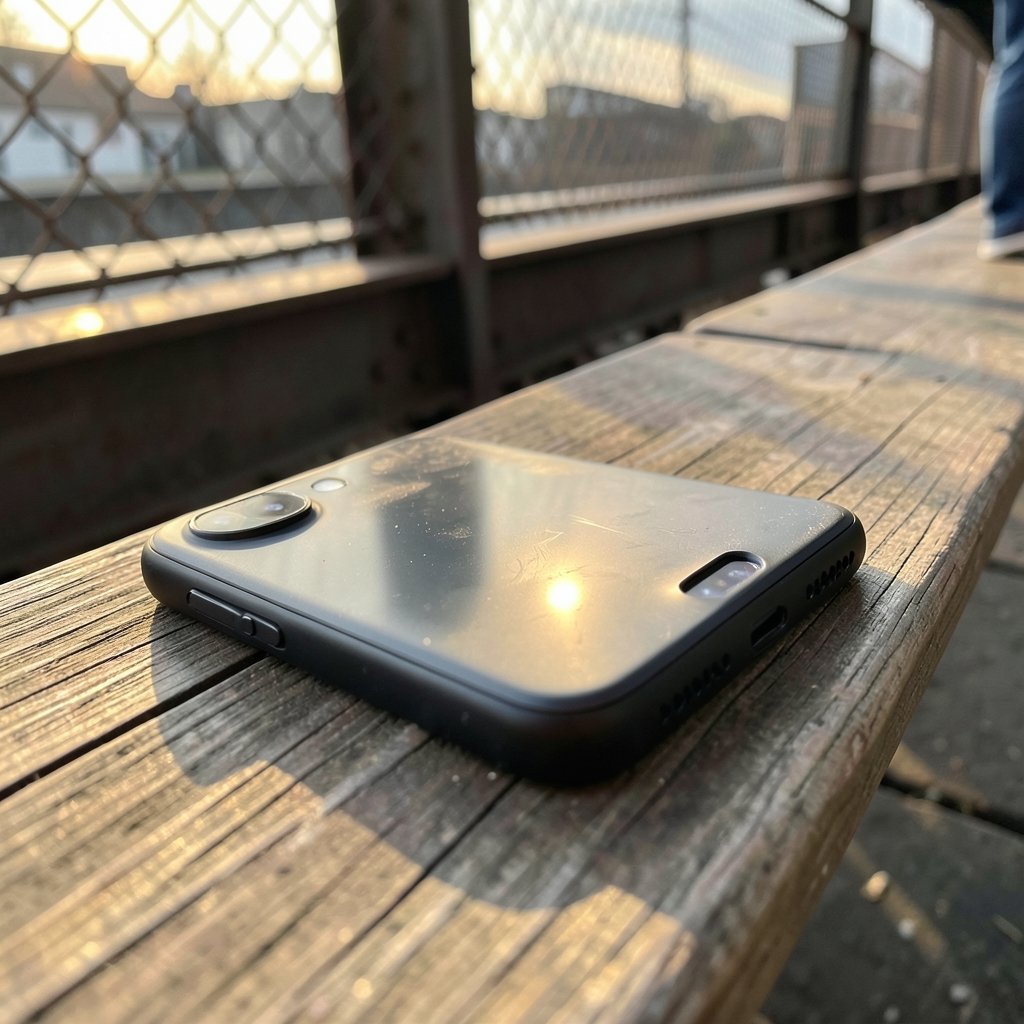
The Pixel camera is the phone’s headline feature, which makes camera failures especially frustrating. Symptoms range from a black viewfinder to “Camera error” messages to the app closing the moment you tap the shutter.
Start with the boring stuff, because it works more often than people expect:
- Clear the camera app cache, not the data, first: Settings > Apps > Camera > Storage & cache > Clear cache.
- If that fails, clear storage data. You will lose saved camera settings but not photos.
- Boot into Safe Mode and open the camera. If it works there, a third-party app with camera permissions is interfering. Revoke camera access from suspicious apps one at a time.
- Check for a pending Pixel Camera update in the Play Store. Google frequently ships camera fixes as app updates rather than system patches.
Hardware failure is possible but rarer than software causes. If the camera fails in Safe Mode after a factory reset, that points to a physical problem and a repair request is justified.
Wi-Fi, Bluetooth, and Cellular Connection Drops
Connectivity problems on Pixel phones tend to cluster around updates and network changes. A phone that worked flawlessly on your home Wi-Fi can start dropping the connection after a router firmware change or a carrier settings update.
A sensible troubleshooting order
- Toggle Airplane mode on for ten seconds, then off. This forces a fresh network registration.
- Forget the network and rejoin it. This clears stale credentials and DHCP leases.
- For Bluetooth, unpair the device on both ends, then pair again from scratch. Delete old paired devices you no longer use.
- Reset network settings: Settings > System > Reset options > Reset Wi-Fi, mobile & Bluetooth. You will need to re-enter Wi-Fi passwords, so have them handy.
- For cellular issues, check Settings > Network & internet > SIMs > Carrier settings and update if prompted.
One underrated fix: if only one Wi-Fi band misbehaves, split your router’s bands so 2.4 GHz and 5 GHz have different names, then connect to the one that works reliably. Pixel radios are generally solid, but they are picky about mesh networks with aggressive band steering.
Overheating and Throttling
Pixels run warm under load. That is normal. What is not normal is a phone that becomes uncomfortable to hold while doing light tasks like scrolling or texting.
Common causes include:
- Charging while gaming or navigating. Heat from charging plus heat from the processor compounds.
- Thick cases during wireless charging. Wireless charging is less efficient and generates more heat.
- Background sync storms after a restore or update.
- Direct sun during navigation, which is the classic overheating scenario.
Practical fixes: remove the case during wireless charging, avoid gaming while plugged in, lower screen brightness when navigating outdoors, and let the phone cool in the shade rather than putting it in a pocket where heat cannot escape. Never cool a hot phone in a refrigerator. Condensation is a real risk.
Update Failures and Boot Loops
Failed updates are stressful because the phone may refuse to boot. Most Pixel update failures trace back to insufficient storage or an interrupted download.
Before installing any system update, confirm you have at least a few gigabytes free. If an update fails repeatedly, clear the cache of the Google Play services app, then retry over Wi-Fi rather than cellular.
For a phone stuck in a boot loop, a factory reset from recovery mode is the standard remedy. Hold power and volume down to reach the bootloader, navigate to recovery, and choose the wipe option. This erases everything, so it is a last resort. If you set up your phone with a Google account, your photos, contacts, and app list restore automatically afterward.
Touchscreen and Display Glitches
Ghost touches, unresponsive edges, and flickering are reported often enough to be a known category. A screen protector with trapped moisture or poor adhesion is a surprisingly frequent cause. Remove it and test.
If the problem persists, check whether Developer options > Pointer location shows phantom input where your finger is not. That confirms a hardware digitizer issue rather than a software glitch. Also try disabling any accessibility features like Touch and hold delay changes, which occasionally interact badly with third-party launchers.
Microphone and Call Audio Problems
People cannot hear you, or your voice sounds muffled on calls. Before assuming a hardware fault, check the obvious: a case or screen protector covering the microphone pinhole, or lint packed into the port.
Test the microphone with a voice recording app. If recordings sound fine but calls do not, the problem is likely the carrier or the calling app, not the hardware. Clearing the cache of the Phone app and checking for carrier settings updates resolves a surprising share of these cases.
When to Stop Troubleshooting and Get Help
There is a point where more tinkering wastes time. If the phone fails in Safe Mode after a factory reset, the issue is almost certainly hardware, and a warranty claim or repair is the right path. The same applies if the phone will not charge with multiple known-good cables and chargers, or if the screen shows physical damage patterns.
Keep a short log of what you tried and when. Support agents respond far better to “drain started after the update on the 12th, persists in Safe Mode” than to “battery is bad.” That single habit shortens most repair conversations dramatically.
If you are weighing an upgrade against a repair, it helps to know what the current hardware costs before deciding. Comparing the Pixel 10 price against a repair quote often makes the decision obvious, and the Google Pixel 10 Pro price matters if you are considering stepping up a tier. (Google Pixel Phone Help)
Practical Habits That Prevent Repeat Problems
Most Pixel problems are not random. They cluster around a few behaviors, and adjusting those habits prevents a large share of future headaches.
Update deliberately, not impulsively. Wait a few days after a major Android release before installing. Early adopters effectively beta test the release, and the first patch usually arrives within two weeks.
Keep a recent backup. Enable Google One backup and confirm it is actually running. A backup turns a catastrophic boot loop into an inconvenience.
Install fewer “optimizer” apps. Battery savers, cleaners, and RAM boosters frequently cause the exact problems they claim to solve on modern Android. The operating system already handles memory and storage management well.
Reboot weekly. A scheduled restart clears memory leaks and stuck background processes. It sounds trivial, and it prevents a remarkable number of mystery glitches.
Watch storage headroom. Keep at least 10 percent of storage free. Full storage causes camera failures, update failures, and sluggish performance all at once.
For a broader look at how Android’s cloud and AI infrastructure is evolving, and why some features behave differently across devices, the Google AI news today 2026 roundup is a useful read. If you use two-factor authentication on your Pixel, it is also worth understanding how authenticator apps behave during a phone migration, since a lost authenticator is a far worse problem than a drained battery. This guide on how to use Google Authenticator transfer walks through the process, and the Authy vs Google Authenticator comparison helps you pick the option that survives a device swap. (Google Pixel)
Conclusion
Google Pixel problems are rarely mysterious once you know where to look. Battery drain, camera crashes, connectivity drops, overheating, update failures, and touchscreen glitches all follow recognizable patterns, and the fixes follow a logical order: clear caches, test in Safe Mode, reset network settings, and factory reset only as a last resort. The discipline that matters most is changing one variable at a time so you know what worked.
Most issues resolve without a repair, and the ones that do not usually announce themselves clearly by surviving a factory reset. Treat updates with a little patience, keep backups current, and reboot weekly. Those three habits alone will spare you most of the frustration that sends other Pixel owners to forums in the first place.
Frequently Asked Questions
Why does my Pixel battery drain so fast after an update?
Post-update drain is usually temporary. The system reindexes files and optimizes apps in the background for several days after a major update. Give it three to five days of normal use before troubleshooting. If drain persists, check Settings > Battery > Battery usage for an app with unusually high background activity and restrict it.
Is overheating on a Pixel normal?
Warmth under heavy load, fast charging, or direct sunlight is normal. A phone that becomes uncomfortably hot during light tasks is not. Remove thick cases during wireless charging, avoid gaming while plugged in, and check for apps stuck syncing in the background.
How do I fix a Pixel camera that shows a black screen?
Clear the camera app’s cache first, then its data if that fails. Test the camera in Safe Mode to rule out a third-party app conflict. Also check the Play Store for a pending Pixel Camera update, since Google often ships camera fixes as app updates rather than system patches.
Should I factory reset my Pixel to fix connection problems?
Not as a first step. Reset network settings first, which clears Wi-Fi, Bluetooth, and mobile configurations without erasing your data. A full factory reset is appropriate only when connectivity issues persist across multiple networks and survive Safe Mode.
What should I do if my Pixel is stuck in a boot loop?
Try a factory reset from recovery mode by holding power and volume down to reach the bootloader. This erases all data, so rely on your Google account backup to restore afterward. If the loop continues after a reset, the problem is likely hardware and warrants a warranty claim.
How do I know whether a Pixel problem is software or hardware?
Safe Mode is the fastest test. If a problem disappears in Safe Mode, a third-party app is responsible. If it persists in Safe Mode and after a factory reset, the fault is almost certainly hardware, and repair or replacement is the right next step.



