

Roughly one in four smartwatch owners stops wearing their device within a year, and it’s rarely because the watch broke. More often, the battery started dying by lunchtime, notifications stopped arriving, or the heart-rate readings went strange. Those everyday annoyances are the real reason smartwatches end up in a drawer. The good news? Most of them have straightforward fixes you can try in ten minutes. (Smartwatch)
This guide walks through the most common smartwatch problems, what typically causes them, and the fixes that genuinely work in practice. It also covers the mistakes people make when troubleshooting, because a wrong first step can waste an hour.
Why Smartwatches Misbehave in the First Place
A smartwatch is a tiny computer strapped to a moving wrist. It has to stay paired over Bluetooth, run sensors constantly, display notifications, and survive sweat, temperature swings, and the occasional knock against a doorframe. Something is always going to give.
Two patterns explain most failures. First, power management conflicts: phones aggressively kill background apps to save battery, and the watch’s companion app is often a casualty. Second, sensor contact issues: optical sensors need clean skin and a snug fit, and anything that breaks that contact produces bad data.
Understanding which category your problem falls into saves time. A notification problem is almost always software and pairing. A weird heart-rate reading is almost always physical.
Battery Drain: The Number One Complaint
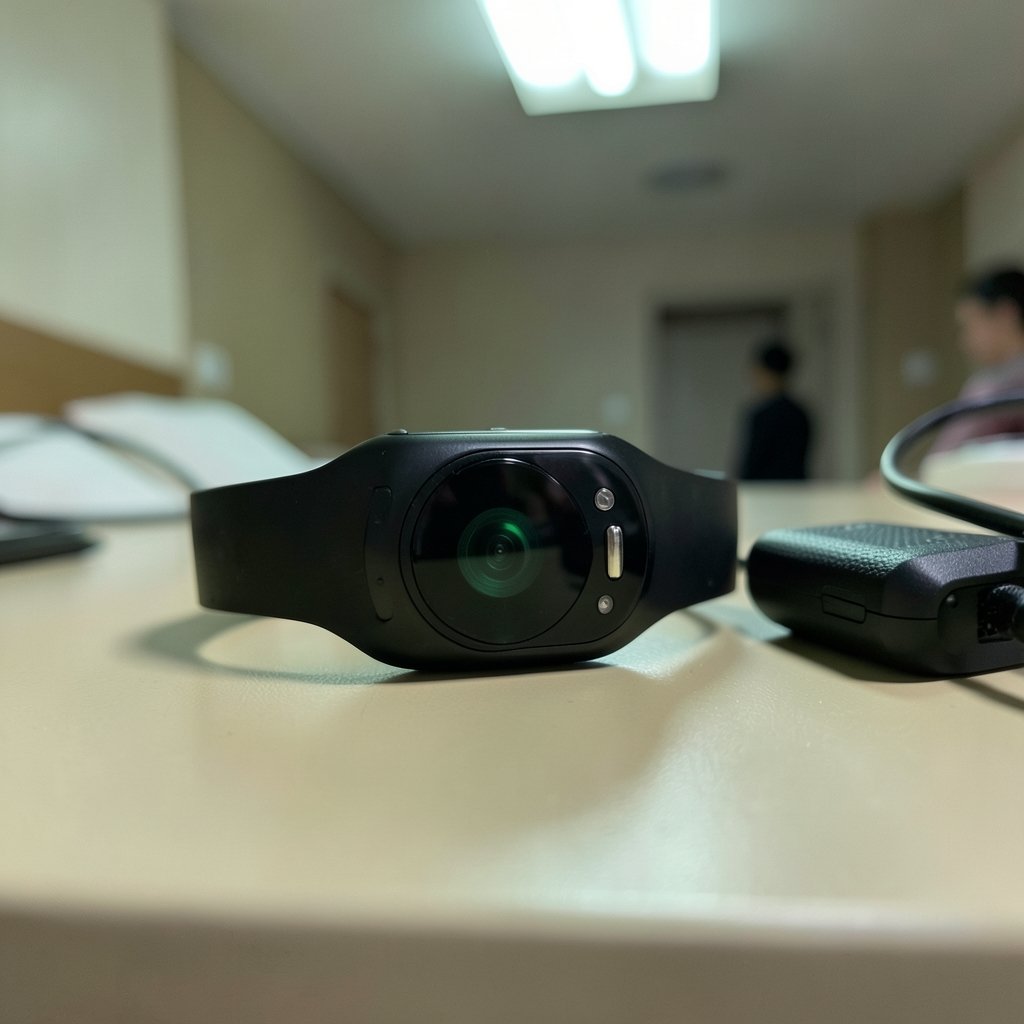
If the watch barely makes it through the day, the culprit is usually a feature running more than you realize.
Start by checking these settings, in this order:
- Always-on display – turning it off can add hours of runtime.
- Continuous GPS – GPS is the single biggest battery consumer; use it only for workouts.
- SpO2 and stress tracking – continuous blood-oxygen sampling is expensive; switch it to manual or overnight-only.
- Screen brightness and raise-to-wake – both drain steadily in the background.
- Background app refresh – limit it to the apps you actually check on your wrist.
A common mistake is blaming the battery itself and buying a replacement before testing settings. In practice, most “dead battery” complaints resolve with configuration changes. If runtime drops suddenly after being fine for months, that points to a firmware update or a newly installed watch face. Third-party watch faces with animated complications are notorious battery hogs, and switching back to a stock face is a fast diagnostic.
If the watch also gets hot while charging, stop using third-party chargers and cases. Manufacturers generally advise sticking with the supplied charger, and overheating during charging is frequently traced to accessories rather than the watch.
Bluetooth Pairing Failures
Pairing problems are the most frustrating category because the error messages are vague. The watch says it’s connected; the phone disagrees.
The reliable sequence is:
- Unpair the watch from the phone’s Bluetooth settings and from the manufacturer’s companion app.
- Restart both devices fully; waking the screen is not enough.
- Re-pair through the companion app, not through the phone’s Bluetooth menu.
That last step matters more than people expect. Pairing through system Bluetooth often creates a half-connected state where notifications fail later. Doing it through the app lets the software set up the correct permissions and background services from the start.
If pairing keeps failing, remove other Bluetooth devices from the area during setup. Interference from a crowded desk of headphones, speakers, and keyboards causes more failed pairings than most people realize. If you’re building out a connected home alongside your wearable, the same pairing discipline applies to smart locks for home security and other Bluetooth-dependent gadgets. (How to Stop Snoring at Night Home Remedies: 8 Easy Fixes)
Notifications and Sync That Stop Working
You get notifications for a day, then silence. Nothing changed. This is almost always the phone’s battery optimization shutting down the companion app in the background.
On Android in particular, this behavior has varied by version and manufacturer, so the exact menu names differ. The fix is consistent: find the companion app in battery settings and set it to unrestricted or no optimization. Then confirm notification access is still granted, because system updates sometimes revoke it silently.
A second common cause is Do Not Disturb or bedtime mode carrying over from the phone. It’s embarrassing how often a “broken” watch is just following the phone’s schedule.
For sync gaps in health data, force a manual sync in the app before assuming something is wrong. Watches buffer data locally and upload in batches; a delayed step count is often just an unsynced batch, not lost data.
Inaccurate Heart Rate and Step Counts
Optical heart-rate sensors are fussy. They shine light into the skin and measure how much bounces back, which means anything interfering with that light path produces bad numbers.
The usual suspects:
| Symptom | Likely cause | Practical fix |
|---|---|---|
| Heart rate reads low or drops out during exercise | Loose band | Tighten one notch above the wrist bone |
| Readings erratic on one wrist only | Tattoos or dark ink over the sensor | Switch wrists |
| Heart rate stuck or flat | Sensor dirt, lotion, or sweat film | Clean with a damp cloth, dry fully |
| Steps undercounted | Watch worn on the dominant hand | Adjust handedness in settings |
| Steps overcounted | Arm movements mistaken for steps | Lower sensitivity if the option exists |
Cold hands are an underrated factor. In winter, blood flow to the wrist drops and readings get unreliable until you warm up. That’s physics, not a defect.
Touchscreen and Display Problems
An unresponsive screen usually has one of three causes: a wet surface, a screen protector interfering with capacitive touch, or a software hang.
Try a forced restart first. The button combination varies by model, so check your specific device’s instructions rather than guessing. A forced restart clears the temporary software state without wiping data.
If the screen only fails in water or after washing hands, that’s expected behavior for many capacitive touchscreens, and water-resistance ratings don’t promise touch works when wet. If the display flickers or shows ghost touches, remove any screen protector and test again. Cheap protectors are a frequent culprit, and so is a case pressing on the screen edge.
One important caution: water resistance degrades over time as seals age. A watch rated for swimming when new may not stay that way after two years of showers and temperature swings. Ratings like 5 ATM or IP68 describe fresh units, and brands don’t test them identically. Treat water resistance as a declining feature, not a permanent one.
Software Updates and Frozen Watches
Before trying anything drastic, check for a firmware update. A meaningful share of recurring bugs get fixed in updates, and a watch that suddenly behaves oddly after months of stability is often running old software that no longer matches a newer phone OS.
If the watch is completely frozen, the escalation order is:
- Forced restart.
- Charge it for 30 minutes on the official charger, then restart again (a deeply drained battery can mimic a dead device).
- Factory reset from the companion app.
- Contact manufacturer support.
Factory resetting is the step people skip too eagerly and too late. Skip it too eagerly and you lose settings for nothing. Skip it too late and you spend days troubleshooting a problem a reset would have solved. If your watch has been misbehaving for more than a week with no clear cause, a reset is reasonable.
Charging and Overheating Issues
Charging problems follow predictable patterns. The contacts on the back of the watch collect sweat residue and lotion, which blocks current. A quick wipe with a dry cloth fixes a surprising number of “won’t charge” cases. (Technology News)
If the watch charges slowly or heats up, check the power adapter. Fast-charging bricks that don’t match the manufacturer’s specification can cause issues, and charging on a soft surface that traps heat makes it worse. Charge on a hard surface in a ventilated spot.
When the Problem Is the Phone, Not the Watch
A pattern worth internalizing: many “watch problems” are phone problems wearing a disguise. Notification failures, sync gaps, and pairing drops all trace back to phone-side settings more often than watch hardware.
If you’re troubleshooting a connected home setup at the same time, the same logic applies to hubs and speakers, where the companion app’s background permissions decide whether anything works reliably. Guides on smart home devices for beginners make the point well: the device is rarely the weak link; the setup is.
Practical Habits That Prevent Most Problems
A few habits cut down on repeat issues:
- Clean the sensor and charging contacts weekly. Thirty seconds, big payoff.
- Update firmware promptly. Bugs compound when software versions drift apart.
- Keep the companion app unrestricted. This one setting prevents most notification failures.
- Re-check water resistance expectations annually. Don’t swim with an older watch just because it’s rated for it.
- Use stock watch faces when diagnosing battery problems. It isolates third-party software fast.
And a note on patience: the fix that works is usually the boring one. Restart, re-pair, clean, update. The exotic solutions come later.
Conclusion
Most smartwatch problems fall into a handful of buckets: battery settings, Bluetooth pairing, background app restrictions, sensor contact, and aging hardware. None of them require special tools. What they require is working through causes in the right order, starting with the cheapest and most reversible fix.
The pattern that holds up in practice is simple. Before assuming hardware failure, test software: restart, re-pair, check permissions, update. Before assuming software failure, test the physical basics: clean the sensor, tighten the band, use the right charger. Between those two checks, the large majority of complaints resolve without a repair or a replacement.
If a problem persists after all of that, contact the manufacturer with specifics: when it started, what changed, what you’ve tried. Vague reports get vague answers. Precise ones get solved.
Frequently Asked Questions
Why does my smartwatch battery suddenly drain faster than before?
Sudden drain usually follows a firmware update, a new watch face, or a new app with background refresh enabled. Revert to a stock watch face and disable continuous GPS and SpO2 sampling to isolate the cause. If the drain started right after an update, check whether a newer patch is available.
Why did my smartwatch stop showing notifications?
The most common cause is the phone’s battery optimization shutting down the companion app in the background. Set the app to unrestricted in battery settings, confirm notification access is still granted, and check that Do Not Disturb isn’t active on the phone.
How do I fix a smartwatch that won’t pair with my phone?
Unpair the watch from both the phone’s Bluetooth settings and the companion app, restart both devices, then re-pair through the companion app rather than the system Bluetooth menu. Move other Bluetooth devices away during setup to reduce interference.
Why is my heart rate reading inaccurate during workouts?
A loose band is the usual culprit. Tighten it one notch above the wrist bone, clean the sensor, and switch wrists if you have tattoos over the sensor area. Cold skin also reduces accuracy until you warm up.
Does water resistance wear off over time?
Yes. Seals age, and ratings like 5 ATM or IP68 describe fresh units. Manufacturers generally don’t guarantee the same protection after years of use, so treat an older watch more cautiously around water.
Should I factory reset my smartwatch to fix problems?
It’s worth trying after a week of unresolved issues and after forced restarts and re-pairing have failed. Back up your settings first. A reset clears software glitches but won’t fix hardware faults, so if problems persist afterward, contact manufacturer support.



