
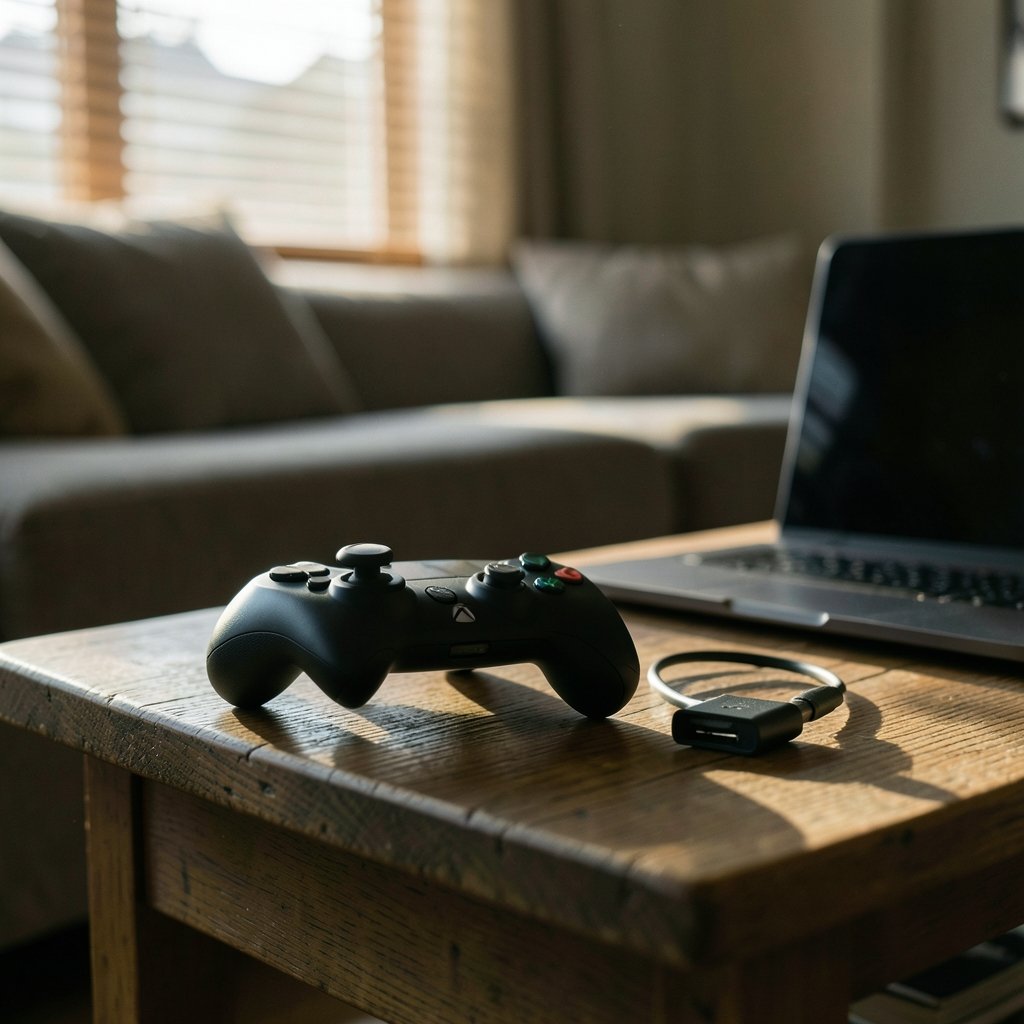
Ever stared at a USB cable in one hand and an Xbox controller in the other, wondering why Windows refuses to cooperate? You are far from alone. Millions of PC gamers plug in a controller expecting instant magic, only to hit a wall of pairing buttons, blinking lights, and settings menus that seem designed by a committee of gremlins. The good news: connecting an Xbox controller to a PC is genuinely simple once you know which method fits your hardware. The bad news: the “right” method depends on which controller generation you own, which operating system you run, and whether you care about latency. (Xbox vs ps5 controller pc compatibility features which fits)
This guide walks through every practical route — USB, Bluetooth, and the Xbox Wireless Adapter — with the specific steps, the common mistakes, and the fixes that actually work in practice.
First, Identify Which Controller You Own
Before touching any settings, figure out what you have. This single step prevents most connection headaches, because older controllers simply cannot do Bluetooth.
Look at the plastic around the Xbox button. Controllers bundled with the original Xbox One (2013–2015) have a glossy top plate and no Bluetooth radio inside. Controllers from the Xbox One S era onward — the Xbox One S, Xbox One X, Xbox Series X|S, and the current retail models — include Bluetooth and a textured grip on the back. Newer controllers also swapped micro-USB for USB-C. (Best xbox controller) (USB)
| Controller generation | Bluetooth? | Best connection method | |
|---|---|---|---|
| Original Xbox One (2013–2015) | No | USB cable or Xbox Wireless Adapter | |
| Xbox One S / One X | Yes | Bluetooth or USB | |
| Xbox Series X | S and later | Yes | Bluetooth, USB-C, or Wireless Adapter |
| Xbox Elite Series 2 | Yes | Bluetooth, USB-C, or Wireless Adapter |
If your controller lacks Bluetooth and you want a wireless setup, the Xbox Wireless Adapter for Windows is your only official option. It uses Microsoft’s proprietary wireless protocol rather than Bluetooth, which also means lower latency and no interference from crowded 2.4 GHz Bluetooth traffic.
Method 1: Wired Connection via USB Cable
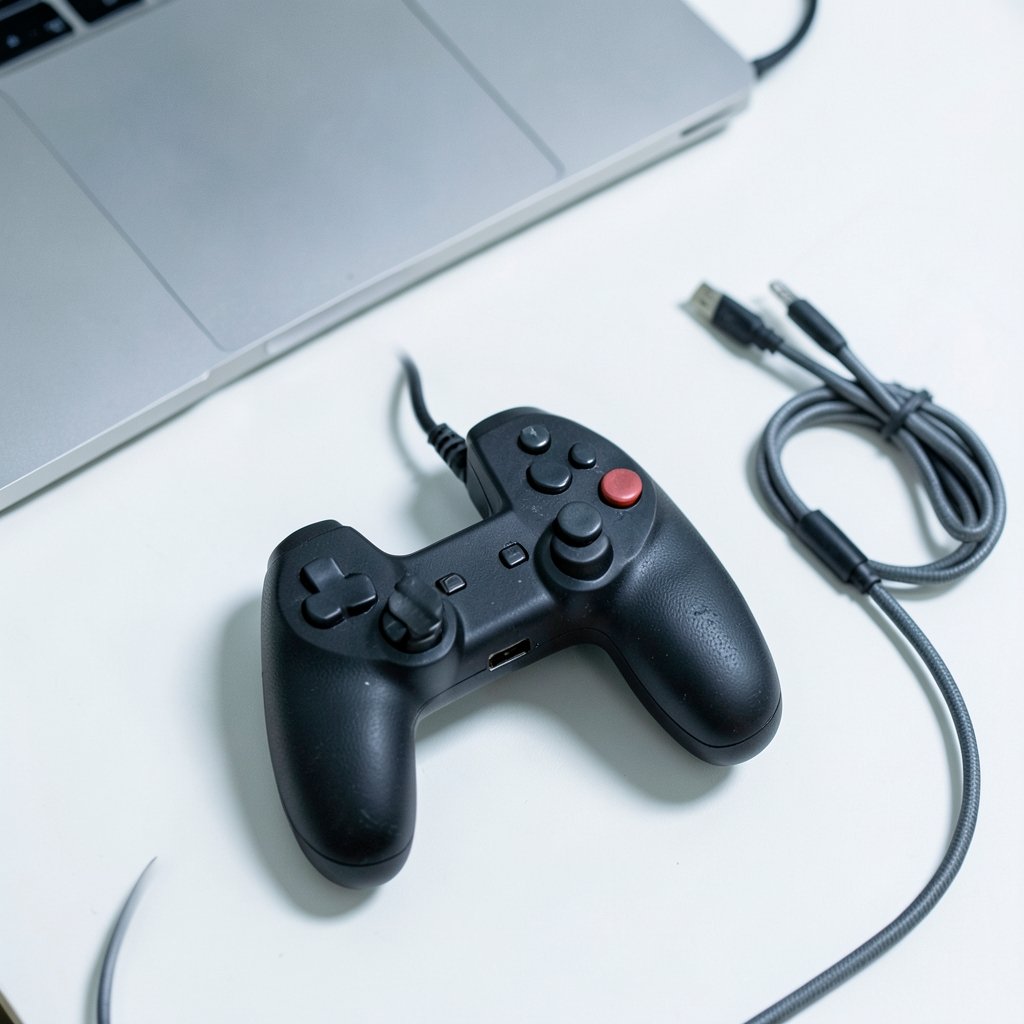
Wired is the most reliable path and the one to try first when troubleshooting anything. It is essentially plug-and-play.
- Connect the controller using the correct cable: micro-USB for older models, USB-C for newer ones.
- Plug the other end into any free USB port on the PC.
- Wait a few seconds. Windows 10 and 11 typically install the driver automatically and the Xbox button lights up steady.
- Press the Xbox button if the controller was off; it should power on and be recognized immediately.
A practical tip: use a data-capable cable, not a charge-only one. Cheap cables bundled with phone chargers often carry power but no data, which produces the maddening situation where the controller charges but never appears in Windows. If nothing happens, swap cables before you start digging through Device Manager.
Wired mode also sidesteps battery anxiety entirely and gives you the lowest input latency, which matters in fast competitive games. The tradeoff is obvious: a cable tethering you to the desk.
Method 2: Bluetooth Pairing on Windows 10 and 11
Bluetooth is the cleanest wireless option if your controller supports it and your PC has a Bluetooth radio. Desktop PCs frequently do not have one built in, so check Device Manager or your motherboard specs first. A cheap USB Bluetooth dongle solves that for a few dollars.
Here is the pairing sequence that works:
- Turn the controller on by pressing the Xbox button.
- Hold the pairing button on the top edge of the controller, next to the USB port, until the Xbox button starts flashing rapidly. That fast flash means it is in pairing mode.
- On the PC, open Settings > Bluetooth & devices.
- Turn Bluetooth on, click Add device, then choose Bluetooth.
- Select Xbox Wireless Controller from the list.
- Wait for the Xbox button to go solid, which confirms the connection.
Common mistakes people make here are worth naming. First, holding the pairing button too briefly — a slow pulse is not pairing mode; you need the rapid flash. Second, leaving the controller paired to a nearby console, which can hijack the connection. Third, pairing while Steam or another launcher is grabbing the device; if the controller shows up in Windows but not in your game, that is usually a software-layer issue, not a pairing failure.
Bluetooth works fine for most single-player games. For competitive shooters, some players notice slightly higher latency than wired or adapter connections, though many never notice a difference at all.
Method 3: The Xbox Wireless Adapter
The adapter is a small USB dongle that connects controllers using Microsoft’s own wireless protocol. It supports up to eight controllers on a single adapter, which makes it the go-to for couch co-op setups. It is also the only wireless option for original Xbox One controllers.
Setup is minimal: plug the adapter into a USB port, press its pairing button, then press the controller’s pairing button. Both lights settle to solid when linked. On older Windows versions you sometimes needed to install a driver manually, but on Windows 10 and 11 it generally just works.
The adapter’s real advantages are lower latency than Bluetooth, no interference from Bluetooth headphones or mice, and support for the controller’s full feature set including the chat headset jack on compatible models. If you play on a TV across the room from your PC, this is the most dependable wireless path.
Getting the Controller Recognized in Games
A connected controller is only half the battle. Whether a game sees it depends on the game and the launcher.
Steam has the most mature handling through Steam Input, which recognizes Xbox controllers and can remap them per game or emulate other controller types. If a game supports controllers natively, Steam usually passes input straight through. If it does not, Steam Input can translate Xbox inputs into keyboard and mouse commands or into a different controller layout. You can toggle this per game under the controller settings in the game’s properties.
Outside Steam, most modern games detect Xbox controllers automatically because Windows exposes them through the standard XInput interface. Older games built around DirectInput may need a wrapper or in-game setting change. If your controller works in one game but not another, the controller is fine — the game is the variable.
For players deciding between hardware options, it helps to understand how each pad behaves on PC; this breakdown of Xbox vs PS5 controller PC compatibility features explains which fits which genre of game, from trigger feedback to button layouts.
Updating Firmware and Drivers
Firmware updates fix a surprising number of “my controller randomly disconnects” complaints. Microsoft’s Xbox Accessories app on Windows handles controller firmware updates and button remapping. Install it from the Microsoft Store, connect the controller (wired is safest during an update), and let it check for updates.
On the driver side, Windows Update usually keeps the Xbox controller driver current. You can verify in Device Manager under Xbox peripherals or Human Interface Devices. Avoid downloading drivers from random third-party sites; the official Windows and Xbox channels are sufficient. (Windows drivers overview)
Troubleshooting: When Nothing Works
Work through these in order, because each step eliminates a layer:
- Try a different cable. Charge-only cables are the single most common cause of wired failures.
- Try a different USB port. Front-panel ports and hubs can be flaky; go straight to the motherboard.
- Re-pair over Bluetooth. Remove the device in Settings, then pair again from scratch.
- Replace the batteries. Weak AA batteries cause dropouts and failed pairing that look like software bugs.
- Check for console interference. Turn off or unpair from a nearby Xbox console.
- Restart the Bluetooth service. Toggle Bluetooth off and on, or restart the PC entirely.
- Update firmware through the Xbox Accessories app.
- Test in another game or app to isolate whether the problem is the controller or the software.
If the controller still misbehaves, test it on another device. A controller that fails everywhere is a hardware problem; one that fails only on your PC points to a driver or radio issue.
Beyond Windows: Mac and Linux Notes
Mac users can pair Xbox controllers over Bluetooth on recent macOS versions, though support varies by controller model and OS release. Linux support depends on the kernel and the xpad or xone driver, so results range from flawless to fiddly depending on your distribution. If you game across platforms, a wired connection remains the most predictable option everywhere. The same pairing logic applies when connecting a controller to your iPhone, and those pairing steps that actually work follow a similar press-and-hold pattern.
Choosing the Right Method for Your Setup
There is no universal best method, only the best fit for how you play.
| Your situation | Recommended method |
|---|---|
| Competitive shooter, desk setup | USB cable |
| Couch gaming across the room | Xbox Wireless Adapter |
| Laptop with built-in Bluetooth, casual play | Bluetooth |
| Original Xbox One controller, wireless wanted | Xbox Wireless Adapter only |
| Multiple controllers, same PC | Xbox Wireless Adapter |
| Quick test or troubleshooting | USB cable |
A useful habit: keep one known-good USB-C cable near your PC. It is the fastest diagnostic tool in the box and the fallback that never fails when Bluetooth decides to have opinions.
Conclusion
Connecting an Xbox controller to a PC comes down to three routes and one rule: match the method to your controller generation. Wired USB is the bulletproof default. Bluetooth is convenient when your PC has a radio and your controller is from the One S era or later. The Xbox Wireless Adapter is the specialist tool for older controllers, multi-controller households, and anyone who wants the lowest-latency wireless link. Once the hardware handshake is done, Steam Input and native XInput support handle the software side for nearly every game worth playing. Start with a cable, confirm the controller works, then graduate to wireless once you know the hardware is sound. That order saves hours of guesswork.
Frequently Asked Questions
Why won’t my Xbox controller connect to my PC via Bluetooth?
The most likely reason is that your controller does not have Bluetooth at all. Original Xbox One controllers from 2013 to 2015 lack the radio, so they will never appear in a Bluetooth device list. If your controller is newer, check that the Xbox button flashes rapidly when you hold the pairing button, confirm Bluetooth is enabled on the PC, and make sure the controller is not still connected to a console nearby.
Do I need the Xbox Wireless Adapter if my controller has Bluetooth?
No. The adapter is optional for Bluetooth-capable controllers. It is worth considering if you want lower latency, support for up to eight controllers on one dongle, or freedom from Bluetooth interference from headphones and mice. For a single controller and casual play, Bluetooth is perfectly adequate.
Can I use an Xbox controller on a PC without any extra software?
Yes, in most cases. Windows 10 and 11 recognize Xbox controllers natively through the XInput interface, and most modern games detect them automatically. You only need extra software like Steam Input when a specific game lacks native controller support or you want custom remapping.
Why does my controller work in Steam but not in other games?
Steam Input can mask a controller from other applications or translate its inputs in ways that only Steam-managed games understand. Check whether Steam is running in the background and whether desktop configuration is enabled, then test the controller in a non-Steam game with Steam closed.
How do I update my Xbox controller’s firmware on Windows?
Install the Xbox Accessories app from the Microsoft Store, connect the controller with a USB cable, and open the app. It will detect the controller and offer any available firmware update. Keep the cable connected during the update and avoid unplugging until it finishes.
Is a wired connection better than wireless for gaming?
Wired generally offers the lowest latency and zero interference, which is why competitive players favor it. Wireless via the Xbox Wireless Adapter is close and far more convenient for couch play. Bluetooth is fine for most single-player games but can occasionally show slightly higher latency or interference in crowded wireless environments.



