
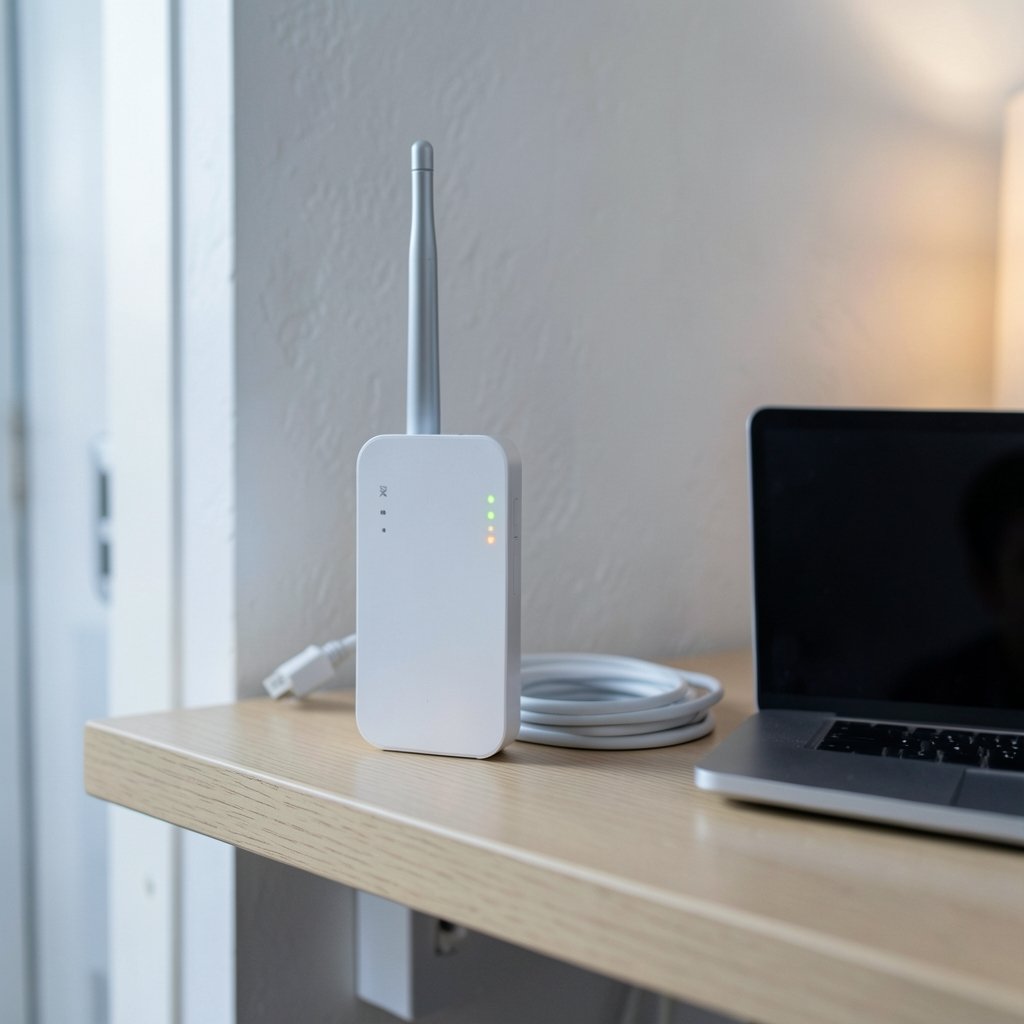
Quick Answer: Why does my wifi keep disconnecting?
Wi-Fi keeps disconnecting because something in the chain between your device and the internet is failing intermittently, and the usual suspects are radio interference, weak signal through walls, outdated router firmware, crowded channels, aggressive roaming between mesh nodes, and power-saving settings on your laptop’s adapter. Most people can fix it at home by moving the router, switching bands, updating firmware, and checking adapter settings.
Not every drop is a Wi-Fi problem, though. Sometimes the radio link is fine and the broadband line itself is flapping, which looks identical from the couch but needs a completely different fix. Separating local network drops from internet-side drops is the single most useful diagnostic step.
Before changing anything, note the pattern: which devices drop, how often, whether the drop happens at the same time each day, and whether wired devices stay online, plus router age, firmware version, and how many networks share your channel.
Most home Wi-Fi complaints trace back to a short list of causes, and nearly all of them are fixable without buying new hardware. A device that drops every few minutes is telling you something specific: the radio link is marginal, a setting is fighting itself, or the router is struggling under load. Learning to read those clues saves hours of guesswork.
Start by Separating Wi-Fi Drops From Internet Drops
The most common mistake is treating every disconnect as a Wi-Fi fault. It usually isn’t. When the connection dies, check whether other devices on the same network also lose connectivity. If the laptop drops but the phone keeps streaming, the problem is local to that device. If everything drops at once, the router or the broadband line is the culprit.
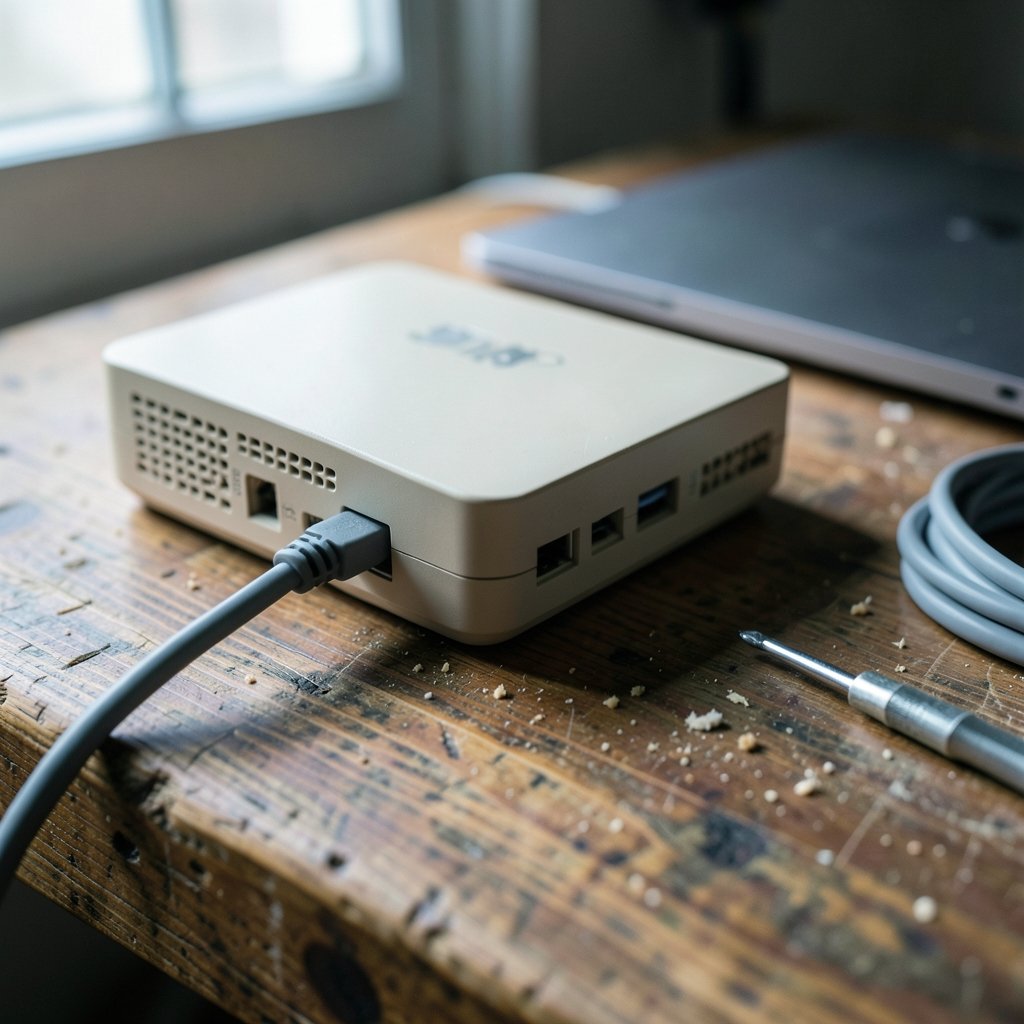
A wired test settles it fast. Plug a computer directly into the router with an Ethernet cable and watch for drops over a day or two. A stable wired connection while Wi-Fi fails points to a wireless problem. If the wired connection also drops, the issue sits with the router’s routing, the modem, or the provider’s line, and no amount of channel tweaking will help.
It also helps to know your hardware. Mesh systems, gaming routers, and ISP-supplied gateways all behave differently under load, and knowing which generation of Wi-Fi you own shapes what fixes are worth trying. If you are weighing an upgrade, comparing things like the PS5 disc vs digital price is a reminder that hardware decisions often come down to small trade-offs rather than dramatic ones.
Radio Interference Is Still the Number One Cause
The 2.4 GHz band is a crowded neighborhood. It shares spectrum with Bluetooth headsets, microwave ovens, baby monitors, wireless doorbells, and every neighbor’s router within range. That band only offers a handful of non-overlapping channels, so in apartment buildings it is often saturated. The result is exactly what people describe as “my Wi-Fi keeps dropping”: brief stalls, retries, and occasional full disconnects.
The 5 GHz and 6 GHz bands are far less congested but sacrifice range. Walls, floors, metal studs, mirrors, and even aquariums absorb or reflect the signal. A router tucked into a closet or behind a television is a classic self-inflicted wound. Elevating it, moving it into the open, and pointing antennas sensibly often does more than any software setting.
Practical fixes that actually work:
- Move the router to a central, elevated, open spot, away from metal and water.
- Switch fixed devices to the 5 GHz band if they support it.
- Set the 2.4 GHz channel manually to 1, 6, or 11 instead of leaving it on auto.
- Keep the router at least a meter away from speakers, cordless phone bases, and microwaves.
If you are also renaming networks during troubleshooting, it is worth knowing how to pick a best name wifi setup that keeps bands easy to tell apart rather than merging everything into one confusing label.
Outdated Firmware and Aging Hardware
Router firmware bugs cause genuine disconnects, particularly in mesh systems where nodes fail to hand devices off cleanly. Manufacturers ship patches for exactly these problems, and many households have never checked. Logging into the router’s admin page and running an update takes ten minutes and resolves a surprising share of recurring drops.
Hardware age matters too. A router from five or more years ago may struggle with the number of connected devices in a modern home, especially when phones, laptops, TVs, consoles, and smart plugs all compete for airtime. When a router’s processor is saturated, it drops clients rather than queuing them gracefully.
The reboot question
Rebooting is mocked, but it is diagnostic. If a reboot buys you several stable days, the router is likely running out of memory or overheating. If drops return within an hour, the cause is environmental or device-specific. Either way, the pattern tells you where to look next.
Power-Saving Settings That Quietly Kill Connections
Operating systems love to save power by switching off the Wi-Fi adapter when it thinks you are not using it. On Windows, the adapter’s power management tab has an option that lets the system turn the device off to save power. Disabling it is one of the most reliable fixes for laptops that disconnect when idle or on battery.
Similar behavior appears on some phones and tablets through aggressive battery optimization, and on smart home devices with weak radios. If a single device drops while everything else stays online, check its adapter settings, driver version, and battery-saving configuration before touching the router.
IP Conflicts, DHCP Pools, and Roaming Problems
Two devices with the same IP address will fight, and the loser drops. This happens more than people expect in homes with static addresses set manually alongside a router handing out dynamic ones. An exhausted DHCP pool, caused by a small address range and many devices, produces similar intermittent failures.
Mesh systems add another wrinkle: band steering and roaming. When a phone clings to a distant node instead of switching to the closer one, throughput collapses and the connection may reset. Aggressive steering settings can cause brief but noticeable drops as devices bounce between nodes. Temporarily disabling fast roaming is a quick way to test the theory. (Wi-Fi)
When the Problem Is the Line, Not the Wi-Fi
Broadband faults mimic Wi-Fi faults perfectly. A modem losing sync with the provider’s network, a damaged cable, or scheduled maintenance all produce the same symptom: everything goes offline for a minute, then returns. The tell is that wired devices drop at the same moment as wireless ones.
If that pattern fits, the fix lies with the provider or the cabling, not the router. Keep a simple log of drop times for a week; support teams respond far faster to a documented pattern than to a vague complaint.
A Step-by-Step Troubleshooting Order
Working through problems in the right order avoids wasted effort. The sequence below moves from cheapest and most likely to most involved.
| Step | Action | What it rules out |
|---|---|---|
| 1 | Test with Ethernet | Wi-Fi vs. line faults |
| 2 | Check if one device or all | Device-specific issues |
| 3 | Reboot router and modem | Memory, overheating, sync |
| 4 | Update firmware | Known bugs |
| 5 | Move router, change channel | Interference, range |
| 6 | Disable adapter power saving | Idle disconnects |
| 7 | Review DHCP and static IPs | Address conflicts |
| 8 | Test roaming settings | Mesh handoff problems |
Most households find their answer by step five. The remaining steps catch the stubborn cases.
Device-Specific Quirks Worth Knowing
Some devices are simply bad at holding a connection. Cheap smart plugs, older phones, and certain laptop Wi-Fi cards have weak radios or buggy drivers. A driver update from the manufacturer’s site, not the generic one Windows offers, often resolves chronic drops on a single machine.
Consoles and handhelds deserve a mention because their network stacks behave differently from phones. The recent PS Portal 2 wifi alliance filing 2026 coverage is a useful reminder that streaming devices are unusually sensitive to latency and brief dropouts, so a network that feels fine for browsing can still fail badly for game streaming. Similarly, when people compare console models they often overlook network hardware; discussions around PS5 price digital vs disc rarely mention Wi-Fi, yet the connection matters more than the drive.
Security Software and VPNs Can Interfere
Firewalls, VPN clients, and network-filtering tools sometimes reset connections when they inspect traffic. If drops began right after installing security software or a VPN, disable it temporarily and test. The same applies to password managers with browser extensions that poll the network aggressively; even a comparison like 1password vs keeper touches on how extensions behave, and a misbehaving add-on can look like a network fault.
Conclusion
Persistent Wi-Fi disconnects are rarely mysterious once you break them down. The pattern of which devices drop, and when, points to the cause faster than any diagnostic tool. Interference, firmware, power settings, IP conflicts, and line faults account for the overwhelming majority of cases, and each has a concrete fix. Start with the wired test, work through the list in order, and resist the urge to buy new hardware until you know what is actually failing. A well-placed router with current firmware and sensible channel settings will hold a connection for years.
Frequently Asked Questions
Why does my Wi-Fi disconnect only at night?
Evening congestion is the usual answer. When neighbors stream video at the same time, the 2.4 GHz band saturates and weaker links drop first. Switching to 5 GHz or a manual channel often fixes it. Scheduled router maintenance or provider throttling can also play a role.
Why does only one device keep losing the connection?
A single device dropping points to that device, not the network. Check its Wi-Fi adapter driver, disable power-saving mode for the adapter, forget and rejoin the network, and confirm it is not set to a static IP that conflicts with another device.
Does a Wi-Fi extender cause disconnects?
It can. Extenders rebroadcast a weakened signal and sometimes create handoff problems when a device clings to the extender instead of the router. A mesh system with proper roaming handles this better, but placement still matters more than the hardware.
How can I tell if my router is dying?
Recurring drops that a reboot temporarily fixes, overheating, frequent firmware crashes, and a router older than five years are warning signs. If wired connections also drop and the provider’s line tests clean, the router is the likely failure point.
Can too many connected devices cause drops?
Yes. Consumer routers have limits on simultaneous clients and airtime. When the processor is saturated, it drops the weakest connections first. Splitting devices across bands or upgrading to a router rated for more clients usually resolves it.
Is it worth changing the Wi-Fi channel manually?
Often, yes. Automatic channel selection is frequently poor because routers scan only at startup. On 2.4 GHz, setting channel 1, 6, or 11 manually, chosen after checking nearby networks, reduces collisions and produces noticeably steadier connections.
Finally, document your baseline. Note the router model, firmware version, channel, and a week of drop times before changing anything. Without that record, it is impossible to tell whether a fix worked or the problem simply paused. One change at a time, then observe for several days.



