

Have you ever unplugged an external SSD after a big file transfer and found it almost too hot to hold? That moment of panic is common, and it usually leads straight to a search for an external SSD overheating fix. The good news is that most external drives are not about to fail. They are doing exactly what they were designed to do under load: generating heat and, if needed, slowing down to protect themselves.
This guide explains why external SSDs get hot, how to tell normal warmth from a real problem, and which fixes actually work in practice. It also covers the mistakes people make when they panic and start troubleshooting, plus when it is time to stop fixing and start backing up.
Why Do External SSDs Get Hot in the First Place?
An SSD has no moving parts, but it still does serious work. Every write operation moves electrons through flash memory cells, and the controller chip that manages that traffic runs at high speed. Put a fast NVMe drive inside a small aluminum or plastic shell, plug it into a USB port, and you have a compact device with very little surface area to shed heat.
Under sustained load, USB 3.x and NVMe enclosures commonly reach 40 to 60 degrees Celsius. That is warm enough to feel uncomfortable on your palm but often still inside the manufacturer’s operating range. The key distinction is between hot to the touch and out of spec. Those are not the same thing, and confusing them leads people to replace perfectly healthy drives.
The usual symptom of real thermal stress is not a dramatic failure. It is throttling: the drive slows down mid-transfer to protect itself, then speeds up again once it cools. If a file copy starts fast and then crawls, heat is a likely suspect.
How to Tell Normal Heat From a Real Problem
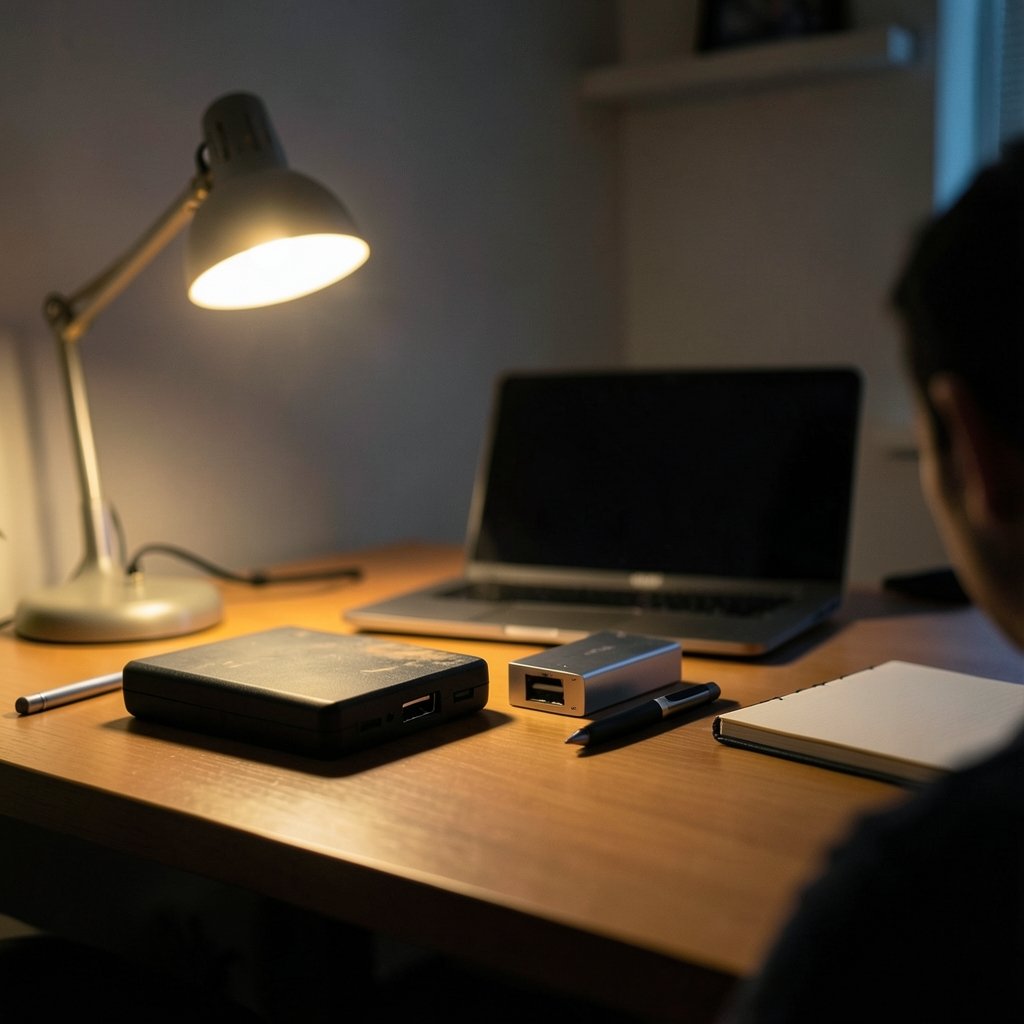
Before you buy anything or open anything, measure. A few minutes of checking saves hours of guessing.
- Check the drive’s datasheet or support page for its operating temperature range. Vendor limits vary widely, and there is no single universal threshold.
- Note when the heat appears. Warm after a 200 GB transfer is expected. Hot while sitting idle is not.
- Watch for throttling patterns. A steady drop in write speed during long transfers points to thermal management working as intended.
- Read the SMART data if your drive and software support it. Rising error counts or unusual warnings deserve attention.
- Compare the enclosure to the drive. A fast NVMe drive in a cheap plastic shell will run hotter than the same drive in a metal enclosure.
If the drive is merely warm and finishes transfers at reasonable speeds, you probably do not have a problem at all. You have a small device doing heavy work.
The Fixes That Actually Work
Start With the Enclosure
The single biggest factor in external SSD heat is the enclosure. Aluminum enclosures spread heat far better than plastic ones. If your drive lives in a plastic case and runs hot, moving the drive into a metal enclosure is often the most effective single change you can make. Check compatibility first: M.2 drives come in different lengths and key types, and not every enclosure supports every drive. (Solid-state drive)
Some metal enclosures ship with thermal pads that bridge the gap between the drive and the case. These pads matter more than people expect, because a drive that is not touching the shell cannot transfer heat to it. If your enclosure came with a pad, use it. If the fit is loose, a properly sized pad can help, though anecdotal fixes like specific pad brands are not universally validated.
Improve Airflow, Not Insulation
This sounds obvious, but it is the most common mistake. People wrap drives in fabric sleeves, stack them under laptops, or leave them inside padded cases during long transfers. That traps heat exactly where you do not want it.
- Keep the drive on a hard, open surface during big transfers.
- Avoid stacking it under other equipment or against a wall.
- Do not enclose it in a case while it is working hard.
- Give it space on all sides so air can move.
If you work at a desk for hours of transfers, a small USB-powered fan or a laptop cooling pad pointed at the drive can make a measurable difference. It is not elegant, but it works.
Check Power Delivery
Bus-powered drives draw power from the USB port. On a weak or overloaded hub, that power can sag, and the drive may behave erratically, including running hotter as it retries operations. A powered hub or a direct connection to the computer often stabilizes things. This is also worth checking if you have ever had to fix a website that will not load and assumed the problem was elsewhere; the same instinct applies here. Rule out the simple infrastructure issues before blaming the device. (Decky loader not working steam deck fix 2026)
Update Firmware and Controller Software
Some enclosure controllers run hotter than others or have known thermal quirks. Vendor support pages are the place to confirm whether yours has a firmware update or documented guidance. The same applies to the drive itself. Firmware updates occasionally improve thermal management, and they cost nothing to check.
What to Do When the Drive Is Already Hot
If a drive is hot right now, resist the urge to yank the cable mid-transfer. Sudden disconnection during a write can corrupt data. Instead:
- Let the current transfer finish if it is close to done.
- Pause new transfers and let the drive cool on an open surface.
- Move it out of any case, sleeve, or cramped spot.
- Reconnect directly to the computer rather than through a hub.
- Retest with a large file and watch whether speeds hold steady.
If the drive cools down and performs normally afterward, you have confirmed thermal throttling, not failure. That is a fixable condition, usually with the enclosure and airflow steps above.
Back Up Before You Troubleshoot
This is the step people skip, and it is the one that matters most. Thermal issues can precede data loss, and troubleshooting sometimes involves unplugging, reformatting, or moving drives between enclosures. Before any of that, copy important files somewhere else.
If you do not have a backup drive yet, it is worth choosing one properly rather than grabbing whatever is on sale. A drive rated for sustained writes and kept cool will serve you better than a bargain unit that throttles constantly. The same logic applies when you decide to clone hard drive to ssd 2026 style: plan the migration, keep the original intact until the new setup is verified, and never treat the source as disposable.
When Overheating Signals Something Bigger
Sometimes heat is a symptom of a drive that is genuinely struggling. Watch for these warning signs:
| Signal | What It Usually Means | What to Do |
|---|---|---|
| Warm after big transfers, normal speeds | Expected behavior | Nothing, or improve airflow |
| Speed drops mid-transfer, recovers after cooling | Thermal throttling | Fix enclosure and airflow |
| Hot while idle | Possible enclosure or controller issue | Check firmware, test another port |
| Disconnects, errors, or SMART warnings | Possible hardware problem | Back up immediately, consider replacement |
| Physical damage or smell | Failure | Stop using it, recover data if possible |
A drive that disconnects repeatedly or throws errors is no longer a cooling problem. That is a data safety problem, and the priority shifts from fixing to preserving files.
Common Mistakes People Make
A few habits make external SSD heat worse, and they are easy to break.
- Opening a sealed enclosure. Many enclosures are not meant to be opened, and doing so can void the warranty. Check vendor guidance first.
- Assuming heat means failure. Most warm drives are fine. Measure against the spec before replacing anything.
- Adding insulation. Foam pads, sleeves, and padded cases trap heat. Use them for transport, not for active use.
- Ignoring the hub. A cheap unpowered hub can cause power and heat issues. Test direct connections.
- Skipping backups. The most expensive mistake is the one that loses data you cannot recreate.
If you are also maintaining other hardware, the same principle of checking the simple things first applies elsewhere. People who learn how to fix antimalware service executable high cpu usage quickly discover that the obvious culprit is rarely the whole story, and external drive heat works the same way.
Practical Setup Tips That Prevent Heat Problems
A little planning goes a long way. When choosing or building an external SSD setup:
- Pick a metal enclosure with a reputation for thermal performance.
- Use the included thermal pad, and make sure the drive contacts the shell.
- Match the drive to the enclosure. A top-speed NVMe drive in a slow enclosure wastes money and generates heat for no benefit.
- Keep long transfers on open surfaces with airflow.
- Store the drive safely when traveling, but remove it from padding during use.
If you are building a portable workflow around external storage, it also helps to understand what makes a drive reliable over time. The same research that helps you pick the best external ssd for speed also tells you which models handle sustained writes without cooking themselves.
Conclusion
An external SSD overheating fix rarely involves dramatic intervention. In most cases, the drive is warm because it is working hard, and the solution is better heat dissipation: a metal enclosure, a thermal pad that actually makes contact, open airflow, and a stable power connection. Measure the temperature against the manufacturer’s spec before assuming the worst, watch for throttling rather than panic, and always back up important files before you start moving drives around.
The pattern holds across most tech troubleshooting. Check the simple physical causes first, confirm with real data, and only then consider replacement. A drive that cools down and holds its speed is not broken. It just needed a little help getting rid of heat.
Frequently Asked Questions
Is it normal for an external SSD to get hot?
Yes, within limits. Sustained writes push the controller and flash memory hard, and compact enclosures have little surface area to shed heat. Temperatures of 40 to 60 degrees Celsius under heavy load are common. The real test is whether the drive stays within its manufacturer’s operating range and keeps working at reasonable speeds.
How hot is too hot for an external SSD?
There is no single universal threshold. Operating temperature ranges vary widely between manufacturers and models, so check your drive’s datasheet or support page. The practical warning signs are throttling that never recovers, disconnects, errors, or heat while the drive is idle. Those point to a problem beyond normal warmth.
Will overheating damage my data?
Heat alone usually causes slowdowns, not immediate data loss. However, thermal problems can precede bigger issues, and troubleshooting often involves unplugging or reformatting drives. Back up important files before you start fixing anything. If a drive disconnects or throws errors, treat it as a data safety issue and copy files off first.
Does a metal enclosure really make a difference?
Often, yes. Aluminum spreads and dissipates heat far better than plastic, and many metal enclosures include thermal pads that connect the drive to the shell. The pad matters as much as the metal, because a drive that is not touching the case cannot pass its heat along. Check compatibility before buying.
Can I just put my SSD in the freezer to cool it down?
No. Rapid temperature swings and moisture are far more dangerous than the heat itself. Let the drive cool naturally on an open surface, away from cases and padding. If it keeps overheating, fix the enclosure and airflow instead of chasing quick cooldowns.
When should I replace an overheating external SSD?
Replace it when heat comes with real symptoms: repeated disconnects, SMART warnings, errors during transfers, or speeds that stay slow even after cooling and airflow fixes. If the drive only gets warm and performs normally, it does not need replacing. It needs a better enclosure and a bit of breathing room.



