
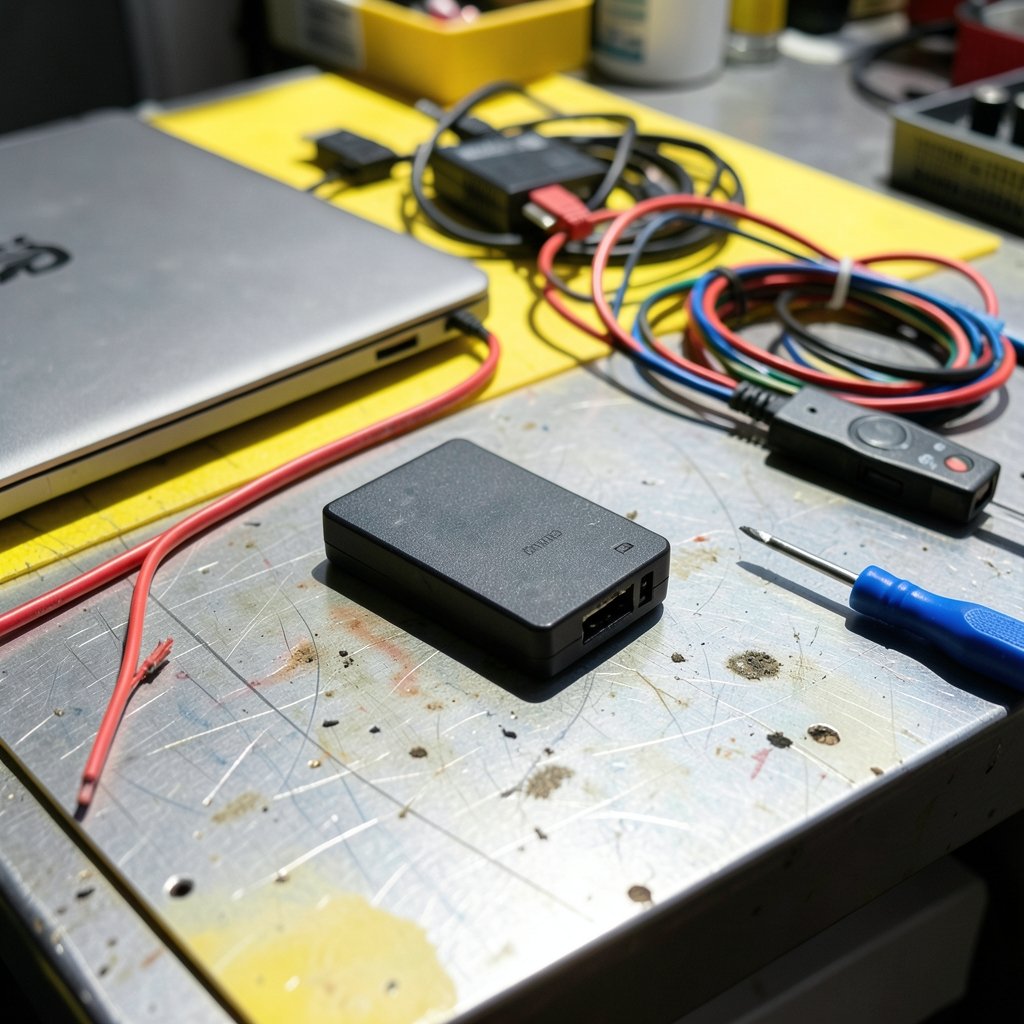
You are copying a 40 GB folder to your external SSD. The progress bar crawls to 62%, the window freezes, and then comes that awful sound of silence: the drive vanishes from File Explorer. You plug it back in, start over, and it drops again at roughly the same spot. Sound familiar?
An external SSD that disconnects mid-transfer is one of the most frustrating storage problems out there, because the drive usually works fine right up until you trust it with something important. The good news is that most of these dropouts trace back to a short list of causes: power settings, cables, ports, bridge chips, heat, or filesystem quirks. Work through them in order and you will almost always find the culprit.
Why Does an External SSD Disconnect Mid-Transfer?
A disconnect during a file transfer is rarely random. Sustained writes push far more current through the USB link than idle use, and they generate real heat inside the enclosure. That is why a drive can browse files happily for an hour and then fall over nine seconds into a large copy job.
The main suspects:
- USB power management: Windows can suspend a USB device or let it spin down to save power, and the drive drops off the bus.
- Marginal cables or hubs: A cable that works for a mouse may not hold a stable USB 3.x link under load.
- Front-panel or hub ports: These often deliver less stable power than rear motherboard ports.
- Bridge-chip and firmware bugs: The SATA-to-USB controller inside the enclosure can misbehave under heavy sequential writes.
- Thermal throttling: Bus-powered SSDs and tight enclosures get hot, and some drop the link instead of slowing down gracefully.
- Filesystem and driver issues: exFAT and third-party NTFS drivers on macOS are frequent offenders.
Notice that none of these is “the SSD is dead.” That is the first thing people assume, and it is usually wrong.
Start With the Cable and the Port
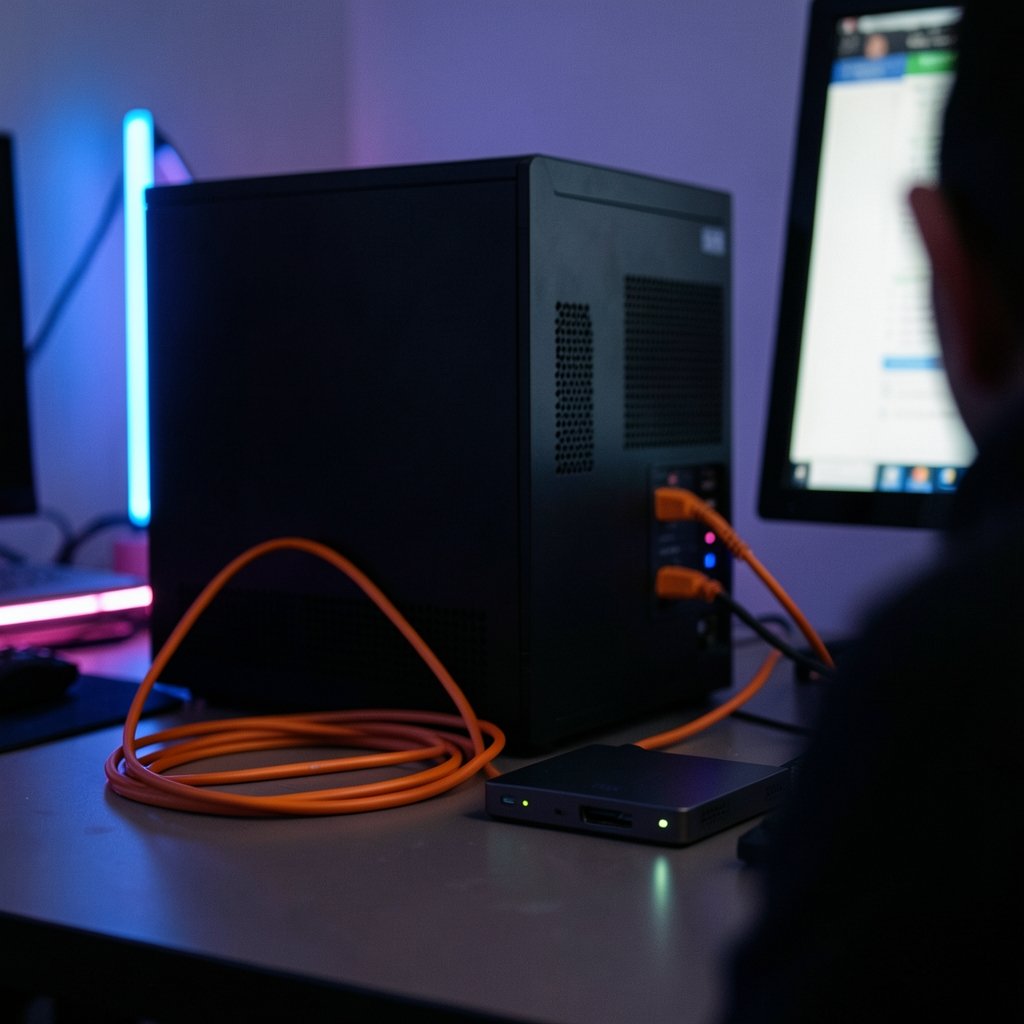
Before you touch a single setting, rule out the physical layer. It takes five minutes and solves a surprising share of cases.
- Swap the USB cable for a known-good one rated for the drive’s speed (USB 3.2 Gen 2 cables look identical to old USB 2.0 cables, so check the markings).
- Plug the drive directly into a rear port on a desktop, not a front-panel port and not a hub.
- Avoid unpowered hubs entirely for large transfers. If you must use a hub, use a powered one.
- Try a different computer. If the drive survives a big transfer elsewhere, the problem is your machine, not the drive.
A practical tip from repair benches: wiggle the connector gently while a transfer runs. If the drive drops the moment you touch the cable, you have found a worn connector or a cracked solder joint on the enclosure’s board. That is a hardware fault, not a software one, and no driver update will fix it.
According to the USB Implementers Forum, which maintains the USB specifications, cable and connector compliance matters enormously at higher speeds, and non-compliant cables are a well-documented source of link instability. Cheap cables are cheap for a reason. (USB)
Turn Off USB Selective Suspend and Drive Sleep
If the hardware checks out, power management is the next stop. Windows has a long-standing habit of cutting power to idle or “unresponsive” USB devices, and under sustained load a drive can briefly look unresponsive.
On Windows:
- Open Control Panel and go to Power Options.
- Click Change plan settings, then Change advanced power settings.
- Expand USB settings, then USB selective suspend setting, and set it to Disabled for both battery and plugged-in.
- Expand Hard disk, then Turn off hard disk after, and set it to Never.
- In Device Manager, find your drive under Disk drives and your USB hub under Universal Serial Bus controllers. For each, open Properties, go to the Power Management tab, and uncheck “Allow the computer to turn off this device to save power.”
On macOS, open System Settings, go to Energy or Battery settings, and disable “Put hard disks to sleep when possible.” Also check that “Prevent automatic sleeping when the display is off” is enabled if you run long transfers overnight. Apple’s support documentation covers external drive behavior under sleep conditions, and the pattern is consistent: the OS puts the drive to sleep, the transfer stalls, and the mount disappears.
After changing these settings, reboot before testing. Half of all “it didn’t work” reports come from people who never restarted.
Check for Heat and Throttling
Bus-powered NVMe enclosures can hit 70°C or more inside a sealed aluminum shell during a long write. Many controllers respond by throttling, and some respond by dropping the link entirely. If your drive disconnects after ten or twenty minutes of continuous writing but works fine for short bursts, heat is a prime suspect.
What actually works in practice:
- Put the drive on a hard surface, not on a blanket or carpet.
- Give it airflow. A small desk fan pointed at the enclosure is not silly; it is diagnostic.
- Avoid daisy-chaining through bus-powered hubs, which adds heat and steals current.
- If the enclosure has a thermal pad gap between the SSD and the case, reseating the drive with a fresh pad can drop temperatures by 10°C or more.
If cooling fixes the dropouts, you have your answer. Consider a better-ventilated enclosure or a Thunderbolt/USB4 model with a more robust power design. Our guide to the best external SSD options covers which models handle sustained writes without cooking themselves.
Update Firmware, Drivers, and the Bridge Chip
The controller chip that bridges your SSD to USB is its own computer with its own firmware, and bugs there show up exactly like this: fine at idle, unstable under load. Certain bridge chips have well-documented quirks with UASP (USB Attached SCSI Protocol) and TRIM passthrough. (About USB-IF)
Steps that help:
- Check the enclosure manufacturer’s support page for firmware updates, and check the SSD manufacturer’s page too if it is a branded portable drive.
- Update your motherboard’s USB and chipset drivers from the vendor, not from Windows Update.
- On Windows, try disabling UASP for that specific device if the vendor provides a tool, or test the drive on a USB 2.0 port. If it is stable at USB 2.0 speeds, the problem is almost certainly the USB 3.x link or bridge firmware.
- On macOS, avoid third-party NTFS drivers during large transfers. Copy to an exFAT or APFS-formatted drive instead.
A word of caution: firmware updates can brick a drive if power drops mid-flash. Laptop users should plug in the charger first.
Rule Out the Filesystem
Sometimes the drive is not disconnecting at all. The transfer is failing, the OS unmounts the volume, and it looks like a disconnect. Corrupted directory entries, a nearly full drive, or a filesystem the OS handles poorly can all produce this illusion.
Run a check:
- Windows: open Command Prompt as administrator and run `chkdsk X: /f` (replace X with your drive letter).
- macOS: open Disk Utility, select the drive, and click First Aid.
- Either OS: if the drive is exFAT and holds critical data, copy everything off first, then reformat. exFAT has no journal, so a mid-transfer disconnect can leave the filesystem in a fragile state.
If you are planning to move your system to a new drive and worry about interruptions, the process in this guide to clone a hard drive to SSD is worth reading before you start, since a disconnect during cloning is far more damaging than during a simple file copy.
Read the Event Logs Like a Technician
Guessing wastes hours. The operating system already wrote down what happened.
On Windows, open Event Viewer and look under Windows Logs, then System. Filter for events around the moment of the dropout. You are looking for disk errors (Event ID 153, “The IO operation at logical block address was retried”), which point to a failing link or cable, and for Kernel-PnP events showing the device being removed.
On macOS, open Console and search for the drive’s name around the timestamp of the failure. Messages about I/O timeouts or device removal tell you whether the OS lost the device or the device stopped answering.
If the logs show repeated retries before the drop, lean toward cable, port, or power. If the device simply vanishes with no retries, lean toward firmware or thermal shutdown.
Back Up Before You Troubleshoot Further
Here is the uncomfortable truth: a drive that disconnects under load is not trustworthy, even after you “fix” it. Before you run more tests, copy your important files off in small batches, and keep a second copy elsewhere. A reliable backup drive is not optional when you are diagnosing storage problems. This roundup of the best external hard drives for backup is a sensible starting point, and spinning disks are often a better fit for cold backups than a hot, flaky SSD.
If the drive holds app installers or Android packages and you are worried about file integrity after a failed transfer, it is worth learning how to check whether an APK file is safe before you run anything that might have been truncated or corrupted by the interrupted copy.
When the Drive Itself Is the Problem
If you have swapped cables, tried rear ports, disabled power saving, cooled the enclosure, updated firmware, and checked the filesystem, and the drive still drops, the hardware is likely at fault. Two possibilities remain:
- The enclosure’s bridge board is failing. If the SSD inside is a standard M.2 drive, moving it to a new enclosure is a cheap test and often a permanent fix.
- The SSD controller is failing. This is rarer but real. Drives that disconnect and then reappear as read-only, or that show wildly wrong capacity, are usually on their way out.
Either way, stop using the drive for anything you cannot afford to lose, and replace it. Storage is cheap; your time and data are not.
Conclusion
An external SSD that disconnects during a file transfer is almost never a mystery. It is a power setting, a tired cable, a hot enclosure, a firmware quirk, or a filesystem that gave up. The trick is to work through them in the right order, cheapest and easiest first, and to let the event logs tell you which category you are in rather than guessing.
Start with the cable and the port. Then kill USB selective suspend and drive sleep. Then watch the temperature during a long write. Only after those three come firmware, filesystem checks, and finally the conclusion that the hardware is failing. And whatever you find, back up first. A drive that drops under load has already told you something important about how much you should trust it.
Frequently Asked Questions
Why does my external SSD disconnect only during large transfers?
Large transfers combine three stressors at once: sustained power draw, sustained heat, and sustained link activity. Idle browsing stresses none of them. That is why a marginal cable, a weak hub port, or a controller with a firmware bug can pass every casual test and still fail at the 60% mark of a 40 GB copy.
Is a disconnecting external SSD a sign it is dying?
Not necessarily. Cable, port, power-management, and thermal causes are far more common than genuine drive failure, and all of them are fixable. That said, a drive that disconnects repeatedly and reappears as read-only, or that reports the wrong capacity, is showing classic failure symptoms. Back up immediately either way.
Does USB selective suspend really cause disconnects?
It can, yes. Windows may suspend a USB device or let a disk spin down to save power, and under heavy load a brief suspension can break the connection entirely. Disabling USB selective suspend and setting the hard disk to never turn off is one of the highest-value fixes, and it costs nothing to try.
Can an overheated SSD cause a transfer to fail?
Yes. Bus-powered NVMe enclosures can get very hot during long sequential writes, and some controllers throttle or drop the link instead of slowing down cleanly. If failures happen after ten or twenty minutes of writing but never during short bursts, improve airflow and test again before assuming the drive is faulty.
Should I reformat my external SSD to fix disconnects?
Reformatting fixes filesystem-level problems, not hardware or power problems, so try it last. If the drive is exFAT and has survived several interrupted transfers, the filesystem may now be fragile. Copy your data off first, then reformat, because a disconnect during formatting can leave the drive in a worse state than before.
How do I know if the problem is the cable or the drive?
Test the drive with a different cable on a different computer, plugged directly into a rear port. If it survives a large transfer there, the drive is fine and the problem is your cable, port, or machine. If it drops on both machines with two different cables, the drive or its enclosure is the likely culprit.



