
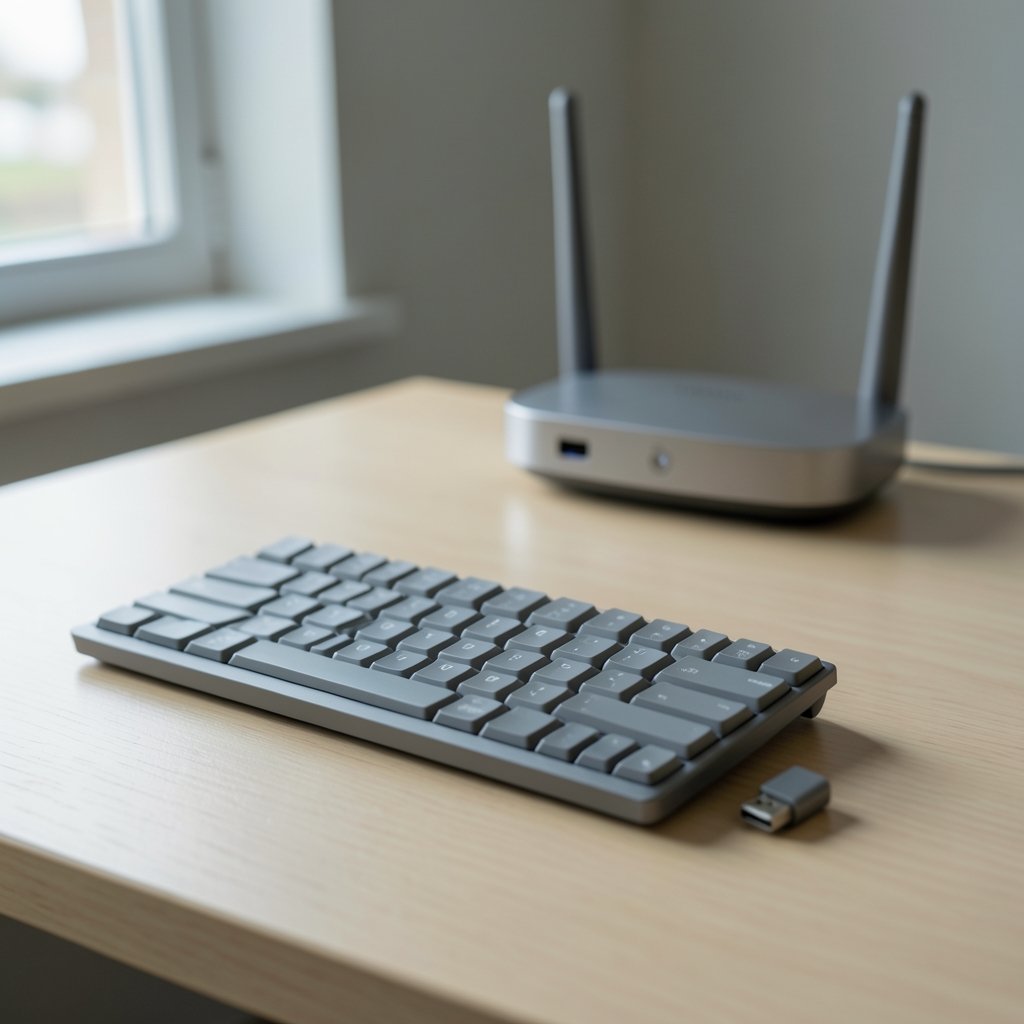
Does your wireless keyboard stutter mid-sentence, miss keystrokes, or freeze for a second before catching up? You are not imagining it, and your keyboard probably is not broken. Bluetooth interference is one of the most common reasons a wireless keyboard misbehaves, and it is almost always fixable without buying new hardware.
The culprit is crowded airwaves. Bluetooth Classic and Bluetooth Low Energy share the same 2.4 GHz band as Wi-Fi, USB 3.0 ports, cordless phones, and microwave ovens. When those signals collide, your keystrokes get delayed or lost. This guide walks through what actually causes the problem and the fixes that work in practice, ranked from quickest to most thorough.
Why Bluetooth Keyboards Struggle in a Crowded 2.4 GHz World
Bluetooth Classic hops across 79 channels in the 2.4 GHz band, while Bluetooth Low Energy (BLE) uses 40 channels. Both were designed to share space with Wi-Fi, and both use techniques to dodge busy frequencies. Bluetooth Classic relies on adaptive frequency hopping (AFH), which maps out channels occupied by Wi-Fi and skips them. BLE uses a channel map update mechanism for the same purpose. (Bluetooth)
Here is the catch: these are mitigation strategies, not shields. In a dense environment, such as an apartment building or open office with dozens of access points, the band gets so congested that even smart hopping cannot find clean air. BLE’s 40-channel map is coarser than Classic’s 79 channels, which is one reason some BLE keyboards feel more fragile in busy spaces.
Distance matters too. Bluetooth is a short-range radio, and every wall, monitor, and human body between keyboard and host weakens the signal. A keyboard that works perfectly at two feet can drop keys at eight feet through a desk.
Quick Fixes to Try First

Before diving into settings, run through the basics. Most people skip these and jump straight to re-pairing, which wastes time.
- Move the keyboard closer to the computer. Try it at half the distance and see if the stutter disappears. If it does, range or obstruction is your problem.
- Check the battery. Low charge reduces transmit power on many keyboards, which makes them more sensitive to interference. Replace or recharge before diagnosing anything else.
- Remove physical obstructions. Metal desk legs, monitors, external drives, and even a mug of water between keyboard and receiver can weaken the link.
- Turn off nearby 2.4 GHz devices temporarily. Cordless phones, baby monitors, and wireless headsets are frequent offenders. If the keyboard stabilizes, you have found your culprit.
- Restart Bluetooth on the host. Toggle it off, wait ten seconds, toggle it back on. This forces a fresh connection and clears stale state.
If none of that helps, the problem is likely environmental or driver-related, and the sections below address both.
The USB 3.0 Problem Nobody Warns You About
This one surprises almost everyone. USB 3.0 ports and cables emit radio noise in the 2.4 GHz range, and that noise can drown out a Bluetooth signal sitting inches away. The effect is well documented in the industry, and it is especially common with laptops that have USB 3.0 ports right next to the Bluetooth antenna.
The classic symptom: your keyboard works fine until you plug in an external SSD or a USB 3.0 hub, then it starts stuttering. The fix is simple but counterintuitive.
- Move the USB 3.0 device to a port on the opposite side of the laptop.
- Unplug external drives when you are not using them.
- If your keyboard came with a 2.4 GHz dongle, try it. A proprietary dongle uses its own link and can sidestep Bluetooth-specific issues, though it will not escape general 2.4 GHz congestion.
- Use a short USB extension cable to relocate a Bluetooth adapter away from noisy ports.
If you are troubleshooting a PC that feels sluggish overall, it helps to rule out other system-level causes too, such as the antimalware service executable high CPU usage issue that can make every input feel laggy regardless of your keyboard.
Separate Your Wi-Fi From Your Keyboard
Wi-Fi is the biggest single source of 2.4 GHz congestion in most homes. The fix is to move Wi-Fi traffic off the band your keyboard depends on.
Switch to the 5 GHz band. Most modern routers broadcast both 2.4 GHz and 5 GHz networks. Connect your laptop, phone, and TV to the 5 GHz SSID and leave the 2.4 GHz band quieter for Bluetooth and smart-home devices. This single change resolves a large share of keyboard dropout complaints.
If you cannot move everything to 5 GHz, at least set your router’s 2.4 GHz channel to 1, 6, or 11. These are the only three non-overlapping channels in the standard, and choosing one of them reduces the spread of interference across the band. Many routers default to auto-select, which sometimes lands on a channel that overlaps heavily with neighboring networks.
A practical comparison of the two approaches:
| Approach | Effort | Effectiveness | Best For |
|---|---|---|---|
| Move devices to 5 GHz | Low | High | Homes with dual-band routers |
| Set 2.4 GHz to channel 1, 6, or 11 | Low | Medium | Crowded apartments, shared buildings |
| Reduce number of 2.4 GHz devices | Medium | Medium | Smart-home-heavy households |
| Relocate Bluetooth adapter with extension | Medium | High | Desktop PCs with rear USB ports |
Re-Pair and Reset the Connection
Sometimes the interference is not radio noise at all but a corrupted pairing. Operating systems cache connection parameters, and a stale cache can cause repeated dropouts even in a clean signal environment.
The reliable sequence:
- Remove the keyboard from your host’s Bluetooth device list entirely.
- Turn the keyboard off, then back on.
- Put it into pairing mode per the manufacturer’s instructions.
- Re-pair from scratch.
- Test for a few minutes before assuming the fix failed.
On Windows, this lives under Settings, then Bluetooth and devices. On macOS, it is in System Settings under Bluetooth. On Linux, tools like bluetoothctl handle removal and pairing. Menu paths shift between OS versions, so check your current vendor documentation rather than relying on memory.
If re-pairing does not stick, update the keyboard firmware and the host’s Bluetooth drivers. Vendor utilities often ship firmware updates that improve channel management. This is also worth doing if you use a Steam Deck with accessories, where third-party plugin issues can mimic wireless problems; the Decky loader not working Steam Deck fix 2026 guide covers that separate troubleshooting path.
Reduce the Number of Paired Devices
Every paired device adds management overhead. A keyboard that is paired to a laptop, tablet, and phone simultaneously, or one with multi-device switching, may struggle when several hosts are nearby and competing for its attention.
Try this: unpair the keyboard from every device except the one you are using. Test for a day. If the dropouts stop, multi-host contention was part of the problem. Many keyboards also have a physical switch for device slots; make sure it is firmly in the correct position rather than resting between two.
Similarly, a Bluetooth adapter that is juggling a mouse, headset, and keyboard at once can saturate. Splitting the load, for example putting the headset on a dongle and the keyboard on Bluetooth, often smooths everything out.
When the Problem Is Your Computer, Not the Keyboard
Before blaming the keyboard, rule out the host. A machine with driver conflicts, background processes eating CPU, or a failing wireless card will show the same symptoms.
A few checks worth running:
- Test the keyboard on another device. If it works flawlessly on a phone or tablet, the keyboard is fine and the problem is your computer.
- Test a different keyboard on the same computer. If a second keyboard also stutters, the host or environment is at fault.
- Check for OS updates. Bluetooth stack bugs get patched regularly.
- Watch for patterns. Does it fail only when a specific app is open, or only when the laptop is on battery? Patterns point to causes.
If your broader problem is connectivity in general, the same diagnostic mindset applies to browsers and networks; the how to fix a website that will not load walkthrough shows how to isolate whether the fault is local or remote.
Practical Habits That Prevent Recurrence
Once you have fixed the immediate problem, a few habits keep it from coming back.
Keep the keyboard within a reasonable distance of the host, ideally under three feet for desktop setups. Avoid stacking the keyboard directly on top of a laptop’s Wi-Fi antenna, which is often near the hinge or the front edge. If you perform live or work on stage, a stable, well-positioned stand matters as much as the radio link; the guide to the best keyboard stand for stage performance covers placement and stability. (ITU Radiocommunication Sector (ITU-R))
Label your USB 3.0 ports mentally, or physically with tape, so you remember which ones cause trouble. And when you add a new wireless device to your home, ask whether it needs 2.4 GHz or can run on 5 GHz.
A Realistic Expectation Setting
No fix eliminates interference entirely. The 2.4 GHz band is unlicensed and shared by design, and you cannot control your neighbors’ routers. What you can do is reduce the noise floor enough that your keyboard’s error correction handles the rest. In practice, combining three changes, moving Wi-Fi to 5 GHz, relocating noisy USB devices, and re-pairing cleanly, resolves the majority of cases.
If dropouts persist after all of this, the keyboard’s radio may be failing. That is uncommon but real, especially on older units. Testing on a second host is the fastest way to confirm it.
Conclusion
Keyboard Bluetooth interference is rarely mysterious once you know where to look. The 2.4 GHz band is shared territory, and your keyboard is competing with Wi-Fi, USB 3.0 noise, and every other wireless gadget in range. Start with the cheap fixes: fresh batteries, less distance, fewer obstructions. Then tackle the environment by moving Wi-Fi to 5 GHz and pulling noisy USB devices away from your Bluetooth adapter. Finish with a clean re-pair and updated firmware. Do those in order and most stuttering keyboards settle down within an afternoon.
Frequently Asked Questions
Why does my Bluetooth keyboard lag only sometimes?
Intermittent lag usually points to a variable interference source, such as a USB 3.0 device that is only sometimes plugged in, a microwave running nearby, or Wi-Fi traffic spikes when someone streams video. Track when it happens and correlate it with what else is active.
Does switching to a 2.4 GHz dongle fix interference?
It can help with Bluetooth-specific problems like pairing glitches and stack bugs, because the dongle uses its own proprietary link. It will not help with general 2.4 GHz congestion, since the dongle uses the same crowded band.
Will a newer keyboard solve the problem?
Only if the old keyboard’s radio is failing. A new keyboard uses the same 2.4 GHz band and faces the same interference. Fix the environment first, then replace hardware if problems persist across multiple devices.
How far should a Bluetooth keyboard be from the computer?
Most Bluetooth keyboards perform best within about three feet (one meter) of the host, with clear line of sight. Range claims of 30 feet assume ideal conditions that rarely exist indoors.
Can other people’s Wi-Fi affect my keyboard?
Yes. In apartments and offices, neighboring networks occupy the same 2.4 GHz channels. You cannot control them, but you can reduce your own contribution by using 5 GHz and choosing non-overlapping channels for your own router.
Is it worth updating keyboard firmware for interference?
Often, yes. Firmware updates frequently improve channel management and connection stability. Check your manufacturer’s support page for your specific model, since update methods vary widely between brands.



