

Roughly one in every four smartwatch owners worldwide wears an Apple Watch, according to Statista’s wearables market data. That is hundreds of millions of people who have stared at the same spinning pairing animation at least once. When your Apple Watch refuses to pair, the frustration is real, but the fix is usually simpler than you think. This guide walks through the causes in order of likelihood, from the embarrassingly obvious to the genuinely technical.
Why the Apple Watch Pairing Process Fails in the First Place
Before troubleshooting, it helps to understand what actually happens during pairing. Your iPhone and Apple Watch connect over Bluetooth, and during setup they also use a temporary peer-to-peer Wi-Fi connection to transfer data. The Watch app on your iPhone reads an animated pattern on the watch screen using the camera, then the two devices exchange security keys.
That chain has several weak links. A camera that cannot focus, a Bluetooth radio competing with too many devices, an outdated iOS version, or a watch still locked to a previous owner can each break the chain at a different point. Apple’s official guidance, documented in its Apple Watch support hub, treats pairing failures as a sequence of elimination steps for exactly this reason.
The most common causes, ranked by how often they appear in support forums:
| Rank | Cause | Typical Symptom |
|---|---|---|
| 1 | Outdated iOS or watchOS | Pairing stalls at “Checking for updates” |
| 2 | Watch still paired to another iPhone | “This Apple Watch is already paired” error |
| 3 | Bluetooth or Wi-Fi interference | Animation scan fails repeatedly |
| 4 | Camera can’t read the pairing animation | “Unable to scan” message |
| 5 | Low battery on either device | Setup aborts mid-process |
| 6 | MDM or beta software restrictions | Pairing blocked with no clear error |
Start With the Basics Most People Skip
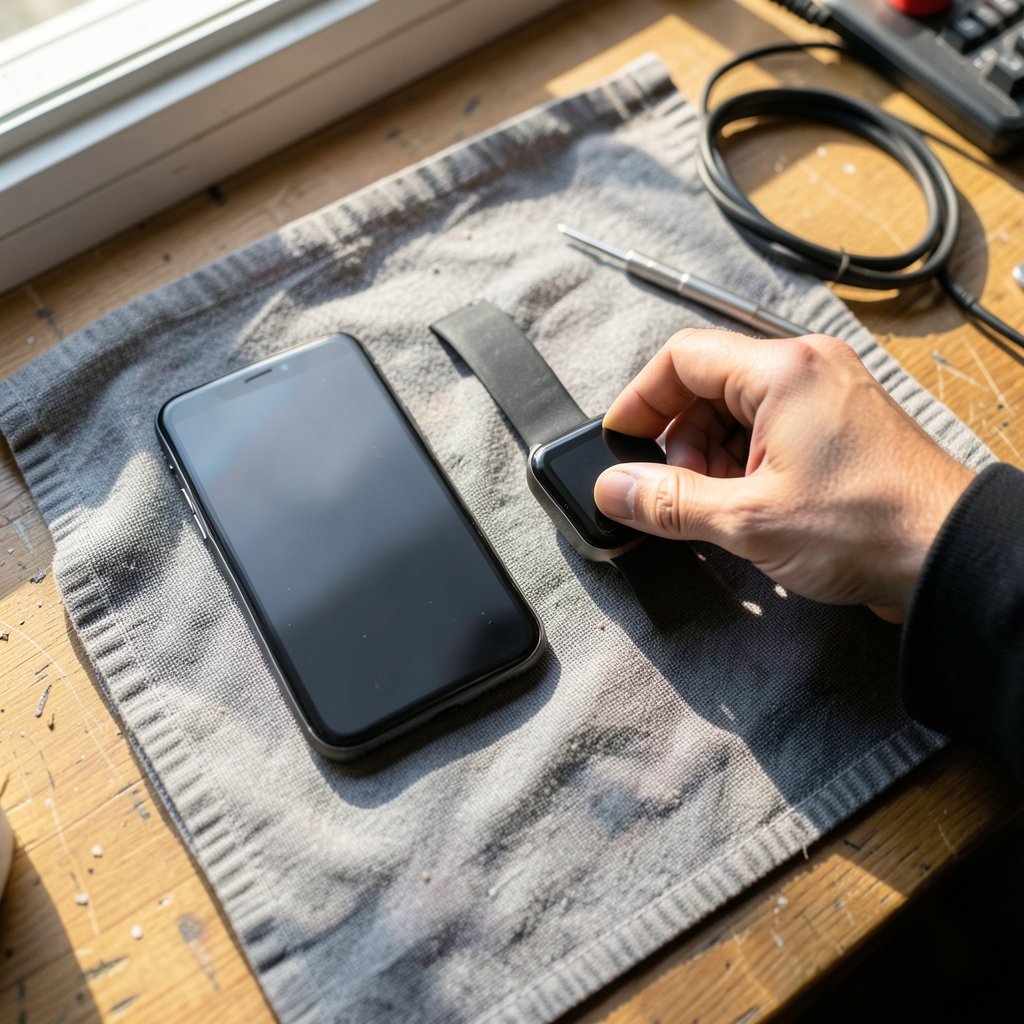
Practical experience from repair technicians and support forums suggests that a surprising share of pairing failures resolve with steps people consider too simple to try. Work through these before anything more drastic.
Charge both devices above 50 percent
Apple recommends keeping both the iPhone and Apple Watch charged during setup. A watch that drops below a critical threshold mid-pairing can abort the process silently. Plug the watch into its magnetic charger and leave it there during the entire setup.
Move away from other Bluetooth devices
Wireless earbuds, fitness trackers, smart speakers, and even a nearby microwave can interfere. In practice, pairing in a room with fewer active radios works noticeably better. Turn off Bluetooth headphones temporarily, and keep the two devices within a few inches of each other.
Restart both devices
This sounds like a cliché, but a full restart clears stale Bluetooth stacks on the iPhone and resets the watch’s pairing radio. Restart the iPhone first, then hold the watch’s side button and Digital Crown together until the Apple logo appears.
Check for a VPN or configuration profile
An active VPN on the iPhone can block the local peer-to-peer connection the Watch app needs. Disable any VPN, and check Settings > General > VPN & Device Management for old configuration profiles that might be interfering.
Update iOS and watchOS Before You Try Again
An out-of-date iPhone is the single most common reason a new watch will not pair. The Watch app checks the iPhone’s iOS version against the watch’s firmware during setup, and if the gap is too wide, the process stops with a vague error.
- On the iPhone, open Settings > General > Software Update and install anything pending.
- If the watch is new, it ships with a recent watchOS, but a watch that sat in a drawer may need an update.
- For a watch already paired once, update through the Watch app: Watch app > General > Software Update.
- Reboot both devices after updating, then attempt pairing again.
If you are running a beta version of iOS on your iPhone, expect trouble. Beta software frequently breaks watch pairing because the Watch app’s compatibility checks are stricter than most other parts of the OS. The practical fix is to restore the iPhone to the public release, pair the watch, and only then consider rejoining the beta.
Reset the Watch if It Was Previously Paired
A watch that belonged to someone else, or that you paired with an old iPhone, carries a record of that pairing. It must be erased before it will accept a new phone.
Unpair properly from the old iPhone, if you still have it
Open the Watch app on the old iPhone, tap All Watches, tap the info button next to the watch, and choose Unpair Apple Watch. This also removes Activation Lock, which is the security feature that otherwise blocks a new pairing.
Erase the watch directly if the old phone is gone
On the watch itself, open Settings > General > Reset > Erase All Content and Settings. You will need the watch’s passcode. After the erase, the watch returns to the pairing screen and behaves like a new device.
A word of caution: if Activation Lock was never removed and you do not know the original Apple Account credentials, no amount of troubleshooting will help. Apple requires the original owner to remove the watch from their account, a policy documented in the Apple Account support pages. This catches a lot of secondhand buyers off guard.
Fix the Camera Scan When the Animation Won’t Read
The pairing animation is a dense pattern of moving dots. If the iPhone camera cannot resolve it, setup loops endlessly. Try these fixes in order:
- Clean the iPhone camera lens. A smudge is enough to blur the pattern.
- Hold the phone about six inches from the watch face and fill the frame with the animation.
- Improve lighting. Dim rooms make the pattern harder to read.
- Hold still for several seconds rather than chasing the animation.
- If scanning keeps failing, tap Pair Manually on the watch and enter the six-digit code shown on its screen into the iPhone.
Manual pairing bypasses the camera entirely and works reliably when the optical route fails. It is the single most underused fix for this particular symptom.
When the Watch App Itself Is the Problem
Sometimes the watch is fine and the iPhone’s Watch app is the culprit. Symptoms include the app crashing on launch, hanging at “Setting up,” or showing a blank screen.
Closing and reopening the app is the first move. If that fails, delete the Watch app, restart the iPhone, and reinstall it from the App Store. The app is small and reinstalling takes under a minute. Your watch data lives on the watch and in iCloud backups, so removing the app does not erase anything permanent.
If the iPhone itself is behaving sluggishly during setup, background processes may be starving the pairing service of resources. It is worth checking whether something like the antimalware service executable is eating CPU on a Windows PC you are using alongside, though on iPhone the equivalent check is simply closing background apps and freeing storage. A phone with less than a gigabyte of free space can fail to complete setup.
Enterprise, School, and Managed Devices
If your iPhone is managed by an employer or school, a mobile device management (MDM) profile may block watch pairing outright. Many organizations disable Apple Watch pairing for security reasons, and no troubleshooting on your end will override that.
Check Settings > General > VPN & Device Management for a management profile. If one exists, contact your IT administrator. They can either allowlist watch pairing or confirm it is intentionally disabled. This is not a bug, and treating it as one wastes hours.
What to Do When Nothing Works
After exhausting the steps above, escalation is reasonable. The sequence that resolves the widest range of stubborn cases:
- Back up the iPhone to iCloud or a computer.
- Erase the iPhone and set it up as new, without restoring the backup.
- Pair the watch to the clean iPhone.
- Restore the backup afterward.
This sounds extreme, but it separates a corrupted iPhone configuration from a hardware fault. If pairing succeeds on the clean phone, the problem was software. If it still fails, the watch’s wireless hardware may be faulty and a service appointment is the right next step.
Apple Stores and authorized service providers can run diagnostics on the watch’s Bluetooth and Wi-Fi radios. A watch that fails to pair even after a full erase and a clean iPhone setup usually has a hardware issue covered under warranty or AppleCare.
One more practical note for people who tinker: if you are the type to jailbreak, sideload, or install custom firmware on your devices, remember that unofficial modifications void support eligibility and frequently break pairing. The same caution applies to any handheld gadget you have modified. If a fix like the Decky loader not working on a Steam Deck has taught you anything, it is that custom software and official pairing flows rarely cooperate. The article on Decky loader not working Steam Deck fix 2026 covers a similar pattern of official-versus-custom conflicts.
Common Mistakes That Make Pairing Worse
A few habits actively sabotage the process. Avoid these:
- Pairing while the watch is on its charger and far from the phone. Distance matters more than charge level during the handshake.
- Repeatedly tapping “Start Pairing” without restarting. Each failed attempt leaves stale state; restart between attempts.
- Ignoring the “already paired” warning. Erase the watch rather than forcing a new pairing over an old one.
- Using a third-party charging cable during setup. Some uncertified cables cause the watch to reboot mid-pairing.
- Assuming the watch is broken. The overwhelming majority of pairing failures are software or configuration issues.
Conclusion
Apple Watch pairing failures almost always trace back to one of a handful of causes: outdated software, a watch still locked to a previous pairing, camera scan problems, radio interference, or a management profile. Working through them in order, from charging and restarting up to a full erase and clean iPhone setup, resolves nearly every case without a trip to the store. The pattern mirrors what happens across the Apple ecosystem, where software gates and account locks cause most of the friction users experience, from watch pairing to app store policy disputes like the Apple SCOTUS 27 percent App Store fee 2026 case. Patience and methodical elimination beat brute force every time.
Frequently Asked Questions
Why won’t my Apple Watch pair with my iPhone even though both are charged?
The most likely culprit is mismatched software. Check that your iPhone runs the latest iOS and the watch has a current watchOS build. If the watch was previously paired with another phone, it also needs a full erase before it will accept a new pairing. Bluetooth interference from nearby headphones or speakers is the next most common cause.
How do I pair an Apple Watch without using the camera?
Tap Pair Manually on the watch’s pairing screen. The watch displays a six-digit code, which you enter into the Watch app on the iPhone. This bypasses the camera scan entirely and works reliably when the animation will not read.
Can I pair an Apple Watch that belonged to someone else?
Only if the original owner removed Activation Lock by unpairing the watch from their Apple Account. Without that step, the watch is permanently locked to their account and no reset will clear it. Always confirm Activation Lock removal before buying a used Apple Watch.
Why does my Apple Watch say it is already paired?
The watch retains a record of its previous pairing. Erase it from the watch itself under Settings > General > Reset > Erase All Content and Settings, then start fresh. If you still have the old iPhone, unpairing through the Watch app is cleaner because it also removes Activation Lock.
Does a VPN stop an Apple Watch from pairing?
It can. The Watch app uses a local peer-to-peer connection during setup, and an active VPN can route that traffic incorrectly. Disable any VPN and remove stale configuration profiles under Settings > General > VPN & Device Management, then try again.
How long should pairing normally take?
A healthy pairing takes two to five minutes, plus extra time if the watch needs a software update. If setup sits on the same screen for more than ten minutes, stop, restart both devices, and begin again rather than waiting longer. Persistent stalls point to a software mismatch or a hardware fault worth diagnosing at an Apple Store.



