
When iMessage launched alongside iOS 5 in October 2011, it quietly changed how millions of people text. Instead of paying per message, iPhone users could send unlimited texts, photos, and videos over Wi-Fi or cellular data. Today, those familiar blue bubbles are so central to daily communication that when they turn green, or worse, when messages refuse to send at all, it feels like a small crisis. The good news is that most iMessage failures have simple, fixable causes. This guide walks through the most effective troubleshooting steps, from the obvious to the obscure, so you can get your conversations flowing again.
Check Apple’s System Status Before You Touch a Single Setting
The first step sounds almost too simple, but it saves enormous frustration: before you change anything on your phone, check whether the problem is on Apple’s end. Apple maintains a public System Status page that lists outages across its services, including iMessage. If iMessage shows a yellow or red indicator there, no amount of toggling settings will help. The fix is patience. Outages are usually resolved within hours, and Apple typically posts updates as engineers work through them.
This step matters because people often start resetting network settings and signing out of accounts during an outage, which creates new problems on top of the existing one. A thirty-second check on the status page can spare you an hour of unnecessary tinkering.
Confirm iMessage Is Actually Turned On and Signed In
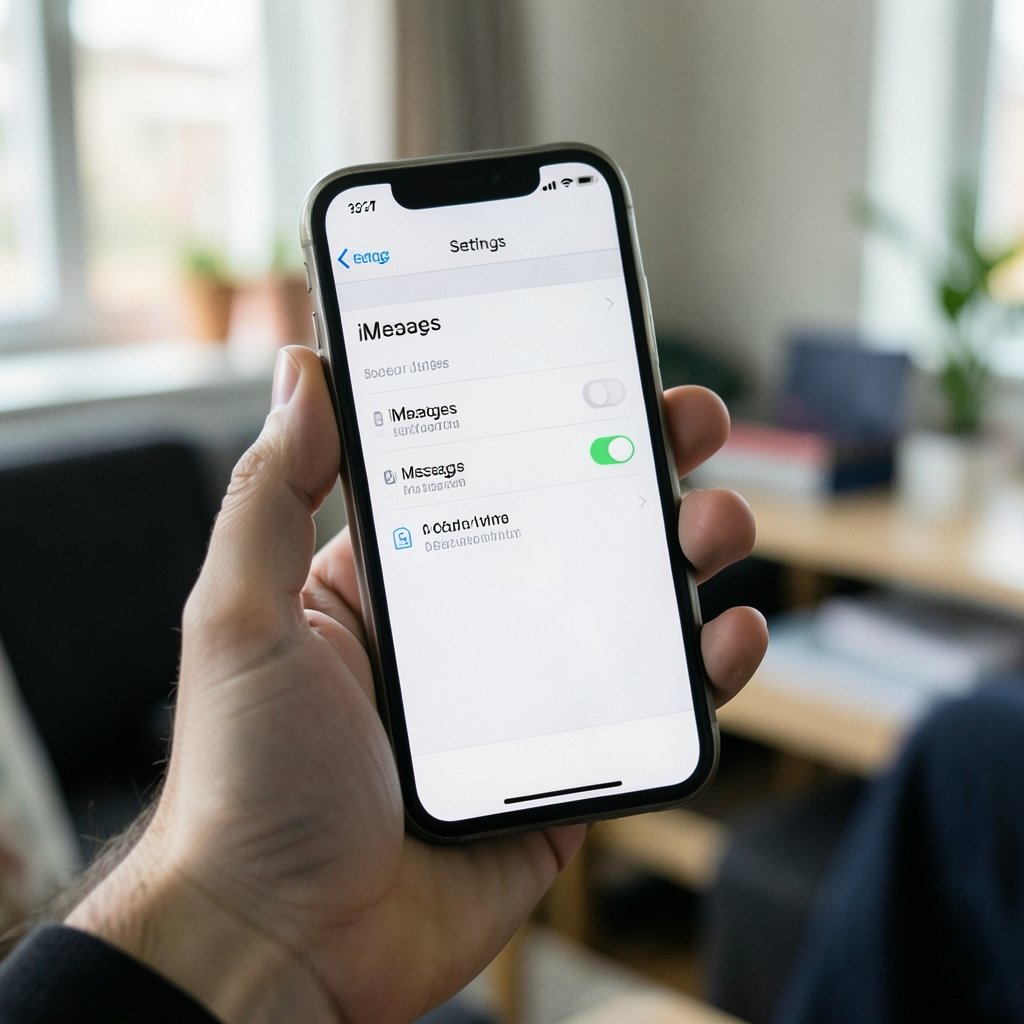
It sounds obvious, but a surprising number of iMessage failures trace back to the feature being switched off, either accidentally or after a software update. Apple’s official guidance on setting up iMessage covers the basics: open Settings, tap Messages, and confirm the iMessage toggle is green. Below that toggle, you should see the Apple Account currently signed in. If no account appears, or if the wrong one is listed, that alone explains why messages won’t send. (iMessage)
A common mistake here is assuming that because the Messages app opens and shows conversations, iMessage must be active. It isn’t necessarily. The app will happily fall back to SMS, which is why some people only notice the problem when group chats or photo messages fail.
If you’re signed in with the wrong account, sign out and sign back in with the Apple Account you actually use for messaging. Apple’s support documentation on managing iMessage accounts notes that activation can take up to 24 hours in some cases, so give it time before assuming the fix failed. (Decky loader not working steam deck fix 2026)
Verify Your Phone Number and Email Addresses
iMessage can reach you through both your phone number and any email addresses linked to your Apple Account. If a friend is texting an old email address that’s no longer registered, their messages may never arrive, and they’ll blame their own phone while you blame yours. Apple’s article on adding or removing addresses for iMessage and FaceTime explains how to review which addresses and numbers are active.
To check yours, go to Settings, then Messages, then Send & Receive. You’ll see the addresses and numbers reachable via iMessage. Make sure the ones you expect are checked. If a number is missing entirely, that often points to an activation issue, which we’ll address shortly. (If you can’t send or receive messages on your iPhone or iPad)
This is also where you can set which address new conversations start from. If replies seem to come from an email address instead of your phone number, changing the “Start New Conversations From” setting fixes the confusion.
Fix the Date and Time Setting
Here’s one that catches almost everyone: if your iPhone’s date and time are wrong, iMessage and other account-based services can fail to connect. Apple has long documented that incorrect date and time settings cause messaging and sign-in problems, because secure connections rely on accurate timestamps. The fix takes five seconds. (How to fix antimalware service executable high cpu usage)
Open Settings, go to General, then Date & Time, and make sure Set Automatically is turned on. If it’s already on, toggle it off and back on to force a refresh. This single step resolves a remarkably large share of “messages won’t send” complaints, especially after travel across time zones or a period with the phone powered off.
Toggle Airplane Mode and Check Your Connection
iMessage needs a data connection, either Wi-Fi or cellular. If your phone shows full signal bars but has no actual data flow, messages will hang on the sending screen indefinitely. A quick way to test: open a web browser and load any page. If it loads, your data connection is fine. If not, that’s your real problem.
Toggling Airplane Mode on for about thirty seconds and then off forces your phone to re-register with the cellular network. It’s the digital equivalent of unplugging a router and plugging it back in, and it works more often than it should. If you’re on Wi-Fi, forget the network and rejoin it. If your broader internet connection seems unreliable, there’s a separate troubleshooting path for when a website won’t load, which can help you rule out the network before blaming iMessage.
Restart, Update, and Re-Register
Sometimes the simplest steps are the ones people skip. Restarting the iPhone clears temporary glitches in the messaging service. Updating to the latest iOS version installs fixes Apple has shipped for known messaging bugs. Both are worth doing before more drastic measures.
If those don’t work, try re-registering iMessage. Go to Settings, then Messages, and turn iMessage off. Wait a minute, then turn it back on. This forces the phone to re-activate with Apple’s servers. For stubborn activation failures, signing out of the Apple Account entirely and signing back in can help, though it’s a bigger step that may require re-entering passwords for other services.
One underrated cause: Screen Time restrictions. If communication limits are enabled, whether set by you or a family organizer, they can block messages from certain contacts. Check Settings, then Screen Time, then Communication Limits. Parents setting up a child’s device sometimes forget these are active.
What to Do When Activation Fails
If iMessage shows “Waiting for activation” for more than a day, the problem is usually on the account side rather than the device. Apple directs users to contact Apple Support when activation doesn’t complete, and that’s genuinely the right move here. Before you do, gather your Apple Account email, your phone number, and the exact error message you see.
There’s also a practical tip worth knowing: activation issues sometimes resolve after inserting a different SIM card briefly, or after resetting network settings. Resetting network settings erases saved Wi-Fi passwords, so note them down first. If you’re comfortable with deeper diagnostics, understanding what an IP address is and how it works can help you tell whether your phone is getting a proper network assignment or is stuck on a broken connection.
A Quick Reference Table
| Symptom | Most Likely Cause | First Fix to Try |
|---|---|---|
| Messages send as green SMS only | iMessage off or not activated | Check Settings > Messages toggle |
| Stuck on “Waiting for activation” | Account or carrier issue | Sign out and back in; contact Apple |
| Messages fail only from one contact | Wrong address registered | Review Send & Receive addresses |
| Nothing sends at all | No data connection | Toggle Airplane Mode; test browser |
| Failures began after travel | Wrong date and time | Enable Set Automatically |
| Family member can’t message you | Screen Time limits | Check Communication Limits |
Common Mistakes That Make Things Worse
People troubleshooting iMessage often create new problems while fixing old ones. The most common is resetting all settings in a panic, which wipes Wi-Fi passwords and Bluetooth pairings without solving anything. Another is repeatedly tapping “Try Again” on a stuck message, which can queue duplicates that all send at once later. A third is assuming a carrier problem when the real issue is a software bug that a simple update would fix.
It also helps to think about how these systems connect. Messaging failures, browser failures, and app failures often share root causes in networking or software. If you’ve recently dealt with malware warnings or odd behavior on other devices, it’s worth checking whether the phone itself is healthy. Learning what malware is and how it works gives you a baseline for spotting when strange behavior is more than a glitch.
When to Escalate to Apple Support
If you’ve worked through status checks, account verification, date and time, network toggles, restarts, and updates, and iMessage still won’t work, escalate. Apple Support can run diagnostics on your account that you can’t access yourself. Have your device model, iOS version, and a clear description of the failure ready. Support chats are far more productive when you can say exactly what you’ve already tried.
Conclusion
iMessage failures feel urgent because messaging is how modern life runs, but the underlying causes are usually mundane. Start with Apple’s System Status page to rule out an outage. Then confirm iMessage is on, the right account is signed in, and your phone number and email addresses are registered. Check that the date and time are set automatically, test your data connection, and restart or update the phone. Only after those steps should you consider re-registering the account or contacting Apple Support. Work through the list in order, resist the urge to reset everything at once, and most blue-bubble emergencies will resolve in minutes rather than days.
Frequently Asked Questions
Why do my messages suddenly send as green bubbles instead of blue?
Green bubbles mean your phone is using SMS instead of iMessage. This usually happens when iMessage is turned off, when there’s no data connection, or when the recipient’s device isn’t registered with iMessage. Check the Messages toggle in Settings first, then test your data connection.
How long does iMessage activation normally take?
Activation is usually instant, but Apple notes it can occasionally take up to 24 hours. If you see “Waiting for activation” for longer than a day, sign out of your Apple Account and back in, then contact Apple Support if the problem persists.
Can Screen Time block iMessage?
Yes. Communication Limits within Screen Time can restrict who you can message and who can message you. If messages from certain contacts fail while others work fine, check Settings, then Screen Time, then Communication Limits before assuming a network problem.
Does resetting network settings fix iMessage?
It can, particularly when the failure is tied to a broken cellular or Wi-Fi connection. Be aware that resetting network settings erases saved Wi-Fi passwords and Bluetooth pairings, so note them down before you proceed.
Why does iMessage fail only with one specific person?
This almost always points to an address mismatch. The other person may be messaging an email address or old phone number that isn’t registered to your account. Review your Send & Receive settings and confirm which addresses are active.
Should I contact my carrier about iMessage problems?
Only after ruling out Apple-side issues. Carriers handle SMS and cellular data, but iMessage itself runs through Apple’s servers. If regular SMS texts work and only iMessage fails, the carrier is rarely the culprit.
If the problem affects everyone in your household at once, the cause is almost certainly your internet connection or an Apple outage rather than individual devices. Check the System Status page first, then restart your router. For persistent carrier-side issues, contacting your carrier is reasonable once Apple-side causes are eliminated. ## Final Checklist Before You Panic Run through this in order: System Status, iMessage toggle, signed-in account, Send & Receive addresses, date and time, data connection, restart, update, re-register. Nine times out of ten, the fix is in the first five. Keep this list handy, and you’ll spend less time staring at a stuck progress bar and more time actually messaging.



