
Roughly half of all calls placed worldwide in a recent year were suspected scams, according to call-analytics research that has tracked global traffic for years. If your iPhone feels like a doorbell that only scammers ring, you are not imagining it. The good news is that Apple has quietly built a serious anti-spam toolkit into iOS, and most people never open it.
This guide walks through every layer of defense, from a single toggle that stops most junk before your phone even rings to carrier-level tools that catch what slips through. It also covers the mistakes that make people think “nothing works” and the settings that quietly undo their own protection.
Start Here: The One Toggle That Stops Most Junk
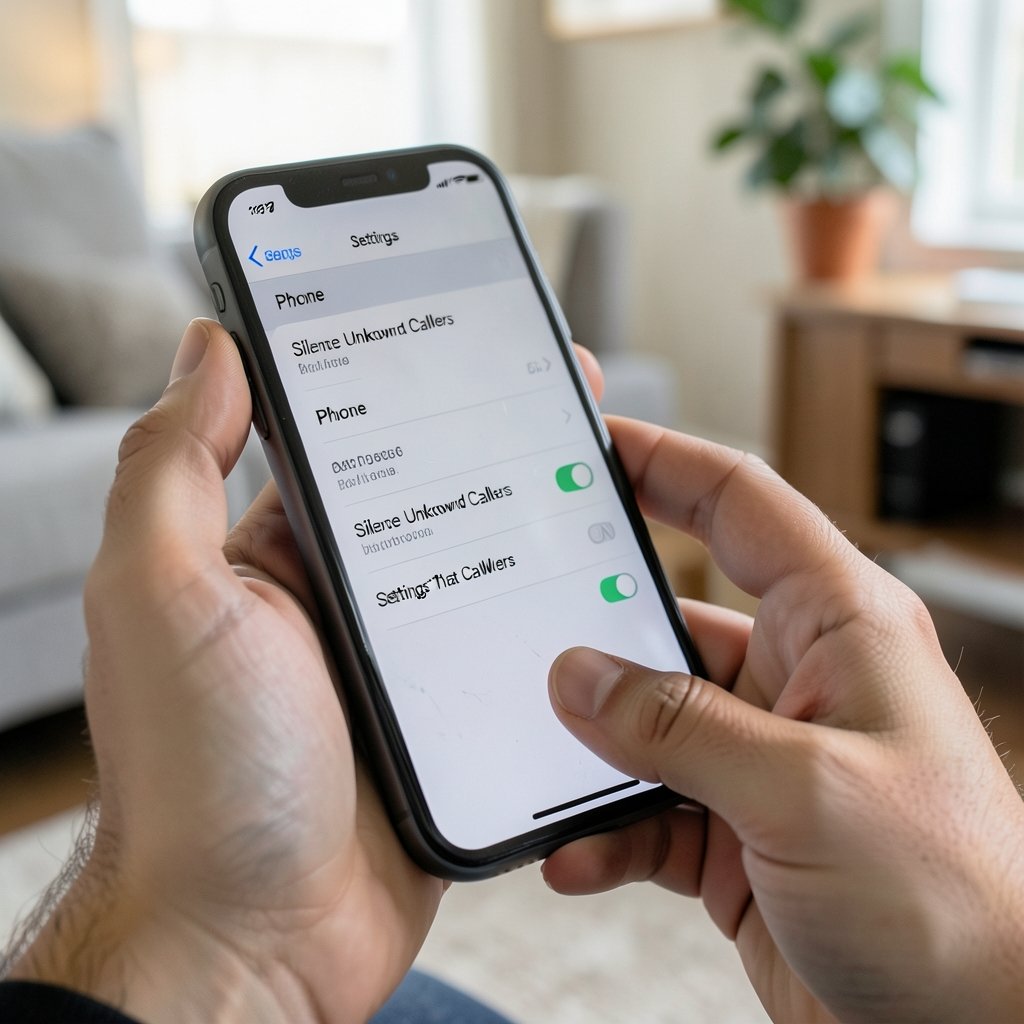
Before you install anything, open Settings > Phone and find Silence Unknown Callers. Flip it on and any call from a number not saved in your Contacts, Mail, or Messages history goes straight to voicemail without a ring.
This is the highest-leverage change most people can make, and it costs nothing. The trade-off is real, though: a doctor’s office calling from an unsaved line, a delivery driver, or a school nurse will also get silenced. In practice, the fix is simple. Add the numbers you actually need to Contacts, and check voicemail a little more often during the first week while you adjust.
A common mistake here is turning this on and then forgetting it exists. If you run a small business or expect calls from new clients, pair it with a Favorites list instead. Calls from favorites still ring through even in many Focus configurations, so your inner circle never gets screened out. (Best earbuds for phone calls meetings) (Phone Scams)
Use Focus Modes to Filter Calls by Person, Not Number
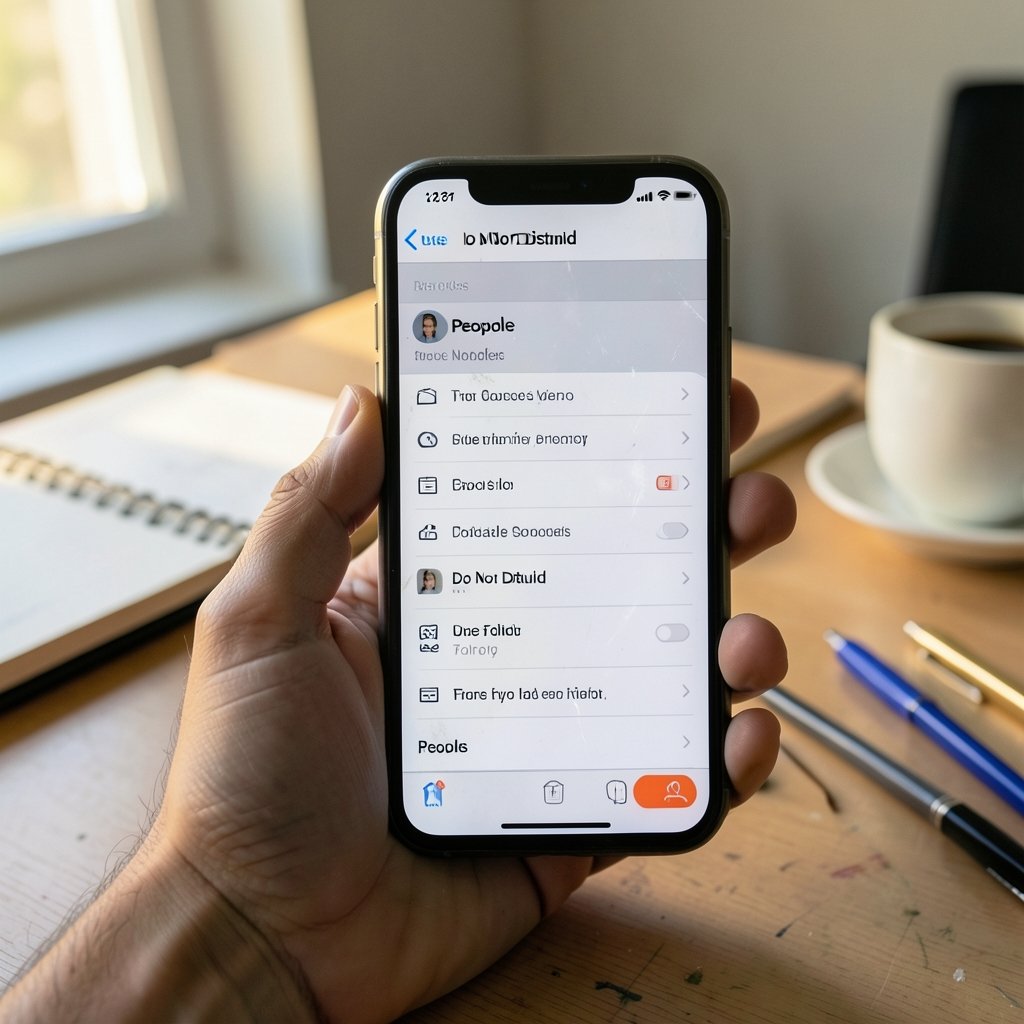
Do Not Disturb has grown into a full Focus system, and its call filtering is underrated. Go to Settings > Focus > Do Not Disturb and look for the People section. You can allow calls from everyone, from nobody, or from a hand-picked list of contacts.
The subtle but powerful option is Allow Calls From. Set it to Favorites and unknown numbers get silenced during your Focus window while your partner, your kid’s school, and your boss still get through. This is the setting that lets you stay reachable without being reachable to everyone.
A practical habit that works: create a dedicated Focus called something like “Work Hours” and allow calls only from your starred contacts. Then schedule it. You get silence during meetings without manually toggling anything, and the schedule survives reboots and updates.
Block Numbers Directly, and Understand What Blocking Really Does
Blocking a specific number is straightforward. Open Phone > Recents, tap the info button next to the number, scroll down, and choose Block this Caller. You can also manage the list later under Settings > Phone > Blocked Contacts.
Here is where expectations get fuzzy. A blocked number cannot call, FaceTime, or text you in the normal way. But blocked callers can still leave voicemail in some configurations, and they can absolutely keep calling from new numbers. Blocking is a scalpel, not a shield. It is perfect for a persistent ex, a pushy salesperson, or that one robocaller that keeps spoofing the same prefix. It is close to useless against operations that rotate numbers by the hour.
One mistake people make constantly: blocking a number and assuming the calls will stop. Spoofed caller ID means the “number” on your screen often belongs to an innocent stranger. Blocking it does nothing to the actual scammer. If the same area code and prefix keep showing up, that is a sign of neighbor spoofing, a tactic designed to make you pick up. (Stop Unwanted Robocalls and Texts)
Let Live Voicemail Screen Calls for You
Live Voicemail shows a real-time transcript on your lock screen as a caller leaves a message, so you can read what they want and decide whether to pick up. It effectively turns every unknown call into a text preview.
Availability varies by region and language, and the feature works best when your iPhone is set to a supported language. When it is on, you will see the caller speaking in text form. If it is a robot reading a script about your “expiring warranty,” you hang up without ever saying a word. If it is a real person with a real reason, you can jump in mid-message.
This pairs beautifully with Silence Unknown Callers. Unknown callers get sent to voicemail, and Live Voicemail tells you instantly whether that voicemail matters.
Add a Call-Blocking App Through CallKit
Apple does not sell a spam database. Instead, it lets third-party apps plug into the Phone app through a framework called CallKit. Carriers, security companies, and standalone spam-filter apps use it to identify or block calls before they ring.
Set it up under Settings > Phone > Call Blocking & Identification. You will see any installed apps that support the feature, with toggles for Unknown Callers, Spam, and similar categories. Turn on what you trust.
| Tool layer | Where it lives | Best for | Limitation |
|---|---|---|---|
| Silence Unknown Callers | Settings > Phone | Most users, instantly | Silences legitimate unknown callers |
| Focus call filtering | Settings > Focus | Scheduled quiet hours | Requires setup per Focus |
| Block this Caller | Recents or Blocked Contacts | One persistent number | Useless against spoofing |
| Live Voicemail | Settings > Phone | Screening without answering | Region and language limits |
| CallKit apps | Call Blocking & Identification | Shared spam databases | Quality varies by app and region |
| Carrier tools | Your carrier’s app or account | Network-level blocking | Depends on carrier and country |
The Silence Junk Callers toggle, where available, works alongside these apps to filter numbers flagged by your call-identification provider. Labeling varies by iOS version and region, so if you do not see it, your carrier or region may not support it yet.
Carrier-Level Tools Catch What the Phone Cannot
Your wireless carrier sits between the scammer and your device, which makes it the best place to stop calls that never should have been connected. Many carriers offer spam-blocking services, often free, that label suspected spam or block known bad numbers at the network level.
In the United States, the FCC has pushed a framework called STIR/SHAKEN, which helps carriers verify that the number on your screen actually belongs to the caller. You can read the commission’s consumer guidance on robocalls and caller ID spoofing at the FCC’s consumer complaint center. The FTC also maintains practical scam advice at consumer.ftc.gov, including how to report calls that cross into fraud.
The practical move: log into your carrier account or open its app, search for “spam” or “call filter,” and turn on whatever is free. Then check back once a year, because carriers keep adding features and changing what costs money.
The Settings That Quietly Undo Your Protection
A few habits sabotage otherwise solid setups. Watch for these.
Turning off Silence Unknown Callers because one important call got missed. Instead of abandoning the feature, add that number to Contacts. One saved contact costs ten seconds and preserves the shield.
Relying on a single blocking app without checking its permissions. Some apps ask for broad access and deliver little. Look for apps with clear reputations, and check reviews that mention your country, since spam patterns differ wildly by region.
Ignoring the “silence” toggles after an iOS update. Major updates sometimes reset or rename call settings. After any big update, spend two minutes in Settings > Phone to confirm your choices survived.
Answering “just to see who it is.” Picking up confirms your number is live, which often leads to more calls. Let unknown numbers go to voicemail. If it matters, they will leave a message.
Forgetting that texts and email are separate channels. Spam callers often pivot to iMessage or SMS. Filtering unknown senders is a separate setting, and it is worth enabling alongside your call defenses.
If you are juggling a new phone and want to make sure your hardware is not part of the problem, it helps to know which model fits your needs before you spend on accessories or upgrades. A quick look at the best iPhone to buy can save you from overpaying, and if you are still deciding on a budget, checking how much the iPhone 17 costs gives you a realistic starting point.
A Five-Minute Setup That Works in Practice
Here is the sequence that produces the fewest surprises. Do it once, in order.
- Open Settings > Phone and turn on Silence Unknown Callers.
- Add the five to ten numbers you cannot afford to miss to Contacts or Favorites.
- Open Settings > Focus > Do Not Disturb > People and set Allow Calls From to Favorites.
- Install one reputable call-blocking app and enable it under Settings > Phone > Call Blocking & Identification.
- Log into your carrier account and switch on any free spam-filtering feature.
- Block any repeat offender from Recents as a final cleanup.
That is it. No subscriptions required, no obscure menus. Most people report a dramatic drop in rings within a day, and the remaining calls are usually the ones worth answering.
When Spam Calls Cross Into Fraud
Blocking is defense. Reporting is offense, and it matters more than most people realize. In the U.S., complaints filed with the FTC feed into law enforcement investigations, and the agency publishes detailed guidance on recognizing phone scams at the FTC’s consumer advice site. The Wikipedia entry on robocalls is a useful backgrounder on how automated calling works and why enforcement is so difficult across borders.
If a caller claims to be from the IRS, Social Security, your bank’s fraud department, or Apple support and asks for gift cards, wire transfers, or remote access to your device, that is a scam. Hang up. Call the organization back on a number you look up yourself. Never use the number the caller gives you.
Conclusion
Blocking spam calls on iPhone is not one setting. It is a stack: Silence Unknown Callers as the front line, Focus modes to protect your quiet hours, Live Voicemail to screen what gets through, a CallKit app for shared spam intelligence, and carrier tools for network-level defense. Each layer catches something the others miss.
The people who complain that “nothing works” almost always skipped a layer or let one missed call convince them to disable the whole system. Build the stack once, add important numbers to Contacts, and check your settings after major updates. Your phone will go back to being a tool you control rather than a megaphone for strangers.
Frequently Asked Questions
Does blocking a number stop voicemails on iPhone?
Not always. A blocked caller generally cannot ring your phone or send you messages through normal channels, but voicemail delivery behavior can vary by carrier and configuration. If a blocked number keeps leaving messages, check your carrier’s voicemail settings or use a call-blocking app that filters at a deeper level.
Why do spam calls keep coming from numbers that look local?
This is neighbor spoofing. Scammers fake the area code and prefix of your own region because people are far more likely to answer a call that looks familiar. Blocking those numbers rarely helps, since the real caller is elsewhere and rotates numbers constantly. Silence Unknown Callers and carrier-level filtering handle this far better than manual blocking.
Is Silence Unknown Callers safe to leave on permanently?
For most people, yes, with one adjustment: save the numbers you cannot miss. Doctors, schools, delivery services, and employers should be in Contacts. Once they are, the feature silences only genuine strangers. If you regularly receive calls from new clients or patients, consider Focus-based filtering instead so you can review missed calls on your schedule.
Do call-blocking apps actually work?
Reputable ones do, because they plug into Apple’s CallKit framework and use large shared databases of reported spam numbers. Quality varies a lot by country and app, so check reviews that mention your region. Enable only the categories you trust under Settings > Phone > Call Blocking & Identification, and remove any app that generates more noise than it removes.
Will my carrier charge me for spam blocking?
Many major carriers offer basic spam labeling or blocking at no cost, while advanced features may be bundled into a paid plan. Pricing and availability change often and differ by country. Check your carrier’s app or account page directly, and confirm whether a feature is free before enabling it.
What should I do if I already answered a scam call?
Hang up immediately and do not share any information, codes, or remote access. If you gave out financial details, contact your bank right away and consider a credit freeze. Report the call to your national consumer protection agency, such as the FTC in the United States, and block the number even though it was likely spoofed.



