

Bluetooth has become so invisible in daily life that most people only notice it when it breaks. One survey of wireless audio users found that connection dropouts are among the top complaints about earbuds and speakers, and Android phones are no exception. Whether the toggle is greyed out, a pair of headphones refuses to pair, or audio cuts out every few minutes, the fix usually follows a predictable path. This guide walks through that path in order, from the ten-second checks to the last-resort resets, and explains why each step works so the next breakdown is easier to solve.
Start With the Obvious Checks
Before digging into settings menus, rule out the simple causes. A surprising share of “broken Bluetooth” reports end with a dead accessory battery or a phone stuck in airplane mode.
- Confirm Bluetooth is actually on. Pull down the quick settings shade and check the tile. If it is dimmed, tap it once and wait a few seconds.
- Check airplane mode. On most Android phones, airplane mode disables every radio, including Bluetooth. Turn it off and let the phone reconnect.
- Charge the accessory. Headphones and earbuds with a flat battery often fail to enter pairing mode, which looks identical to a phone-side fault.
- Move away from interference. Wi-Fi routers, microwaves, and USB 3.0 hubs all crowd the 2.4 GHz band. A test in a different room takes seconds and rules out a lot.
If none of that helps, move on to the software side. The steps below are ordered roughly from least disruptive to most, so stop as soon as things work again.
Restart the Phone and the Accessory
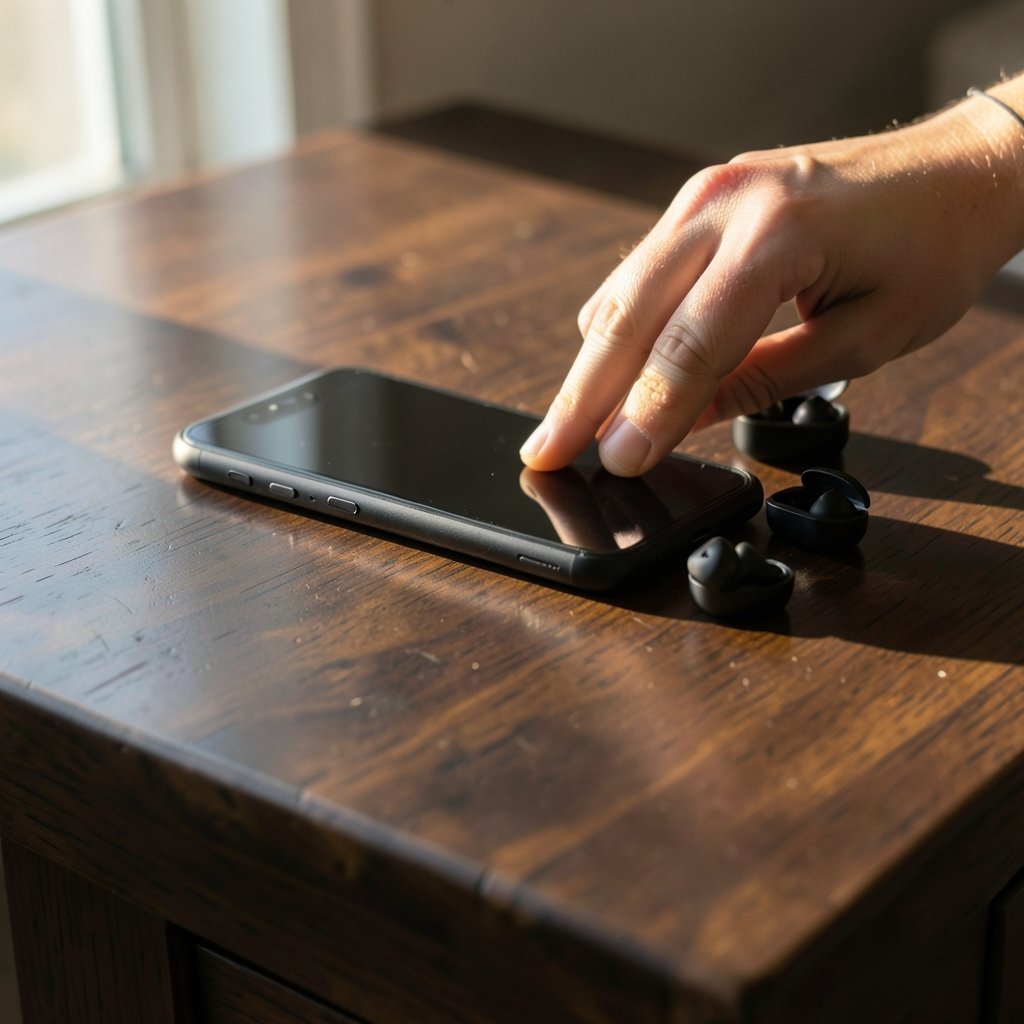
A reboot clears stuck background services and resets the Bluetooth stack. It sounds like a cliché, but it genuinely resolves a large share of transient connection failures. The same logic applies to the accessory: most earbuds and speakers have a reset or “power cycle” routine in their manual, and putting them into pairing mode fresh often fixes pairing loops.
One practical tip: after rebooting, wait about thirty seconds before trying to connect. The Bluetooth service sometimes needs a moment to finish starting up, and impatient tapping can put the phone into a confused state where the toggle appears on but nothing connects.
Forget the Device and Pair Again
Stale pairing data is one of the most common culprits. When two devices have paired before, they store encryption keys. If those keys get out of sync, the phone may show the accessory as “paired” while refusing to connect.
- Open Settings and go to Connected devices (on some phones, Bluetooth).
- Find the accessory in the list and tap the gear icon next to it.
- Choose Forget or Unpair.
- Put the accessory back into pairing mode, usually by holding its power or pairing button until a light flashes.
- Scan for devices on the phone and pair from scratch.
This single step fixes a large number of “it worked yesterday” cases, especially after a system update changed how the phone negotiates the connection.
Clear the Bluetooth App’s Cache and Storage
Android treats Bluetooth as a system app, and like any app it accumulates cache data. Clearing that cache is safe. Clearing storage is a bigger step because it wipes every pairing on the phone, so treat it as the next rung on the ladder rather than the first move.
The menu path varies by manufacturer and Android version, but the general route is:
- Open Settings and tap Apps (or Apps & notifications).
- Tap the menu and choose Show system apps.
- Find Bluetooth in the list and open it.
- Tap Storage & cache, then Clear cache first and test.
- If the problem persists, return and tap Clear storage, then re-pair your devices.
On Samsung devices running One UI the app may appear as Bluetooth or be bundled under a related system component, so if you cannot find it, search “Bluetooth” inside the Settings search bar. This is also a good moment to mention that keeping the phone free of junk and malware matters for overall stability; a guide to the best antivirus for Android in Australia covers what is worth installing, though security software rarely causes Bluetooth faults on its own. (Samsung Support: Bluetooth connection troubleshooting)
Boot Into Safe Mode to Rule Out Third-Party Apps
If Bluetooth works in Safe Mode but fails normally, an installed app is interfering. Safe Mode loads Android without third-party apps, so it isolates the cause cleanly.
The entry method differs by brand, but the common approach is to long-press the power button, then long-press the Power off option on screen until a prompt offers Safe Mode. On some phones you hold both volume keys during boot instead.
Once in Safe Mode, test pairing. If everything works, restart normally and uninstall recent apps one at a time, testing after each removal. Fitness trackers, smartwatch companions, and battery savers are frequent offenders because they hold Bluetooth connections open in the background.
Check for System and App Updates
Bluetooth bugs are regularly patched in Android security and feature updates. A phone that has not updated in months may be running a Bluetooth stack with known connection issues.
Go to Settings, then System, then System update (or Software update on Samsung). Install anything pending, then reboot. Also update the companion app for your accessory, since headphone firmware updates often fix pairing problems from the other side of the link. If you use wireless earbuds daily, it is worth reading up on the best earbuds for Android to understand which models have reliable firmware support and which tend to be abandoned.
Reset Network Settings
This step clears Wi-Fi networks, mobile APNs, and Bluetooth pairings in one go. It does not touch your photos, apps, or accounts, but you will need to re-enter Wi-Fi passwords afterward, so plan for a couple of minutes.
- Open Settings and go to System.
- Tap Reset options (on Samsung, General management, then Reset).
- Choose Reset Wi-Fi, mobile & Bluetooth.
- Confirm with your PIN or pattern, then reboot the phone.
After the reset, pair your accessories again. If the Bluetooth toggle now behaves normally, a corrupted network configuration was the cause. This fix is particularly effective on phones that have traveled between many Wi-Fi networks and accumulated odd configurations.
Deal With Specific Symptoms
Not every Bluetooth failure looks the same, and matching the symptom to the right fix saves time.
| Symptom | Most likely cause | Best first fix |
|---|---|---|
| Toggle greyed out and won’t move | System service crash or hardware fault | Reboot, then clear Bluetooth cache |
| Pairs but no audio | Wrong output route or codec glitch | Forget device, re-pair, check media output in quick settings |
| Audio cuts out every few seconds | Interference or distance | Move closer, disable Wi-Fi scanning, test in another room |
| Connects to one device but not another | Accessory memory full | Reset the accessory per its manual |
| Bluetooth turns itself off | Battery optimization killing the service | Disable optimization for Bluetooth and companion apps |
Greyed-out toggles deserve a special note. If the toggle stays grey after a reboot, a cache clear, and a network reset, the Bluetooth chip or its antenna connection may be failing. That is a hardware issue and needs service. Before assuming the worst, though, check whether the phone has been dropped or exposed to moisture recently, since antenna connectors are fragile.
When Audio Quality or Call Audio Misbehaves
Sometimes Bluetooth “works” but sounds wrong. Crackling, tinny audio, or calls that route to the phone speaker instead of the headset usually point to codec or routing issues rather than a broken radio.
- Disable HD audio temporarily. In the Bluetooth settings for the device, toggle off HD audio or advanced codecs to force a more stable connection.
- Check media versus call audio. In quick settings, tap the output selector and confirm the accessory is chosen for both media and calls.
- Turn off Wi-Fi scanning. Under Location settings, disable Wi-Fi and Bluetooth scanning, which can add radio noise on some phones.
- Test with a second accessory. If one pair of headphones fails and another works, the problem is the accessory, not the phone.
For people who use wireless charging pads next to their desk, note that cheap pads can emit interference; a roundup of the best wireless chargers for iPhone and Android explains which models are properly shielded.
The Factory Reset and Hardware Check
If nothing above works, back up your data and perform a factory reset. This wipes everything, so it is genuinely the last software step. After the reset, test Bluetooth before restoring apps. If it still fails on a clean system, the fault is hardware.
A repair shop can test the Bluetooth module and antenna. On phones with glass backs, a drop can crack an internal antenna connector without visible damage. Expect a diagnostic fee, and weigh it against the phone’s value before committing.
Practical Habits That Prevent Repeat Failures
A few small habits keep Bluetooth reliable over time. Keep the phone’s software current, since stack fixes ship in updates. Unpair accessories you no longer use, because a long list of stale pairings slows scanning. Avoid “battery saver” apps that aggressively kill background services, as they often terminate Bluetooth mid-connection. And when you buy accessories, prefer models with documented firmware updates; the same logic applies to the best Android games and other app categories, where active maintenance separates good software from abandoned software.
It also helps to know your phone’s quirks. Pixel devices follow Google’s stock Android menus closely, while Samsung, Xiaomi, and OnePlus each rearrange settings. When following any online guide, check that the menu names match your device, because a step that says “Connected devices” may be labeled “Connections” or “Bluetooth” elsewhere. Consistency in menu naming is rare across Android skins, so patience pays off.
Conclusion
Bluetooth failures on Android almost always fall into one of three buckets: stale pairing data, a confused system service, or interference from apps and radios. Working through the steps in order, from a simple reboot to a network reset, resolves the vast majority of cases without losing data. Only when a clean factory reset still leaves the toggle dead should hardware repair enter the picture. Keep the phone updated, prune old pairings, and most connection problems will stay rare rather than routine.
Frequently Asked Questions
Why is my Bluetooth greyed out on Android?
A greyed-out toggle usually means the Bluetooth system service crashed or the radio failed to initialize. Reboot the phone first, then clear the Bluetooth app’s cache through Settings, Apps, Show system apps, Bluetooth, Storage. If it stays grey after a network reset and a factory reset, the Bluetooth chip or antenna is likely faulty and needs professional inspection. (Bluetooth)
Does clearing Bluetooth storage delete my paired devices?
Yes. Clearing the Bluetooth app’s cache is harmless, but clearing its storage removes all saved pairings, so every accessory must be paired again. That is why the cache clear comes first and the storage clear is reserved for when the cache clear does not help.
Why does my Bluetooth keep disconnecting randomly?
Random disconnects typically come from interference, aggressive battery optimization, or an accessory with low battery. Move away from Wi-Fi routers and USB hubs, disable battery optimization for Bluetooth and the accessory’s companion app, and check the accessory’s charge level. If only one accessory drops, the problem is usually the accessory itself.
Can a virus cause Bluetooth problems on Android?
It is possible but uncommon. Malicious apps can interfere with system services, which is why Safe Mode is a useful diagnostic: if Bluetooth works there, a third-party app is involved. In most cases the culprit is a poorly written fitness or smartwatch app rather than malware.
How do I fix Bluetooth that pairs but has no sound?
Forget the device and pair it again, then check the media output selector in quick settings to confirm the accessory is selected. Disabling HD audio or advanced codecs in the device’s Bluetooth settings often restores sound when a codec negotiation fails. Testing a second pair of headphones quickly tells you whether the fault is the phone or the accessory.
Is it worth resetting network settings for a Bluetooth problem?
Yes, when simpler steps fail. A network reset clears Wi-Fi, mobile data, and Bluetooth configurations without touching apps or files, and it resolves cases where corrupted connection data blocks pairing. The only cost is re-entering Wi-Fi passwords afterward, which takes a few minutes.



