Here’s a number that should bother every online gamer: even a 1% packet loss rate can make a fast-paced shooter feel broken. At 60 updates per second, that’s roughly one lost update every couple of seconds, and in a firefight, that’s the difference between a clean kill and a death screen you never saw coming. The frustrating part is that packet loss rarely announces itself. Your ping looks fine, your download speed is impressive, and yet your character rubber-bands into walls.
This guide walks through what actually causes packet loss in games and, more importantly, what genuinely fixes it. Some fixes take two minutes. Others require a router settings deep dive. A few popular “solutions” are pure snake oil, and it’s worth knowing which is which before you spend money.
What Packet Loss Actually Is (and What It Isn’t)
Packet loss is the percentage of data packets that never arrive at their destination. It is not the same thing as latency (the delay before data arrives) or jitter (the inconsistency in that delay). These three problems feel similar in-game but have completely different fixes, and conflating them is the single most common mistake people make when troubleshooting.
A useful way to think about it: latency is a long drive to the server, jitter is an unpredictable drive time, and packet loss is mail that never shows up at all. You can have low latency and still suffer heavy packet loss. You can also have high latency with zero loss, which is annoying but far more playable.
Most games and consoles expose these numbers if you know where to look. In-game network overlays typically show ping, loss percentage, and sometimes jitter. Console connection tests report similar figures, though menu paths shift between firmware updates, so check your platform’s current support documentation rather than relying on an old forum post.
Start With the Wire, Not the Router Settings
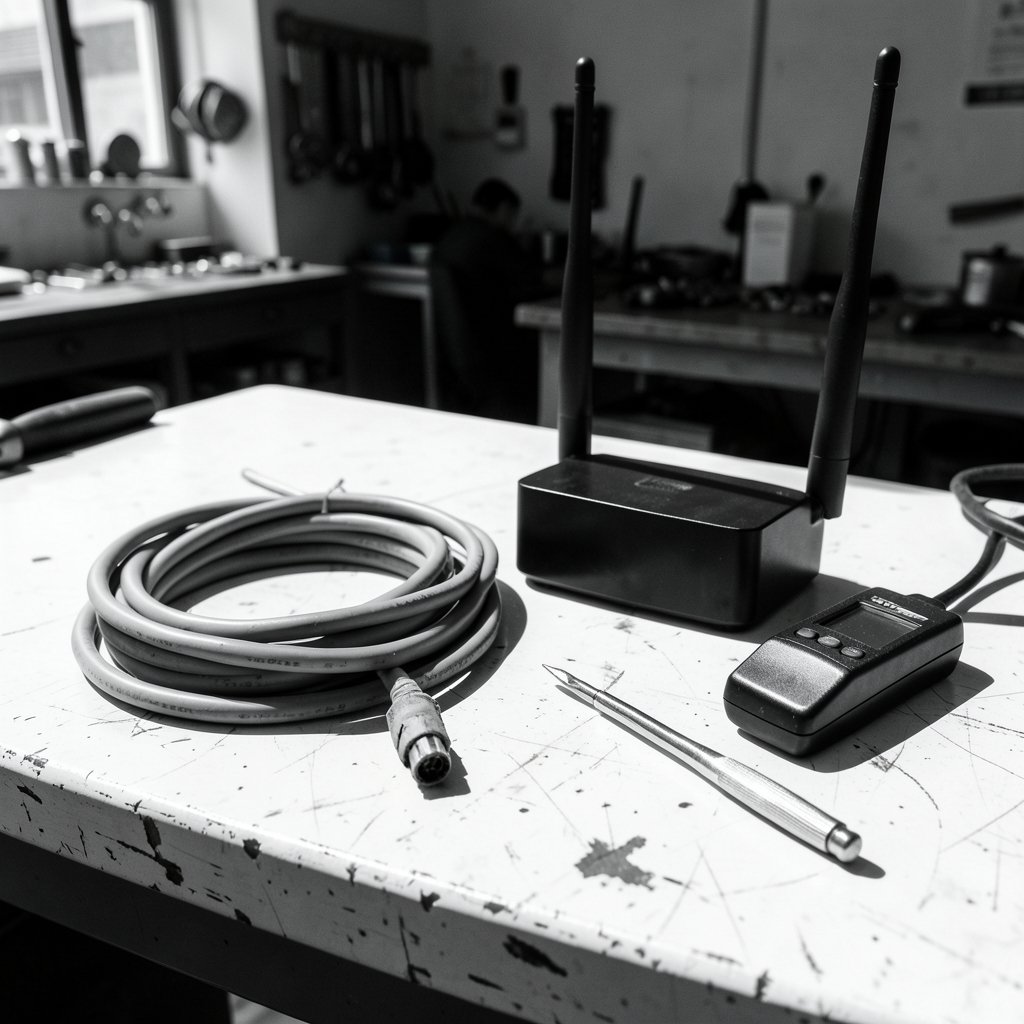
Before touching a single router menu, do the boring thing: plug in an Ethernet cable. Wi-Fi is convenient, but it is also the most common source of packet loss in home gaming setups. Interference from neighbors’ networks, microwave ovens, thick walls, and congested channels all cause packets to vanish. A wired connection eliminates that entire category of problem in one move.
If wired isn’t possible, at minimum move to the 5 GHz band (or 6 GHz on newer routers), reduce the distance to the router, and check for channel congestion using a Wi-Fi analyzer app. These steps won’t match a cable, but they can turn a miserable connection into a tolerable one.
The next suspect is the cable itself. A damaged or ancient Ethernet cable can cause intermittent loss that looks exactly like an ISP problem. Swap it for a known-good cable and retest. This costs nothing if you have a spare lying around, and it resolves a surprising number of cases. While you’re at it, bypass any powerline adapters or cheap switches temporarily. Powerline networking in particular is notorious for unstable performance.
Test Before You Fix: Localizing the Problem
Blindly changing settings is how people waste entire evenings. Instead, run a few quick tests to figure out where the loss is happening.
- Ping your router’s local IP for a few minutes. If you see loss here, the problem is inside your home network, not the internet.
- Ping a public address like a major DNS resolver. Loss here but not to your router points to your ISP or the route beyond it.
- Run a traceroute to see which hop introduces the loss. Consistent loss starting at a specific hop tells you roughly where things fall apart.
- Test at different times of day. Loss that only appears at 8 p.m. is congestion; loss that’s constant is usually hardware or a line fault.
This diagnostic step is the difference between guessing and knowing. It also gives you concrete evidence if you need to contact your ISP, which matters because “my games lag” gets a very different response than “I have 8% packet loss starting at hop four, consistently, on a wired connection.”
Fix Your Own Uplink Before Blaming Anyone Else
Here’s a scenario that plays out constantly: someone is gaming, someone else in the house starts a cloud backup or a 4K stream, and the gamer starts teleporting. The culprit isn’t the ISP. It’s bufferbloat and a saturated upload link.
Bufferbloat is the phenomenon where routers buffer excessive amounts of data, causing latency to spike dramatically under load. The engineering community has documented this extensively, and the IETF standardized a fix called fq_codel in RFC 8290, which modern routers increasingly implement under names like “Smart Queue Management” or “SQM.”
Practical steps that actually help:
- Enable QoS or SQM on your router if available, and prioritize gaming traffic or simply cap your total bandwidth slightly below your plan’s maximum. Capping sounds counterintuitive but often reduces latency spikes dramatically.
- Pause background uploads during play. Cloud sync, photo backups, and game downloads all compete for the same pipe.
- Check whether your router is ancient. A decade-old router struggling with modern traffic volumes is a legitimate cause of loss and jitter.
If you’re the tinkering type and your router supports custom firmware, SQM configuration is one of the highest-value changes you can make. If you’d rather not tinker, many mid-range routers now ship with workable QoS presets.
When the Problem Is Outside Your House
Sometimes you do everything right and the loss persists. That’s because the internet between you and the game server is a chain of networks, and any link in that chain can drop packets. Congested peering points, overloaded ISP infrastructure, and bad routes all cause loss you cannot fix locally.
What you can do is document it and escalate. Run your traceroute tests, note the times, and contact your ISP with specifics. Some ISPs will investigate persistent loss on request; others won’t, but a ticket with hard data is far more persuasive than a complaint.
A VPN occasionally helps here, not because VPNs reduce loss in general (they usually add latency), but because they reroute your traffic around a bad path. It’s a gamble, not a fix. Try it as a diagnostic: if a VPN resolves the loss, the problem was routing, and you now have evidence for your ISP.
The Settings and Hardware Checklist
Once the network fundamentals are handled, a few device-level items are worth checking. None of these is a magic bullet, but each eliminates a possible cause.
| Check | Why It Matters | Effort |
|---|---|---|
| Wired Ethernet connection | Removes Wi-Fi interference entirely | Low |
| Cable swap | Rules out a failing cable | Low |
| Router QoS / SQM enabled | Reduces bufferbloat under load | Medium |
| Background downloads paused | Frees upload bandwidth | Low |
| Router firmware updated | Fixes known bugs and improves queue management | Low |
| Console/PC network test run | Confirms whether loss is still present | Low |
On PC, some players swear by network stack resets, and while these occasionally clear up odd driver-level issues, they are not a targeted packet loss fix. Treat them as a last resort rather than step one. Similarly, “gaming” Ethernet cables and routers marketed with gaming branding rarely deliver measurable loss improvements over decent standard hardware. Networking fundamentals don’t care about the marketing.
If you’re troubleshooting a handheld setup, platform-specific quirks can complicate things, and guides like this one on fixing Decky Loader when it stops working on Steam Deck can save time when software, rather than the network, is the real culprit.
Don’t Overlook the Game and Platform Layer
Occasionally the “packet loss” is actually a game-side issue. Server outages, overloaded matchmaking regions, and buggy patches all produce symptoms that look identical to network loss. Check the game’s official status page and community channels before dismantling your home network.
Also verify you’re connecting to the right region. Playing on a distant server intentionally (to join friends, for example) introduces latency and increases the odds of loss along the route. Switching back to your local region is a one-click fix that people forget surprisingly often.
On consoles, the built-in connection test is a fast sanity check. If it reports packet loss, you know the problem is real and not in your head. If it reports a clean connection while the game still stutters, the issue is more likely server-side or game-side.
What Doesn’t Work (Save Your Money)
A short list of things that get recommended constantly and rarely help:
- Buying “gaming” cables. Any Cat 5e or Cat 6 cable in good condition performs identically for gaming purposes.
- Port forwarding as a loss fix. It helps with connectivity and NAT issues, not packet loss.
- DNS changes. Faster DNS affects name resolution, not in-game packet delivery.
- Random registry tweaks. Most are placebo or actively harmful.
The pattern here is that real fixes address the physical and routing layers, while placebo fixes address things that sound technical. If a solution doesn’t explain why it would reduce loss, be skeptical.
A Realistic Expectation
Perfect zero-loss connections don’t exist in consumer gaming. What you’re aiming for is loss low enough that the game’s netcode can compensate, which for most titles means well under 1% and ideally zero on your local segment. Getting there is usually a matter of wiring up, removing interference, managing your own bandwidth, and confirming the route beyond your router is healthy.
For players who split time across platforms, it helps to understand how different ecosystems handle networking and game libraries. Whether you’re cataloging classics from the best Nintendo 64 games or looking ahead to upcoming Switch 2 games, a stable connection matters just as much as the game itself. And if you’re weighing a broader library, roundups like these best role games ranked by fun and story are worth a look, though no amount of good taste fixes a bad cable.
Conclusion
Packet loss in games is fixable more often than people assume, but only if you diagnose before you fiddle. Start with a wired connection, swap suspicious cables, test your local network separately from the wider internet, then tackle bufferbloat with QoS or SQM if your router supports it. If loss survives all of that, you’ve localized the problem to your ISP or the route beyond, and you now have the traceroute evidence to make a credible complaint.
Skip the gaming-branded hardware and the registry tweaks. The fixes that work are unglamorous, cheap, and rooted in how networks actually behave. That’s genuinely good news: it means most players can solve this themselves in an afternoon.
Frequently Asked Questions
What is a normal amount of packet loss for gaming?
Zero on your local network is the target. On the wider internet, anything consistently above 1% will be noticeable in fast-paced games, and above 3% becomes clearly disruptive. Occasional brief spikes are normal and usually harmless.
Does packet loss cause lag or is it a separate problem?
They’re related but distinct. Packet loss means data never arrives; lag usually refers to latency, the delay in data arriving. Both make games feel bad, but they require different fixes, which is why testing matters before you change anything.
Can a VPN fix packet loss in games?
Sometimes, but not for the reason people think. A VPN doesn’t reduce loss generally and usually adds latency. It can help by routing your traffic around a congested or broken path, which makes it a useful diagnostic tool rather than a reliable cure.
Is Wi-Fi good enough for online gaming?
It can be, but it’s the most common cause of home packet loss. Interference, distance, and channel congestion all cause dropped packets. A wired Ethernet connection eliminates this category of problem entirely and is the single most effective change most players can make.
Does upgrading my router help with packet loss?
Only if your current router is the bottleneck. An old router struggling with modern traffic can cause loss and jitter, and a newer one with proper queue management (SQM) can meaningfully reduce bufferbloat. But replacing a perfectly good router won’t fix loss caused by Wi-Fi interference or your ISP.
How do I prove packet loss is my ISP’s fault?
Run pings to your router and to a public address over several minutes, plus a traceroute to the game server. If loss appears only beyond your router and starts at a consistent hop, you have solid evidence. Save the results and include them in your support ticket.