
Microsoft’s own support documentation lists slow startup as one of the most common performance complaints on modern PCs, and it’s easy to see why. A machine that takes three minutes to reach a usable desktop feels broken even when nothing is technically wrong. The good news is that most slow-boot problems on Windows 11 trace back to a handful of fixable causes: too many startup programs, Fast Startup quirks, bloated services, and firmware settings that fight the operating system instead of helping it.
This guide walks through the fixes in the order that actually works in practice, from the two-minute checks to the deeper ones. It also flags where popular internet advice goes wrong, because a lot of “debloating” tips floating around can do more harm than good.
Start With the Obvious: What Is Actually Loading at Boot?
Before touching a single setting, it helps to understand what “slow startup” really means. Boot time has two phases: the firmware and Windows kernel loading (usually 10–30 seconds on an SSD), and then everything that launches automatically once you reach the desktop. That second phase is where most of the pain lives.
In practice, the first thing to check is Task Manager’s Startup tab. Press Ctrl+Shift+Esc, click the Startup apps icon (or the Startup tab), and look at the Startup impact column. Windows rates each app as Low, Medium, or High impact. Disabling High-impact apps that you don’t need immediately — game launchers, update checkers, cloud sync clients — is the single highest-yield fix for most people.
A common mistake here: disabling everything. Some entries are genuinely needed, like your audio driver control panel, antivirus, or a laptop’s touchpad utility. Disable selectively, reboot, and see what changed. If something stops working, re-enable it.
The Windows 11 Settings app offers the same controls under Settings > Apps > Startup, which is often easier to read than Task Manager. Either works.
Turn Off Fast Startup (Yes, Really)
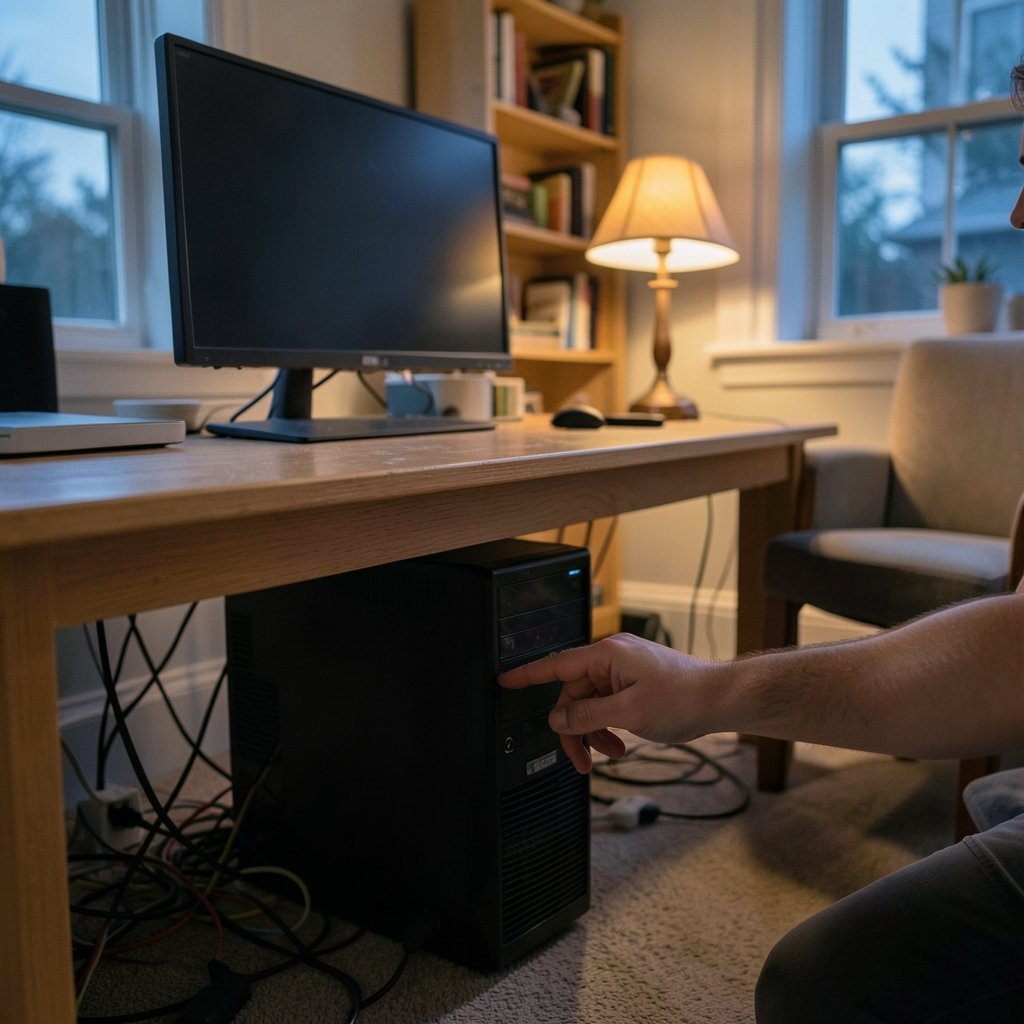
This one surprises people. Fast Startup is a hybrid shutdown mode introduced back in Windows 8 that saves part of the system state to disk so the next boot is faster. On paper it helps. In practice, it frequently causes inconsistent boot times, driver conflicts, and that weird situation where a “shutdown” doesn’t fully reset the system.
To disable it: open Control Panel, go to Power Options > Choose what the power buttons do > Change settings that are currently unavailable, then uncheck Turn on fast startup.
Why does turning off a speed feature make things faster? Because Fast Startup can conflict with driver updates and leave stale state behind. Many users report more consistent boots after disabling it, even if the raw seconds don’t drop dramatically. It’s worth testing on your own machine — results vary by hardware.
If you suspect deeper system issues are contributing to the slowdown, it’s worth learning how to check for viruses on a Windows PC, since malware is an underrated cause of sluggish boots.
Audit Your Startup Services and Scheduled Tasks
Beyond the Startup tab, Windows runs services and scheduled tasks at boot that don’t appear in Task Manager’s startup list. This is where things get murky, and where a lot of bad advice circulates.
The honest position: Microsoft does not officially recommend disabling random services to speed up boot. Plenty of third-party guides suggest turning off services like SysMain or Windows Search, and while some users see gains, others break features or cause instability. If you go down this road, do it one service at a time, note what you changed, and be ready to revert.
A safer approach is checking Task Scheduler for third-party tasks set to run “At startup.” Open Task Scheduler, expand the Task Scheduler Library, and look for entries from software you recognize. Disabling a vendor updater here is low-risk. Disabling Microsoft tasks is not.
For general Windows housekeeping habits that save time every day, a solid set of Windows keyboard shortcuts everyone should know is worth more than most tweaks — knowing how to jump straight to Settings or Task Manager beats waiting on menus. (Windows 11)
Check Your Drive Health and Free Space
A nearly full SSD is a slow SSD. Windows needs free space for the page file, temporary files, and update staging. As a rule of thumb, keep at least 15–20% of the drive free. If your system drive is in the red, clearing space is a legitimate, measurable fix — not a placebo.
Also check drive health. Open Settings > System > Storage > Advanced storage settings > Disks & volumes to see drive status, or use the manufacturer’s utility (Samsung Magician, Crucial Storage Executive, and similar). Failing drives often show up first as slow boots before they show up as errors.
Two quick checks worth doing:
- Run CHKDSK from an elevated command prompt to scan for file system errors.
- Check SMART status through your drive vendor’s tool or a utility like CrystalDiskInfo.
If the drive is a mechanical hard drive rather than an SSD, that alone explains most slow boots on Windows 11. The operating system is designed around SSD speeds, and no software tweak fixes spinning rust.
Firmware, Secure Boot, and BIOS Settings
Windows 11 requires TPM 2.0 and Secure Boot, a requirement Microsoft announced in June 2021. Misconfigured firmware can add tens of seconds to boot as the system probes devices it doesn’t need to probe.
Practical firmware checks:
- Enable or verify AHCI/NVMe mode for your storage controller.
- Disable unused boot devices in the boot order so the system doesn’t wait on network or USB entries.
- Update the BIOS/UEFI if the manufacturer lists boot-time fixes for your model. Dell, HP, and Lenovo all publish firmware changelogs.
- Turn off unnecessary pre-boot checks like full memory tests on every boot.
Be careful in here. Firmware settings are unforgiving, and a wrong change can leave a machine unbootable. Change one thing at a time and note the original value.
The Startup Delay Setting: Useful but Overhyped
Windows has a documented registry setting called StartupDelayInMSec that delays startup apps after login, giving the desktop time to become responsive. It’s real, it’s documented, and it’s frequently misrepresented online as a magic speed fix.
What it actually does: it doesn’t make boot faster, it makes the desktop appear usable sooner while apps load in the background. That can feel like a big improvement on a slow machine, but it’s a perception fix, not a performance fix. If your goal is a genuinely faster boot, fix the startup load instead.
If you do want to adjust it, the setting lives under the Explorer key in the registry and requires administrator rights. Back up the registry first. This is exactly the kind of tweak where a wrong keystroke costs an hour of recovery, so treat it with respect.
When Malware or Unwanted Software Is the Real Culprit
Not every slow boot is a configuration problem. Bundled “optimizer” software, adware, and browser hijackers often install startup entries that survive normal uninstall attempts. If your startup list contains entries you don’t recognize, that’s a red flag.
A sensible routine: run a full scan with Windows Security, then a second-opinion scan with a reputable free tool. If you want options, this roundup of the best free virus removal tools for Windows covers the trustworthy ones. Avoid anything that advertises itself as a “PC speed booster” — those tools are frequently the problem, not the solution.
Also check for high background load from system processes. If you’ve noticed the machine grinding even after boot, the guide on how to fix antimalware service executable high CPU usage covers a very common Windows 11 culprit.
Compare: Which Fixes Actually Move the Needle?
Not all fixes are equal. Here’s an honest ranking based on how much boot time they typically recover and how risky they are.
| Fix | Typical impact | Risk level | Who should try it |
|---|---|---|---|
| Disable high-impact startup apps | High | Very low | Everyone |
| Free up disk space / check drive health | High (if drive is full or failing) | Low | Everyone |
| Disable Fast Startup | Medium, improves consistency | Low | Most users |
| Update BIOS/firmware | Medium | Medium | Users with known vendor fixes |
| Trim scheduled tasks | Low to medium | Medium | Confident users only |
| Registry startup delay | Perceived only | Medium | Tinkerers |
| Disabling Windows services | Unpredictable | High | Advanced users only |
The pattern is clear: the boring fixes at the top do most of the work. The exotic tweaks at the bottom are where people waste weekends.
A Note on Conflicting Advice
Search for “speed up Windows 11 boot” and you’ll find hundreds of guides recommending service disabling, registry hacks, and “debloat” scripts. Microsoft’s official troubleshooting guidance does not endorse these approaches, and there’s a good reason: the company can’t guarantee system stability after you’ve disabled components it depends on.
The balanced position is this. Startup app management and disk health are officially supported, low-risk, and effective. Service tweaking is unofficial, unpredictable, and only worth it if you enjoy the troubleshooting process and can recover from mistakes. Both can be true at once — the internet isn’t wrong that disabling services sometimes helps, but it’s wrong to present that as a universal fix.
Conclusion
Slow startup on Windows 11 is rarely a mystery. In the overwhelming majority of cases, the fix is unglamorous: cut the startup list down to what you actually need, keep the system drive healthy and half-empty, and stop fighting Fast Startup if it’s causing inconsistent boots. Firmware updates and scheduled-task cleanup help on some machines, and registry tweaks mostly change how fast the desktop feels rather than how fast it boots.
Work through the fixes in order, change one thing per reboot, and keep notes. That discipline matters more than any single tweak, because it tells you what actually worked on your hardware instead of what worked for someone on a forum in 2019.
FAQ
Why does Windows 11 take so long to start up?
The most common causes are too many startup programs, a nearly full or failing system drive, Fast Startup conflicts, and outdated firmware. On machines still running a mechanical hard drive, the drive itself is usually the bottleneck, since Windows 11 is designed around SSD performance.
Is it safe to disable startup apps in Windows 11?
Yes, for apps you recognize and don’t need immediately. Disabling a game launcher or update checker is harmless and reversible. Avoid disabling driver utilities, antivirus, or hardware control panels, and re-enable anything that stops working after a reboot.
Should I turn off Fast Startup to make Windows 11 boot faster?
It’s worth testing. Fast Startup can cause inconsistent boot times and driver conflicts, and many users report more predictable boots with it disabled. It won’t always reduce the raw seconds, so try it, reboot a few times, and keep whichever setting behaves better on your machine.
Does a full SSD slow down Windows startup?
Yes. Windows needs free space for the page file, temporary files, and update staging. Keeping at least 15–20% of the system drive free is a practical target. A drive that’s both full and aging will slow boot noticeably, and drive health tools can reveal whether failure is a factor.
Do registry tweaks like StartupDelayInMSec really speed up boot?
They change perception more than reality. The setting delays startup apps so the desktop becomes usable sooner, but total boot time doesn’t drop. If you want a genuinely faster boot, reducing startup load and fixing disk health will do far more than registry edits.
Can malware cause slow startup on Windows 11?
Absolutely. Adware, bundled “optimizer” tools, and browser hijackers frequently add startup entries that survive normal uninstalls. If you see unfamiliar items in the startup list, run a full scan with Windows Security and a reputable second-opinion scanner before doing anything else.



