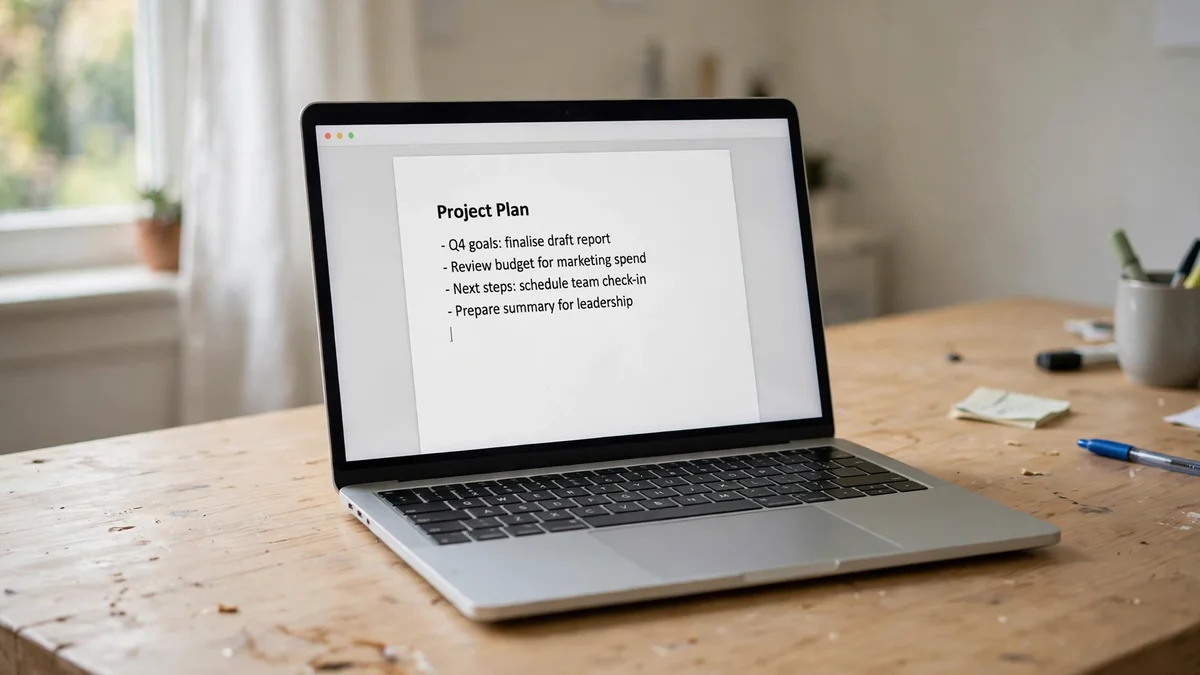
Learning how to choose a laptop is mostly about matching the machine to the work you actually do, not chasing the highest numbers on a specification sheet. A student who writes essays and streams lectures needs something very different from a video editor who renders 4K footage or a gamer who wants high frame rates. When the laptop fits the job, it feels fast, lasts through the day, and stays useful for years.
The market makes that choice harder than it should be: similar-looking laptops can hide very different processors, screens, and batteries, and prices can swing by hundreds of dollars for one specification change. A clear budget and a short list of daily tasks cut through most of that noise.
This guide walks through the decision in order: define your main use, pick the right size and screen, choose a processor and memory, check storage and battery life, test the keyboard, and compare final prices. Follow the steps in order and you will end up with a shortlist of two or three models instead of an endless scroll of options.
Key takeaways
- Start with your main daily tasks, because they decide the processor, memory, and screen you need.
- For most buyers in 2027, 16GB of memory and a 512GB solid-state drive are the sensible baseline.
- A bright, sharp screen and a comfortable keyboard matter more day to day than a slightly faster chip.
- Check real battery-life tests, not only the manufacturer’s claim, before you buy.
- Compare the total price with warranty, accessories, and software included, not just the headline price.
At a glance: laptop types
| Type | Best for | Typical price | What to check |
|---|---|---|---|
| Ultrabook | Work, study, travel | $700 to $1,400 | Weight, battery, screen brightness |
| Everyday laptop | General home use | $450 to $800 | Memory, storage, build quality |
| Gaming laptop | Games, 3D work | $900 to $2,000 | Graphics card, cooling, display speed |
| Creator laptop | Video, photo, design | $1,200 to $2,500 | Screen colour, processor, ports |
| Chromebook | Web, documents, school | $250 to $600 | App support, storage, updates |
| 2-in-1 convertible | Notes, drawing, reading | $600 to $1,500 | Hinge, pen support, weight |
Step 1: List your main tasks and set a budget
Write down the five things you will do most on the laptop, in order. Browsing, email, and documents need very little power; photo editing, coding, and video calls need more; gaming, video editing, and 3D design need the most. This list filters every later decision and stops you paying for power you will never use.
Next, set a firm budget with a hard ceiling about 20 percent above your target price, so a better screen or battery can win without the budget drifting upward. Leave room for a case, a mouse, or a warranty, which can add $50 to $150.
Be honest about where you will use it. A desk-bound machine can be heavier, with a larger screen and shorter battery life. A laptop that travels daily should be under 1.5 kilograms, charge over USB-C, and last a full working day away from a socket.
Step 2: Pick the right size and screen
Screen size decides weight, comfort, and price more than any other single choice. A 13-inch or 14-inch laptop is the sweet spot for most people: light enough to carry and large enough for split-screen work. A 15-inch or 16-inch screen suits desk work and media, while a 17-inch model is best left on a desk.

Look for a full HD display (1920 by 1080 pixels) as the minimum, with a brighter panel if you work near windows or outdoors. A screen rated at 300 nits or more stays readable in bright rooms, while a dimmer 250-nit panel can look washed out. Higher resolutions look sharper but cost more and drain the battery faster, so they are worth it mainly for photo and video work.
Check the panel type too. IPS panels give wide viewing angles and steady colours, which most buyers should prefer. OLED screens offer deeper blacks and vivid colour but cost more. A smooth 120Hz refresh rate is a nice bonus for gaming, though not essential for office work. If you are buying for school as well as home, our guide to the best laptops for students narrows the field by budget and use.
Step 3: Choose a processor that fits the work
The processor is the engine, but the model name matters less than the tier. For everyday use, a modern mid-range chip from Intel Core 5, AMD Ryzen 5, or Apple M-series handles browsing, documents, and video calls with ease. Step up to Core 7, Ryzen 7, or a higher Apple chip for heavy multitasking, large spreadsheets, coding, and photo editing.
Do not judge a chip by its generation number alone: a new low-power chip can be slower than an older high-performance one. Read independent benchmark results for the exact model you are considering, looking for tests that match your work, such as export times or battery life under load.
For gaming and 3D work, the graphics card matters as much as the processor. Integrated graphics suit casual games and office work, while a dedicated card is essential for modern games at high settings and GPU-accelerated editing. Check the exact graphics model, not just the brand.
Step 4: Get enough memory and storage
Memory decides how many apps and browser tabs you can run at once without slowdowns. In 2027, 8GB is the bare minimum and already feels tight. Choose 16GB for comfortable everyday use, and 32GB if you edit video or run virtual machines. Check whether the memory can be upgraded later, because many thin laptops solder it in place.
Storage should be a solid-state drive, not a hard disk, because it makes the whole laptop feel faster when starting up and opening files. A 512GB drive suits most people, while 256GB fills up quickly once apps, photos, and updates accumulate. If you store large video files, look for 1TB or check that the drive can be replaced. Learning what RAM does and how much you need helps you judge whether a cheaper 8GB model is a false economy for your workload.
Also check storage speed: a modern NVMe drive loads large projects far faster than an older SATA drive, a difference you will notice in editing and gaming.
Step 5: Check battery life, ports, and the keyboard
Battery claims are measured in ideal conditions, so treat them as a ceiling. Look for independent tests at normal brightness, and aim for at least eight hours of real use if you work away from a socket. Fast charging helps too: a laptop that regains half its charge in 30 minutes is far more forgiving on busy days.
Count the ports before you buy: at least two USB-C ports, one USB-A port, and an HDMI output cover most setups without a dongle. If the laptop has only USB-C, budget for a hub. Wi-Fi 6 or newer and Bluetooth 5 keep wireless connections fast and stable.
Finally, test the keyboard and trackpad if you can: keys should have clear travel and spacing, with a backlight for dim rooms, and the trackpad should track smoothly across its surface. A decent webcam and microphone matter for video calls, so check review samples rather than trusting the specification alone.
Step 6: Compare prices and buy at the right time
Shortlist two or three models, then compare them side by side on the same specification sheet, checking the exact processor, memory, storage, screen, and warranty, because retailers often sell near-identical models with one quiet downgrade.
Check the warranty and return policy before paying: a one-year warranty is standard, and a 14-day or 30-day return window lets you test the keyboard, screen, and battery at home. The same careful comparison applies to phones, so our guide to choosing a smartphone uses the same task-first method for a smaller screen.
Time the purchase when you can. Major sales events, back-to-school periods, and new model launches often cut prices by 10 to 20 percent, and the previous generation becomes good value when a replacement arrives. Avoid buying a model that is about to be replaced at full price, and keep the receipt and warranty details in one place after you buy.
Troubleshooting: common laptop-buying mistakes
The most common mistake is buying on processor speed alone and ignoring the screen. A fast chip with a dim display is unpleasant every day, while a balanced mid-range laptop with a bright screen feels better in normal use.
Another frequent problem is running out of storage within a year. If the drive cannot be upgraded, buy more than you think you need, and check how much space the operating system and preinstalled apps already use.
Buyers also underestimate weight: a slim laptop can feel heavy after a full day in a bag, especially with its charger. Check the total travel weight and prefer USB-C charging, so one charger serves laptop, tablet, and phone. If a laptop runs hot or loud in reviews, take that seriously, because cooling problems do not improve with age.
Checklist: before you buy a laptop
- Your top five daily tasks are written down, with a firm budget and a hard ceiling.
- The screen size, resolution, and brightness suit where you will actually use it.
- Memory is 16GB or more, storage is a 512GB solid-state drive or larger, and upgrades are checked.
- Real-world battery tests show at least eight hours for your kind of use.
- The keyboard, trackpad, webcam, and ports have been checked in reviews or in person.
- Warranty length, return window, and total price including accessories are confirmed.
Frequently asked questions
How much should I spend on a laptop?
Most buyers get the best value between $600 and $1,200, where screens, build, and battery life are all solid. Below $400, expect compromises in screen and storage, while above $1,500 you are paying for specialist power or premium materials rather than everyday speed.
Is 8GB of RAM enough in 2027?
It is enough for light use with few tabs open, but it is already tight for most people. Choose 16GB if you keep many tabs open, use video calls alongside other apps, or want the laptop to stay comfortable for four or five years.
Which is better, a 13-inch or a 15-inch laptop?
A 13-inch or 14-inch laptop suits travel and everyday carry, while a 15-inch or 16-inch screen suits desk work, media, and split-screen multitasking. If you carry the laptop daily, go smaller; if it mostly stays on a desk, go larger.
Do I need a dedicated graphics card?
Only if you play modern games at high settings, edit video professionally, or do 3D work. For office work, study, streaming, and casual games, modern integrated graphics are fast enough and give better battery life.
How long should a laptop last?
A well-chosen laptop should last four to six years for everyday work, with a battery replacement possibly needed after three or four years. Buying enough memory and storage at the start is the simplest way to extend that life.
Should I buy a Chromebook instead?
A Chromebook is a good choice if almost all your work happens in a browser. If you need desktop software such as full Office apps or professional editing tools, buy a Windows laptop or a MacBook instead.
The bottom line
The best laptop is the one that fits your daily work, your bag, and your budget at the same time. Define the tasks first, then choose size, screen, processor, memory, and battery in that order, and compare two or three finalists on identical specifications before you pay.
When those pieces line up, the decision becomes simple: pick the model with the best screen and keyboard in your price range, confirm the warranty and return window, and buy it. A balanced laptop bought this way stays fast and comfortable long after the excitement of a faster chip has faded.