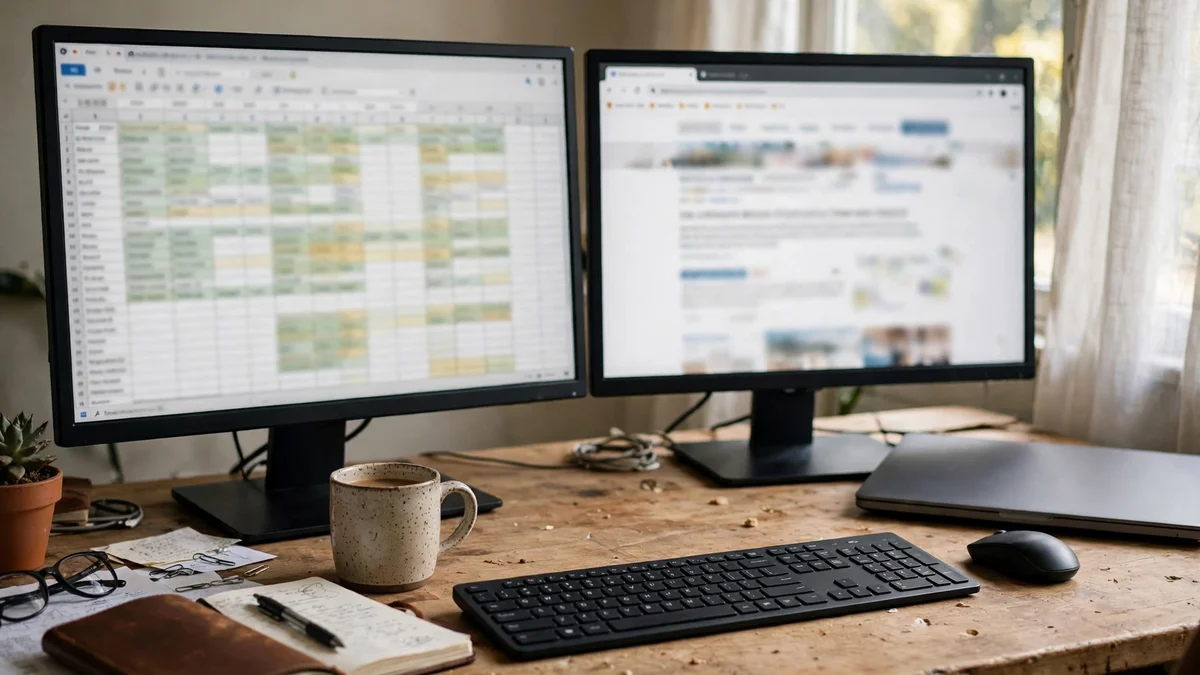
Learning to use two monitors is one of the fastest ways to make a desk feel bigger without buying a bigger desk. Instead of flipping between windows all day, you keep your main work on one screen and your reference material, inbox, or notes on the other. The setup takes less than an hour for most people, and the parts you need are usually a cable and a few minutes in your display settings.
The idea is simple, but the details decide whether the second screen helps or annoys you. A mismatched pair, a wobbly stand, or the wrong cable can leave you with a dim second display or a screen that keeps going dark. Getting the height, the order, and the resolution right from the start avoids most of that frustration.
This guide walks through the whole job in order: checking what your computer can connect, choosing the right cable, placing the screens, arranging them in software, and fixing the common problems.
Key takeaways
- Most laptops and desktops from the last ten years can run a second monitor with a single cable.
- Match the cable to the ports you actually have: HDMI, DisplayPort, USB-C, or VGA on older machines.
- Place the main monitor straight ahead and the second one beside it, both at eye level.
- Arrange the screens in your display settings so the mouse moves between them in the right direction.
- Set both screens to their native resolution and the same scaling for a consistent look.
- A second monitor helps most when each screen has one clear job, such as writing on one and research on the other.
At a glance: the dual-monitor setup
| Detail | What to know |
|---|---|
| Time needed | 30 to 60 minutes, including cable shopping from your spares drawer |
| Cost | Usually just a cable, from a few dollars to around 25 dollars |
| Ports to look for | HDMI, DisplayPort, USB-C, or VGA on older computers |
| Best layout | Main screen straight ahead, second screen beside it at the same height |
| Display mode | Extend, not duplicate, so each screen shows different content |
| Resolution | Native resolution on each screen, usually 1920 by 1080 or higher |
| Common fix | A dark second screen is usually a loose cable or the wrong input source |
| Biggest mistake | Placing the screens at different heights, which strains your neck |
Step 1: Check what your computer can connect
Start by looking at the back or side of your computer and writing down the video ports you can see. Desktops usually have HDMI and DisplayPort on the graphics card, while laptops often have one HDMI port, a USB-C port, or both.
Next, look at the ports on the monitor you plan to add. Most modern monitors have HDMI and DisplayPort, and older ones may have VGA or DVI. The goal is to find one port type that appears on both devices, because that decides which cable to buy. If nothing matches, a small adapter bridges the gap, for example USB-C to HDMI.
Also check whether your laptop supports video over USB-C, since not every USB-C port does. The manual or the manufacturer’s support page will say whether a port carries a display signal.
Step 2: Connect the second monitor with the right cable

With the computer switched off or asleep, plug one end of the cable into the monitor and the other end into the computer. Push each connector in firmly until it sits flat, since a half-seated HDMI plug is one of the most common reasons a new screen stays black. Then plug the monitor into power and press its power button.
Use the monitor’s menu buttons to select the input that matches your cable, such as HDMI 1 or DisplayPort. Many monitors switch automatically, but older ones wait on the wrong input and look dead.
Keep the cable run short and tidy. A cable that dangles across the desk gets tugged every time you move the monitor, and that tug eventually loosens the connection.
Step 3: Place both monitors for comfort
Put your main monitor directly in front of you, about an arm’s length away, with the top of the screen at or just below eye level. Place the second monitor immediately beside it, angled slightly toward you, at the same height. This keeps your head mostly straight and your eyes doing the moving, which is far easier on your neck than turning to a screen that sits too high or too far to one side.
If the two monitors are different sizes, line up their tops rather than their bottoms, or use a monitor stand or a stack of books under the shorter one. A small height gap is easy to ignore once the screens are level, but a large one makes the mouse jump awkwardly between screens.
Think about light as well. A window behind the monitors causes glare, and a window in front of you shines straight into your eyes. Sitting side-on to the window, or closing a blind, usually fixes both problems.
Step 4: Arrange the screens in your display settings
Once both screens are on, open your display settings. On Windows, right-click the desktop and choose Display settings; on a Mac, open System Settings and then Displays. You will see two rectangles representing your screens, and you can drag them so they match the physical layout on your desk.
Choose Extend these displays on Windows, or use the arrangement view on a Mac, so each screen shows different content. The duplicate or mirror mode shows the same image on both screens, which wastes the second monitor entirely. Set the screen you sit in front of as the main display, since that is where new windows and the taskbar or menu bar will appear.
Step 5: Set resolution, scaling, and refresh rate
Select each monitor in turn and set it to its recommended or native resolution, which is usually the highest option listed and often 1920 by 1080. A lower resolution makes text look large and fuzzy, while the native resolution keeps text sharp. The same ideas apply to other screens in the home, and our guide to how a smart TV handles display settings and input sources explains the shared concepts of input, resolution, and refresh rate.
Check the scaling setting next. Scaling controls how large text and icons appear, and mismatched scaling is what makes a window change size as you drag it from one screen to the other. Setting both screens to the same scaling, usually 100 percent on desktop monitors, keeps windows consistent.
Finally, look at the refresh rate, which is how many times per second the screen redraws. Sixty hertz is standard and fine for office work, while higher rates feel smoother when scrolling.
Step 6: Give each screen a job and tidy the workflow
A second monitor only helps if each screen has a clear purpose. Put your main task, such as writing or a spreadsheet, on the main screen, and put reference material on the second: the document you are working from, your inbox, or a video call.
Learn the keyboard shortcuts for moving windows between screens, since dragging across the join is slow. On Windows, holding the Windows key and pressing an arrow key snaps a window to a side or moves it to the other monitor.
Video calls are one of the best uses of a second screen, and a decent camera makes the difference between a clear call and a blurry one, so it is worth reading our guide to webcams before you settle your camera position. Keep the camera on the screen you look at most during calls, and place notes on the other screen. A keyboard that feels good matters too, since you will be typing across both screens all day, and our guide to keyboards explains the switch and layout choices that affect comfort over long sessions.
Troubleshooting common two-monitor problems
If the second monitor shows no signal, check the cable at both ends, confirm the monitor is on the right input, and try a different port or cable. Restarting the computer after connecting the monitor also helps, since the graphics driver sometimes needs a fresh start to notice the new screen.
If the image looks stretched or blurry, the resolution is almost always wrong. Open the display settings, select the affected monitor, and pick the recommended resolution.
If the mouse moves the wrong way between screens, the arrangement in your display settings does not match your desk. Drag the screen rectangles until they mirror the physical layout, then test by moving the mouse across the join. If windows keep opening on the wrong screen, check which display is set as the main display and change it to the one in front of you.
Flickering usually points to a loose cable or a refresh rate the monitor cannot hold. Reseat the cable and drop the refresh rate to 60 hertz to test.
Checklist: before you call the setup done
- Both monitors are on, at the same height, with the main screen straight ahead.
- Each monitor is set to its native resolution and matching scaling.
- Display mode is set to extend, and the main display is the one in front of you.
- The mouse moves between screens in the direction that matches your desk.
- Cables are firmly seated, tidy, and not under strain when you adjust a monitor.
- Each screen has a clear job, and your most-used windows open where you expect them.
Frequently asked questions
Can any computer run two monitors?
Almost any desktop or laptop made in the last ten years can run one extra monitor, since most have at least one HDMI, DisplayPort, or USB-C video output. Very old machines with only VGA can still do it, but the image will be less sharp.
Do both monitors need to be the same size?
No, different sizes work fine, and many people pair a large main monitor with a smaller second one. Line up the tops of the screens, set each to its own native resolution, and keep the scaling as close as you can so windows do not change size dramatically when moved.
Why is my second monitor not detected?
The usual causes are a loose cable, the wrong input selected on the monitor, or a driver that has not noticed the new screen. Reseat both ends of the cable, cycle through the monitor inputs, restart the computer, and check for graphics driver updates if it still does not appear.
Is HDMI or DisplayPort better for a second monitor?
Both are good for ordinary office work. DisplayPort supports higher refresh rates and resolutions on some monitors, while HDMI is more common and works with televisions as well. Use whichever port your computer and monitor share.
Can I use a television as a second monitor?
Yes, a television works through HDMI, and it is a cheap way to get a very large second screen. Text can look softer on a television than on a monitor, so it suits video and dashboards better than long writing sessions.
Does a second monitor slow down my computer?
For office work, browsing, and video calls, the extra load is small and most computers handle it without any noticeable slowdown. Heavy 3D work or gaming on both screens at once is different, since the graphics chip has more pixels to drive.
The bottom line
Using two monitors is a small change with an outsized effect on how a desk feels to work at. Check your ports, connect the right cable, level the screens, arrange them in software, and give each one a job. The whole job takes under an hour, and most of that time goes to deciding where things should sit rather than to any technical step.
Once the setup is done, resist the urge to fill the second screen with distractions. Keep it for reference material and calls, keep the main screen for the work itself, and the extra space will stay useful.