
What if the mouse sitting under your hand right now is the single biggest reason your aim feels off, your wrist aches by Thursday, and your desk looks like a cable graveyard? Wireless gaming mice from Logitech, Razer, and ASUS ROG all promise the same things: flawless connection, feather weight, and marathon battery life. The trouble is that marketing pages measure different things than your Tuesday night does.
This guide skips the spec-sheet shouting match. Instead, it walks through how to judge the everyday experience of a wireless mouse in 2027, where the real differences sit, and which habits separate a mouse you love from one you quietly stop using.
Why “Everyday Experience” Beats the Spec Sheet
Manufacturers test at their best-case settings. Battery figures like “up to 90 to 150 hours” are typically measured at a 1,000 Hz polling rate with lighting switched off. Push a high-polling-rate mouse to 4,000 Hz or 8,000 Hz and battery life can drop by half or more. That is not a trick; it is physics. But it means the number on the box describes a mouse you may never actually run.
The same logic applies to latency. Independent testing has repeatedly found sub-2 ms click-to-photon latency on flagship 2.4 GHz wireless mice, which sits within measurement noise of wired equivalents. In other words, the wireless penalty that haunted buyers a decade ago is essentially gone at the top end. What remains is everything around the sensor: how the shape fits your grip, how the software behaves six months in, and whether the dongle survives a desk full of USB 3.0 ports.
That is the lens this article uses. Not “which is fastest,” but “which one will you still be happy with after the honeymoon.”
The Three Brands, in Plain Terms
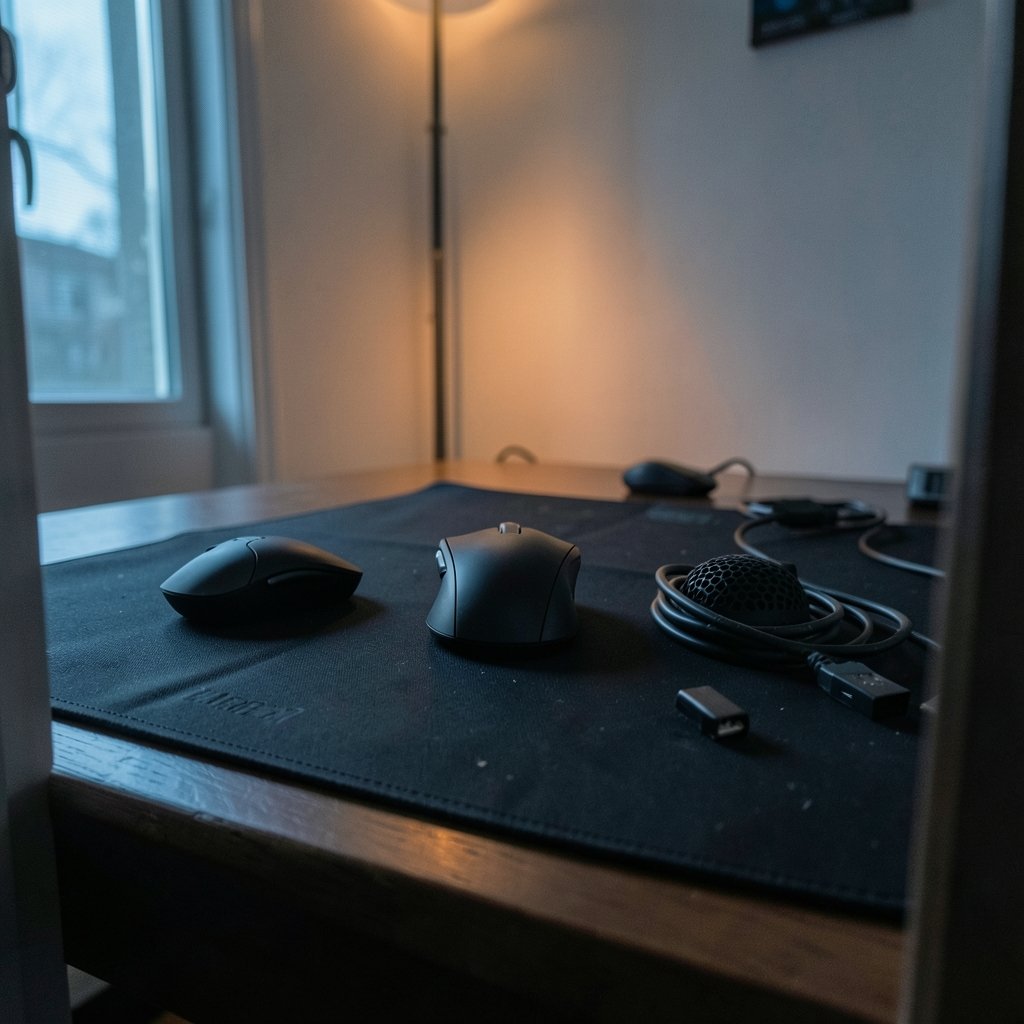
Each brand has a personality, and that personality shows up in daily use far more than in benchmark charts.
| Brand | Typical strength | Typical friction point | Who tends to click with it |
|---|---|---|---|
| Logitech G | Polished hardware, mature shape design, strong battery discipline | G HUB software has a long history of quirks and bloat | Players who want it to just work |
| Razer | Aggressive feature set, optical switches, high polling rates | Synapse software and account requirements annoy some users | Tinkerers who enjoy tuning |
| ASUS ROG | Lightweight shells, competitive specs, ties to other ROG products | Armoury Crate is heavy and has documented compatibility complaints | Buyers who already own ROG gear |
None of these are verdicts. They are starting points. A Logitech fan who buys a Razer mouse and hates the software is not wrong, and neither is the reverse. The point is to know which friction you can live with before you spend the money.
Sensor Specs Have Become Boring, and That Is Good News
Here is a fact that would have shocked buyers in 2015: raw sensor accuracy is now largely commoditized. PixArt’s PAW3395, announced around 2022, and its successors appear across multiple brands’ flagship lines. Logitech uses its in-house Hero sensor, Razer brands its Focus Pro line, and ROG markets AimPoint. At the flagship tier, these sensors are all excellent.
That means you should stop shopping by DPI. Nobody needs 30,000 DPI. Most competitive players sit somewhere between 400 and 1,600 DPI and never touch the slider again. What matters more is consistency: does the sensor track cleanly on your pad, at your lift-off height, without spinouts during fast flicks? That is a shape-and-surface question, not a sensor-generation question.
The practical takeaway is liberating. If two mice feel equally good in your hand, the sensor is almost never the tiebreaker in 2027. Weight, shape, and software are.
Weight, Shape, and the Hand You Actually Have
The sub-60 g wireless category went mainstream around 2022 and 2023. Logitech’s G PRO X Superlight landed at 63 g, Razer’s Viper V2 Pro at 58 g, and ROG’s Harpe Ace at 54 g. Those numbers are from launch-era spec pages, so check current models, but the trend is clear: light is the default now.
Light is not automatically better, though. A very light mouse rewards low-sensitivity players who move from the arm, and it can feel twitchy to someone who grips tightly and plays with high sensitivity. The everyday test is simpler than any chart:
- Place your hand on the mouse the way you naturally hold it, not the way a reviewer does.
- Check whether your palm, claw, or fingertip grip is fully supported without forcing your wrist into an angle.
- Move the mouse in slow circles for a minute. Note any point where your hand has to work to keep contact.
- Repeat with a second shape. The difference should be obvious within seconds.
Ergonomics guidance from workplace safety bodies is a better guide here than any vendor’s “ergonomic” badge. Sustained awkward wrist angles and repetitive gripping are the real long-term risks, and a mouse that fits your hand reduces both. If your wrist aches after a workday plus an evening of games, the mouse shape is a legitimate suspect.
Switches, Clicks, and Durability Claims
Optical switches, used by Razer and ROG, are rated around 100 million clicks. Mechanical switches from suppliers like Omron, common in Logitech designs, are typically rated in the 50 to 70 million range. Those figures come from component datasheets and vendor marketing, so treat them as self-reported rather than independently tested.
In practice, both types last longer than most people keep a mouse. The more useful question is feel. Optical switches often have a crisper, more immediate break; mechanical switches can feel softer or more textured. Neither is superior, but they are noticeably different, and you will feel that difference thousands of times a day.
One everyday detail worth checking: click noise. If you share a room, game late, or take calls at the same desk, a loud switch is a real quality-of-life issue that no spec sheet flags.
Polling Rate: The Most Oversold Number in Gaming
USB 2.0 defined the 1 ms interrupt interval that conventional 1,000 Hz mice rely on. Mice running at 4,000 Hz or 8,000 Hz exceed that by using proprietary or high-speed USB techniques. Vendors market these aggressively.
Independent testers are split on whether the gain above 1,000 Hz is human-perceptible. Some find measurable improvements in click-to-photon latency; others find nothing a player could reliably feel. Both positions exist in good faith, and the honest answer for most buyers is that polling rate is a low-priority tiebreaker, not a reason to pay a premium.
Where high polling rates do have a clear, measurable cost is battery life. If you are choosing between a 4,000 Hz mouse with mediocre battery and a 1,000 Hz mouse that runs for a week, the second one will probably make you happier. The same “judge the everyday experience” logic applies across hardware categories, whether you are weighing a gaming laptop versus a desktop or deciding between console platforms in a PC gaming versus console comparison.
Battery, Charging, and the Cable You Forgot About
Wireless mice still need power, and charging habits define the experience more than raw capacity does.
- Charge-through-play matters. A mouse that works while charging turns a dead battery into a minor inconvenience.
- Dock versus cable. A charging dock is convenient if desk space allows; a lightweight cable is more flexible.
- Sleep behavior. Aggressive sleep saves power but adds a wake-up delay that some players find jarring mid-session.
- Lighting tax. RGB can meaningfully cut runtime. Turning it off is the easiest battery upgrade you will ever make.
A useful habit: run the mouse at your real settings for a full week before judging battery. Vendor claims measured with lighting off rarely match a lit, high-polling-rate setup.
Software: The Part You Will Curse or Praise
This is where brand loyalty is genuinely earned or lost. Logitech’s G HUB, Razer’s Synapse, and ASUS Armoury Crate all have documented histories of compatibility issues and bloat. Community wikis and vendor release notes are the best evidence; they show the same pattern: software quality changes from one version to another as much as it changes from one brand to another.
Practical advice that actually works:
- Install the software once, set your DPI stages, polling rate, and button assignments, then save the profile to onboard memory if the mouse supports it.
- Test whether your settings survive a reboot with the software closed. If they do, you can often leave the suite uninstalled.
- Check release notes before updating firmware. Updates fix things and occasionally break things.
- Avoid running multiple vendor suites at once if you can. Peripheral software conflicts are a real source of weird behavior.
If a mouse stores everything onboard, the software becomes a setup tool rather than a permanent resident. That is the ideal outcome, and it is worth prioritizing.
Wireless Interference: The Invisible Everyday Villain
The 2.4 GHz band is crowded. Wi-Fi, USB 3.0 ports, and other wireless peripherals all share it, and interference shows up as stutter, cursor jumps, or brief dropouts that are maddening to diagnose.
The standard fix is simple and underused: use the bundled extension cable to bring the dongle close to the mouse, and keep it away from USB 3.0 ports and metal desk surfaces. If your mouse stutters only when an external drive is plugged in, you have found your culprit. General consumer guidance on radio interference explains why this happens, and it applies to gaming gear just as much as to anything else.
How to Actually Evaluate a Mouse Before You Commit
Spec sheets cannot tell you whether a shape suits your hand. Your own desk can.
- Buy from a retailer with a 14 to 30 day return policy. Check the current terms before ordering.
- Test in your real setup: your desk height, your chair, your pad, your games.
- Spend at least three sessions with it, including one long one. Fatigue shows up late.
- Try the genres you actually play. A flick-heavy shooter and a slow strategy game stress a mouse differently.
- Return it without guilt if it does not fit. A mouse you tolerate is a mouse you will replace.
This return-window method beats every review, including this one. Reviewers test dozens of mice; you only have to test one, in the only environment that matters.
Cross-Category Sanity Checks
Mouse buying does not happen in a vacuum. If you are building or upgrading a whole setup, the same everyday-experience lens is worth applying elsewhere. Console and PC buyers face similar trade-offs, as covered in comparisons of the Xbox Series X versus PS5 and the Xbox Series S versus PS5. Handheld players weigh similar questions in the ROG Ally versus ROG Ally X comparison, and platform service reliability matters too, as PSN versus Xbox outage analysis shows. Storefront choice gets the same treatment in the Steam versus Epic versus GOG breakdown. The pattern holds everywhere: the daily experience beats the headline number.
Conclusion
Logitech, Razer, and ROG all make wireless mice that would have seemed impossible a decade ago. Latency is effectively solved at the flagship tier, sensors are commoditized, and sub-60 g shells are normal. The differences that will actually shape your experience in 2027 are quieter: whether the shape fits your grip, whether the software stays out of your way, whether the battery survives your real settings, and whether the dongle behaves on a crowded desk.
So stop shopping by DPI and start shopping by hand feel. Set your polling rate to something sane, turn off the lighting, move the dongle away from your USB 3.0 ports, and give yourself a return window to test properly. Do that, and the brand question mostly answers itself.
Frequently Asked Questions
Is wireless really as fast as wired for gaming mice now?
At the flagship level, yes. Independent latency testing has found sub-2 ms click-to-photon latency on top 2.4 GHz wireless mice, which is within measurement noise of wired equivalents. Budget wireless models can still lag behind, so the tier matters more than the technology.
Do I need a 4,000 Hz or 8,000 Hz polling rate?
Probably not. Independent testers disagree on whether gains above 1,000 Hz are human-perceptible, and high polling rates cut battery life significantly. Treat polling rate as a minor tiebreaker rather than a reason to pay more.
Which brand has the best software?
There is no clear winner. G HUB, Synapse, and Armoury Crate have all had documented compatibility issues and bloat across different versions. The practical fix is to configure your mouse once, save settings to onboard memory, and close the software.
How much does mouse weight actually matter?
Weight matters, but lighter is not automatically better. Very light mice suit low-sensitivity players who move from the arm, while heavier shells can feel steadier for high-sensitivity players. Shape and grip comfort should decide the purchase before weight does.
Why does my wireless mouse stutter sometimes?
The 2.4 GHz band is shared with Wi-Fi, USB 3.0 ports, and other peripherals. Interference is the usual cause. Use the bundled extension cable to place the dongle near the mouse, away from USB 3.0 ports and metal surfaces.
How long should I test a mouse before keeping it?
Give it at least three sessions, including one long one, in your real setup. Buy from a retailer with a 14 to 30 day return policy so you can return it without guilt if the shape or software does not suit you.



