
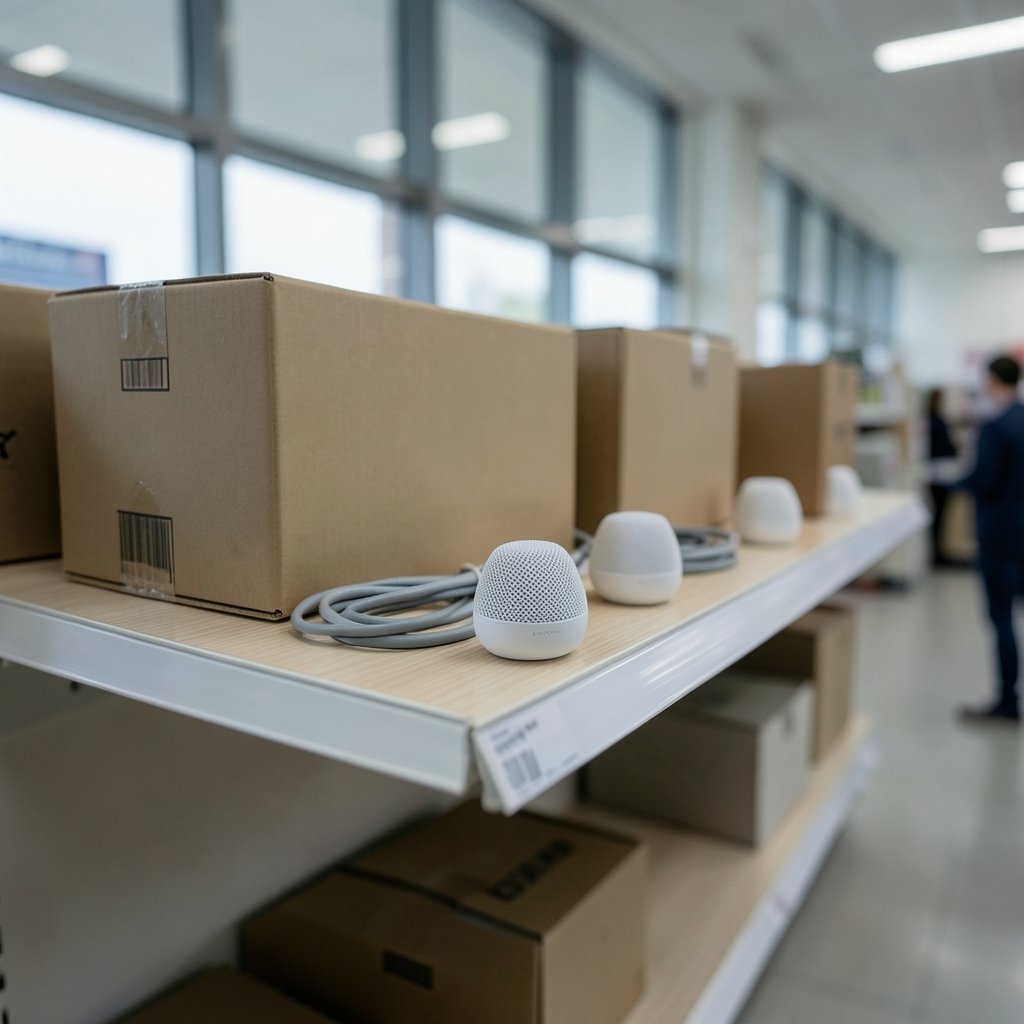
Quick Answer: What are the most common problems with mesh wifi and how do i fix them?
The most common mesh Wi-Fi problems are weak wireless backhaul between nodes, poor node placement, double NAT conflicts with ISP gateways, and older smart-home devices that refuse to join a combined network. Most of these are fixed in the app rather than with new hardware: move nodes closer together, switch the ISP modem into bridge mode, and split off a 2.4 GHz network for legacy gadgets.
Wired Ethernet backhaul is the alternative that eliminates the wireless bottleneck entirely, though it requires cabling and is not always practical in rented homes. Tri-band systems with a dedicated backhaul radio are a middle ground, but they cost more and still lose range through masonry walls and floors.
Before changing anything, compare backhaul type, node spacing, band steering settings, firmware version, 2.4 GHz channel congestion, and whether the ISP router’s own Wi-Fi is still broadcasting.
Every mesh system ships with a coverage promise printed on the box. In practice, a mesh kit advertised as covering 5,000 square feet often struggles past the second interior wall. That gap between marketing and reality is where most frustration begins, and it explains why so many people blame the hardware when the real culprit is placement, backhaul, or a setting buried three menus deep in a phone app. (Mesh networking)
Why Mesh Wi-Fi Disappoints So Often

Mesh systems were sold as the cure for dead zones, and in many homes they genuinely are. But the technology has structural limits that a glossy box never mentions. Each node that talks to another node over Wi-Fi shares airtime with the devices connected to it. Add a hop, and throughput at the far end drops noticeably. Add two hops, and a 4K stream starts to buffer.
The other issue is expectation. Mesh nodes are small, tidy, and easy to hide behind a sofa, which is exactly the wrong place for them. Radio waves do not care about interior design. A node tucked into a cabinet next to a microwave and a cordless phone base is being asked to do an impossible job.
Understanding the difference between a coverage problem and a capacity problem matters too. Coverage means signal does not reach. Capacity means signal reaches but the network cannot carry enough traffic. They have different fixes, and mixing them up wastes money on hardware that solves the wrong thing.
Problem 1: Weak Wireless Backhaul Kills Speed at the Edges
Backhaul is the link between your nodes. On dual-band systems, that link runs on the same 5 GHz radio your devices use, so every megabyte passing between nodes competes with your laptop. The result is a familiar pattern: fast speeds near the main router, disappointing speeds two rooms away.
The fix depends on your hardware. If your nodes have Ethernet ports, run a cable. Wired backhaul removes the bottleneck completely and is the single biggest upgrade most homes can make. If cabling is not an option, a tri-band system with a dedicated backhaul radio helps, because that radio carries node-to-node traffic only.
A cheaper trick: reduce the number of hops. Three nodes in a line means the far node relays through the middle one. Repositioning so every node connects directly to the main router, even if the physical spread looks less even, often produces better real-world results.
Problem 2: Nodes Placed Too Far Apart or Behind Obstacles
Vendors usually suggest placing nodes roughly one room apart, with as few walls as possible between them. That guidance varies by construction. A drywall partition barely registers; a brick or concrete wall can cut signal sharply, and a metal-backed insulation layer or a foil-faced radiator can block it almost entirely.
Common mistakes worth avoiding:
- Putting a node in a basement corner and expecting it to serve the floor above through a concrete slab.
- Hiding nodes in closets, cupboards, or behind the television.
- Placing a node right next to the main router, which adds nothing.
- Ignoring the app’s signal-strength indicator during setup and accepting an amber rating.
The fix is to place nodes in open space, at roughly waist-to-chest height, with a clear path back toward the main unit. Many mesh apps show a live signal score for each node. If a node reads weak, move it closer to the router, not further from the dead zone. Counterintuitive, but the node needs a strong link back before it can help anything in front of it.
Problem 3: Double NAT and Router-Behind-Router Conflicts
This one causes outages that look like magic. Port forwarding stops working. A work VPN refuses to connect. Online gaming shows strict NAT warnings. Voice calls drop. The cause is usually two devices both acting as routers: the ISP’s modem-router and the mesh system plugged into it.
The fix is to make exactly one device handle routing. Either set the ISP router to bridge mode and let the mesh system handle routing, or turn off routing on the mesh system and run it in access-point mode. Choose based on which device has better features and which one your ISP lets you reconfigure.
Worth noting: some ISP gateways lock bridge mode behind a support call. Ask for it explicitly, and if the agent does not understand the term, ask them to “disable the router function so the customer’s own router handles DHCP.” That phrasing usually lands.
If the symptom is a total failure to reach anything at all rather than a NAT quirk, the troubleshooting path overlaps with general connectivity faults covered in this guide to fixing a website that will not load — useful for separating a local network problem from an upstream one.
Problem 4: Smart-Home Devices That Refuse to Connect
Older smart plugs, robot vacuums, baby monitors, and Wi-Fi bulbs often support only 2.4 GHz. When a mesh system broadcasts one network name across both bands and relies on band steering to sort devices, some of those gadgets simply fail to join. The setup app spins, the device times out, and the user concludes the mesh system is broken.
The fix is to create a separate 2.4 GHz SSID, at least temporarily. Many mesh apps offer a dedicated IoT network or a band-split toggle. Connect the stubborn device to that network, then leave it there. Some systems also let you pause the 5 GHz radio for a few minutes during pairing, which is the least invasive option.
A related trap: mesh systems that require a cloud account and a phone app for basic configuration. If the vendor’s servers have an outage, local control can be limited. Check whether your system offers a local web interface before buying, especially if you work from home.
Problem 5: Devices Clinging to the Wrong Node
Roaming is supposed to be seamless. In reality, a phone in your pocket may stay connected to a distant node long after you have walked past a closer one, because the client decides when to switch. Support for the 802.11k, 802.11v, and 802.11r standards varies by device, and older hardware may not support them at all.
The fix is partly patience and partly tuning. Enable fast roaming in the mesh app if it exists. Reduce transmit power on the main router if the app allows it, which encourages clients to let go sooner. And accept that some devices, particularly cheap IoT hardware, will never roam gracefully. For a fixed device like a desktop or TV, wired Ethernet sidesteps the problem entirely.
Problem 6: Channel Congestion and Interference
In a dense neighborhood, the 2.4 GHz band is a crowded party. Auto-channel selection on mesh systems is often mediocre, picking a channel that looks clear at setup and stays there while neighbors change theirs. The 2.4 GHz band only has three non-overlapping channels, so overlap is common.
The fix is manual. Use a Wi-Fi analyzer app on a phone to see which channels are busiest, then set the 2.4 GHz radio to channel 1, 6, or 11 — whichever is least crowded. Leave 5 GHz on auto in most cases, since it has far more channels and shorter range. Also move nodes away from microwaves, cordless phone bases, baby monitors, and fish tank heaters, all of which emit noise in the 2.4 GHz range.
According to the FTC’s guidance on securing a home Wi-Fi network, router settings deserve periodic review anyway, and channel and firmware checks fit naturally into that routine.
Problem 7: Stale Firmware and Forced App Dependence
Mesh systems live and die by their firmware. Early releases ship with bugs, and vendors patch them quietly. A system that worked fine in March can develop roaming glitches in June after an automatic update nobody noticed.
The fix is boring but effective: check for firmware updates monthly for the first year, then quarterly. Read the release notes if the app shows them. If an update breaks something, most systems allow a rollback or a factory reset followed by restoring a saved configuration.
There is a broader lesson here about connected devices and update hygiene. The same discipline applies to the software running on your laptop, as covered in this walkthrough on fixing antimalware service executable high CPU usage — background processes and stale builds cause more grief than most people expect.
Problem 8: The ISP Router’s Wi-Fi Is Still Broadcasting
Two networks in one home create confusion. The ISP router keeps broadcasting its default SSID while the mesh system broadcasts its own. Devices switch between them. Printers disappear. Guests join the wrong one.
The fix is to disable the ISP router’s Wi-Fi radios once the mesh system is running, or set the ISP router to bridge mode as described earlier. Then give the mesh network a clear, memorable name. A short, distinctive SSID prevents accidental lookalike names, and this guide to choosing a good Wi-Fi name covers naming conventions that make networks easier to identify at a glance.
Problem 9: Ethernet Backhaul Sitting Unused
Plenty of mesh owners never realize their nodes have Ethernet ports. Many kits include them, and some support wired backhaul on day one. Running a single cable to a distant node can transform performance, and it costs far less than a new tri-band kit.
The fix is to check the spec sheet. If the ports exist, use them. MoCA adapters can reuse existing coaxial cable runs, and powerline adapters work as a fallback in homes where drilling is not an option, though their real-world throughput varies widely with electrical wiring quality.
Problem 10: Coverage Claims That Ignore Real Walls
Marketing square footage assumes open-plan space. Real homes have corridors, load-bearing walls, and floors. A system rated for 5,000 square feet may cover 2,500 square feet of a 1930s brick house comfortably.
The fix is to size the system to the building, not the number on the box. Buy from a retailer with a generous return window, test thoroughly in the first two weeks, and return the kit if it cannot reach the rooms that matter. Mesh systems are not magic; they are radios in small plastic cases.
A Practical Diagnostic Order
When something feels wrong, work through this sequence before spending money:
| Step | Check | Typical Finding |
|---|---|---|
| 1 | App signal score per node | One node rated weak |
| 2 | Backhaul type | Wireless where Ethernet is possible |
| 3 | ISP router mode | Double NAT active |
| 4 | Band steering | Legacy device failing to join |
| 5 | Channel congestion | 2.4 GHz overlap with neighbors |
| 6 | Firmware version | Several releases behind |
Most homes find their answer in the first three rows.
Conclusion
Mesh Wi-Fi is not broken technology, but it is unforgiving technology. It rewards careful placement, wired backhaul where possible, and a willingness to open the app and change three settings. The problems that generate the most complaints — slow edge speeds, stubborn smart devices, mysterious NAT failures — almost always trace back to configuration rather than defective hardware.
The practical path forward is unglamorous: place nodes closer than feels necessary, cable them if you can, put exactly one device in charge of routing, and keep the firmware current. Do those four things and most mesh systems perform far closer to their promise. Skip them, and even a premium kit will feel like a disappointment.
Frequently Asked Questions
Do mesh Wi-Fi systems actually work through brick walls?
They work, but with reduced range and throughput. Brick, concrete, and stone absorb far more signal than drywall. In a masonry home, expect each node to cover roughly one room rather than the open-plan figures in marketing materials. Placing nodes in doorways or along corridors helps signal pass between rooms more efficiently.
Is a tri-band mesh system worth the extra cost?
It depends on whether you can run Ethernet. If wired backhaul is possible, a dual-band system performs excellently and costs less. If every node must connect wirelessly and you have several nodes, a tri-band system with a dedicated backhaul radio reduces the speed penalty at distant nodes. For a two-node setup in a small home, tri-band is often overkill.
Why does my mesh network slow down in the evening?
Evening slowdowns usually point to congestion, either from neighbors’ networks or from your own household’s peak streaming. On 2.4 GHz, try manually setting channel 1, 6, or 11. On 5 GHz, check whether the mesh app allows a channel width change from 160 MHz to 80 MHz, which can improve stability in crowded areas even if peak throughput drops slightly.
Can I mix mesh nodes from different brands?
Generally no. Mesh nodes are proprietary and only communicate with units from the same product line. Some vendors support cross-model mixing within their own ecosystem, but standards-based multi-vendor mesh is still limited in consumer gear. Buying a second node from a different brand usually produces two separate networks rather than one extended one. (Protecting Consumer Privacy and Security)
How many mesh nodes does a typical home need?
Most apartments and smaller houses do fine with two nodes: one at the router and one at the far end. Homes above roughly 2,500 square feet, or multi-level homes with masonry walls, often need three. Adding more nodes than necessary can actually hurt, because extra nodes create more backhaul hops and more channel contention.
Does mesh Wi-Fi replace my existing router entirely?
In most setups, yes. The main mesh unit becomes the router, and the ISP router should go into bridge mode so it stops routing. Some people keep the existing router and run the mesh system in access-point mode; that works as long as only one device handles DHCP and NAT.



