

Your home network is probably busier than you think. A single household today can easily run a dozen or more connected devices at once, and every one of them is quietly pulling data in the background. When the internet bill climbs or the connection crawls during a video call, the first question is almost always the same: which device is eating all the bandwidth?
Finding out is not as hard as it sounds, but it does require picking the right tool for the job. Some methods give you byte counts, others give you domain names, and a few give you almost nothing useful. This guide walks through what actually works, what doesn’t, and the mistakes people make when they try to track traffic for the first time.
Why Per-Device Monitoring Is Trickier Than It Looks
Here’s the uncomfortable truth: most people assume their internet provider can tell them which device is using data. In practice, ISPs typically report only aggregate household usage, not a per-device breakdown. Your provider sees one pipe coming into the home, not the individual gadgets behind the router.
That means the monitoring has to happen inside your network, not at the provider level. And that’s where the real options begin.
There’s also an encryption problem. Most web traffic now travels over HTTPS, and a growing share of DNS queries are encrypted too. Network-level monitors can still see connection metadata — which device talked to which server, and how much data moved — but they can’t see the contents of that traffic. Anyone promising full visibility into every app and website on a stock router is overselling.
Method 1: Start With Your Router
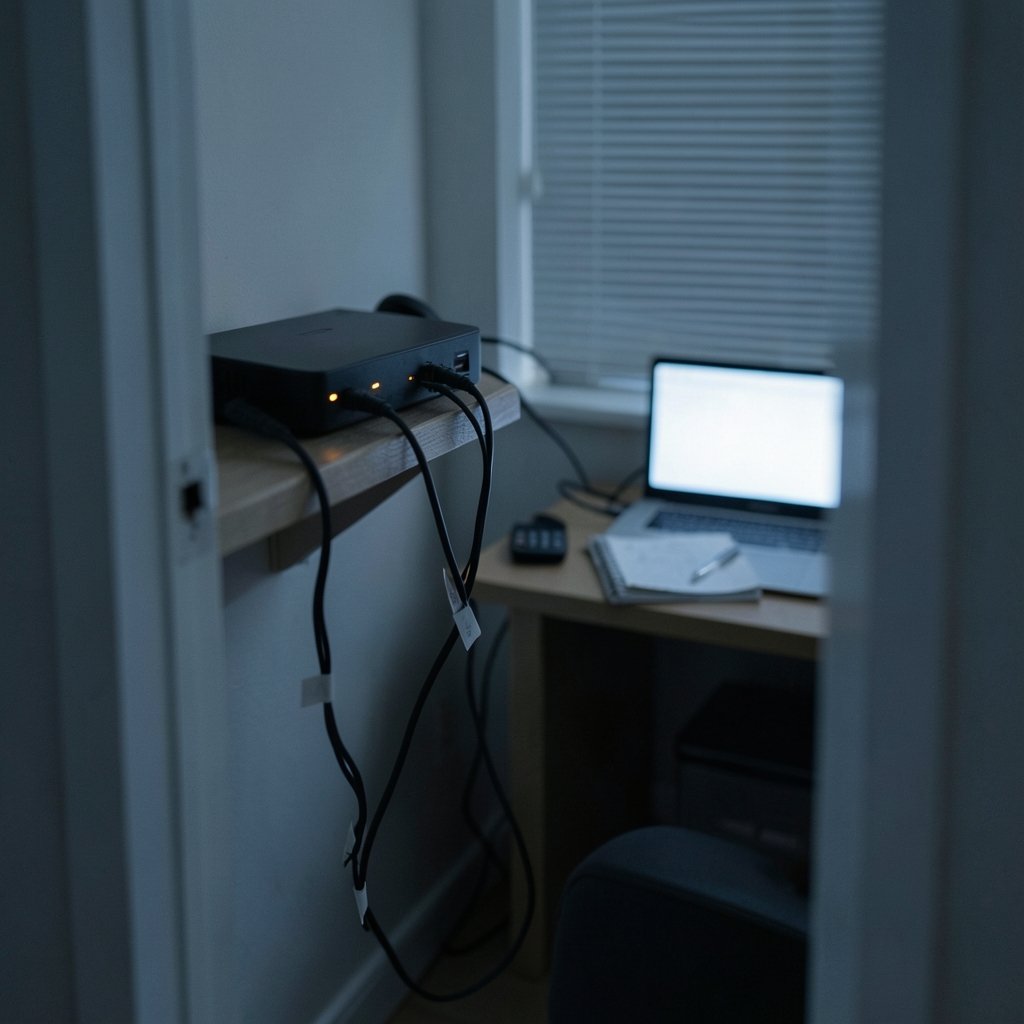
The router is the natural chokepoint. Every device in the home passes through it, so it’s the logical place to look first.
Many consumer routers include a connected-devices list and some form of per-device data counter. The catch is that features vary wildly by model and firmware. A router from one brand might show a clean per-device usage graph, while a similar-priced model from another brand shows nothing but a list of MAC addresses.
What to check in your router admin panel
- Log in to the router’s admin page (usually found via the gateway IP address — knowing how to find your IP address on any device helps here).
- Look for sections labeled Traffic Statistics, Data Usage, QoS, or Bandwidth Monitor.
- Match each entry to a device using MAC addresses or hostnames.
- Note whether counters reset on reboot — many do, which makes long-term tracking unreliable.
A common mistake is expecting the router to label devices clearly. Most show cryptic hostnames or bare MAC addresses, so it’s worth renaming devices in the admin panel as you identify them. That single step saves hours later.
If you want a more capable router, look for models that support per-device bandwidth limits and traffic logging out of the box. For households where gaming and streaming compete for bandwidth, the right router matters as much as the plan itself — the same logic behind picking the best internet for gaming applies here: the hardware has to keep up with what you’re asking it to do.
Method 2: Use Built-In Operating System Tools
You don’t always need extra software. The devices themselves often keep useful records.
| Platform | Where to look | What you get |
|---|---|---|
| Windows | Settings > Network & Internet > Data Usage | Per-app data totals, reset monthly |
| macOS | System Settings > Network | Interface-level counters, not per-app by default |
| iOS | Settings > Cellular | Per-app cellular data only |
| Android | Settings > Network > Data usage | Per-app mobile data, limited Wi-Fi detail |
The Windows Data Usage panel is genuinely useful. It has existed since Windows 10 and breaks down data by app, which is often more actionable than by device. If one machine is the culprit, this tells you which program is responsible. (Data Security)
The limitation is obvious: these tools only report on the device you’re looking at. To build a full picture, you’d have to check every device individually. That’s fine for a two-person household and painful for a family of five.
Method 3: Third-Party Monitoring Apps
Dedicated monitoring tools fill the gaps that routers and operating systems leave. Programs like GlassWire and NetLimiter have long offered per-app and per-device visibility on Windows, with features like real-time graphs, firewall rules, and alerts when a device exceeds a threshold.
A few practical notes from experience with these tools:
- They run on a host machine. A monitor installed on one PC sees that PC’s traffic in detail, and can often see other devices on the network only at a coarser level.
- Pricing and platform support shift constantly. Check current terms before committing.
- Free tiers are usually limited. Expect caps on history, device count, or alert features.
The biggest mistake here is installing a monitor and expecting it to magically identify every device. Most tools need you to confirm which MAC address belongs to which gadget before the reports become readable.
Method 4: DNS-Level Monitoring
Pointing your devices at a logging DNS resolver gives you something different: domain-level visibility rather than byte counts. A home Pi-hole or a commercial DNS filtering service will show you which domains each device requested.
This is excellent for answering questions like “is something on my network phoning home at 3 a.m.?” It’s poor for answering “how many gigabytes did the TV use last month?” DNS tells you where traffic went, not how much of it there was.
Encrypted DNS (DoH and DoT) complicates this further. If devices bypass your resolver using their own encrypted DNS, your logs go quiet. Sources disagree on how much visibility remains once encryption is in play, so treat DNS monitoring as one lens, not the whole picture.
Method 5: Parental Controls and Device Management
For families, the built-in parental control suites are often the most practical option. Apple’s Screen Time (introduced with iOS 12 in 2018) and Google’s Family Link both provide per-device app and screen-time reporting, and both have grown to include network-related controls.
For organizations, mobile device management (MDM) suites go further, enforcing per-device network policy and logging. Security logging guidance from standards bodies such as NIST frames this as part of a broader monitoring program rather than a standalone tool.
The advantage of these systems is that they’re designed for consent-based oversight. The disadvantage is that they’re tied to a platform ecosystem — mixing Apple, Google, and Windows devices means juggling three dashboards.
A Step-by-Step Approach That Actually Works
Rather than picking one method, layer them. Here’s a sequence that produces usable answers without buying much:
- Inventory your devices. List everything connected, including smart TVs, consoles, and IoT plugs.
- Label them in the router. Rename each device so reports become readable.
- Enable router traffic stats if available, and note whether they persist across reboots.
- Add OS-level checks on the busiest machines to identify specific apps.
- Layer in DNS logging if you want to see destinations instead of only volumes.
- Cross-reference. A device showing high volume plus a DNS log full of video domains tells a clear story.
This layered approach matters for security too. Odd traffic patterns are often the first sign of a compromised device, which is why monitoring pairs naturally with good hygiene like fixing a high CPU antimalware service or choosing solid internet security in Australia if that’s your market. (Internet usage)
Common Mistakes to Avoid
Assuming the ISP will tell you. As noted, they usually won’t. Plan for in-home monitoring.
Trusting a single dashboard. Router stats miss encrypted DNS. DNS logs miss byte counts. OS tools miss other devices. No single view is complete.
Ignoring counter resets. Many routers wipe statistics on reboot or firmware update. If you need monthly totals, record them manually or use a tool with persistent storage.
Skipping device identification. MAC addresses are meaningless until you map them. Do this early.
Monitoring without consent. This is the big one. Monitoring family members, employees, or tenants without appropriate consent can violate wiretap and privacy laws, and the rules vary significantly by country and state. Consumer privacy guidance from regulators such as the FTC emphasizes transparency and consent. Workplace monitoring rules differ again. Get the legal picture before deploying anything covert.
Expecting content-level detail. With HTTPS everywhere, you’ll see destinations and volumes, not page contents. Adjust expectations accordingly.
What About Bandwidth Hogs Specifically?
If the goal is simply to stop one device from ruining everyone’s connection, QoS (Quality of Service) settings are often more useful than monitoring. Most mid-range routers let you prioritize traffic by device or application, capping the offender without needing to identify it precisely.
The practical workflow: monitor long enough to identify the culprit, then apply a limit. Monitoring tells you who; QoS handles what to do about it. For households running game consoles and streaming boxes side by side, this combination is usually enough. If you’re comparing setups for retro gaming handhelds and consoles, the same bandwidth discipline applies — see this breakdown of EmuDeck 2.7 vs ES-DE 3.5 vs RetroDeck by device for how device choice affects network demands.
One more angle worth knowing: if you’re trying to trace where content originated — say, a suspicious image or file — that’s a different task entirely. Tracking down duplicate images on the internet uses reverse-image search rather than network monitoring, though both fall under the same digital-forensics umbrella.
How Much Detail Do You Really Need?
Before building an elaborate monitoring stack, ask what question you’re trying to answer.
- “Why is my connection slow?” → Router stats plus QoS is enough.
- “Which app is using data?” → OS-level tools on the suspect device.
- “Is something suspicious happening?” → DNS logging plus router device lists.
- “How much data did each device use this month?” → A dedicated monitoring tool with persistent storage, or manual monthly readings.
Matching the tool to the question prevents the classic over-engineering trap, where someone installs three overlapping apps and still can’t answer a simple question.
Conclusion
Monitoring internet usage by device is entirely doable, but it rewards realistic expectations. Your provider won’t hand you a per-device report. Your router might, depending on the model. Your operating system will, for its own traffic. And DNS logging will show you destinations that byte counters never reveal.
The reliable formula is layered: label your devices, pull what your router offers, add OS-level detail where it matters, and use DNS logs for destination visibility. Add a monitoring app only if you need history and alerts. And before monitoring anyone else’s device, sort out consent and the applicable law — that step is not optional.
Start with the router tonight. Rename three devices. You’ll learn more in ten minutes than in a month of guessing.
Frequently Asked Questions
Can my internet provider tell me which device uses the most data?
Usually not. Providers typically report only total household usage. Per-device breakdowns require monitoring inside your own network, through the router, operating system tools, or third-party software.
Do I need to buy special hardware to monitor per-device usage?
Not necessarily. Many routers include basic traffic statistics, and every major operating system has built-in data usage tools. Dedicated hardware or monitoring software becomes worthwhile when you need long-term history, alerts, or visibility across many devices.
Why can’t I see which websites each device visits?
Because most traffic is encrypted. Network monitors can typically see which servers a device connects to and how much data moves, but not the content of pages or messages. DNS logging can reveal domain names, though encrypted DNS can limit even that.
Is it legal to monitor internet usage on my home network?
Monitoring your own devices is generally fine. Monitoring other adults, employees, or tenants without consent can violate privacy and wiretap laws, and the rules vary by jurisdiction. Check local regulations and be transparent with the people on your network.
What’s the fastest way to find a bandwidth hog?
Open your router’s admin panel and look for a real-time traffic or bandwidth monitor. If your router lacks one, check the Data Usage section on each device’s operating system. Often the culprit is a streaming device, a game console downloading updates, or a cloud backup running in the background.
Does a VPN stop me from monitoring my own network?
A VPN hides traffic destinations from your router and DNS logs, so you’ll still see volume but lose detail on where data is going. If a device on your network uses a VPN, expect less visibility rather than none.



