
What would happen if someone guessed your password right now? For most people, the answer is uncomfortable: one leaked credential could expose email, banking, social media, and work systems at once. That is exactly why a multi-factor authentication setup has moved from “nice to have” to baseline hygiene. This guide walks through how MFA actually works, which methods are worth your time, and how to configure it without locking yourself out.
Why Passwords Alone Keep Failing
Passwords fail for boring, predictable reasons. People reuse them. They appear in breach dumps. They get typed into convincing fake login pages. Attackers do not need to break encryption when they can simply buy a list of credentials and try them across dozens of sites, a technique called credential stuffing.
MFA interrupts that chain by demanding a second proof: something you know (a password), something you have (a phone, a security key), or something you are (a fingerprint or face). Even a stolen password becomes far less useful when the attacker cannot produce the second factor.
The standards world agrees. The NIST SP 800-63B digital identity guidelines define Authenticator Assurance Levels and require MFA at the higher levels, which is why government systems and enterprise tenants increasingly enforce it by default. Microsoft, for example, has been phasing in mandatory MFA for admin portals and Azure tooling, and Google has auto-enrolled users in two-step verification since 2021. The direction is clear: MFA is becoming the floor, not the ceiling.
The Main MFA Methods, Ranked by Real-World Strength
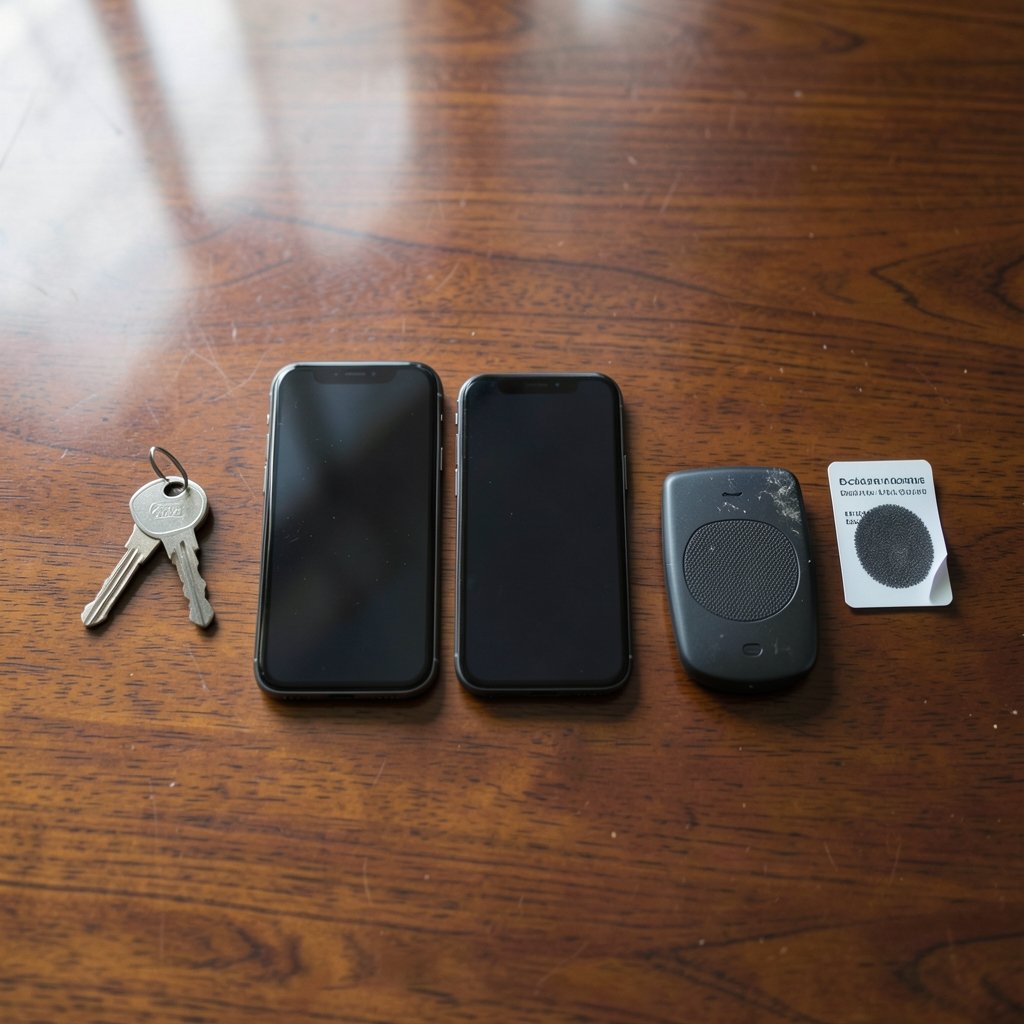
Not all second factors are created equal. Before you start clicking through settings, it helps to know what you are choosing.
| Method | How it works | Phishing resistance | Practical verdict |
|---|---|---|---|
| SMS or voice codes | A one-time code arrives by text or call | Low | Better than nothing, but the weakest option |
| Authenticator app (TOTP) | An app generates a rotating 6-digit code | Low to moderate | Solid everyday choice for most accounts |
| Push notification | You approve a prompt on your phone | Low to moderate | Convenient, but vulnerable to prompt bombing |
| Passkeys / FIDO2 security keys | A cryptographic key bound to the site’s real domain | High | Best available option where supported |
| Hardware tokens with PIN | Physical device plus a PIN | High | Strong, common in high-risk roles |
The technical backbone of app-based codes is TOTP, defined in the IETF’s RFC 6238 standard: a six-digit code that changes every 30 seconds, derived from a shared secret and the current time. It works offline, needs no signal, and is supported almost everywhere. That combination is why it remains the default recommendation for personal accounts.
Passkeys and FIDO2 security keys are built on the W3C’s WebAuthn standard. Their key advantage is phishing resistance: the credential is cryptographically tied to the legitimate domain, so a lookalike login page simply cannot use it. CISA has pushed phishing-resistant MFA as the gold standard for high-risk accounts, and for good reason. If your email or financial accounts support passkeys, enroll one.
Before You Start: Three Habits That Prevent Lockouts
Here is where most people stumble. They enable MFA in a hurry, lose the backup method, and end up locked out of an account they desperately need. Avoid that with three simple rules.
First, enroll at least two authenticators. Add your primary method and a backup. If your phone dies or gets replaced, the backup saves you.
Second, store recovery codes offline. Print them or save them in a password manager’s secure notes, not in a screenshot on the same phone that generates your codes. Recovery codes are single-use, so note which ones you have spent.
Third, test before you trust. After setup, sign out and sign back in once. Confirm the second factor actually prompts and that your backup works. Five minutes of testing beats a week of account recovery.
One common mistake deserves a warning: enabling MFA on an account whose recovery email is the same account. If you lose access, the recovery loop goes nowhere. Make sure recovery contacts are separate and current.
Setting Up MFA on Your Most Important Accounts
Start with the accounts that control access to everything else: your primary email, your password manager, and your banking. If email falls, every “reset password” link falls with it.
Step-by-Step for a Typical Account
- Open the account’s security settings and find the two-step or two-factor section.
- Choose an authenticator app rather than SMS when offered.
- Scan the QR code with your authenticator app, or enter the setup key manually if scanning fails.
- Enter the generated code to confirm the pairing.
- Download and store recovery codes somewhere offline.
- Add a backup method, such as a second device or a security key.
- Sign out and back in to verify everything works.
If you want a deeper walkthrough of the individual methods, this breakdown of what multi factor authentication is covers the concepts, while a step-by-step guide on how to enable two factor authentication handles the platform-specific clicks. (Multi-factor authentication)
Email and Password Managers First
Your email is the master key to your digital life. Enable MFA there before anywhere else. Password managers deserve the same treatment, and many now support passkeys or hardware keys as a second factor. Yes, it feels odd to protect the tool that protects everything, but that is precisely the point.
Work Accounts and Admin Portals
If you manage cloud infrastructure, expect enforcement whether you like it or not. Microsoft’s Entra documentation describes how MFA works across tenants and admin portals, and many organizations now require conditional access policies that demand a second factor based on location, device, or risk level. If you administer developer tooling, the same logic applies to editors and API consoles; a guide to VS Code extensions Cursor setup 2026 is a useful reminder that productivity tools hold credentials too.
Common Mistakes That Weaken Your Setup
Even well-intentioned MFA setups leak strength through small errors. Watch for these.
Relying on SMS alone. SMS codes can be intercepted through SIM-swap attacks, and NIST treats them as a restricted authenticator. Use them only as a fallback.
Approving push prompts without reading them. MFA fatigue attacks work by spamming approval requests until a tired user taps “approve.” If your provider supports number matching, turn it on. If prompts arrive you did not trigger, deny them and change your password.
Ignoring legacy app passwords. Some older apps cannot handle MFA and use static app passwords instead. Those passwords bypass your second factor entirely. Audit them and remove what you do not need.
Forgetting the second device. A backup factor that lives only on one phone is not a backup. Add a tablet, a hardware key, or a printed code set.
Skipping the recovery codes. This is the single most common cause of self-inflicted lockouts. Store them.
MFA Beyond the Basics: Passkeys, APIs, and Automation
Once the fundamentals are in place, you can raise the ceiling. Passkeys are spreading fast because they remove the friction that made people avoid MFA: no codes to type, no prompts to approve. The FIDO Alliance publishes deployment and UX guidance for organizations rolling them out, and consumer platforms have followed.
For developers and technical users, MFA also matters at the API layer. Service accounts, cloud consoles, and AI platform dashboards often hold billing access and sensitive data. If you are wiring up a new integration, treat credential handling as part of the job; a walkthrough of Mistral large 4 api setup 2026 shows how API keys and access controls fit into a broader security posture. The same principle applies to gaming and hobby projects that use cloud backends: a guide to PlayFab multiplayer servers setup 2026 is a good example of developer consoles where account security deserves attention.
Retro gaming setups deserve a mention too, if only because emulator and ROM communities are full of sketchy downloads. Protecting the accounts tied to those communities with MFA is cheap insurance; resources like Pokemon fire red cheats emulator setup 2026 and Pokemon pinball ruby sapphire mgba rumble setup 2026 are the kind of pages people visit before downloading files, so verify sources and keep your accounts locked down. Even emulator front-ends have configuration surfaces worth securing; see RetroArch cheats PC setup 13 steps 2026 for an example of how much configuration lives in these tools.
How to Choose the Right Method for Each Account
A simple tiering system works well in practice.
| Account type | Recommended primary | Recommended backup |
|---|---|---|
| Email, banking, password manager | Passkey or hardware key | Authenticator app plus printed codes |
| Work and admin consoles | Passkey or push with number matching | Hardware key |
| Social media and shopping | Authenticator app | SMS as last resort |
| Low-risk forums and hobbies | Authenticator app | Recovery codes |
The logic is straightforward: the more damage a compromise causes, the more phishing-resistant the factor should be. High-value accounts deserve hardware-backed protection. Low-stakes accounts can get by with TOTP.
What to Do After Setup
Enabling MFA is a one-time task; maintaining it is ongoing. Review your enrolled methods every few months, especially after changing phones. Remove old devices and stale app passwords. Check whether your provider now supports passkeys, since support expands constantly. And if a breach notification arrives, change the password immediately even though MFA is on; the second factor reduces risk, it does not erase it. (Cybersecurity Best Practices)
It also helps to think about the human side. If you manage a team, expect pushback: MFA adds seconds to every login. The fix is not to weaken the policy but to pick methods with less friction. Passkeys and number matching tend to win people over faster than a lecture about security.
Conclusion
A multi-factor authentication setup is one of the highest-return security habits available, and it takes less time than most people expect. Start with email and your password manager, choose an authenticator app or passkey over SMS, enroll a backup factor, and store recovery codes offline. Then test the whole thing before you need it. The goal is not perfect security; it is making a stolen password dramatically less useful to whoever ends up holding it. Do the setup once, review it occasionally, and the rest of your digital life gets noticeably harder to break into.
Frequently Asked Questions
Is MFA really worth the hassle?
Yes, for almost everyone. The inconvenience is a few extra seconds per login, while the protection covers the most common attack path: stolen or guessed passwords. The accounts most worth protecting are the ones that can reset everything else, starting with email.
Which MFA method is the most secure?
Phishing-resistant methods are the strongest. Passkeys and FIDO2 security keys bind the credential to the real website domain, so fake login pages cannot capture them. Authenticator apps are a solid second choice, and SMS is the weakest common option.
What happens if I lose my phone?
That depends on your backup setup. If you enrolled a second device, a hardware key, or saved recovery codes, you can regain access. This is why enrolling at least two factors and storing recovery codes offline is non-negotiable.
Can I use the same authenticator app for multiple accounts?
Yes, and most people do. A single authenticator app can hold dozens of accounts, each with its own entry. Just make sure the app itself is protected, ideally with a passcode, biometrics, or its own second factor.
Does MFA stop phishing completely?
No. Push notifications and one-time codes can still be captured by convincing fake pages or worn down through prompt bombing. Phishing-resistant factors like passkeys close that gap, which is why security guidance increasingly recommends them for high-risk accounts.
How often should I review my MFA settings?
A few times a year is reasonable, and always after changing phones or jobs. Remove devices you no longer use, delete unused app passwords, and check whether your provider now supports passkeys. A quick review keeps your setup from quietly weakening over time.